Inspera – Get your results
This guide describes how to view your results on a completed digital exam in Inspera.
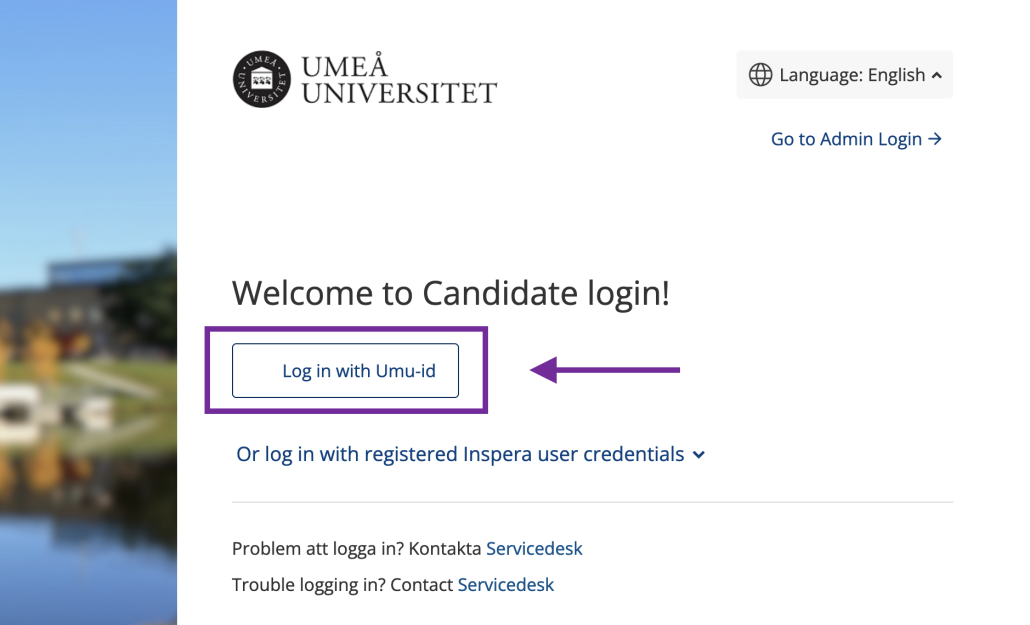
- Open a browser and navigate to the adress https://umu.inspera.com/
- Log in with your Umu-id
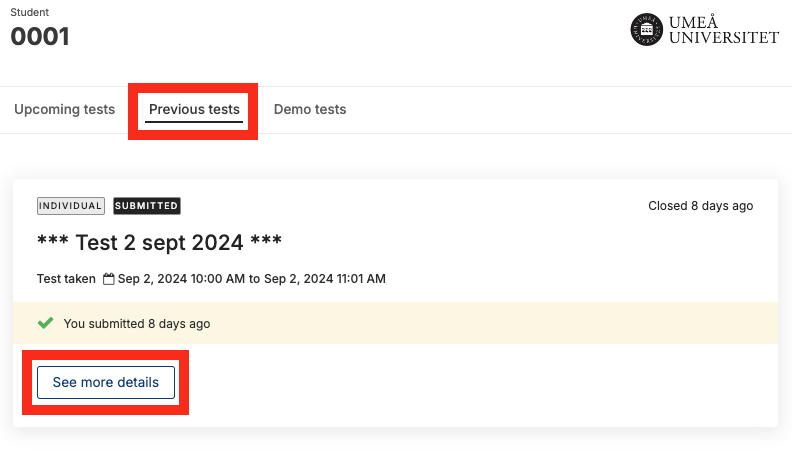
- Click on ”Previous tests” (1) and then on ”See more details” (2) to see grades, points and
submitted answers.
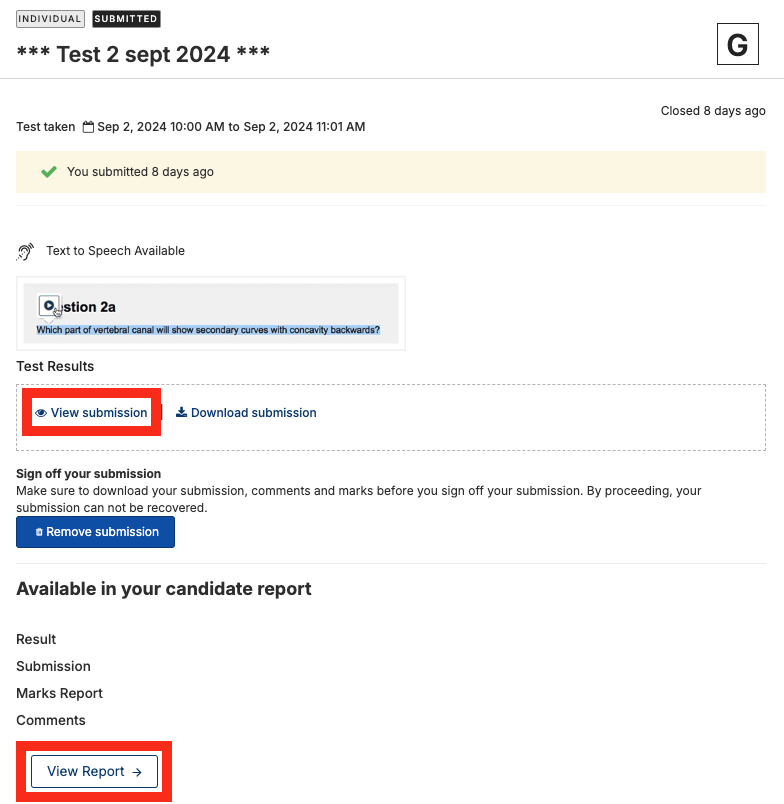
- Here you can view your submission. Click on “View report” to see more information (grade, feedback, marks) for your test.
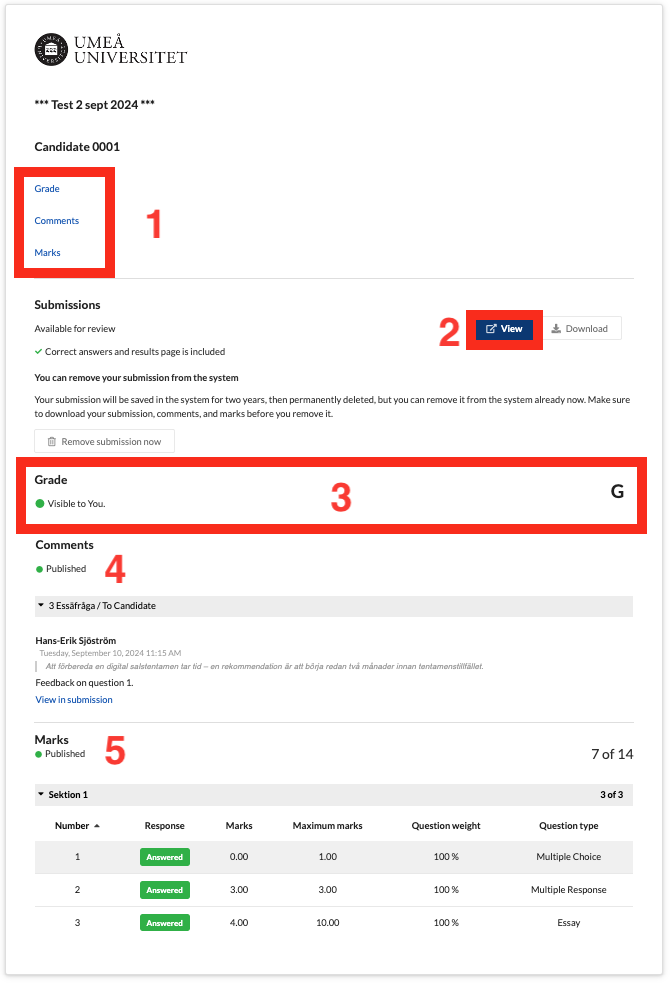
- In the results overview, a summary of your assessed exam is displayed. Here you will find quick links to Grade, Comments, and Marks (1). By clicking the ‘View’ button (2), you can see your submitted answers, (3) shows your grade, under the ‘Comments’ heading (4) any comments from the assessor are listed, and at (5) you can see the total score and marks per question.