Download and install Microsoft 365
As a student and employee, you have access to the Microsoft 365 package. This includes Word, Excel, and PowerPoint.
Software is available for Windows, Mac, and phone/tablet.
This guide will help you download and install Microsoft 365 from the Microsoft 365 portal, select your operating system below for instructions.
If your computer is client-managed, you will find the installation for Microsoft 365 in the Company Portal program.
As a student or employee of Umeå University you have access to the Microsoft Office 365 package. Included in the package are Word, Excel, PowerPoint as well as other programs.
This software is for Windows, MacOS as well as telephone/tablet.
Step 1 – Sign in
In your internet browser, go to http://m365.umu.se/ and login with your UMU-id.
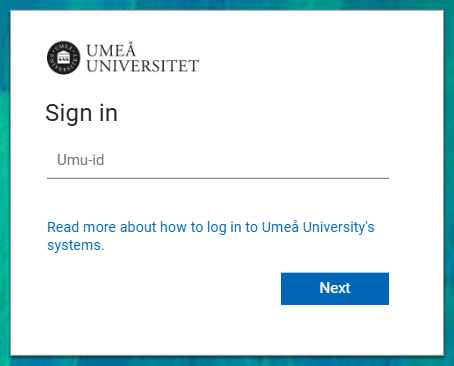
Follow the on screen instructions.
Step 2 – Download the installation file
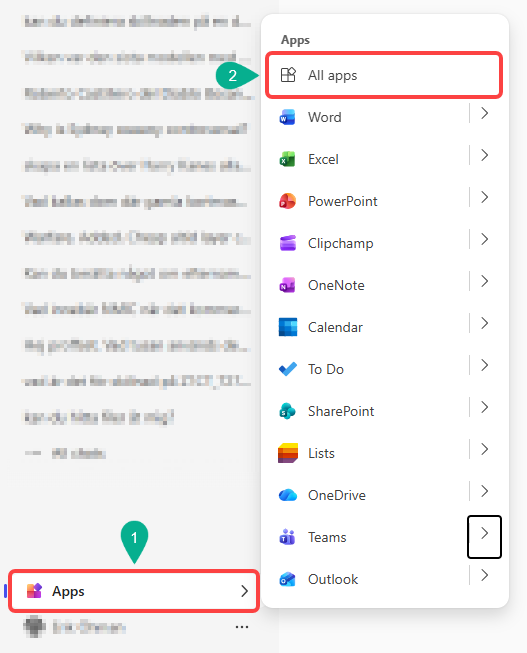
Once logged in to the Microsoft 365 portal, first click on Apps  and then All apps
  at the bottom left of the page.
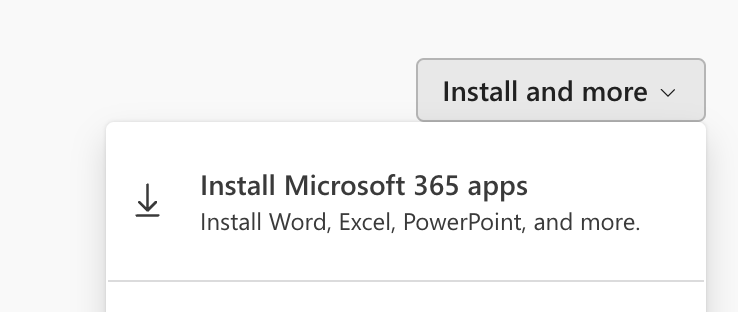
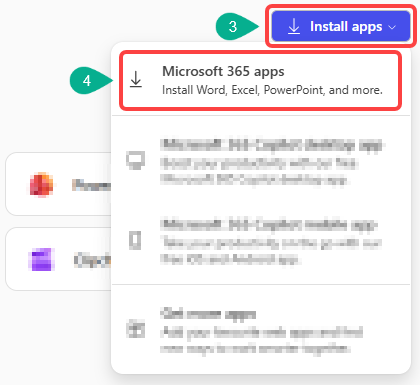
Click Install apps 3️⃣ in the top right corner and click Microsoft 365 apps 4️⃣.
On next page click on Install Office. You may get a question asking if you want to accept the download, click Accept.
Click on Save file (can sometimes say Drive, depending on which browser). See instructions at your screen.
Step 3 – Install
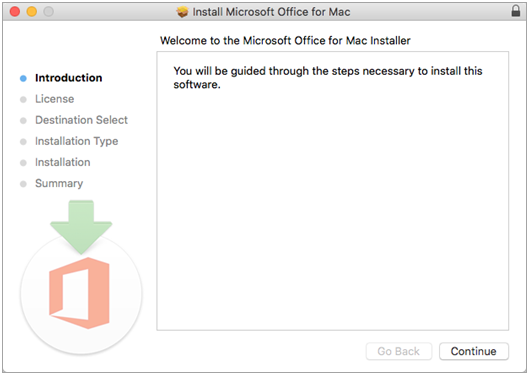
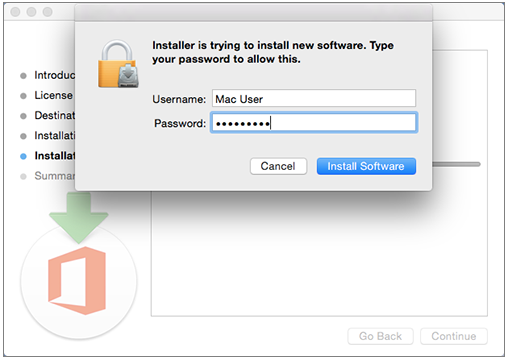
Click Yes when you get asked if it’s okey for Microsoft to be installed.
Wait for Office to get downloaded and installed.
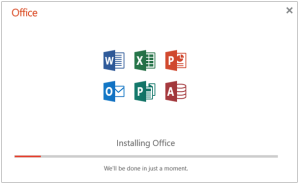
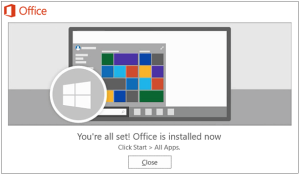
When it’s finished, this will pop up:
Step 4 – Activate licence
To activate Office, you need to open an app in Office on your computer.
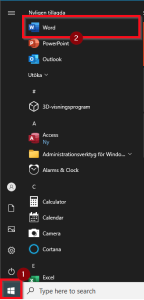
When you’re asked to log in, write your Umu-ID and password.
You will get asked if you want to be logged in on all apps, click on No, only on this app.
Click on Accept.