Manual

Manual
  • Svenska
  • Menu Menu

Configure Outlook with an M365 account

Updated:2026-01-29|Published:2023-02-16

Manuals that describe how to set up email in Outlook on different operating systems/devices. Select yours below for instructions.

Windows

This guide shows you how to set up an account for the first time with a AD-connected Windows computer.

Do notice that the guide bellow is done with Office 365

If you are using an older verison of Office (2013,2016,2019) then these steps could look different, the recommendation from UMU is to upgrade your Office version to Office 365 if you are using an mailaccount on Microsoft 365

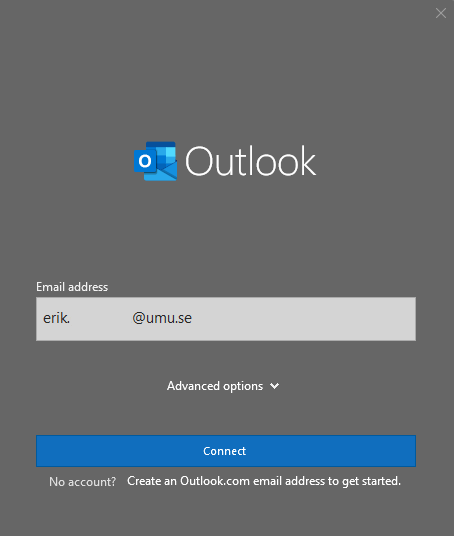
1. Start Outlook, enter you UMU mailadress, ex: test.testsson@umu.se and click on Connect.
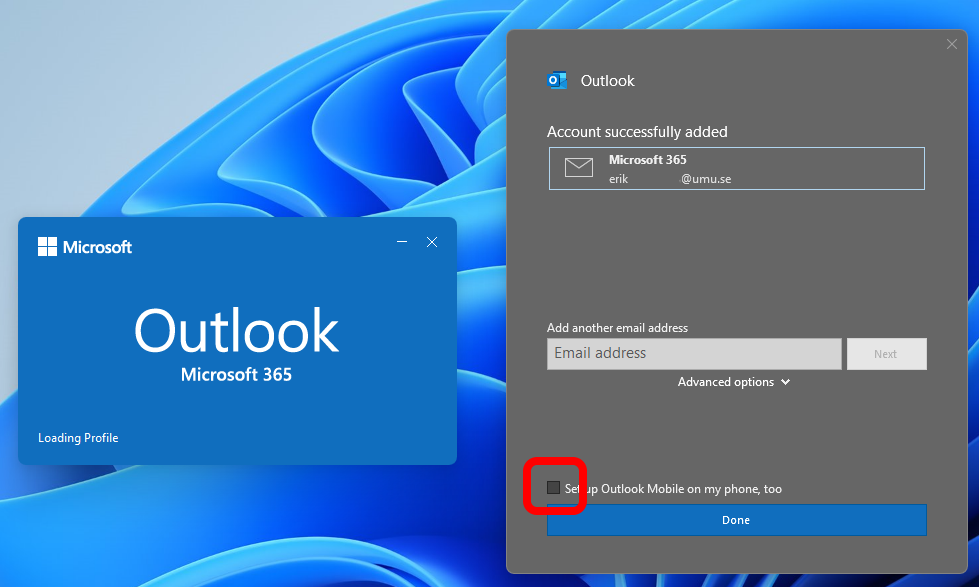
2. The Account should be added automaticlly, deselect “Set up Outlook Mobile on my phone, too” and click Done.
3. Outlook should continue and your newly added account will start to load, it can take some time before all your emails are searchable.
macOS

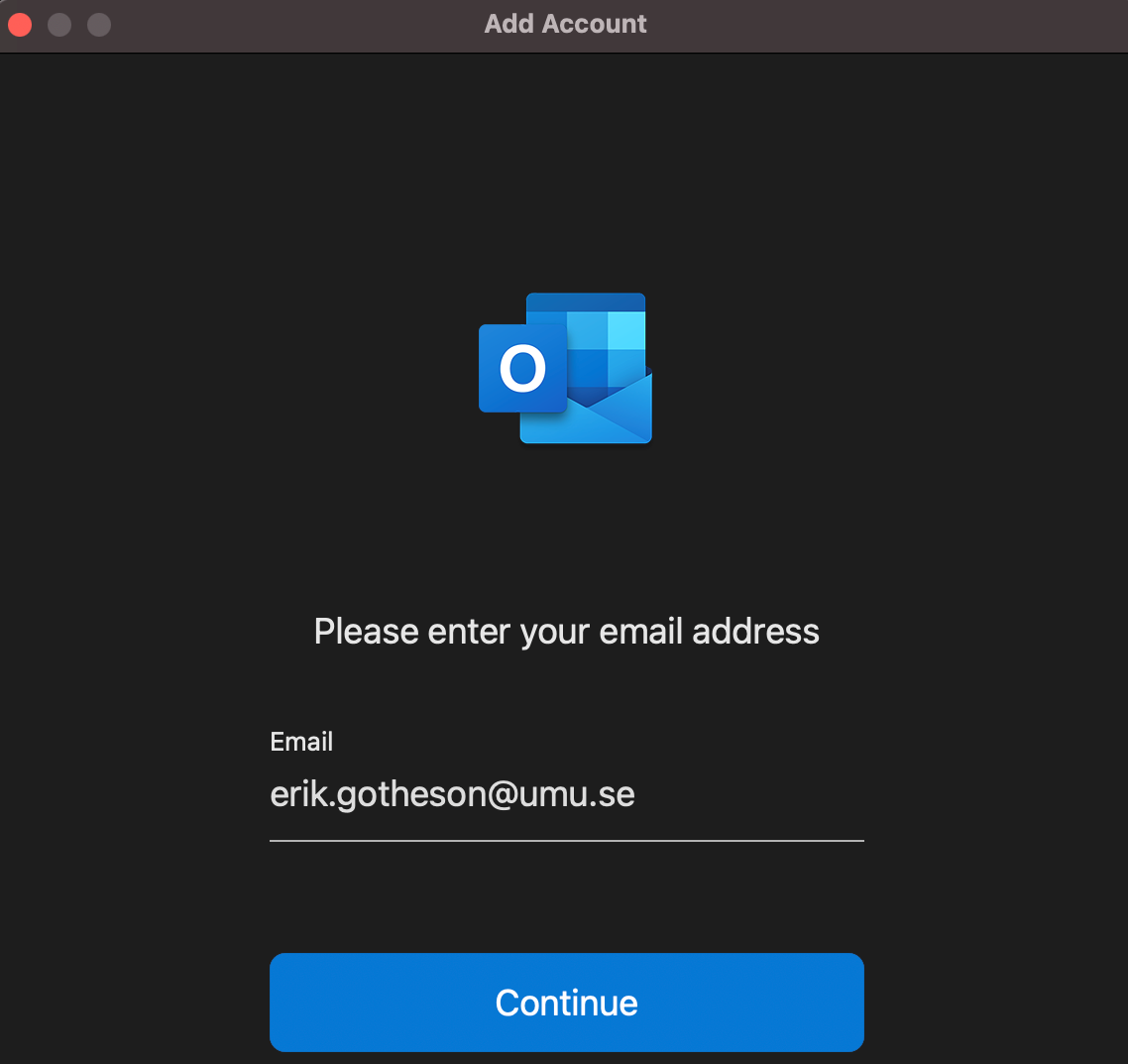
1. Start Outlook and enter your emailadress.

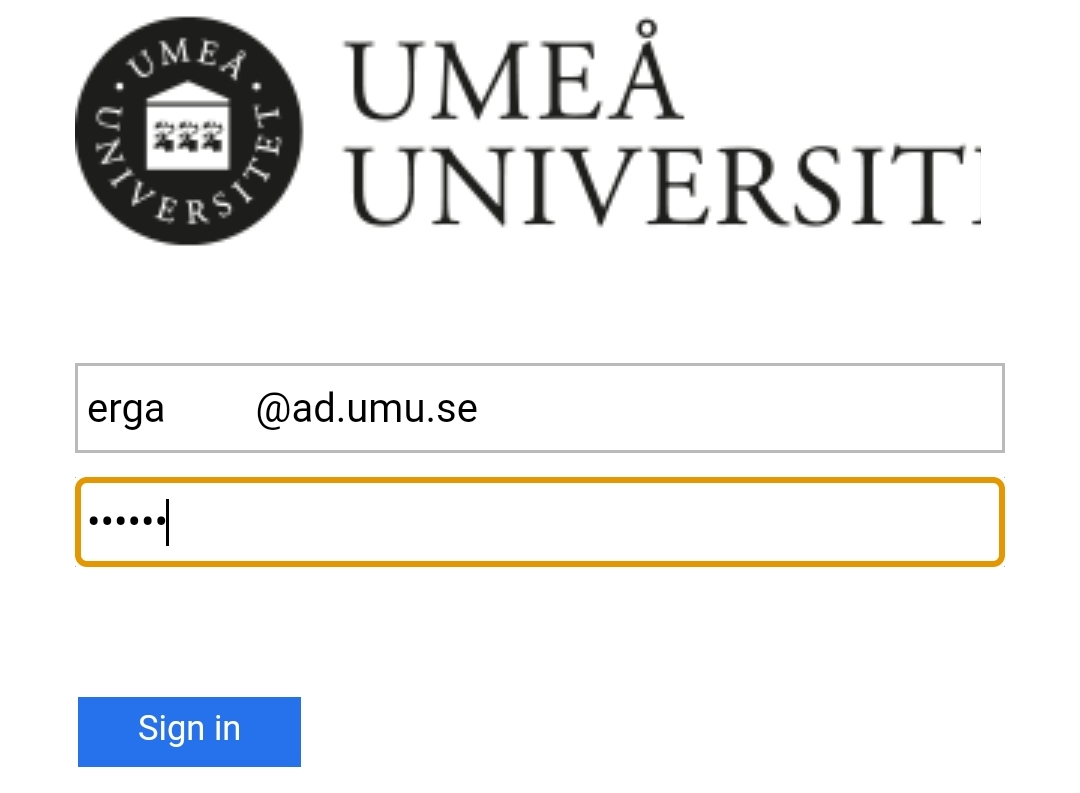
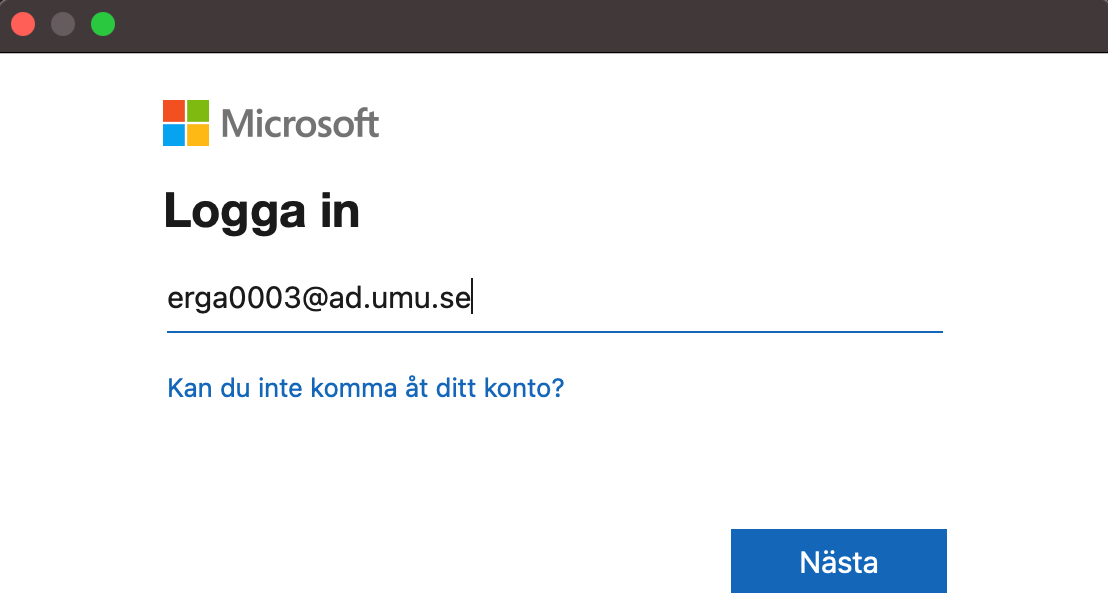
2. Enter UMUid@ad.umu.se, ex abcd1234@ad.umu.se and click Next.

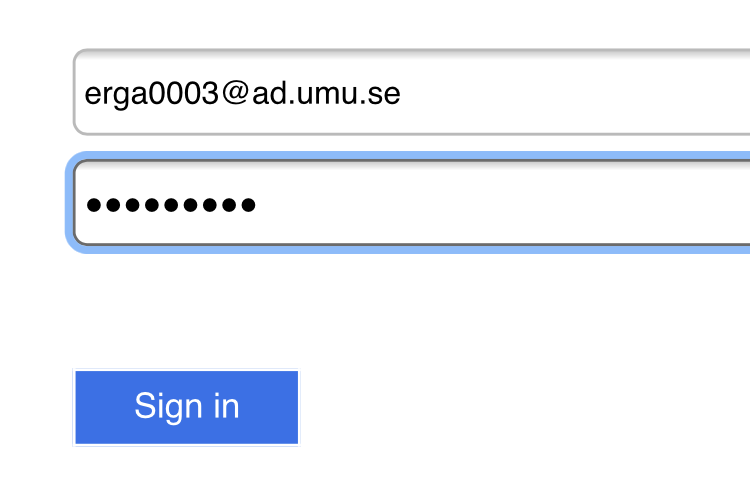
3. You should now be redirected, enter you password for your UMUid and click Sign in.

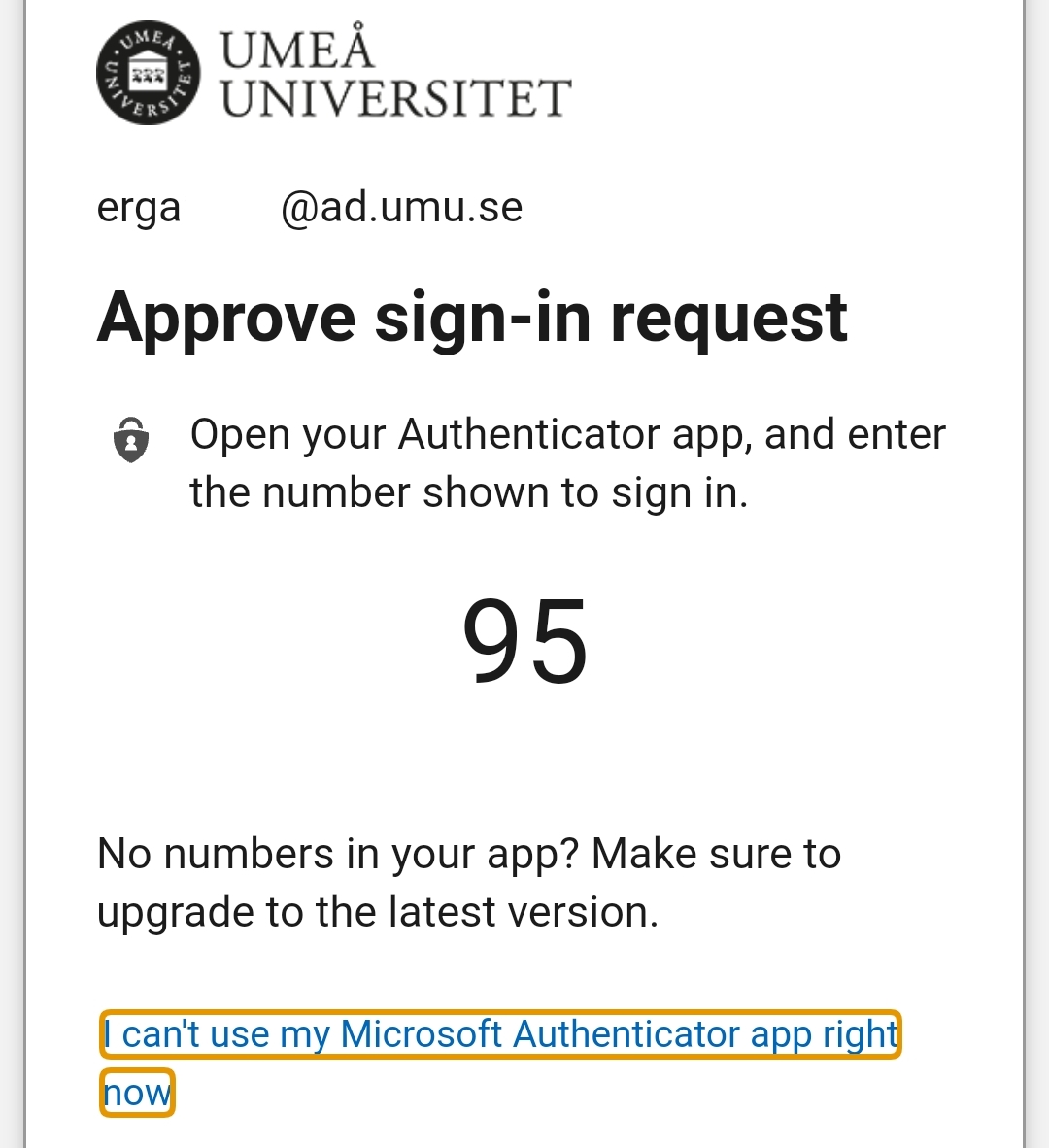
4. If you have MFA activated, confirm the login on your device.

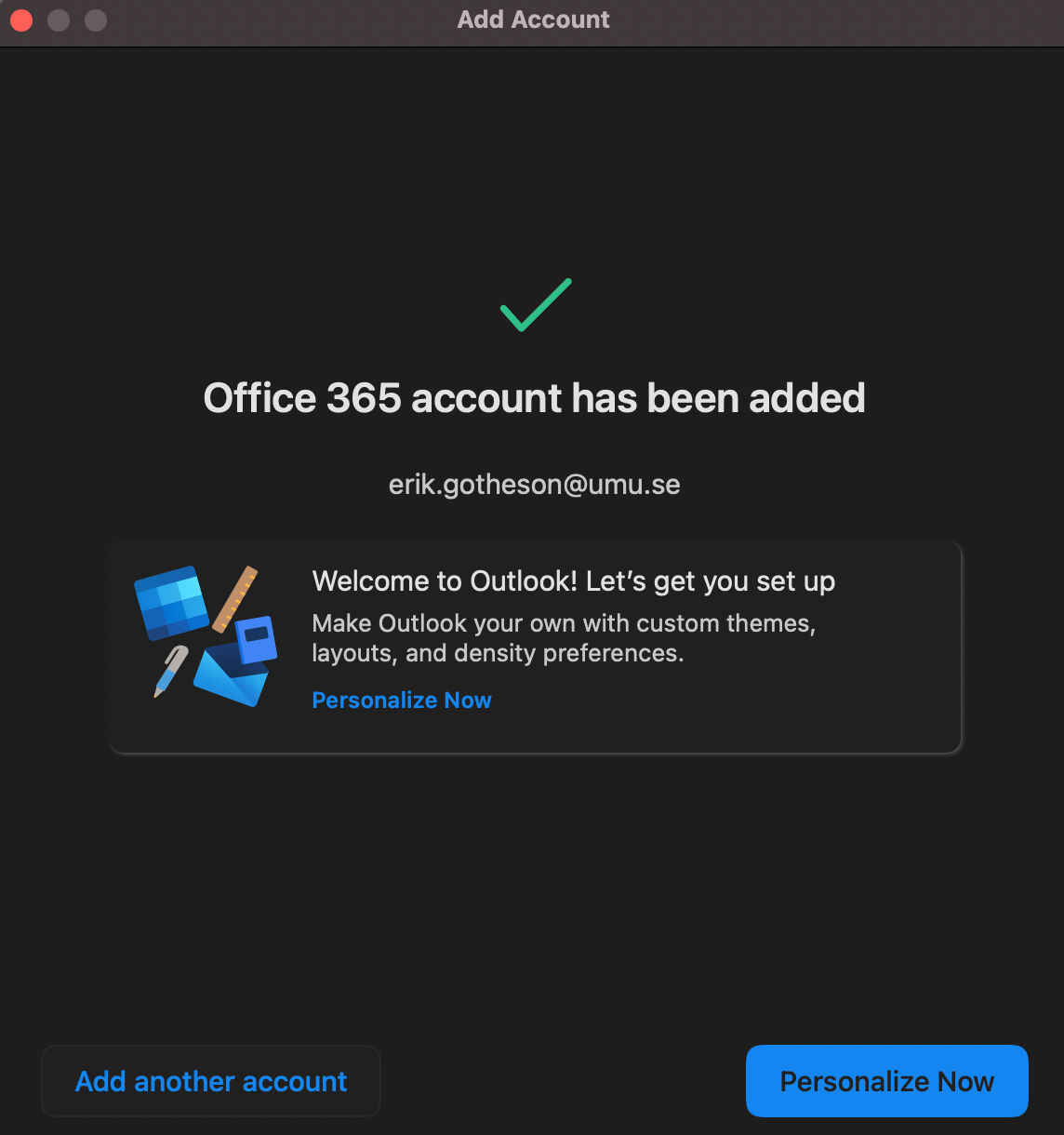
5. Your account should be ready for use, click the red button i your left corner.

iOS/iPadOS

1. Start with downloading Outlook in the App Store.


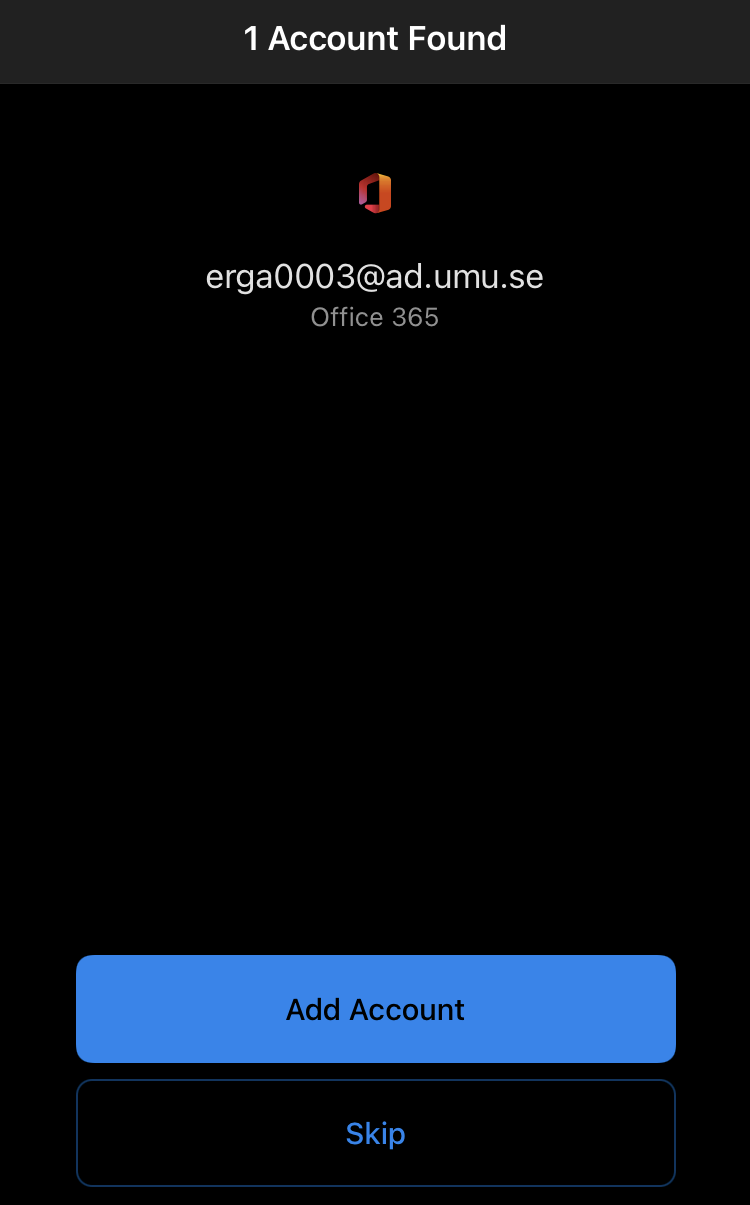
2. If you have MS Authenticator installed and your UMUid is already active on your device your account should be automatically found.

If so click Add Account and Outlook should sort out the rest.

If not, jump to step 3.

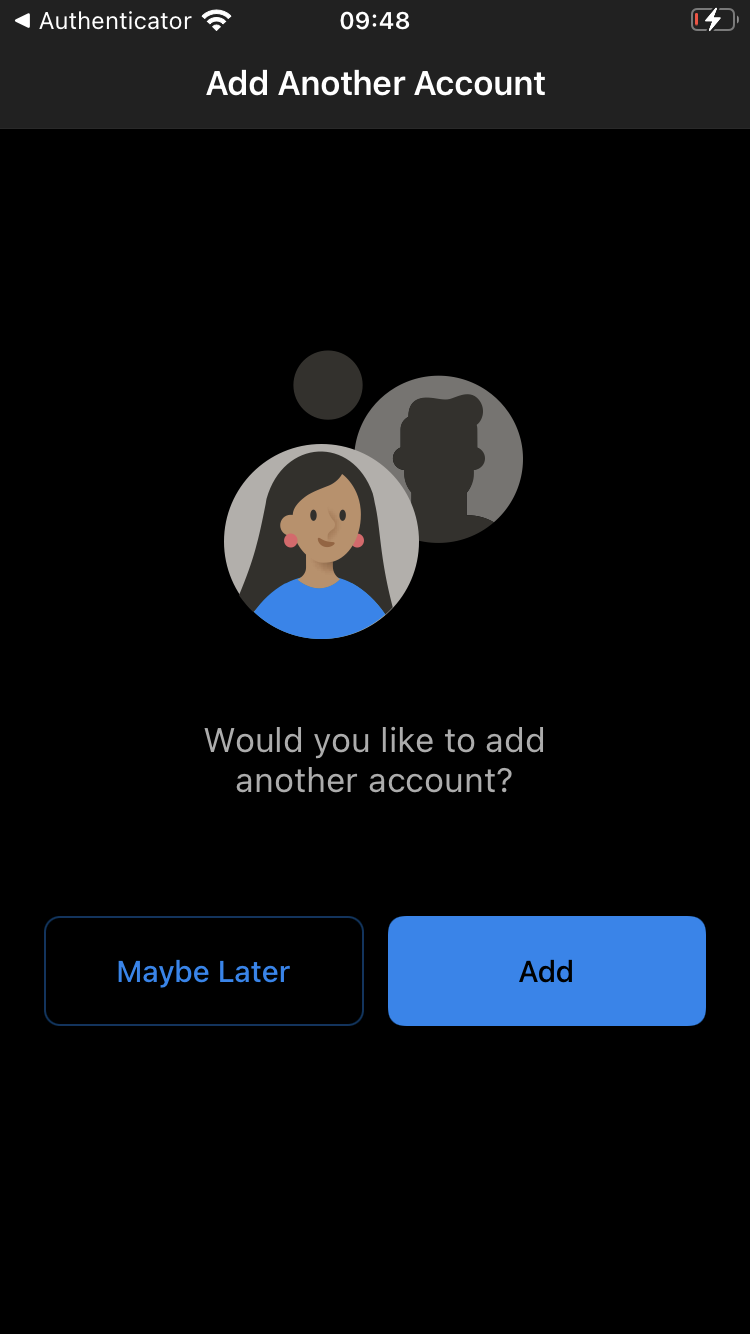
3 If no account is found, there should be a question if you want to add an account, press add

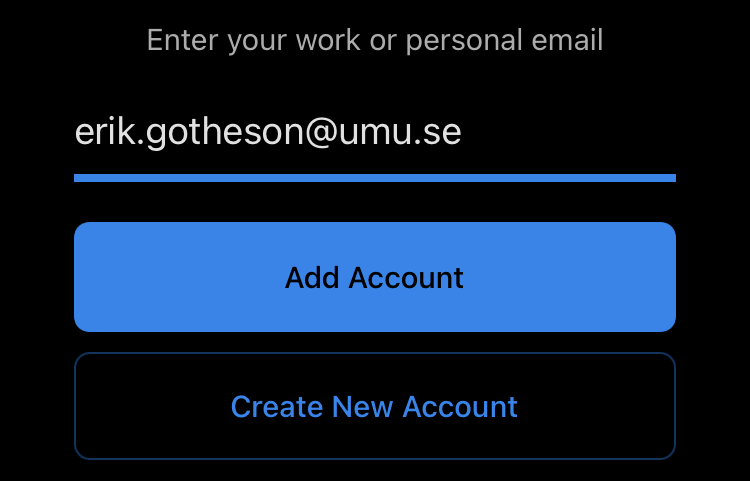
4 Enter your UMU email address.

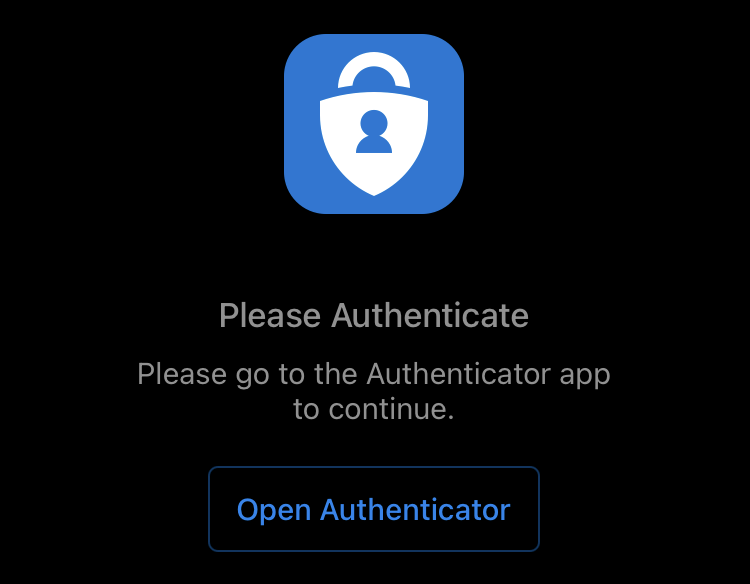
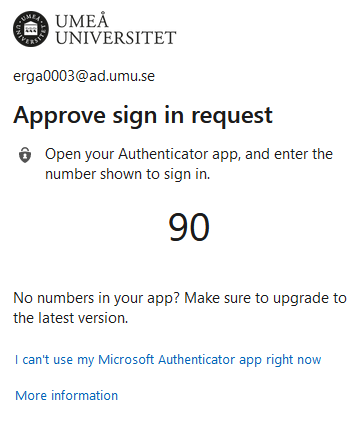
5 If you have MFA activated you will be asked to open your authenticator and accept.

6 You could be redirected to an login page to Microsoft, enter your UMUid and @ad.umu.se like this: UMUid@ad.umu.se

7 If entered correctly you’ll be redirected to the login page for UMU, enter your username and password

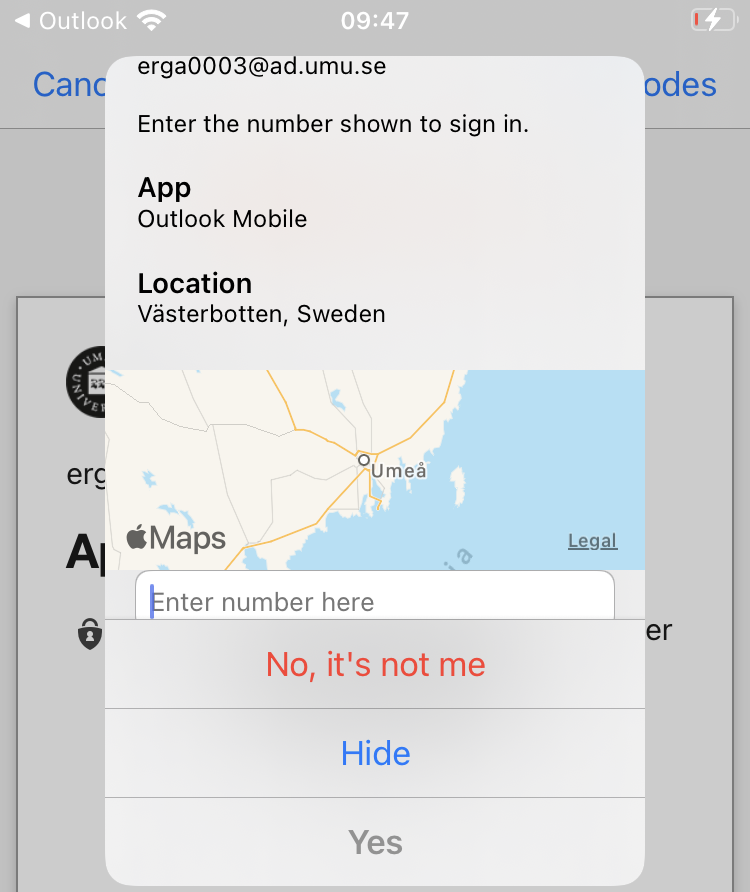
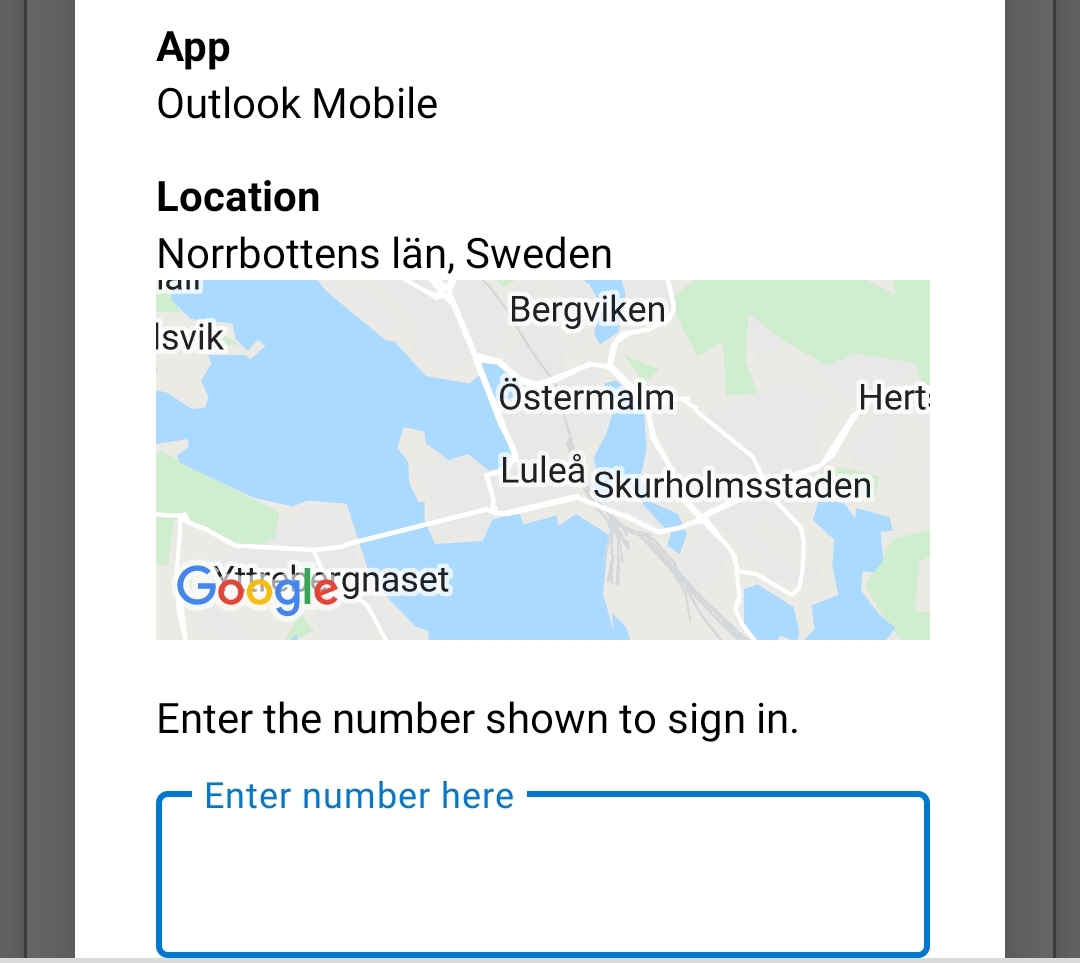
8 If you try to add your outlook account with the same device you have MFA on you will have to click on Hide to see the numbers after 5 seconds the popup will appear again and you will be able to enter the code.

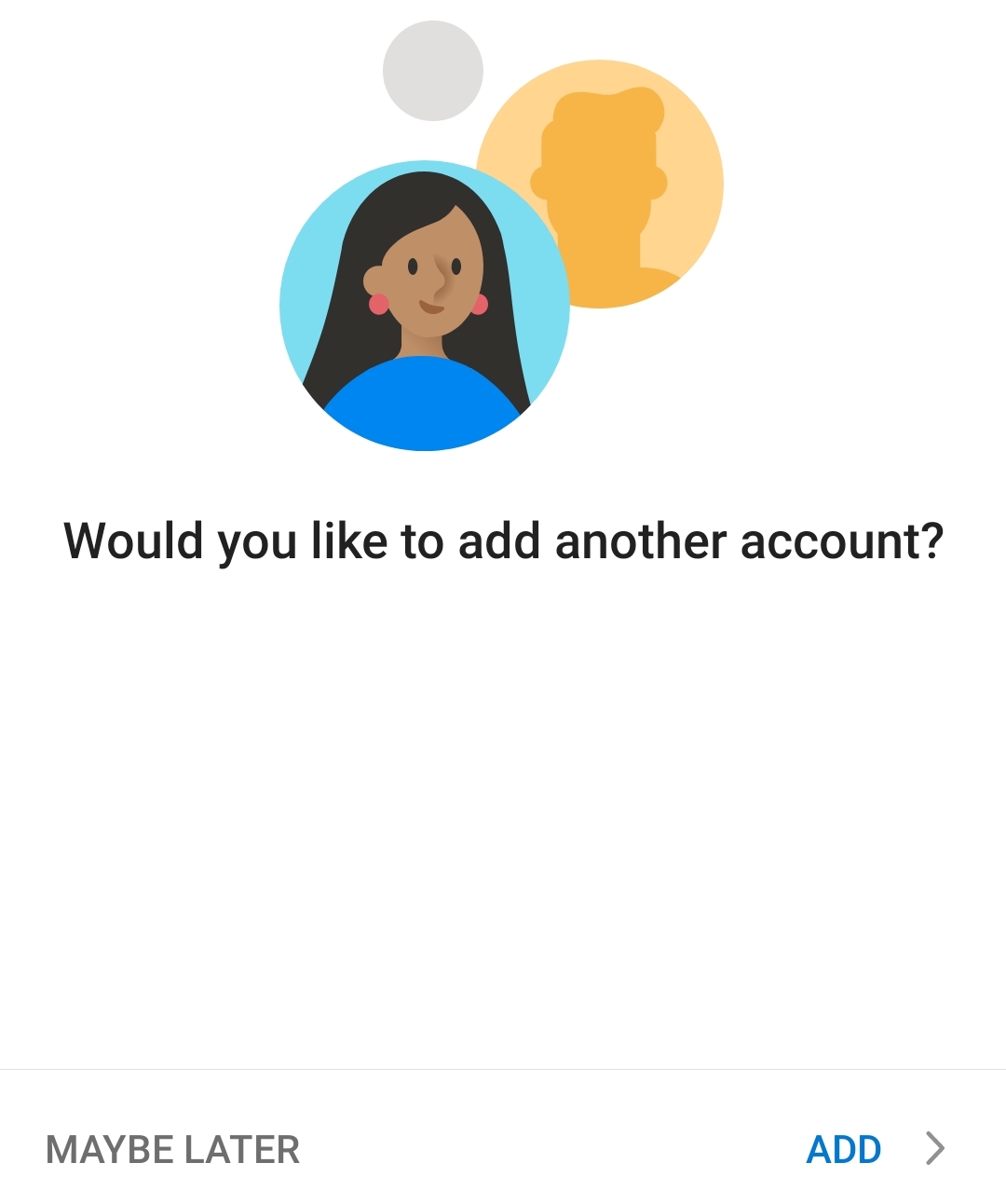
You’re done, Outlook will ask to add an additional account, just choose maybe later.

Android

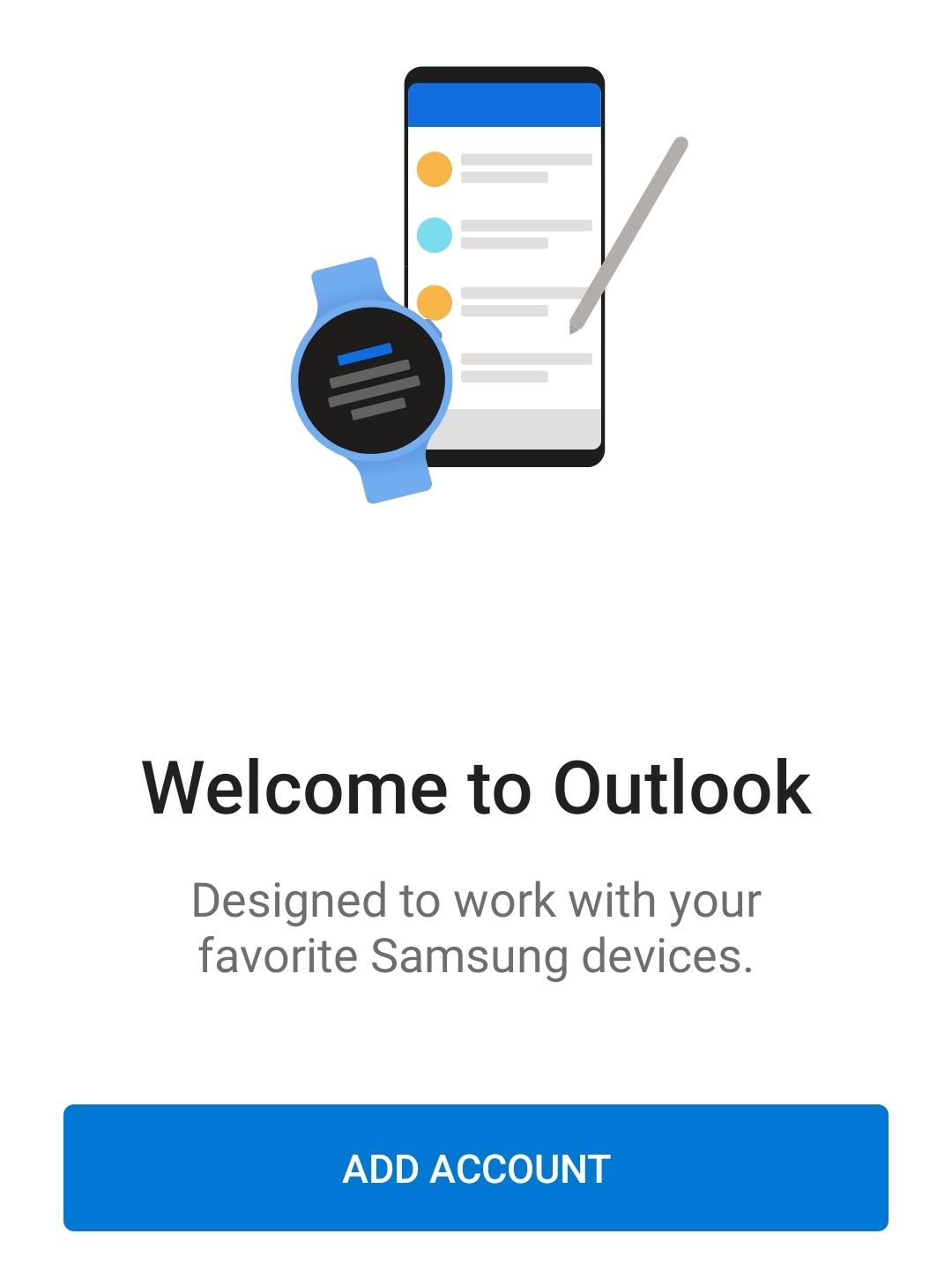
1. Start with downloading Outlook in the Play Store.

2. If you have MS Authenticator installed and your UMUid is already active on your device your account should be automatically found.

If so click Add Account and Outlook should sort out the rest.
If not, jump to step 3.

3 If no account is found, there should be a question if you want to add an account, press add account.

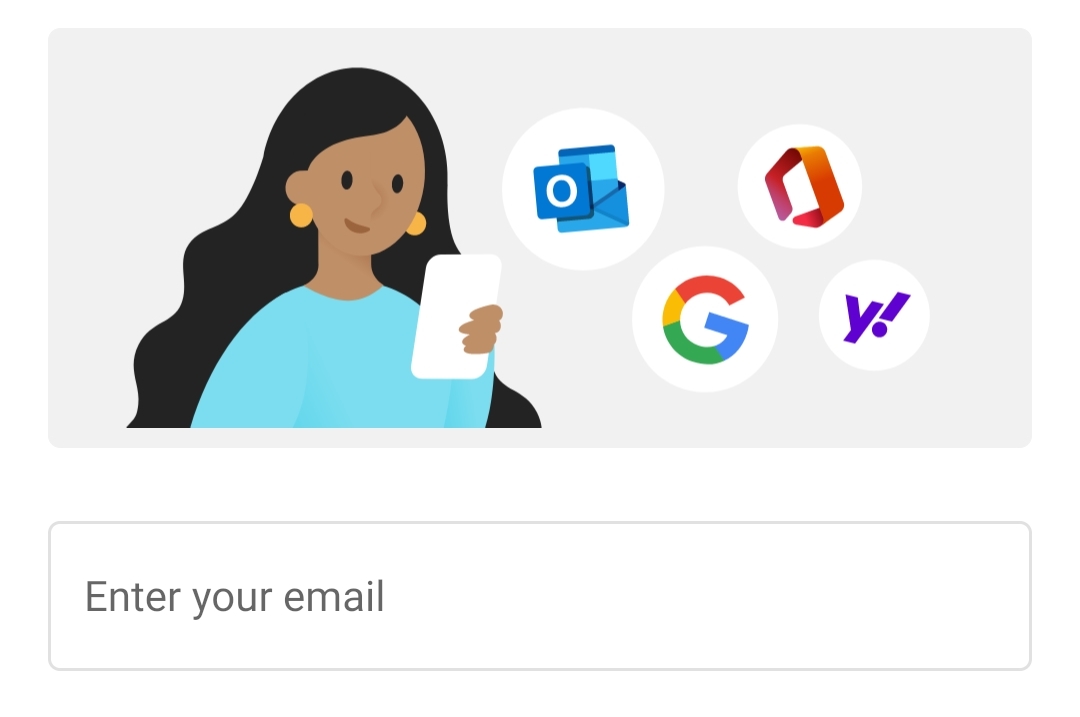
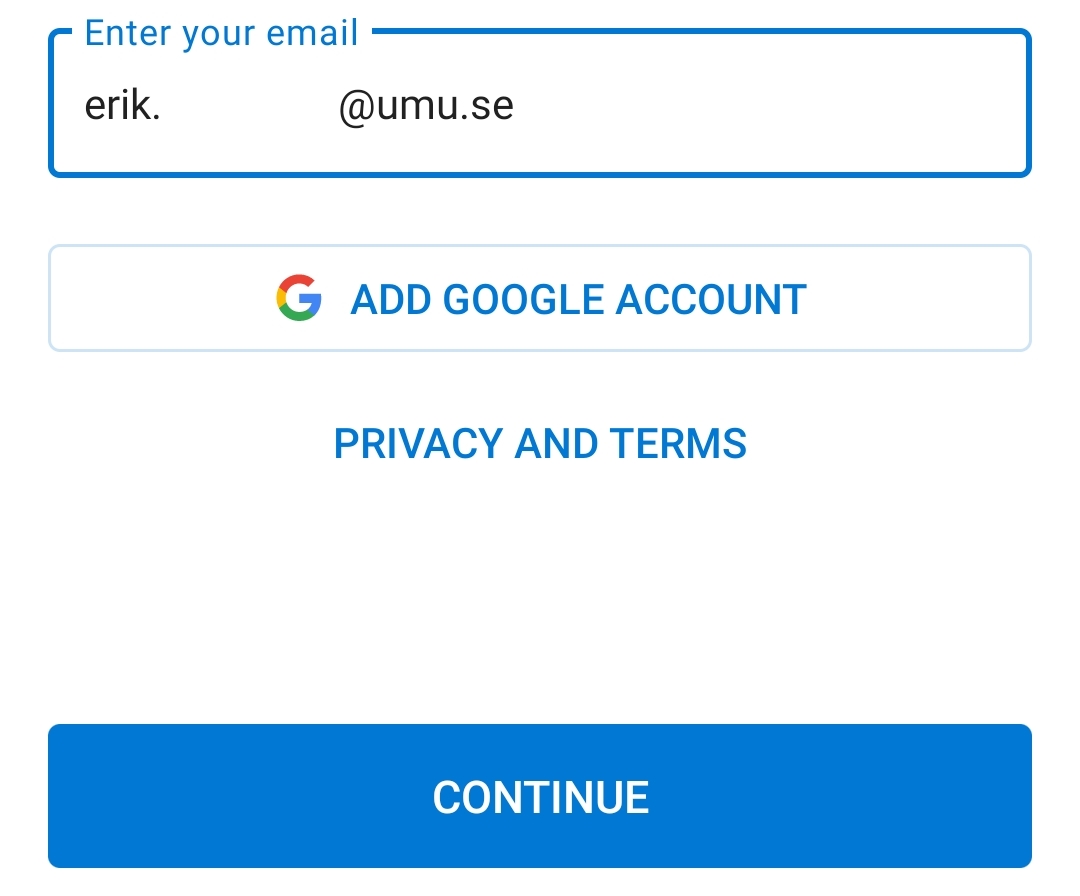
4 Enter your UMU email address and click continue.

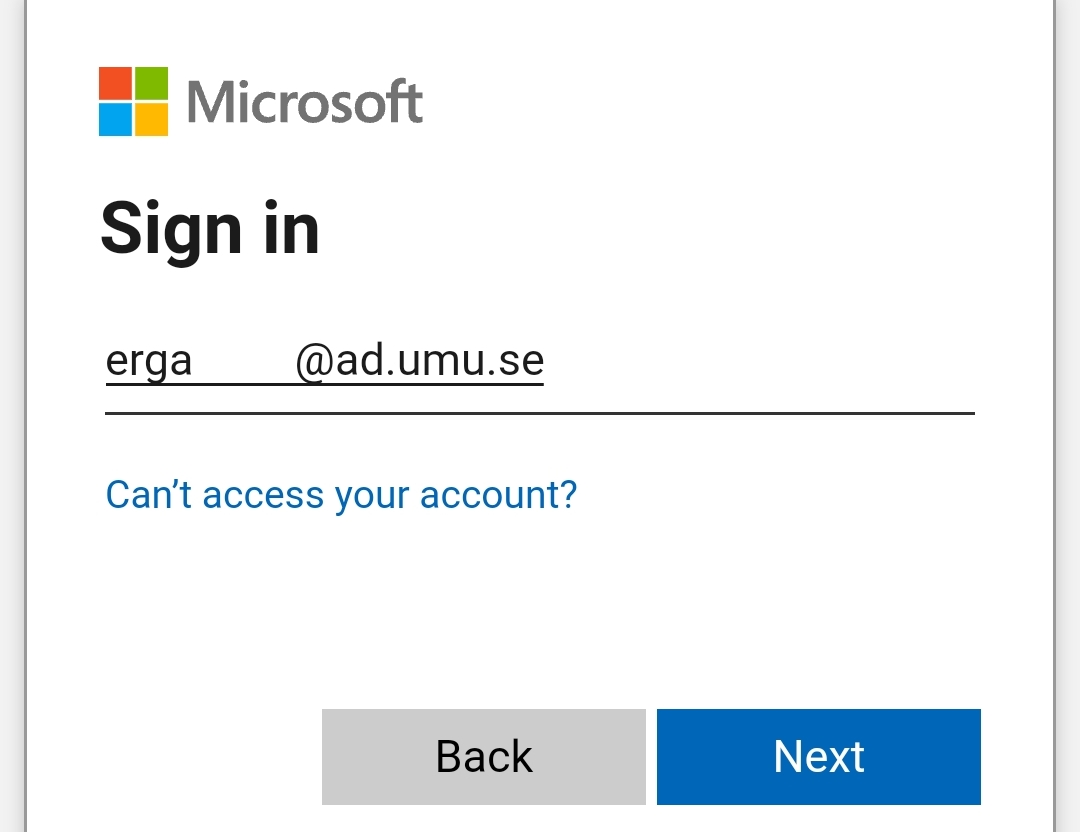
5 You should be redirected to an login page to Microsoft, enter your UMUid and @ad.umu.se like this: UMUid@ad.umu.se

6 If entered correctly you’ll be redirected to the login page for UMU, enter your username and password

If you have MFA activated you will be asked to open your authenticator and accept.

8 If you try to add your outlook account with the same device you have MFA on you should be asked to accept your login.

9 Open the MS Auth app and accept your login.

10 You’re done, Outlook will ask to add an additional account, just choose maybe later

Do you still need help?

Click here to contact Servicedesk!

Contact ITS Service Desk

Create a support ticket at www.umu.se/servicedesk, call 090-786 63 00 or visit us next to Infocenter.

Kategorier

Scroll to top Scroll to top Scroll to top