Manual

Manual
  • Svenska
  • Menu Menu

Show week numbers in Outlook

Updated:2025-11-16|Published:2023-02-17

Manuals showing how to enable week numbers in Outlook. Select your operating system below for instructions.

Windows

When you start using your calendar in Outlook, the week numbers are disabled. If you want to activate it, you have do it yourself via the calendar options.

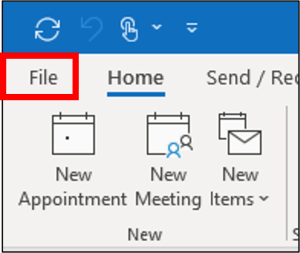
  1. Click the File tab.
    Activate weeknumbers in Outlook for Windows - choose file tab
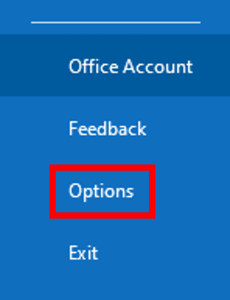
  2. In the left corner, click Options.
    Activate weeknumbers in Outlook for Windows - choose options
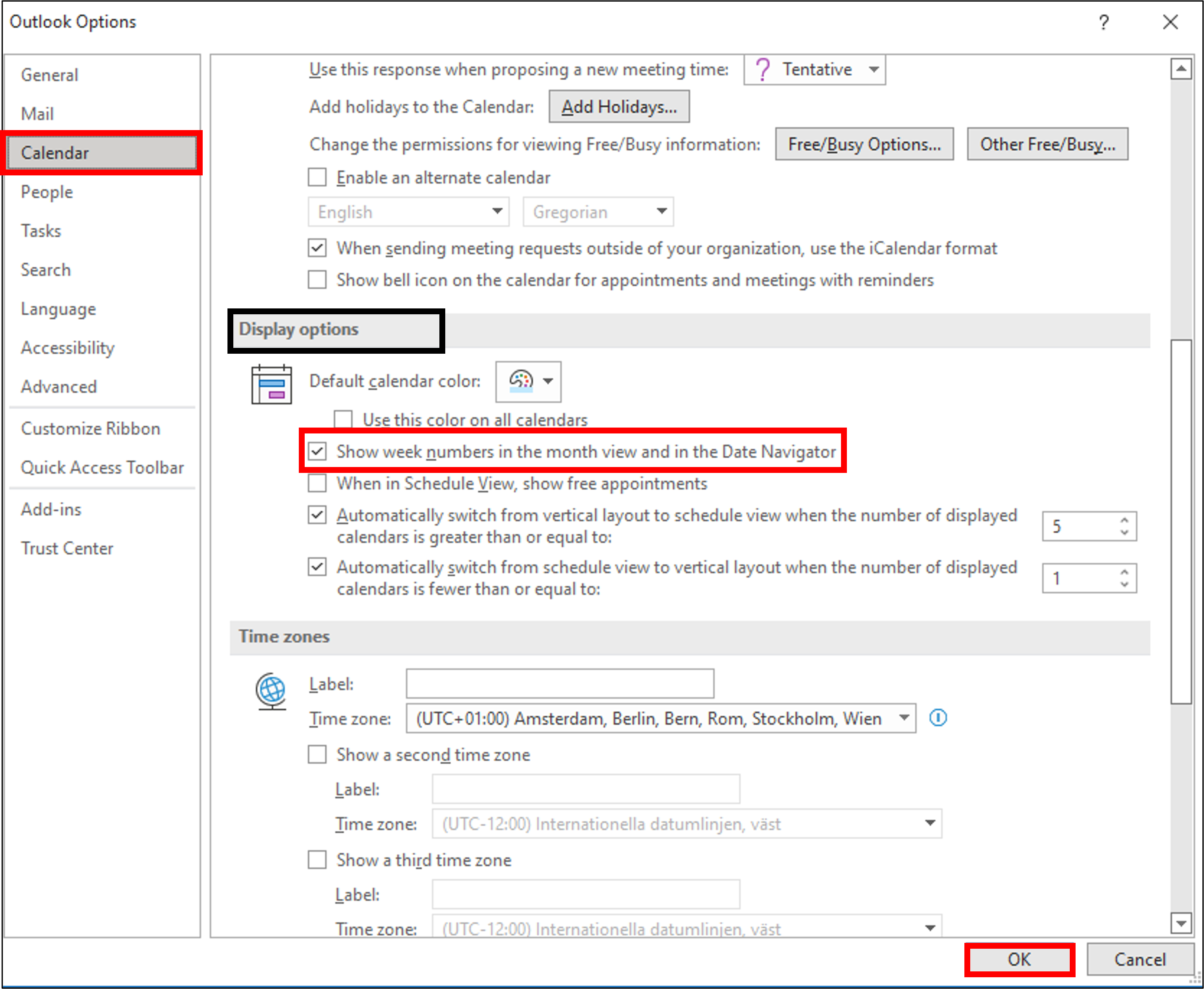
  3. Click Calendar.
  4. Scroll down to Display Options, and select the Show week numbers in the month view and in the Date Navigator.
  5. Click OK
    Activate weeknumbers in Outlook for Windows - choose calendar and show week numbers in the moth view and in the date navigator
  6. You now have week numbers on your calendar in Outlook.
macOS
When you begin to use your calendar in Outlook, the week numbers is inactivated. If you want to show them, you go to calendar options for Outlook.

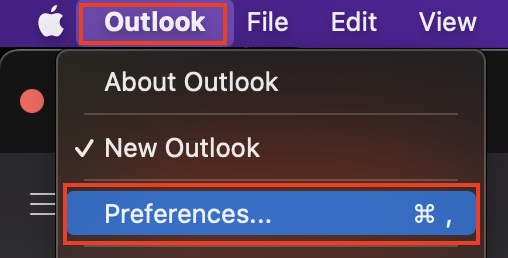
  1. Click on the tab Outlook, in the upper menu bar.
  2. Choose Preferences.
    Image showing how to find settings for outlook for Mac
  3. Click on Calendar under ”other”
    Image showing the the settings for Outlook in Mac
  4. Under Calendar options you mark the box for Show week numbers.
    Image showing where to
  5. You now have week numbers in your calendar in Outlook.
Do you still need help?

Click here to contact Servicedesk!

Contact ITS Service Desk

Create a support ticket at www.umu.se/servicedesk, call 090-786 63 00 or visit us next to Infocenter.

Kategorier

Scroll to top Scroll to top Scroll to top