
Manual

Manual
  • Svenska
  • Menu Menu

Inspera – Sign off your submission

Updated: 2025-04-01/in English, Inspera, Student /by Hans-Erik Sjöström

When an e-exam is signed off in Inspera, your submission will be removed from the system and cannot be recreated.

VIKTIGT

Make sure to download your submission, comments and marks before you sign off your submission.

Log in to Inspera and click on ”Archive” and then on ”See more details” for the exam that you wish to sign off.

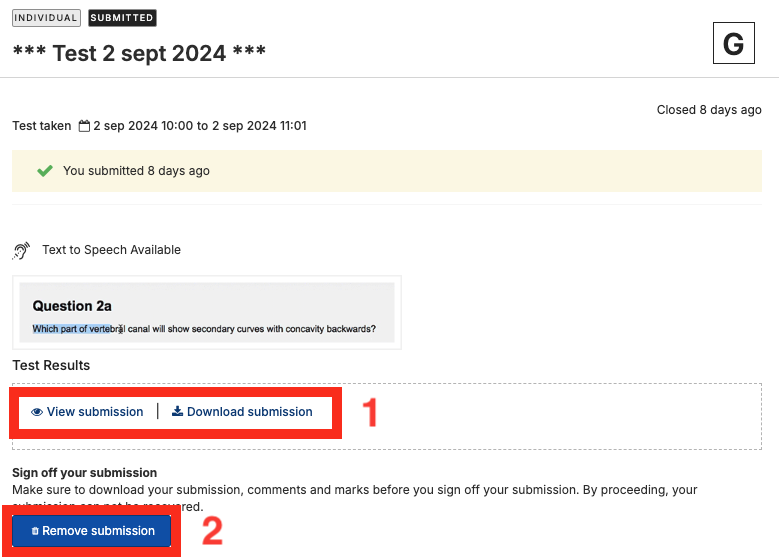
You can view your submission without downloading it by clicking the “View submission” button (1).

Download your submission as a PDF-file by clicking the ”Download as PDF” button (1).
Inspera - Sign off submission

Make sure to download your submission, comments and marks before you sign off your submission.

VIKTIGT

If you need to request a rectifying or reassessment of you exam, you should not sign off your submission.

To sign off your submission and remove it from Inspera. Click on the ”Remove submission” button (2).

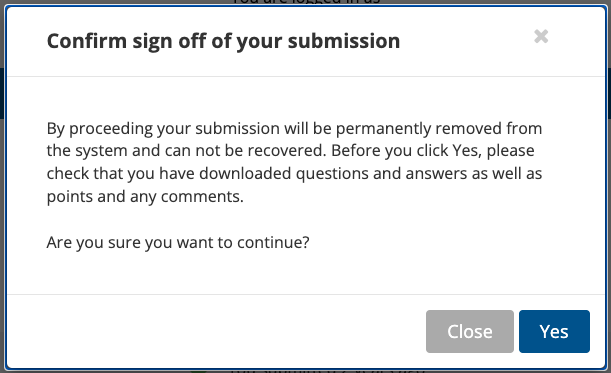
A dialog box will now open where you can confirm that your exam will be removed from the system.
Click “Yes” to confirm the sign off/deletion.
https://manual.umu.se/wp-content/uploads/2018/02/manual-loggo.png 0 0 Hans-Erik Sjöström https://manual.umu.se/wp-content/uploads/2018/02/manual-loggo.png Hans-Erik Sjöström2023-04-24 06:06:512025-04-01 13:37:18Inspera – Sign off your submission

Contact ITS Service Desk

Create a support ticket at www.umu.se/servicedesk, call 090-786 63 00 or visit us next to Infocenter.

Kategorier

Scroll to top Scroll to top Scroll to top