
Download your OneDrive files to your device
In this manual, we’ll tell you how to download all your OneDrive files to your computer, so you can use the files even when you don’t have access to internet.
- Open your explorer on your computer
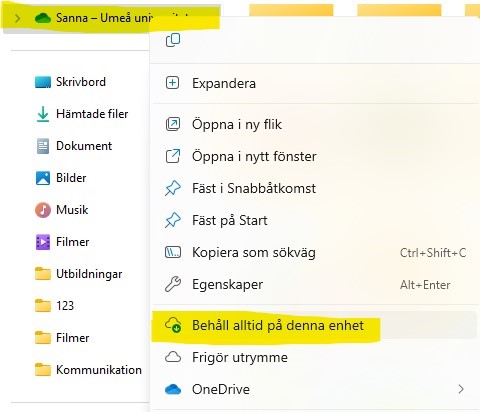
- In the menu to the left you will find OneDrive under the blue OneDrive cloud + your name + Umeå University. Right-click on it, and select Always keep on this device. You can also do this on individual folders and files if you only want to keep specific documents on your device.
- Done! Once you have done this, you will see that all the content in your OneDrive will have a green check mark next to it (
 ), which means that they are now on your device and you do not need to be connected to the internet to open or work with the files.