Manual

Manual
  • Svenska
  • Menu Menu

Install Safe Exam Browser

Uppdaterad:2025-12-04|Publicerad:2025-12-04

Manuals that describe how to install Safe Exam Browser. Select your operating system below for instructions.

Windows

This guide describes how to install Safe Exam Browser on a computer running Windows operating system.

Safe Exam Browser is a secure browser used in the implementation of the digital exams in Inspera. The secure browser locks your computer so that only the exam content and any permitted resources can be displayed at the time of the exam.

On the page “E-examination on campus with Inspera” on the student website, there is more information on how a digital exam is done.

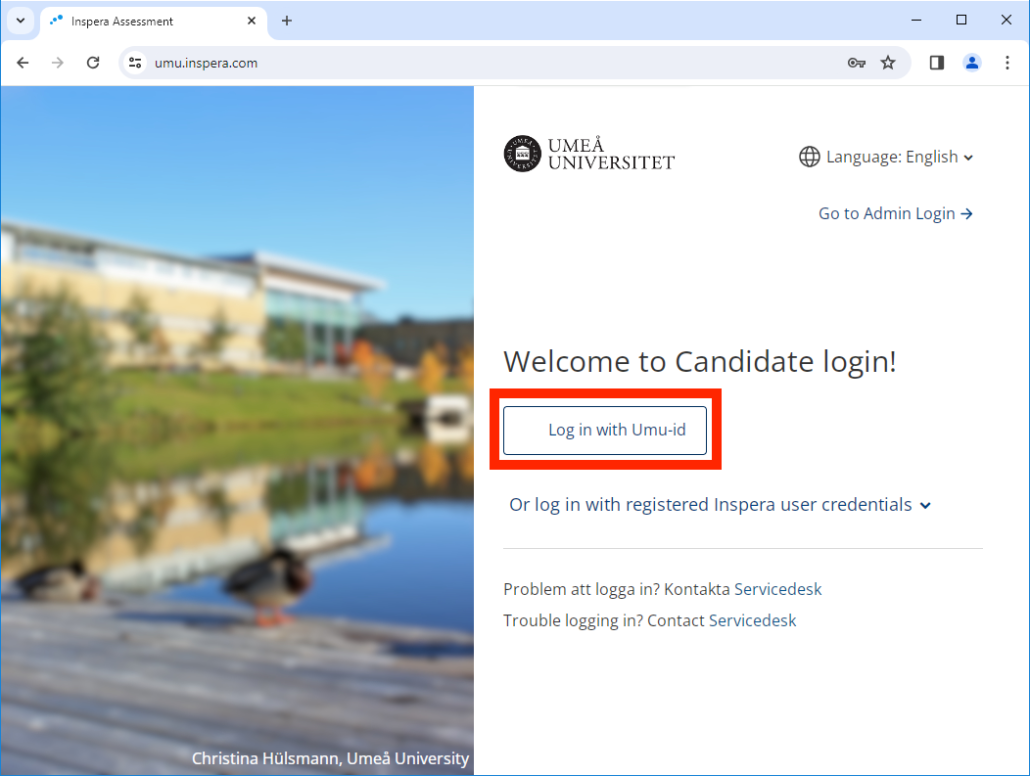
    1. Open your browser and go to the URL https://umu.inspera.com/
    2. Click on “Log in with Umu-id”
      Inspera log in
    3. Click on “Demo tests” and then click on “Click here to get ready” to proceed to the Safe Exam Browser download link.
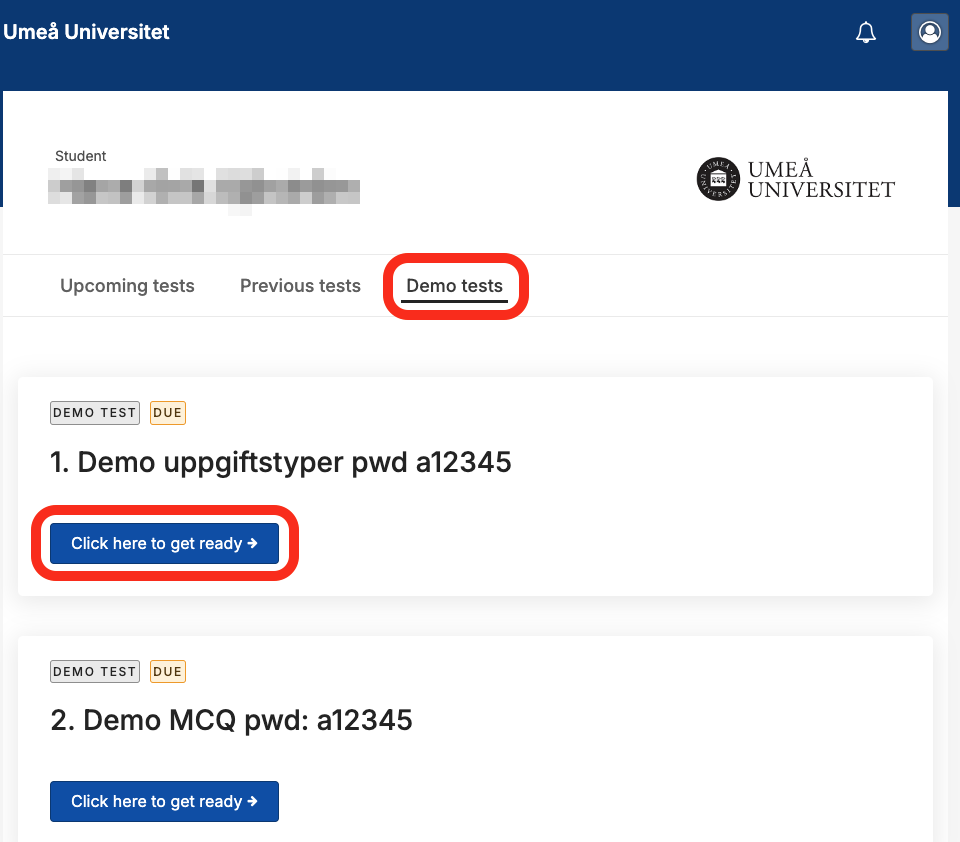
      Inspera - Demo test
    4. Scroll down the page and click the “Download” button.
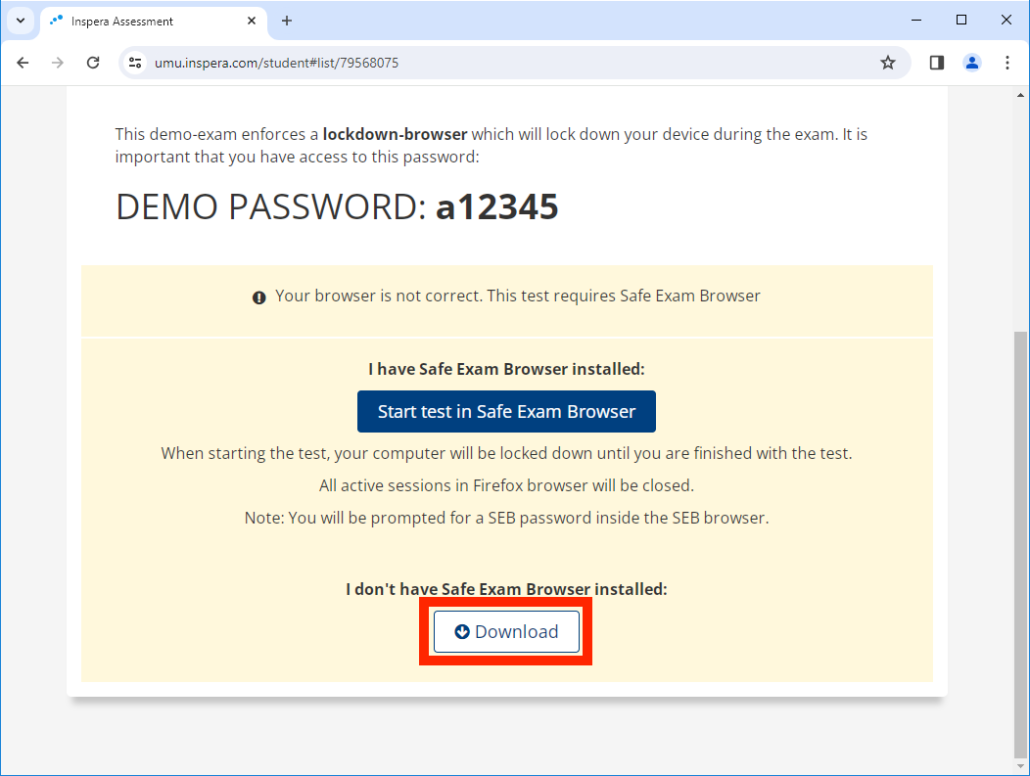
      Download SEB
    5. Click on the button “Windows” to download Safe Exam Browser.
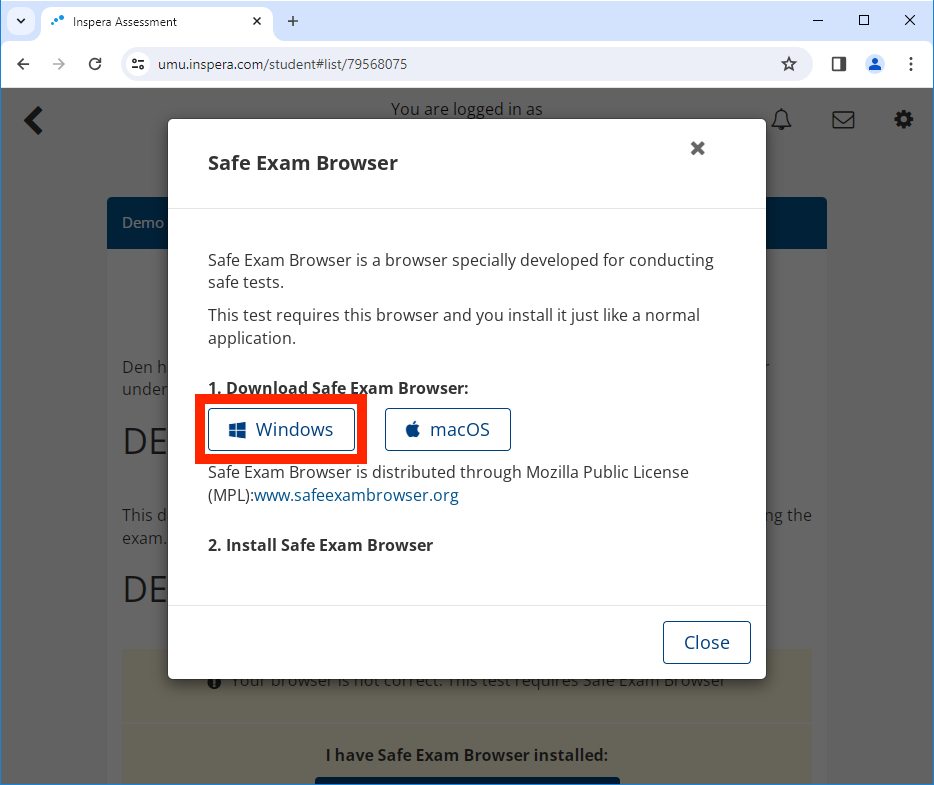
      Download SEB
    6. Once the download is complete, go to the Downloads folder in File Explorer and double-click the installer file.
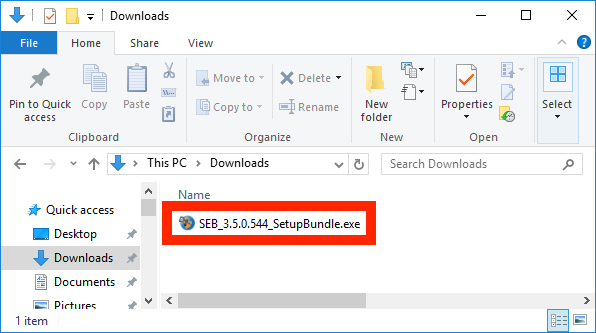
      SEB installation file
    7. Click on the “Install” button to start the installation.
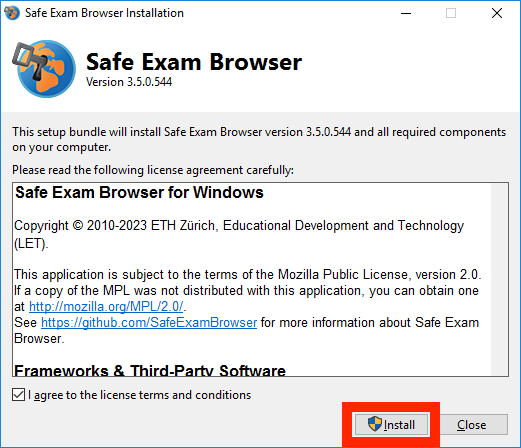
      Install SEB
    8. Click the “Close” button to close the installer when the installation is complete.
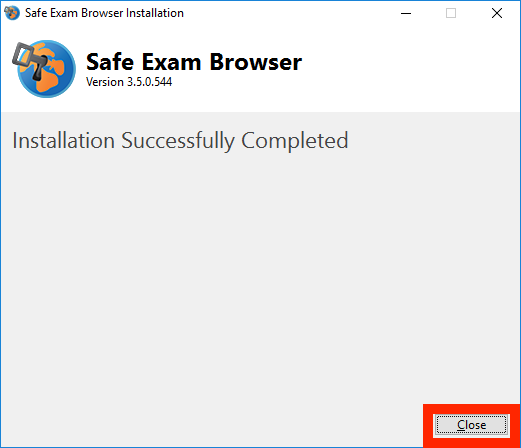
      Install SEB
    9. Now the installation of the Safe Exam Browser program is complete.

Remember that the program should never be started independently, but is always opened by starting an exam via a standard web browser, after logging in to Inspera https://umu.inspera.com/
macOS

This guide describes how to install Safe Exam Browser on a Mac OS computer.

Safe Exam Browser is a secure browser used with the implementation of digital exams in Inspera. The secure browser locks your computer so that only the exam content and any permitted resources can be displayed at the time of the exam.

On the page “E-examination on campus with Inspera” on the student website, there is more information on how a digital exams with Inspera is done.

    1. Open your browser and go to the URL https://umu.inspera.com/
    2. Click on “Log in with Umu-id”
      Inspera log in
    3. Click on “Demo tests” and then click on “Click here to get ready” to proceed to the Safe Exam Browser download link.
      Inspera - Demo test
    4. Scroll down the page and click the “Download” button.
      Download SEB
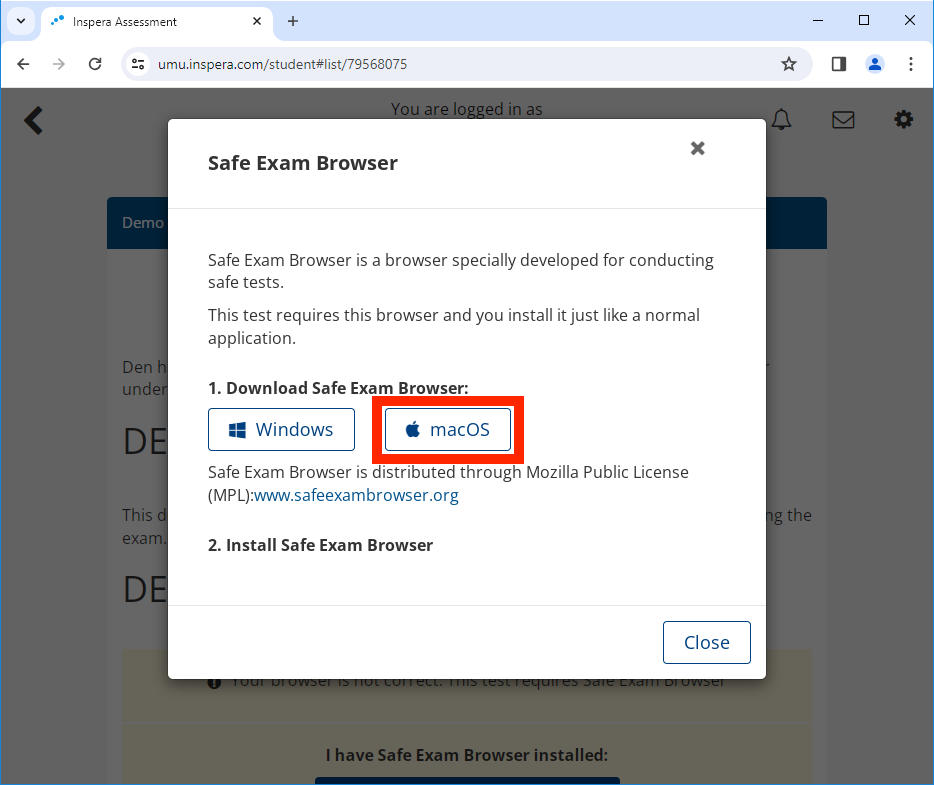
    5. Click on the button “macOS” to download Safe Exam Browser.
      Download SEB
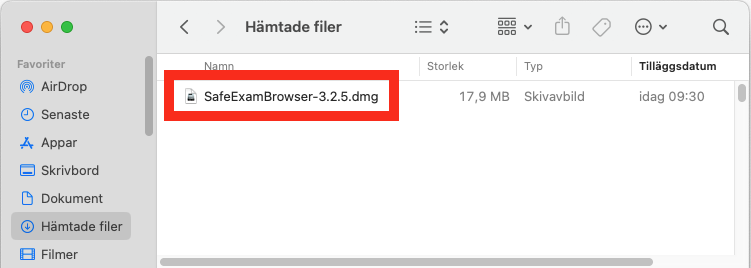
    6. Open Finder and go to your Downloads folder. Double click the Safe Exam Browser installation file to start the installation.
      Install SEB
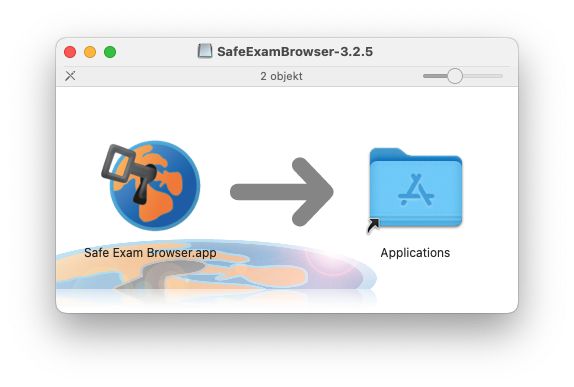
    7. Click and drag the Safe Exam Browser app to your Applications folder to install the program.
      When this step is completed, the installation of the program is complete.
      Install SEB


Do you still need help?

Click here to contact ITS Service Desk!

Contact ITS Service Desk

Create a support ticket at www.umu.se/servicedesk, call 090-786 63 00 or visit us next to Infocenter.

Kategorier

Related links

  • Inspera – Take a demo exam
  • Inspera – Settings during an exam
  • Inspera – Get your results
  • E-examination
Scroll to top Scroll to top Scroll to top