
Brief background about storage/Sharefile in SciFile:
All project data is stored encrypted on local servers at UMU. The system that manages storage is called ShareFile. The ShareFile product is a hybrid product with part in the cloud and part locally on our disks. The ShareFile product or administrators for it can never read the contents of your files, however, they can see the names of files and folders.
The reason we use ShareFile is:
- Encryption, files are encrypted and can only be decrypted within SciFile
- Authorization control, roles control which projects and folders a user has access to
- Network control, we can control from which networks files can be read/written. Which allows us to create an input, output and project data surface.
- Version management
- Logging of file changes
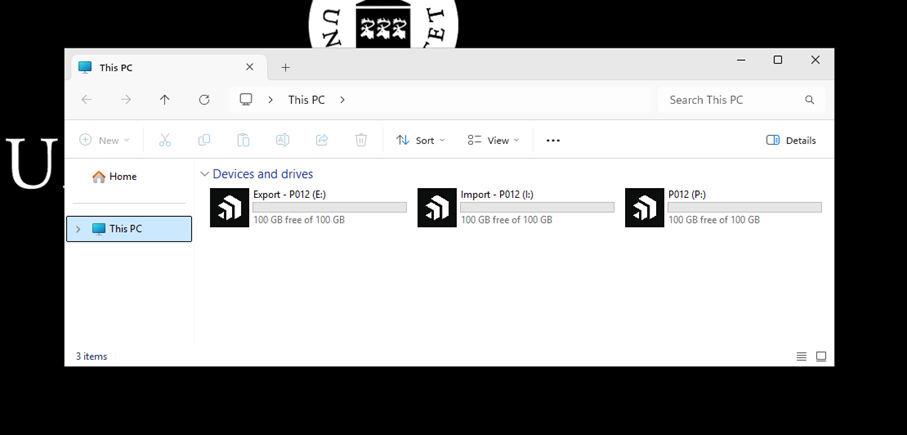
Each new SciFile project is assigned three spaces in ShareFile, the name of the volumes is the name of the project as shown in the image below:
- “Project Name” (P:) – used to store project files
- Export – “Project Name” (E:) – used to export files from SciFile and is only available to the PI role
- Import – “Project Name” (I:) – used to import files into SciFile.
Login to ShareFile from SciFile
The first time you start SciFile for a new project, you must log in to ShareFile. After startup, a login box will appear. After you log in, your login information is saved for 30 days. This means that you automatically log in to ShareFile when you start SciFile, but after 30 days you will have to enter your login information again. It takes about 30-60 seconds for ShareFile to fully start after starting your SciFile computer. In Appendix-1, you can see screenshots of how to log in.
Logging in to ShareFile from your computer
When you want to import or export files from your computer, the easiest way is to log in to ShareFile from your browser:
https://umu.sharefile.eu/
Logging in involves these steps:
- Enter email address “firstname.lastname@umu.se”
- Log in with your umuid@ad.umu.se + MFA
In ShareFile, your projects are located under the Folder/Share Folder folder. You will therefore see the same areas as you can see from within SciFile. However, you can only write and read in “Import – Project name”. If you have the PI role for your project, you will also see a folder called “Export – Project name”. Files located in the project folder “Project name” can only be opened and modified from within SciFile.
Folder structure
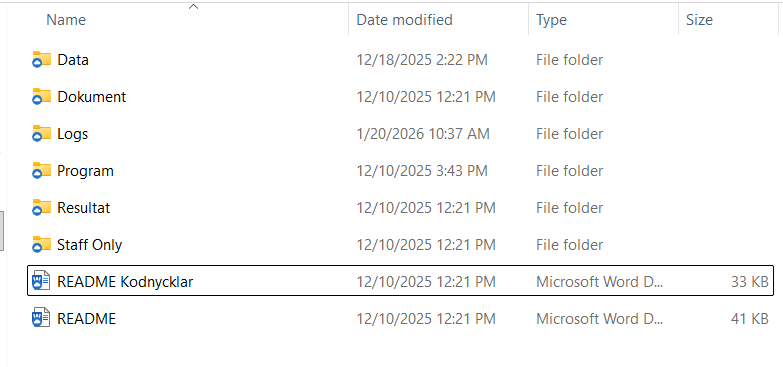
For each project, a number of standard folders and readme files are created. We recommend using this structure, but of course new folders can be created. Readme files are good to read but can then be deleted.
There are two special folders, “Staff Only” and “Logs”. In “Staff Only” only people in your project who are employed at UMU can enter, i.e. not external guests that you have invited. “Logs” is a folder where all file changes are logged. This folder only has people in the project who have the role PI permission to. As a PI you can see who has been in and changed or created files. If files have been copied to other folders.
Using Storage Spaces – Import and Export
To move files in and out of SciFile there are two separate areas for that. These areas are common to your entire project.
”Import – Pxxx”
This folder can be used by all users in the project. From your computer you can copy files to this folder. ShareFile will then synchronize the files, which means they can be viewed inside SciFile. This may take a few seconds depending on how many files you upload and their size.
From within SciFile you can only read files in this folder. This is to prevent files from being copied from SciFile to your computer.
The files on this folder will be automatically deleted after 7 days. We recommend that you urgently move files from the Import folder to the appropriate folder on your project area (P:).
”Export – Pxxx”
This area can only be used by users with PI permissions. From SciFile you can copy files from your project area (P:) to this area. ShareFile will then synchronize the files, which means that they can also be viewed from your local PC. This may take a few seconds depending on how many files you upload and their size.
From your computer you can log in to ShareFile via the web and view files in the Export-Pxxx folder. From there you can copy them to a suitable location.
The files on this folder will be automatically deleted after 7 days. We recommend that you urgently move files from the Export area to another suitable storage.
More about ShareFile
Backup and versioning of files
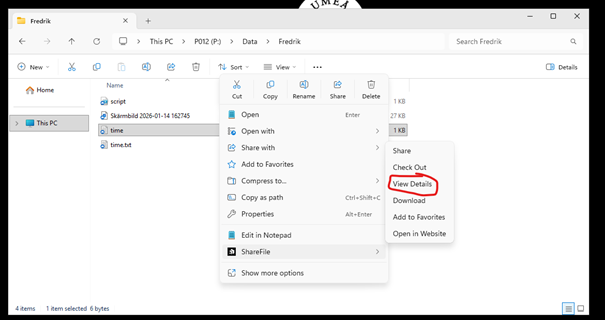
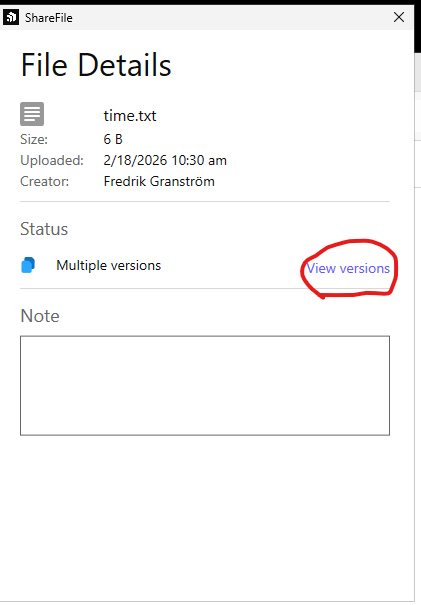
All files in ShareFile are locally encrypted at UMU. There is also a backup copy of all files on another storage area in another location. There is no possibility to read back files that have been deleted or have the wrong content. This means that you can, for example, retrieve files from last week. All files are saved in versions, up to 1000. This means that you can retrieve an older version of your file yourself. Files that you have deleted are also saved in the “Recycle Bin”. From there you can recreate files that are not older than xx days.
To see versions of a file, select the file, right-click, and select ShareFile.
Logging
ShareFile logs all file changes that are made. That is, it creates log files for who created files, modified files or deleted files. We DO NOT log what has been done to the files. These log files can be inspected by the PI role as all logs are placed in the “Logs” folder.
Edit the same files
One risk with shared file space for a project is that two people can make changes to the same file at the same time. Then the person who saves the file last will be the one who decides what will be the latest version, which means that other people’s edits can be lost. If you want to ensure that no one is editing the same file that you are working on, you can “Check out” the file. This locks the file for editing by others and they can only read or copy the file.