Manual

Manual
  • Svenska
  • Menu Menu

Send from alias in your e-mail in Microsoft 365

Updated: 2026-01-22/in Email, Microsoft 365, Student /by Sanna Jacobsson

Sometimes you might want to send email from an alias that is associated with your Microsoft 365 email address. The alias you want to use must also be set up in your user – a user cannot add an alias themselves. Once that’s done, sending from an alias is easy.

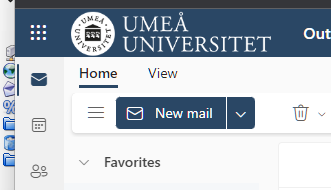
  1. Create new mail
    Image showing how to create a new mail
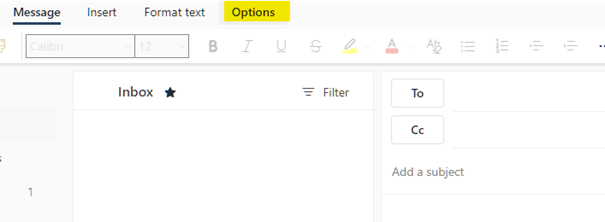
  2. Choose Options.
    Image showing how to choose "options"
  3. Choose Show from, this field is then added.
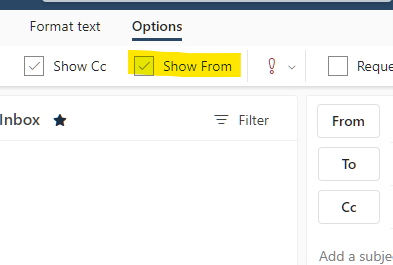
    Image showing "Show from"
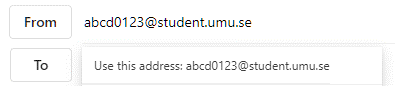
  4. Click on From in the mail.If it is your first time doing this, you need to state you student e-mail adress. Choose From, and then choose another e-mail adress and state your studentmail in the format: umuid@student.umu.se.Next time the mail adress is going to be avaliable as an option when clicking on From.
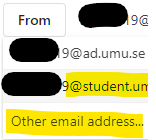
    image showing where the email is from
    Image showing the email adress
https://manual.umu.se/wp-content/uploads/2018/02/manual-loggo.png 0 0 Sanna Jacobsson https://manual.umu.se/wp-content/uploads/2018/02/manual-loggo.png Sanna Jacobsson2022-10-18 14:07:042026-01-22 09:21:02Send from alias in your e-mail in Microsoft 365

Contact ITS Service Desk

Create a support ticket at www.umu.se/servicedesk, call 090-786 63 00 or visit us next to Infocenter.

Kategorier

Scroll to top Scroll to top Scroll to top