
Change settings for shared files in Microsoft 365
To share files/folders, change settings for sharing or stop sharing files/folders in Microsoft 365 you can use m365.umu.se. There you can choose if you want to share files/folders from SharePoint (i.e., Teams) or OneDrive. This manual shows you how to do it in SharePoint, but the same settings work for OneDrive as well.
- Open m365.umu.se and sign in using your Umu-id.
- Click on the icon for SharePoint in the left menu.
- Select the SharePoint team where the files/folders you want to change settings for are located.
- Select Documents in the left menu to view all existing folders and documents on the. SharePoint team. A channel in Teams is viewed as a folder in SharePoint.
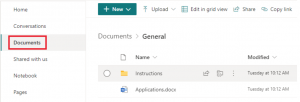
- Go to the folder or file you want to change settings for.
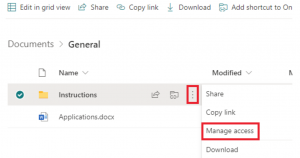
- Place the pointer on the file/folder to view a hidden menu.
- Click on the three dots and then Manage access.
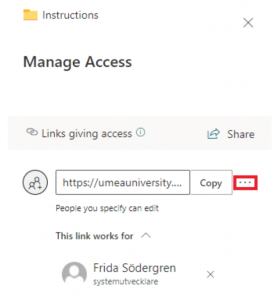
- Click on the three dots to change your settings.
- You can choose if the ones who have access should be able to only read or be able to edit. Click on the area in the picture below. (Note that this setting affects all the people you have shared the file/folder with)
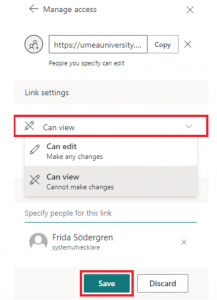
- Select Save when you’re done.
- You will now receive a control question. If you’re certain that you want to change the settings, select Change it, otherwise select Cancel. Done!