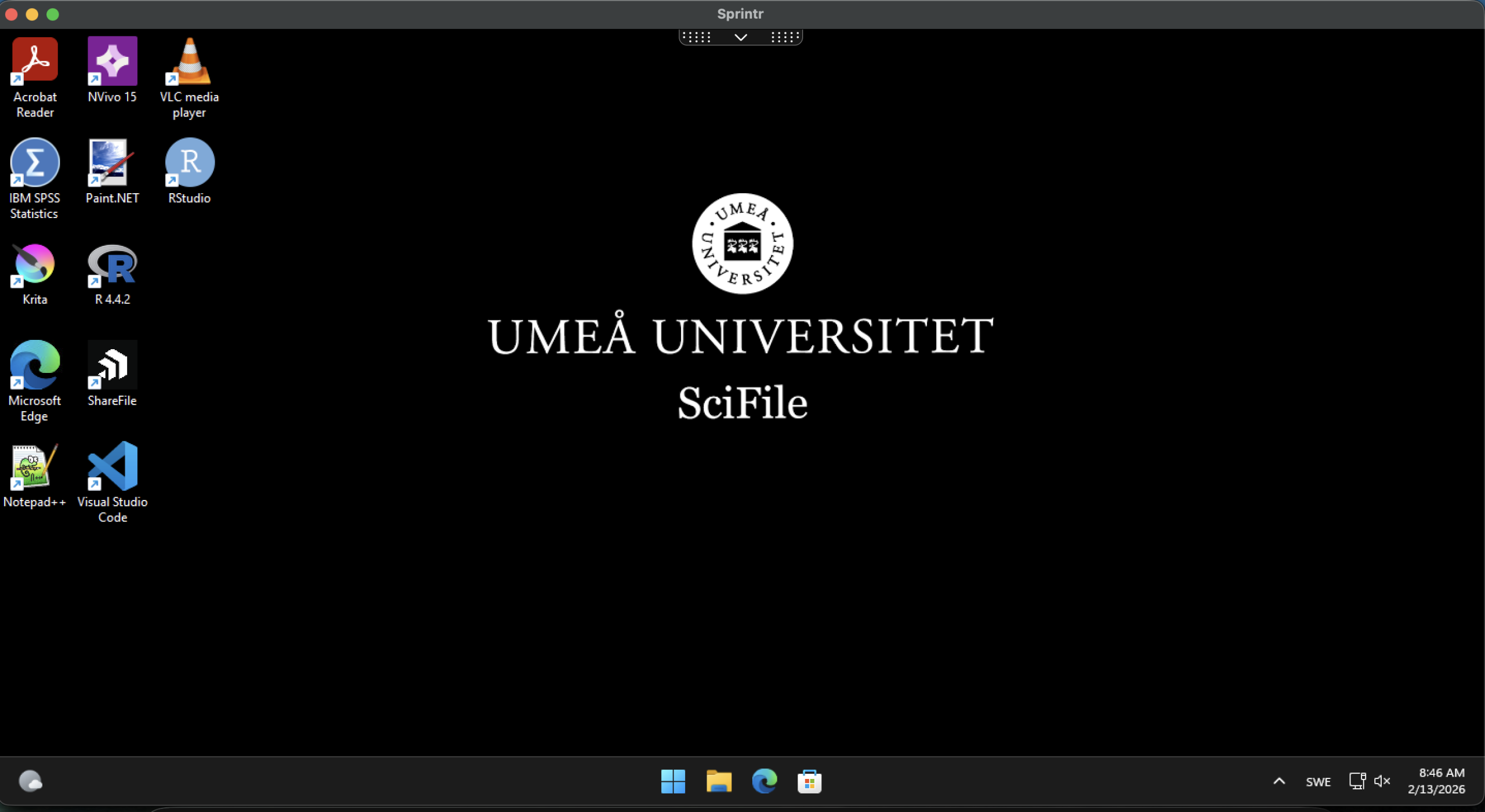
How do I get started with SciFile in the browser?
In this guide we will help you log in and start Citrix Workspace (online)
Windows:
- Start your browser (ex. Edge, Chrome, Firefox).
- Go to: https://umeauniversity.cloud.com/
- Log in with your umuid@ad.umu.se

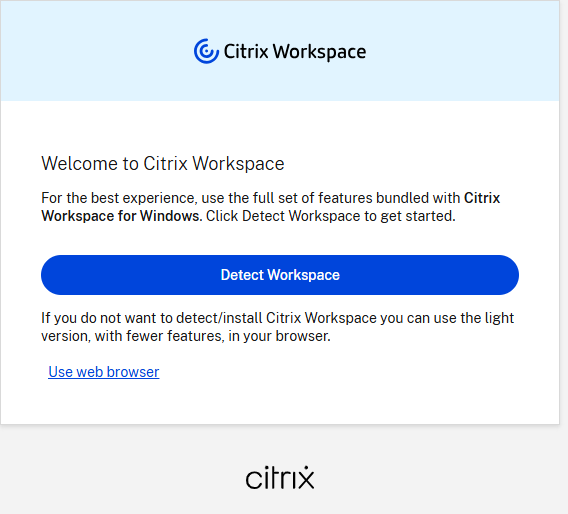
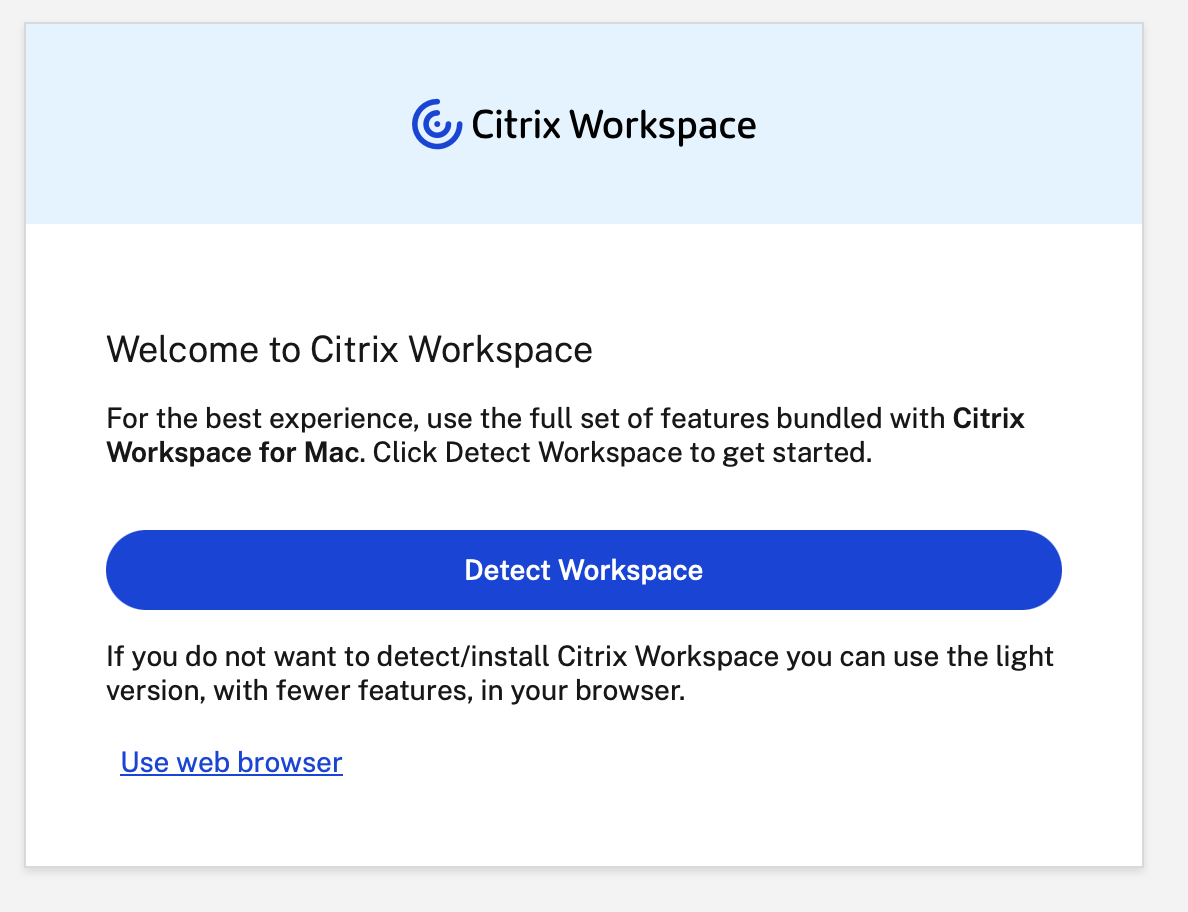
- If you want to use the Workspace that you have on your computer, select “Detect Workspace” otherwise “Use web browser”.
In this guide we select “Use web browser”.
- You are now in and can see your project and virtual machines.
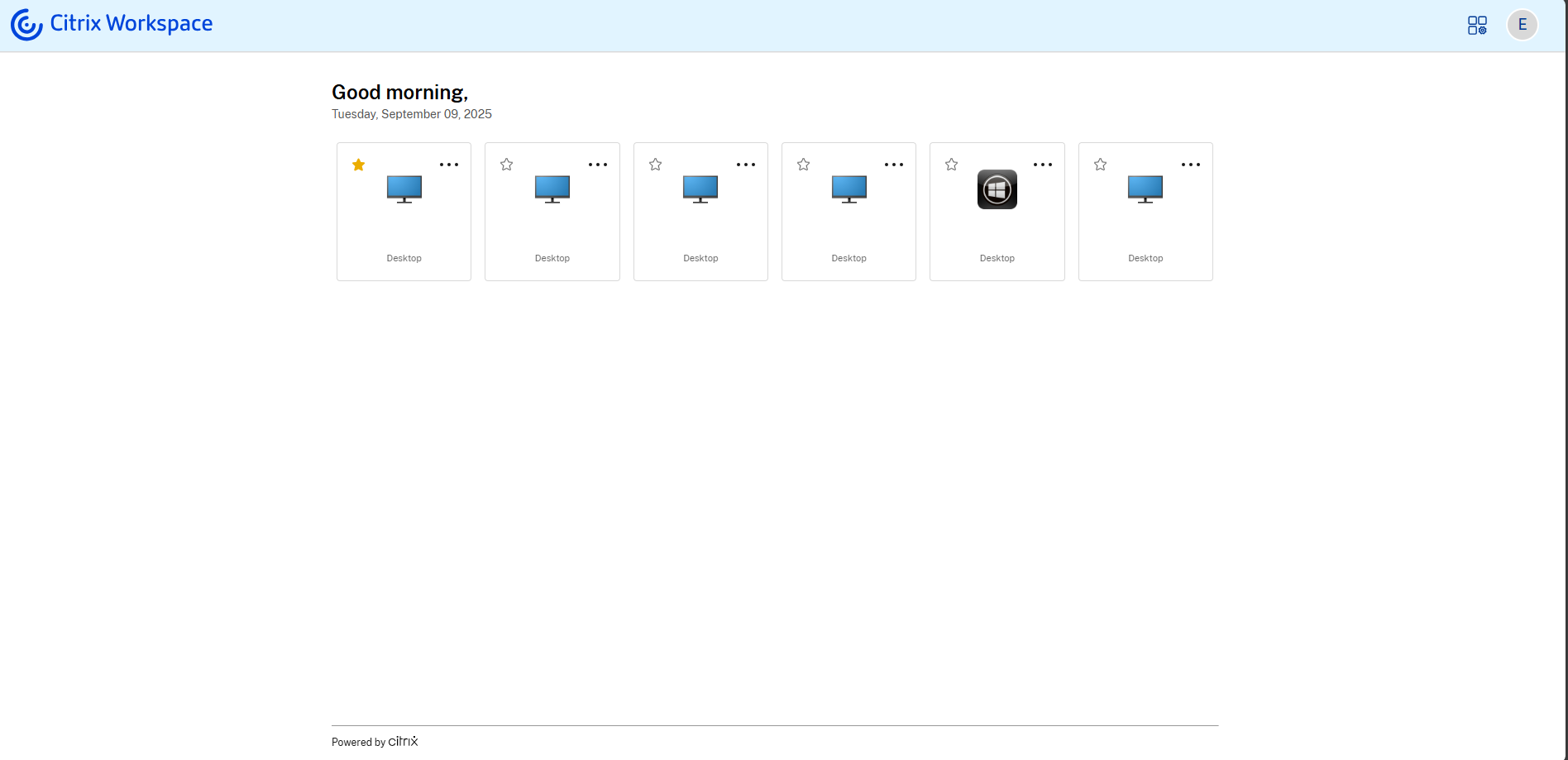
- Click on any project and the virtual machine will start
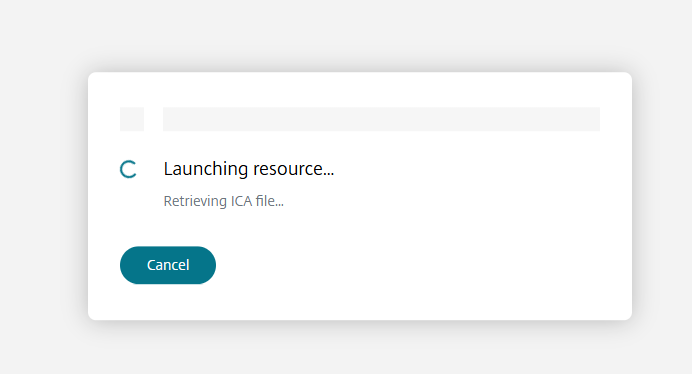
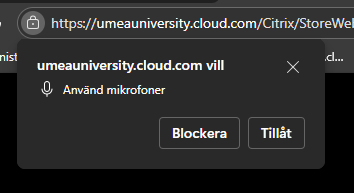
- You may be asked questions about microphone and webcam, approve these if necessary.
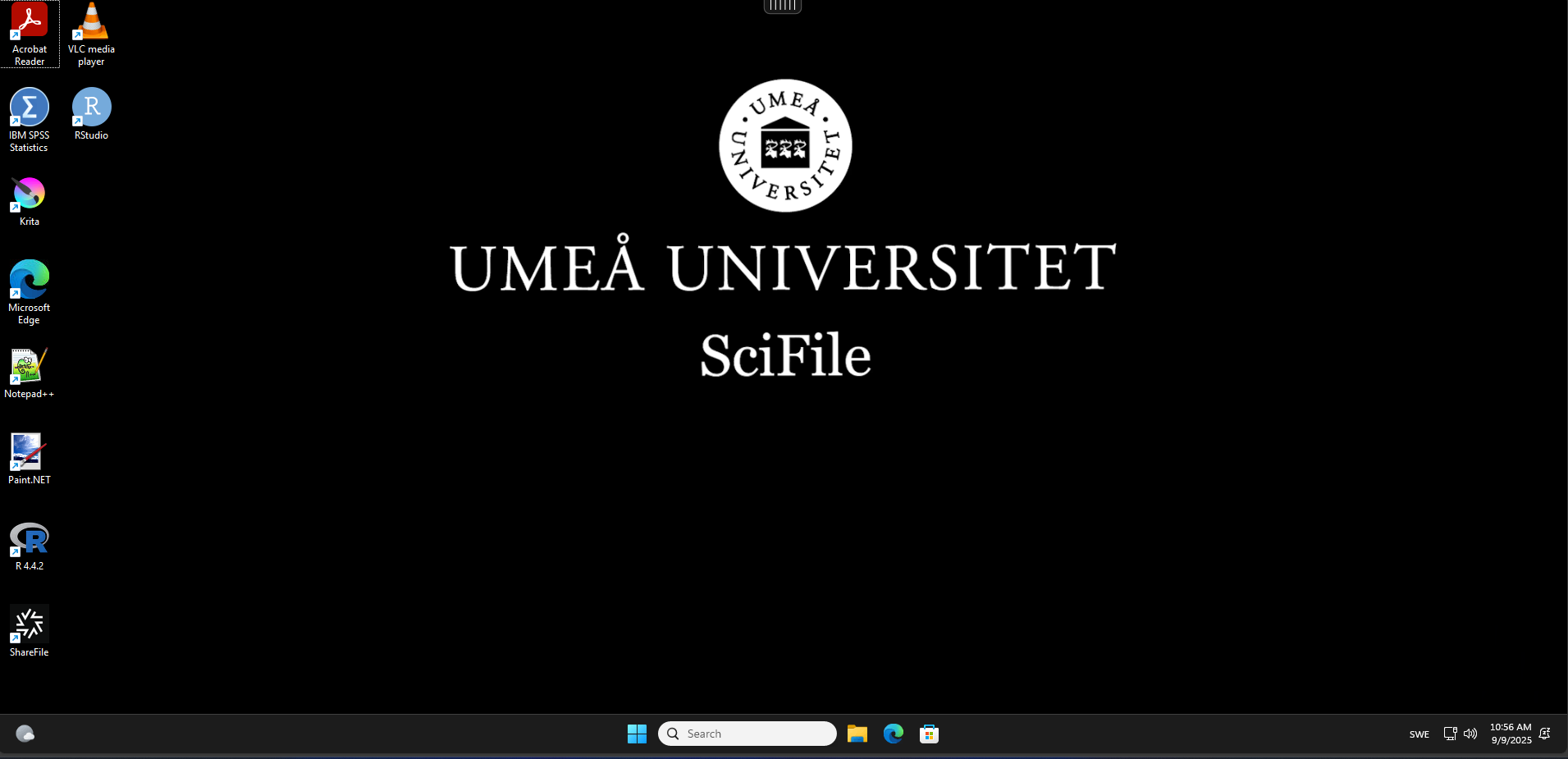
- You are now in.
MacOS:
- Click here to download
- Start the installation and follow the instructions, when you get to custom installation, select both packages and then continue.
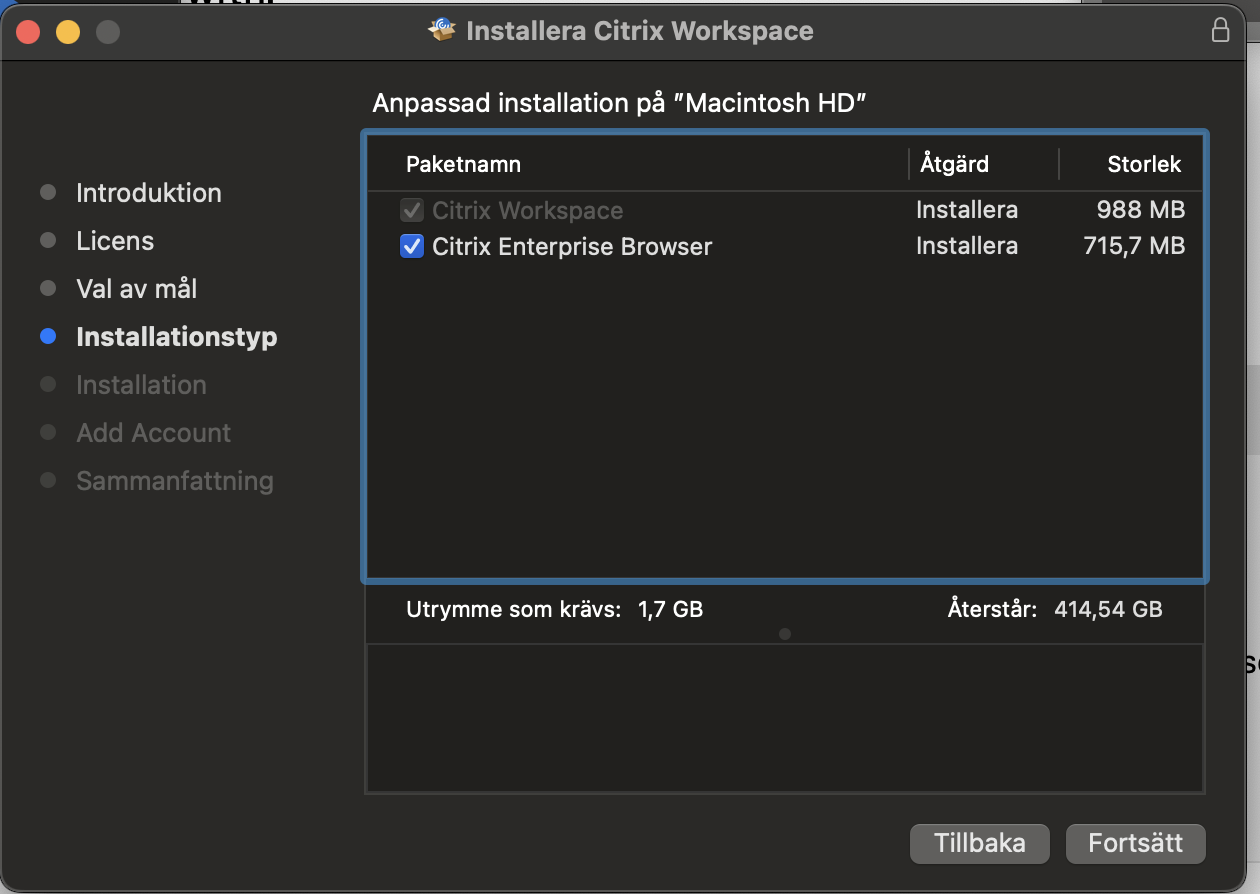
- Then follow the guide and approve the questions that appear.
Start Citrix Workspace:
- Start your browser (ex. Safari, Chrome, Firefox).
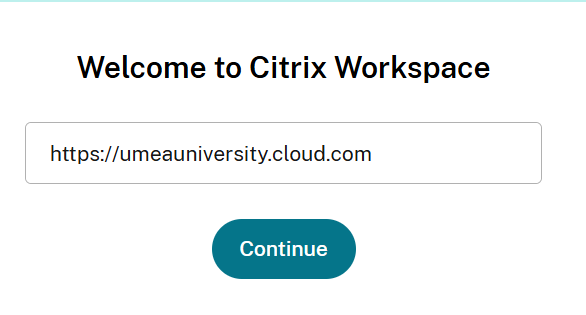
Enter https://umeauniversity.cloud.com and click Continue
- Log in with your umuid@ad.umu.se (ex. abcd1234@ad.umu.se)
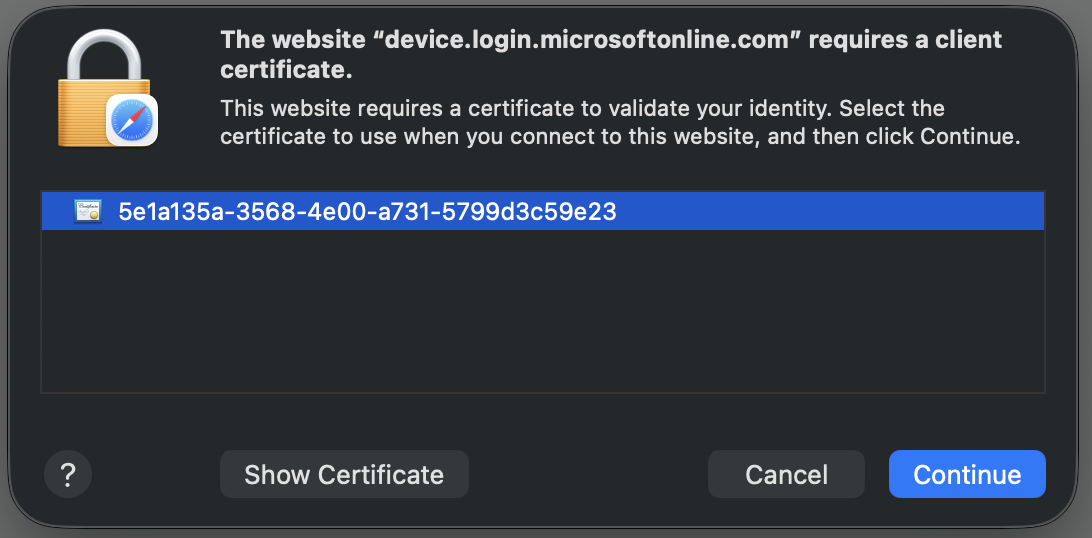
- If you get a question about certificates, just click continue.
- If you want to use the Workspace that you have on your computer, select “Detect Workspace” otherwise “Use web browser”.
- Start the virtual desktop by clicking on the project you are going to work on.
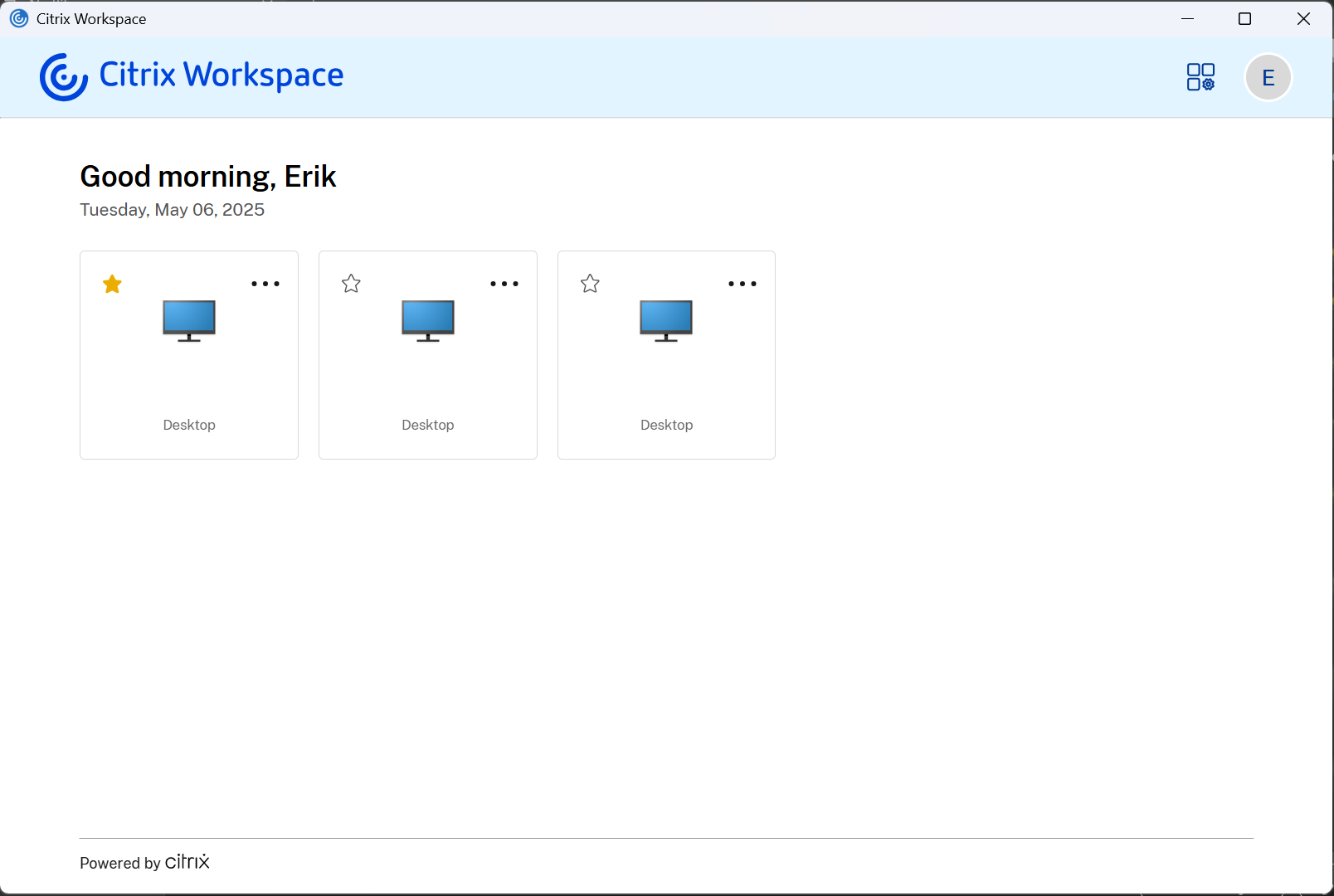
- You are now logged in and can start working.