Set up quiet hours for Teams on mobile phone
If you use Teams on your mobile phone you can set up quiet hours. This means that you can turn off all notifications for Teams during certain times, for example during evenings and weekends.
Set up and activate quiet hours
- Open the Teams application on your phone.
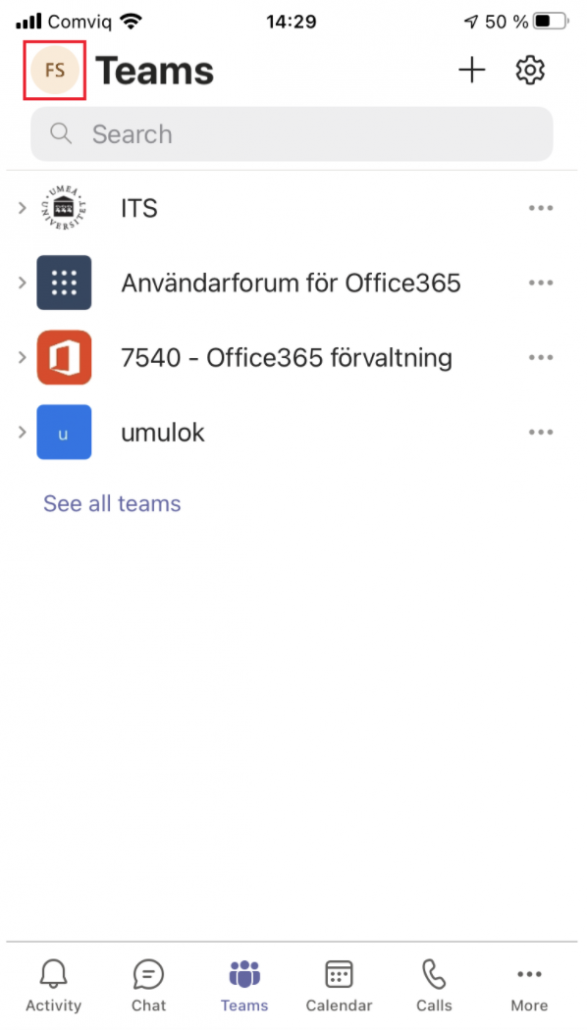
- Select the menu in the upper left corner by clicking on your profile picture.
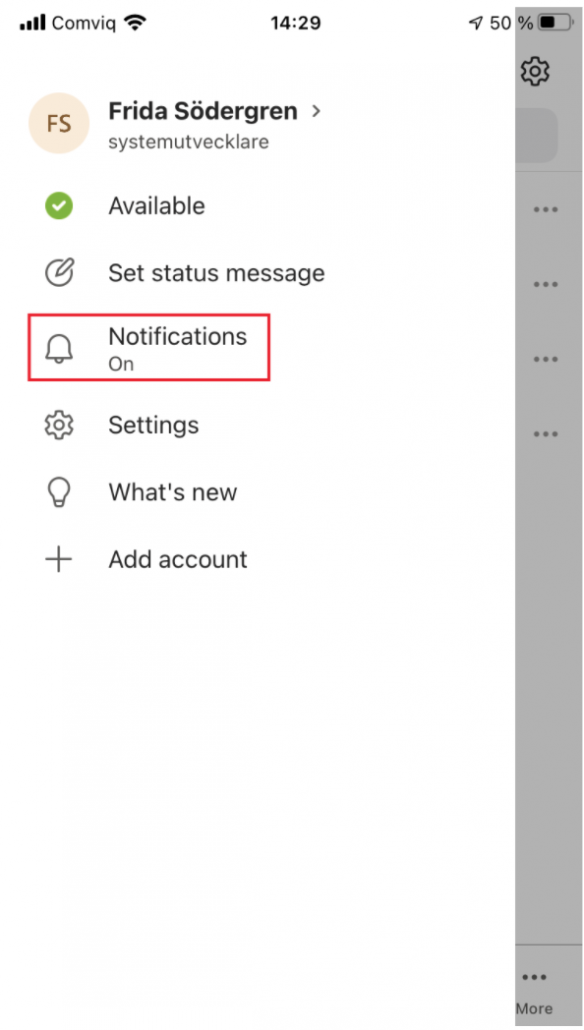
- Select Notifications.
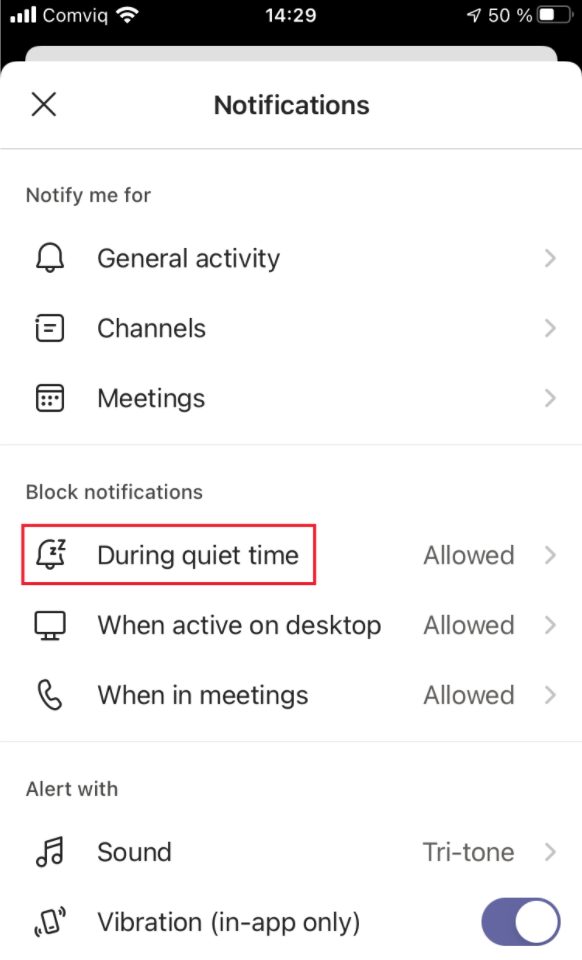
- Select During quiet time.
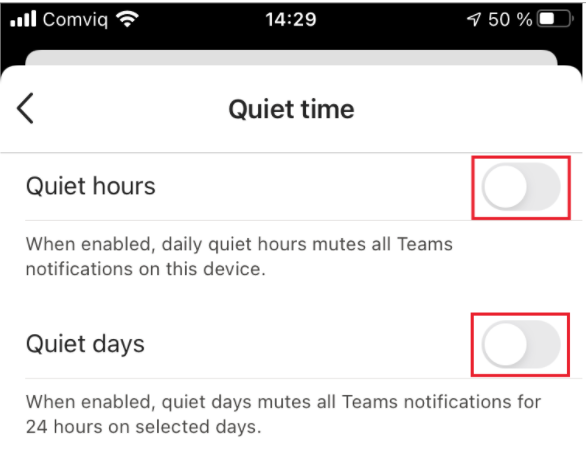
- Here you can choose if you want quiet hours, quiet days or both. If you have an Android, you can also set exceptions if you want some type of content to always be visible regardless of quiet hours, for example if someone makes a mention.