
Switch between public and private team
You can choose between two privacy settings in Teams – public or private team. This setting controls who can view and join your team. This instructions will show you how to change a public team to a private, or the other way around.
Two types of privacy for teams
Public team
A public team is available to everyone at Umeå University. This means that when someone searches for teams, they can find your team in a list and join it without your approval. All files and content in a team is searchable for members of a team. Both students and staff can see and join public teams.
Private team
A private team is only available to the people you invite or approve. In most cases, you should choose a private team.
How to do:
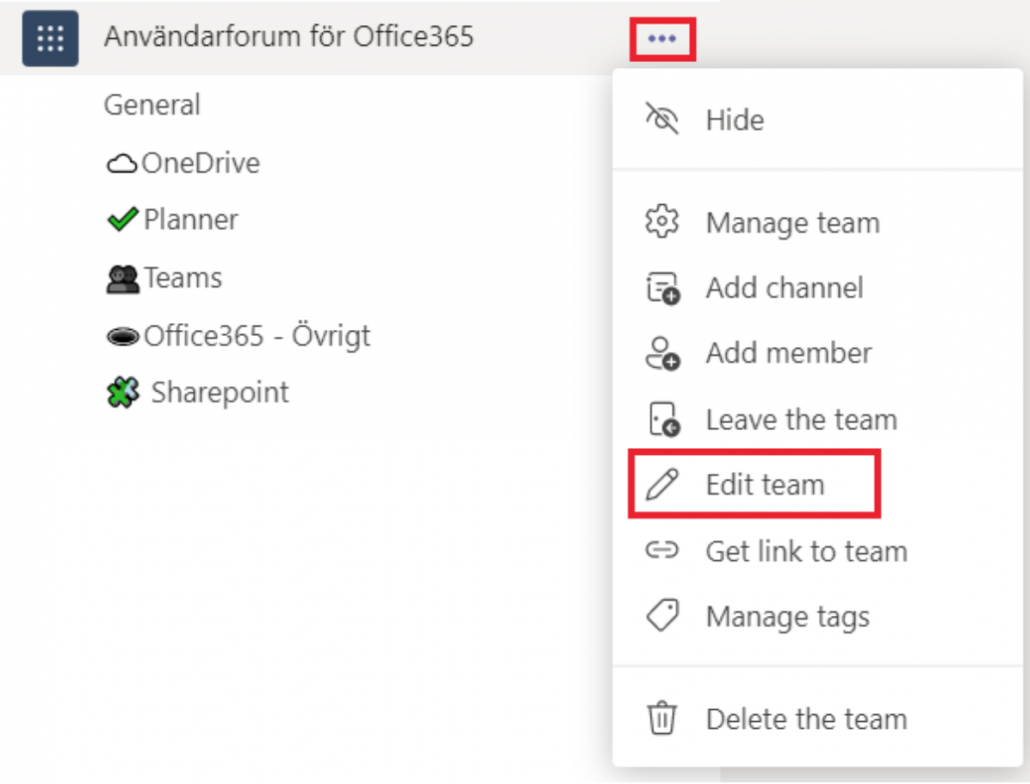
- Go to your team and click on the three dots to the right of the teams name. Select Edit team.
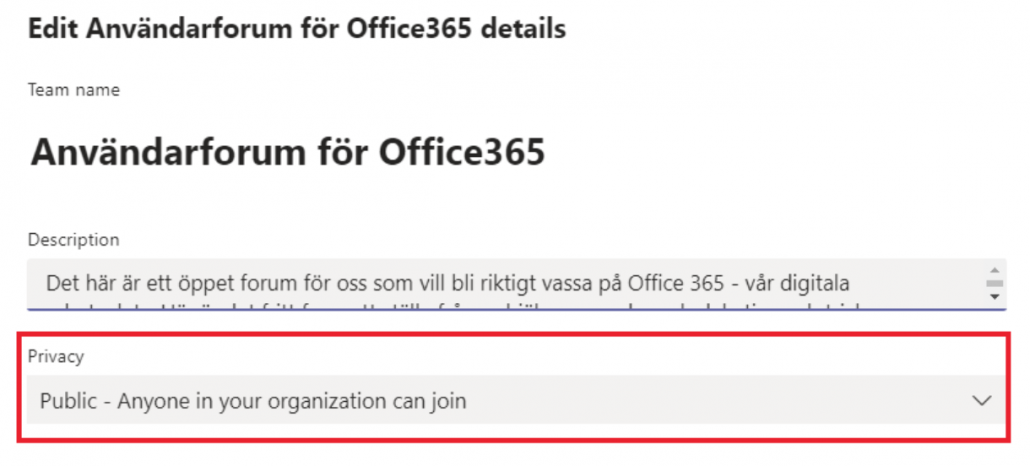
- To switch between public and private – use the menu that says Privacy.
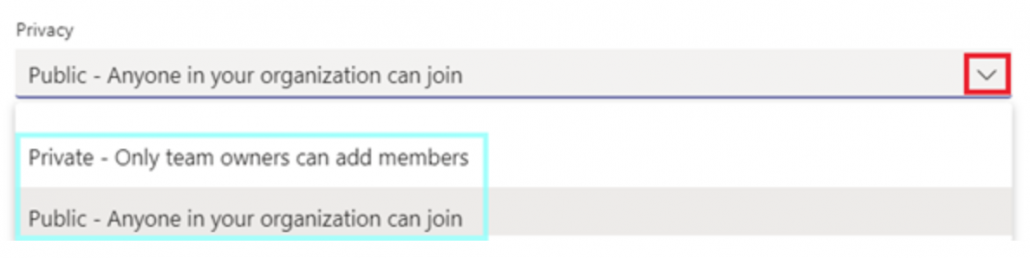
- Click on the arrow to the right and select a new option.
- Select Update.