
Creating a channel in Teams
In this manual we will show you how to create a channel in Teams.
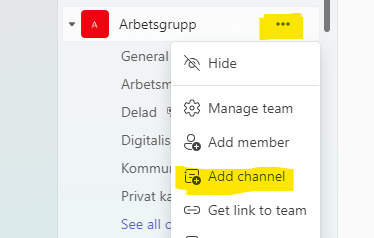
- Go in to the team you wish to create a channel in.
- Choose the 3 dots to the right of the name.
- Choose Add channel
Note that your Teams can look different, especially in colour and layout
- Choose a name and description for your channel.
- Choose a channel type.
Standard: Every member in the team has access to this channel.
Shared: You can invite people that is not a member in this team to access this channel. (You can only invite people whwo works in Umea University)
Private: Only specific people who you invite have access to this channel. (You can only invite people who already is a member in the team)
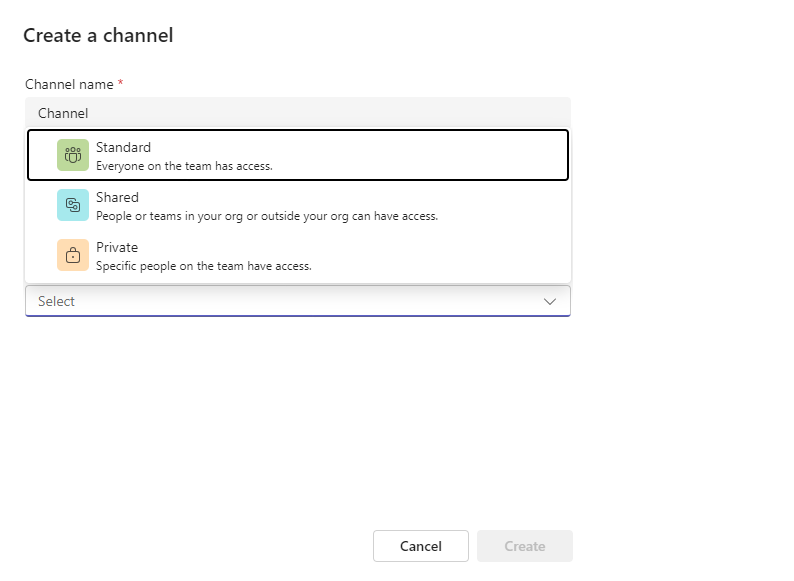
- Click on Create. You have now successfully added a channel to your team.