Install Safe Exam Browser
Manuals that describe how to install Safe Exam Browser.

Manuals that describe how to install Safe Exam Browser.
When an e-exam is signed off in Inspera, your submission will be removed from the system and cannot be recreated.
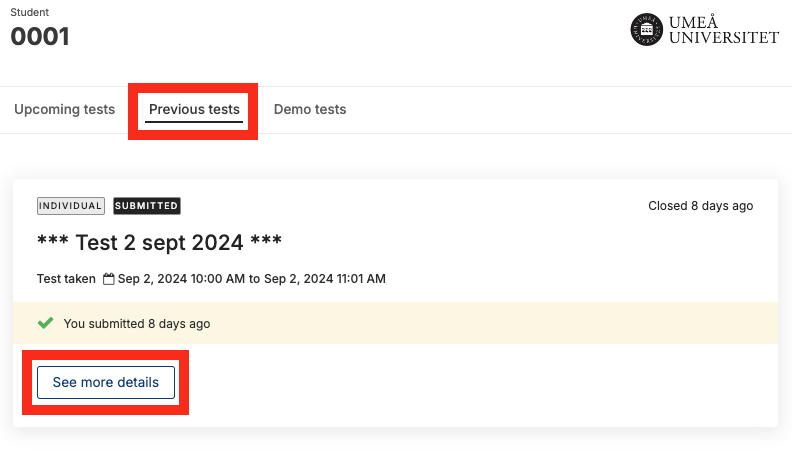
Log in to Inspera and click on ”Archive” and then on ”See more details” for the exam that you wish to sign off.
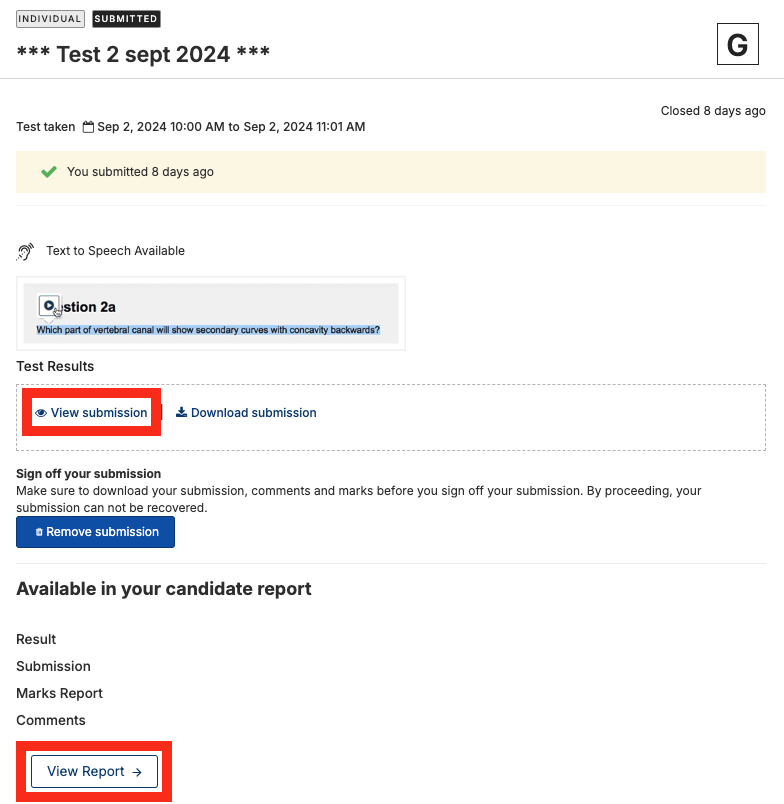
You can view your submission without downloading it by clicking the “View submission” button (1).
Download your submission as a PDF-file by clicking the ”Download as PDF” button (1).
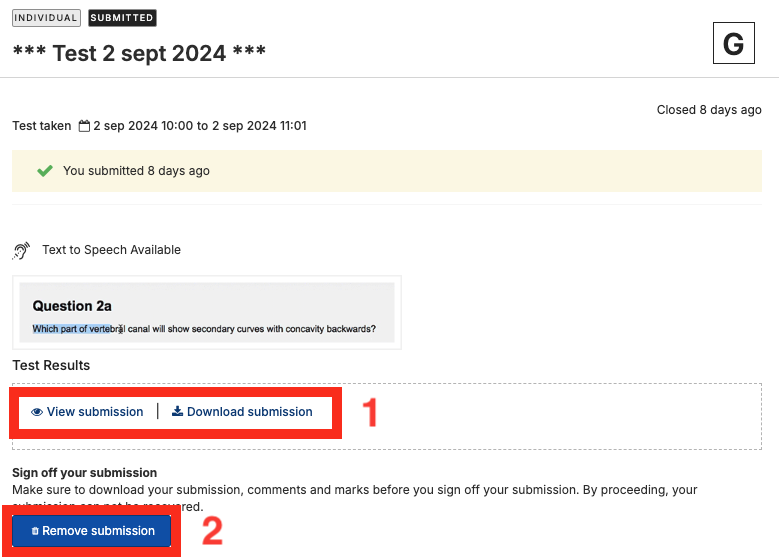
Make sure to download your submission, comments and marks before you sign off your submission.
To sign off your submission and remove it from Inspera. Click on the ”Remove submission” button (2).
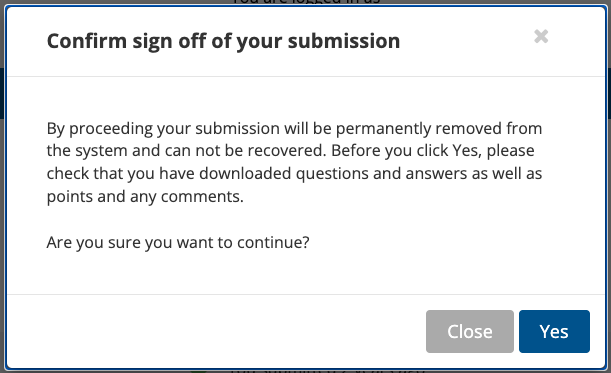
A dialog box will now open where you can confirm that your exam will be removed from the system.
Click “Yes” to confirm the sign off/deletion.
This guide goes through the settings that are available to you as a student during an ongoing digital exam in Inspera.
The image below shows the student’s interface during a digital exam in the locked browser Safe Exam Browser.

By clicking on the button marked (1) in the image above, you can access settings and additional functions during an ongoing digital exam.

If spelling check for answering essay questions is enabled, settings for this are displayed at the bottom right of the answer box.
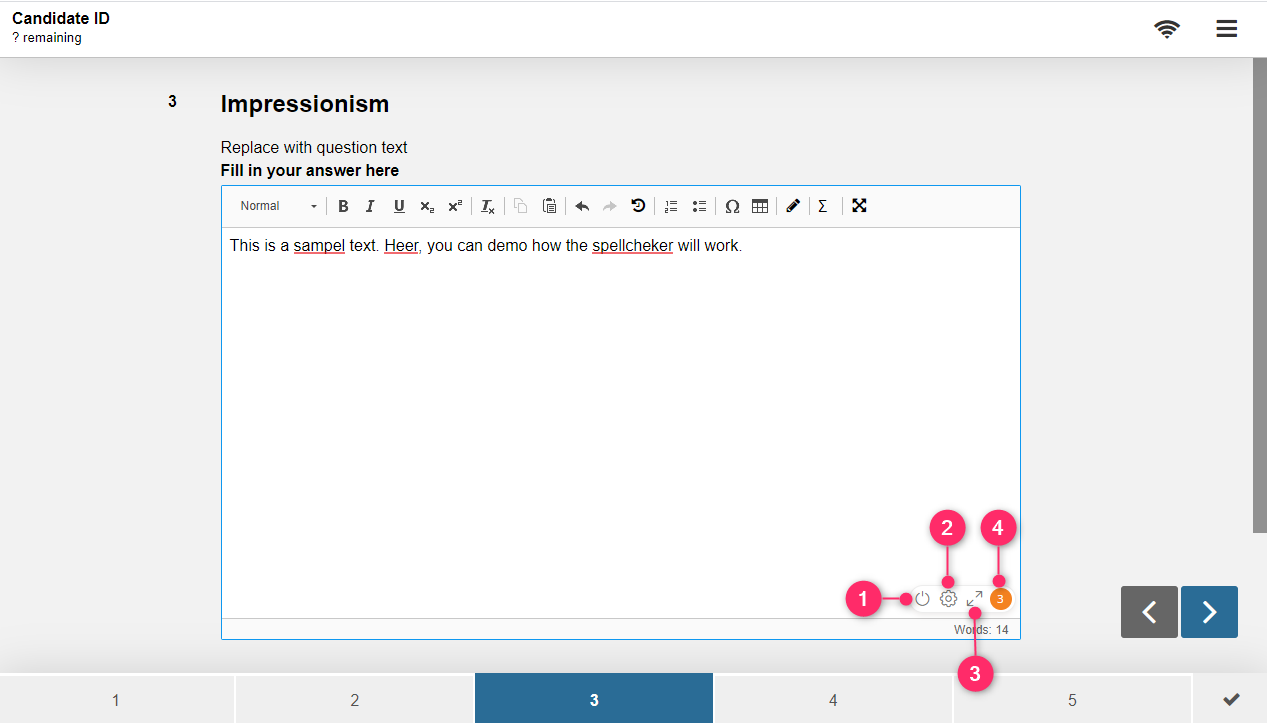
Click the settings icon marked with (2) in the image above to open language settings.

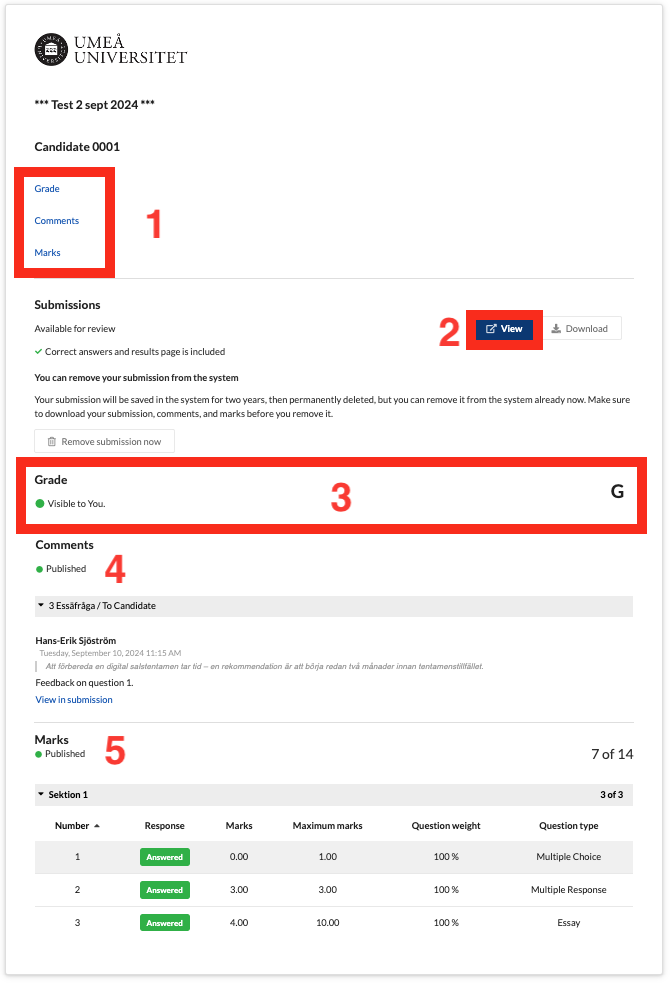
This guide describes how to view your results on a completed digital exam in Inspera.
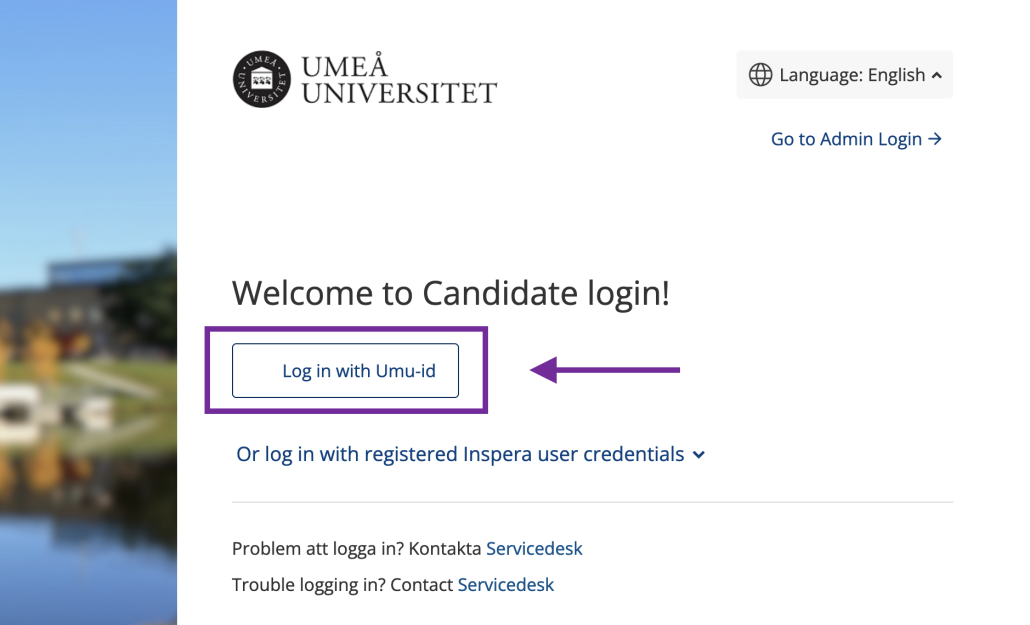
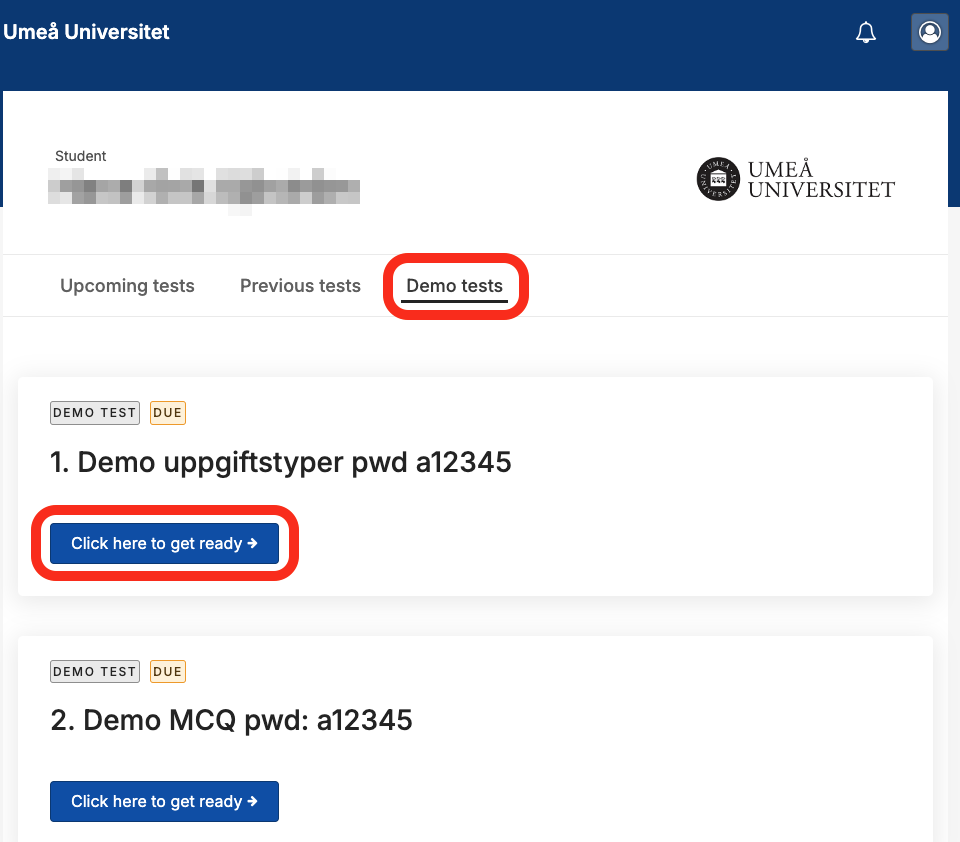
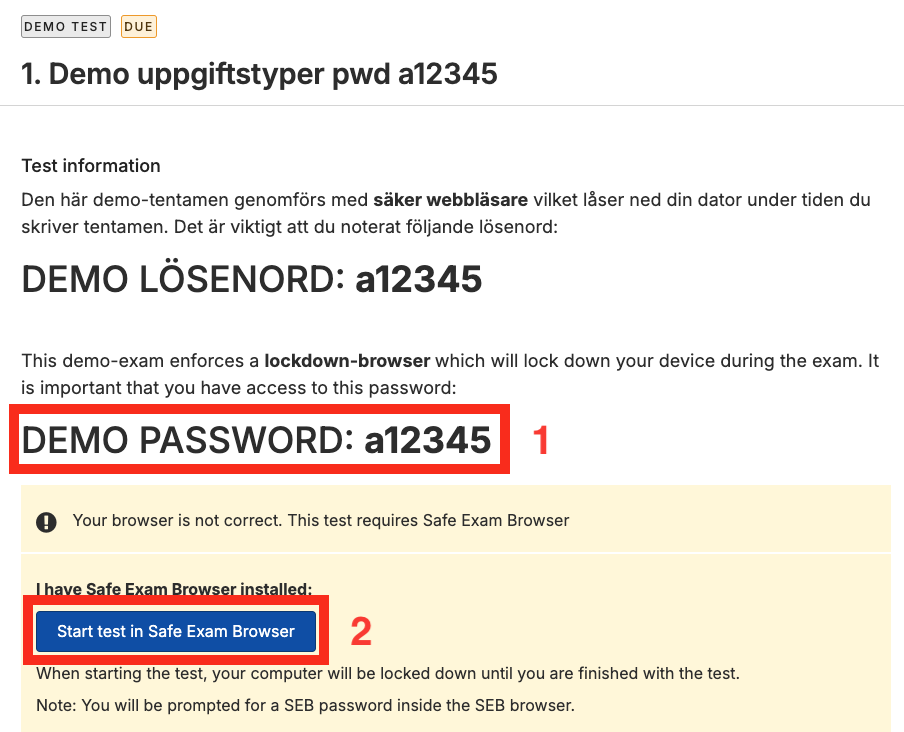
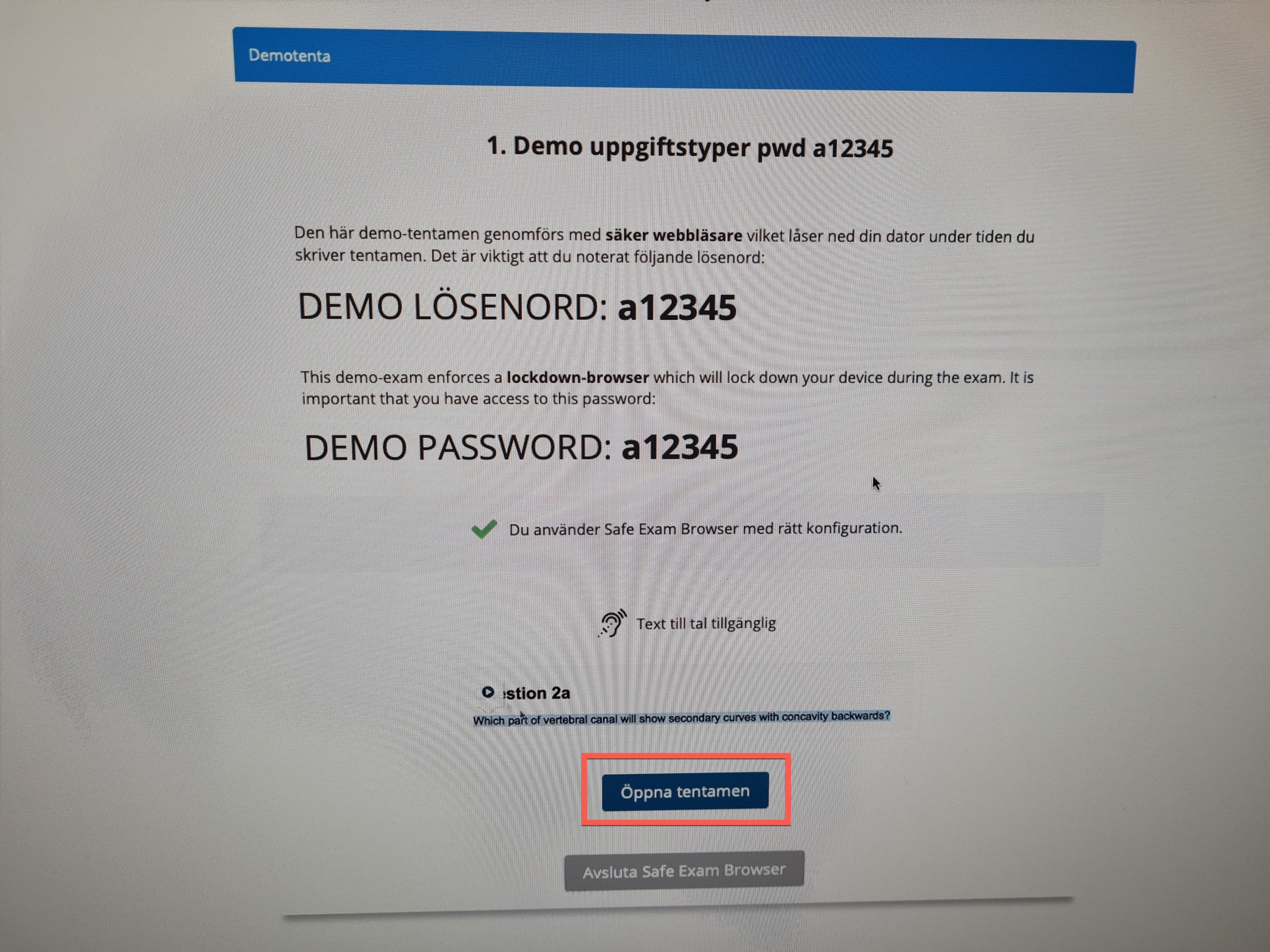
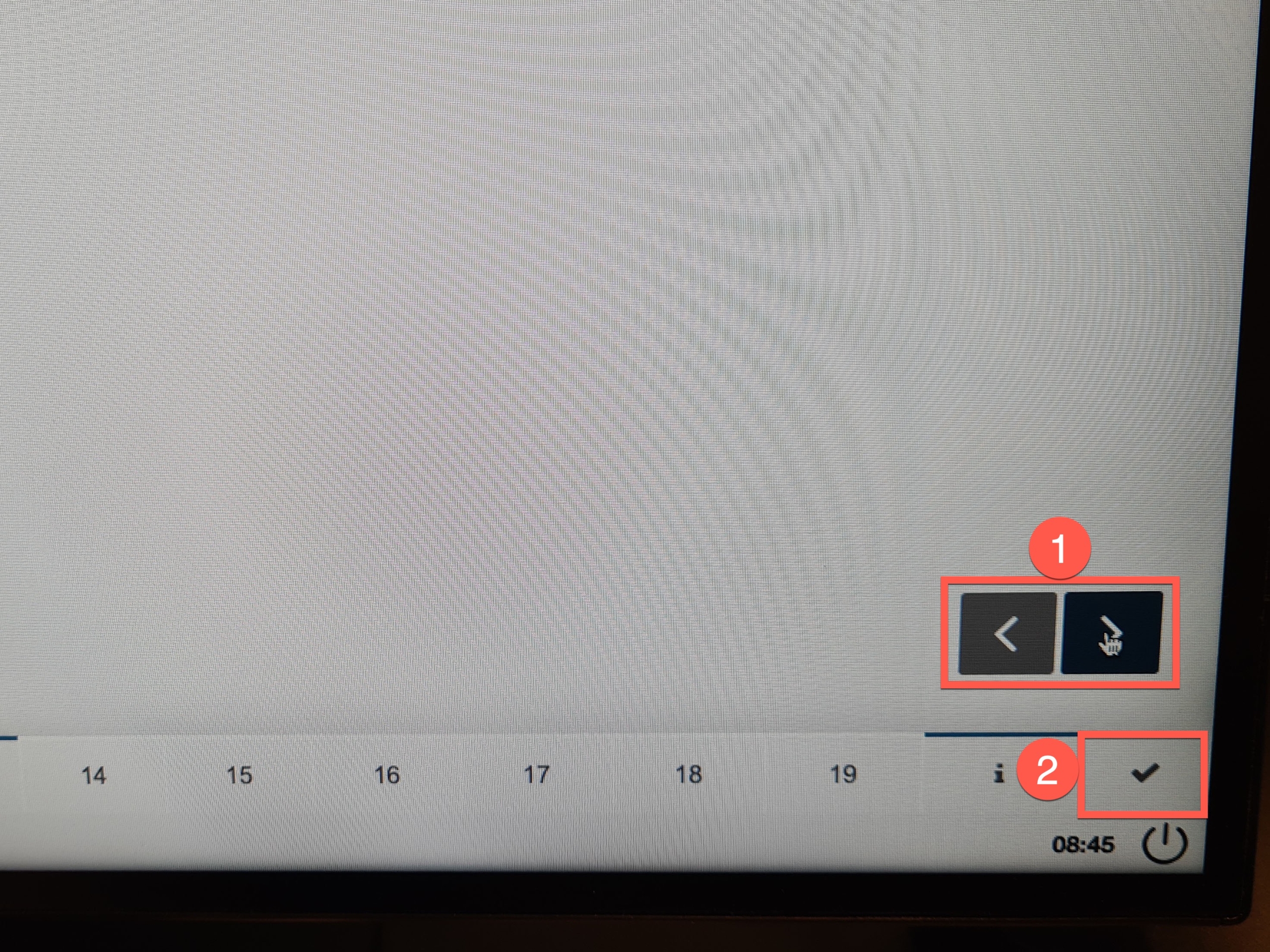
This guide describes how to take a demo exam in Inspera to ensure that your computer works with the Safe Browser Safe Exam Browser.