
Set up your notifications in Teams
When you want to set up and adjust your notifications settings in Microsoft Teams, there are two options: for the entire application or for each channel.
Set up notifications for the Teams application
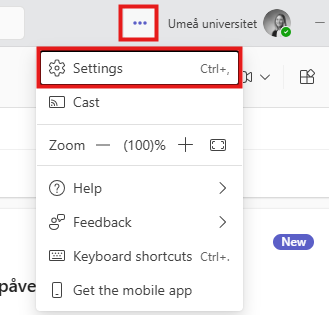
- Click on the three dots next to you profile picture in the upper right corner in Teams.
- A menu will appear, select Settings.
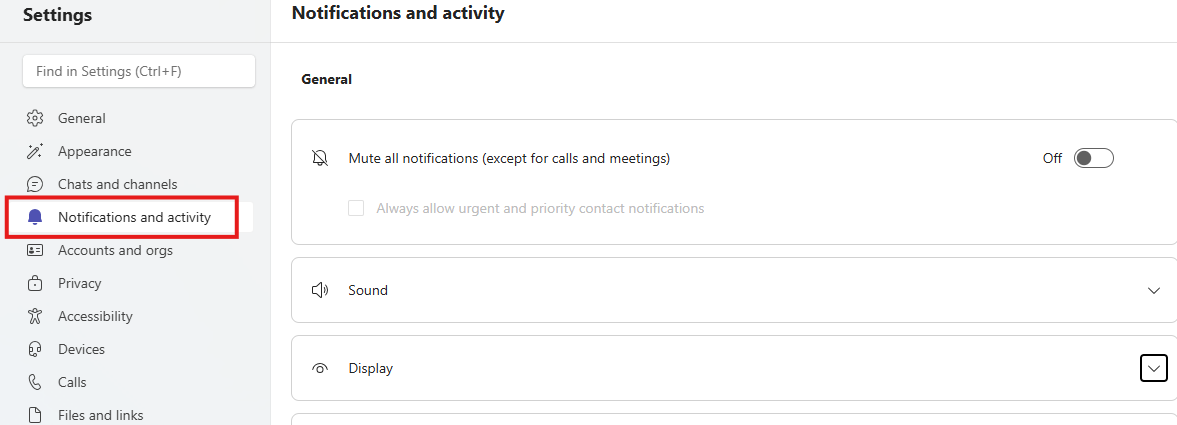
- Select Notifications and acitivty and set up the different notifications under each heading.
If you’ve chosen to receive a notification via email – please note that you will unfortunately not receive this notification if you are signed in or have the application open in the background. This is because you are considered as active and will therefore only receive notifications in the application.
Set up notifications for a channel in Teams
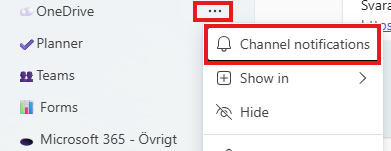
- Go to the channel where you want to adjust your settings, and click on the three dots.
- Select Channel notifications.
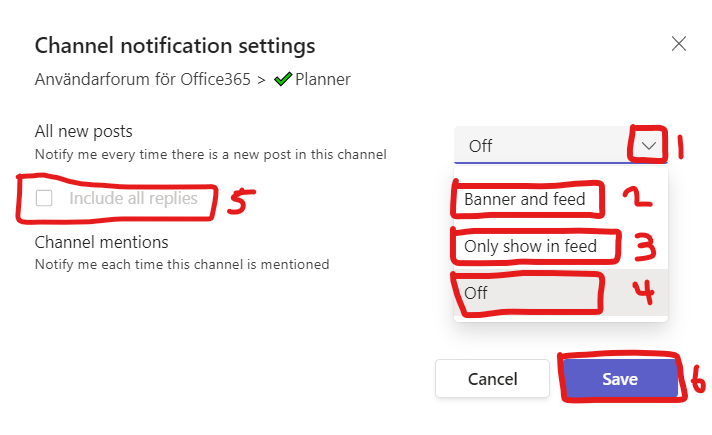
- Select the level of notifications
- Click on the arrow
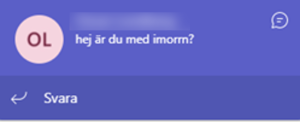
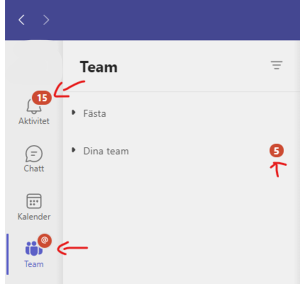
- Select Banner and feed if you want both an purple banner in the left corner of the screen when recieving an and an number sign in the activity clock. (see decription below)
- Select Only show in feed if you want notifications only in the acitivty clock. (see decription below)
- Select Off if you want to turn off the notifications for that teams channel.
- Select Include all replies if you want notifications if someone replies on your channels posts.
- Click Save
Banner = Pop up-window with little decription of what has happened.
Feed = Red numbers on activity and under team
**Note** that these settings only apply to you and the specific channel, not the entire team. For example, if you are interested in what’s happening in some of the Teams channel enable notifications on them and disable notifications on the other.