
Subscribe to a TimeEdit schedule
There are two different methods to bring bookings from TimeEdit into your calendar application: subscription and import.
- Subscription means that bookings in your calendar are updated when they are updated in TimeEdit, and past bookings are removed.
- Importing a static schedule means you will no longer receive updates, but the bookings become part of your calendar and are not removed.
Student
Click the link “Subscribe to the schedule” found below the schedule on the Student website. You will then be redirected to the same schedule in TimeEdit.
You can also search for a customized schedule on the Search schedules and bookings page if you want to subscribe to something other than what the student web page generated.
Continue to the heading Subscribe.
Employee
If you are an employee, it is recommended to use the My Schedule page, which automatically shows everything you are booked for, or the Schedule page where you can search for most things.
Continue to the heading Subscribe.
Subscribe
Choose Subscribe to open the subscription panel.
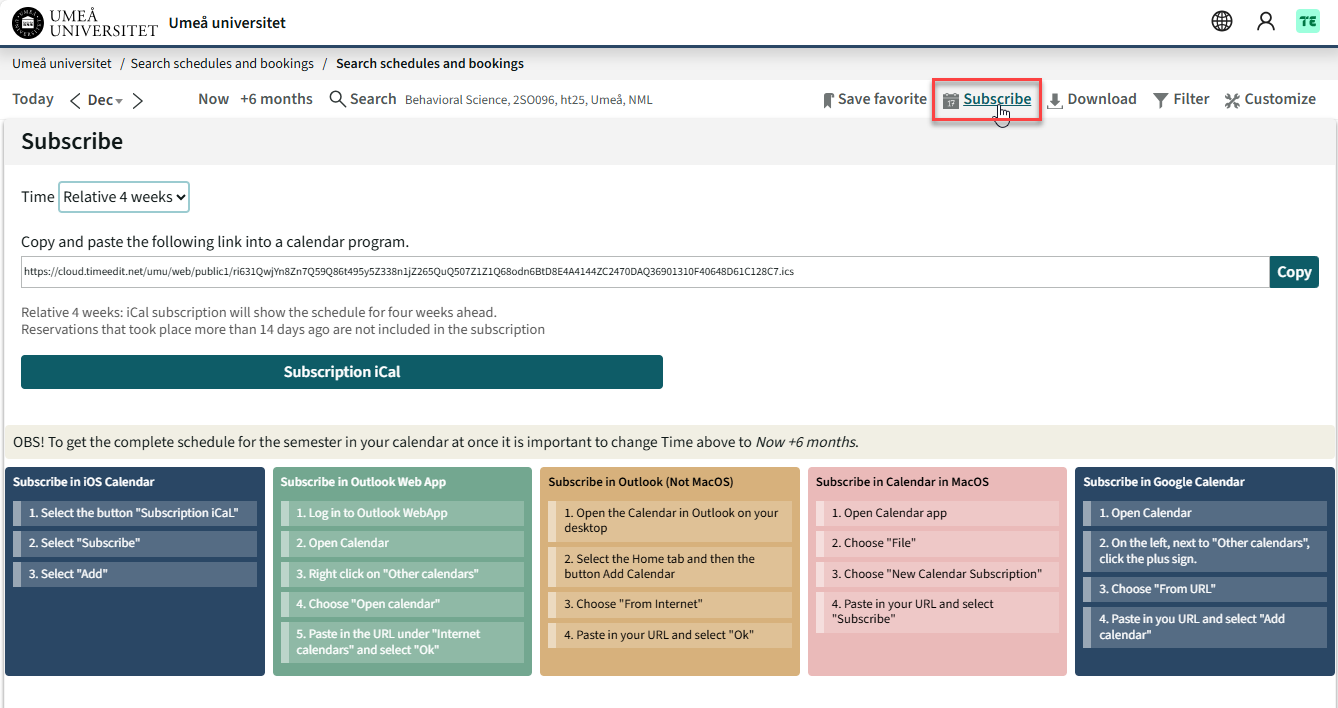
Now adjust the time period you want to subscribe to. The period determines which bookings are included in the subscription and should be relatively close to today’s date.
There are two options:
- Relative 4 weeks
- Now +6 months, which corresponds to Relative 6 months.
This option matches the schedule search you performed and can be customized as you wish.
Based on your time selection, a link has now been generated. The remaining instructions depend on your calendar application. Below are instructions for the most common options:
Subscribe on iPhone or iPad
- Click the button “Subscription iCal”
- Select “Subscribe”
- Choose “Add”
Subscribe in Outlook Web App
- Log in to Outlook Web App
- Open the Calendar
- Right-click “Other calendars”
- Select “Open calendar”
- Paste in the URL under “Internet calendar” and select “OK”
Subscribe in Outlook (Not MacOS)
This only works in Outlook for Windows. If you have Outlook for Mac, do the subscription in Outlook Web App.
- Open the Calendar in Outlook on your computer
- Select the Home tab and then click “Add Calendar”
- Choose “From Internet”
- Paste in your URL and select “OK”
Subscribe in Calendar on MacOS
- Open the Calendar app
- Select “File”
- Select “New Calendar Subscription”
- Paste in your URL and select “Subscribe”
Subscribe in Google Calendar
Note: Google Calendar does not support addresses longer than 255 characters. An alternative address is generated for Google Calendar if this happens.
- Open Google Calendar
- On the left, next to “Other calendars”, click the plus sign
- Select “From URL”
- Paste the URL and select “Add calendar”