
Activate Microsoft MFA
MFA (multi-factor authentication) is a service that provides extra protection when logging in.
This means that you need to use the Microsoft Authenticator app on your smartphone or tablet beside your Umu-id and password to log into certain university services on your computer.
This guide describes how you activate MFA for your Umu-id using your computer and smartphone.
Please read through the entire manual once before attempting the steps.
Information and tips
Are you a returning student?
If you have studied at Umeå since the fall semester of 2024, you have probably already activated MFA once. If you have the same mobile phone as then and have not uninstalled the app, you probably do not need to activate MFA again. Then try logging in normally.
If you have changed phones or deleted the app, you need to reset MFA, then see this manual Reset Microsoft MFA with one-time password.
If you have not studied at Umeå since the fall semester of 2024, then click on Step 1 to start activating MFA.
Things to think about when changing phones
After you have activated MFA, it is recommended that you add MFA on your new phone before erasing/restoring the old phone.
You can do this via the Add multi-factor authentication on new device (MFA) manual before erasing/resetting the phone.
Should you still happen to erase your old phone before activating the new one, you can create a reset code yourself via digital ID, then check this manual.
Reset multi-factor authentication using BankID
Help - it’s not working for me
If you’re still having trouble activating MFA, below are some quick pointers on advice and tips.
- Keep in mind that you need to use both a computer and a smartphone to enable MFA.
- You can only download the app on a smartphone (you cannot install it on a computer).
- The app you should download is this: https://www.microsoft.com/security/mobile-authenticator-app
- Make sure you open the link in the manual in a private/incognito window of the browser, see Step 2 in the manual.
- You log in with Your-Umu-id@ad.umu.se (e.g. abcd0123@ad.umu.se)
- If you have tried to activate MFA with only your mobile and have an account in the app, then try to follow the activation of MFA again but this time on a computer (see also the next point below).
- If you have used the app before for another account, click on the plus (+) at the top right and choose to add a work or school account and then Scan QR code. You get the QR code in Step 4 of the manual (but do Steps 2 and 3 first).
- How it works to log in after MFA is activated is described in this manual: https://manual.umu.se/en/log-in-using-multi-factor-authentication/
If you still do not get it, contact ITS Servicedesk, see the button at the bottom of the page.
The guide
Step 1 - Start the activation
To start the wizard, you need to open the link in a private/incognito/InPrivate window to avoid problems.
A private/incognito/InPrivate window is a “version” of the browser that has no memories of your previously visited pages or logins. We recommend this version because many other organisations, businesses and individuals (eg Hotmail email) also use Microsoft. If you then open the link in the regular version of the browser, it can therefore remember other accounts or saved logins and then you cannot activate MFA for your account from Umeå University.
Right-click on the link below and select the correct option for the respective browser in the menu that opens.
- Google Chrome: Open link in incognito window.
- Microsoft Edge: Open link in InPrivate window.
- Mozilla Firefox: Open link in New Private Window.
- Safari: Hold Option and click “Open link in new Private Window”.
More information about private window can be found in this manual: Open a private browser window
Start activation
To start the activation right click https://aka.ms/mfasetup according to the instructions above.
Please note that a new window will open so you will need to switch windows to get back to this manual.
In the new window that opens, it says that you need to enter an email or phone number.
Here you need to enter Your-umu-id@ad.umu.se (e.g. abcd0123@ad.umu.se)
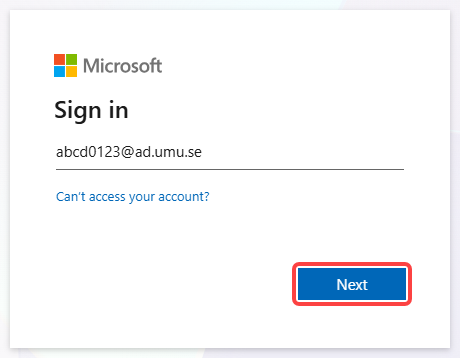
Click Next and follow the on-screen instructions.
If you want detailed help, go to Step 2.
Step 2 - Log in
You will now be redirected to the University login where you need to log in with your UMU-id.
Start by clicking on Password.
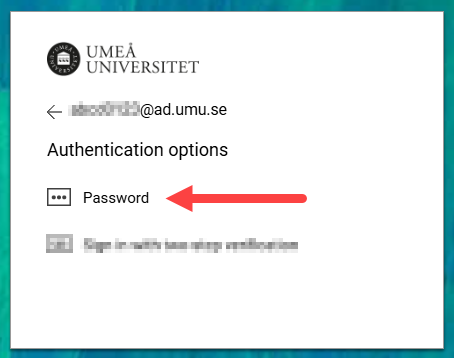
Enter your password and click Sign in.
The system will now detect that you have not enabled MFA for your UMU-id and the image below will appear.
Click Next.
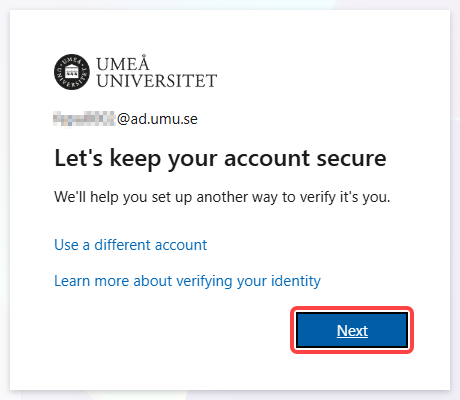
You will now be redirected to Microsoft’s own guide to enable MFA.
Click Step 3 for detailed instructions or follow the guide presented to you.
Step 3 - Follow the Guide
Start by downloading the Microsoft Authenticator app to your mobile device.
It is important that you download the one shown below.
If you search for the app in your mobile app store, you may often see a sponsored result at the top of the list of search results that you should NOT use.
Click Next after installing the app or if you already have it installed.
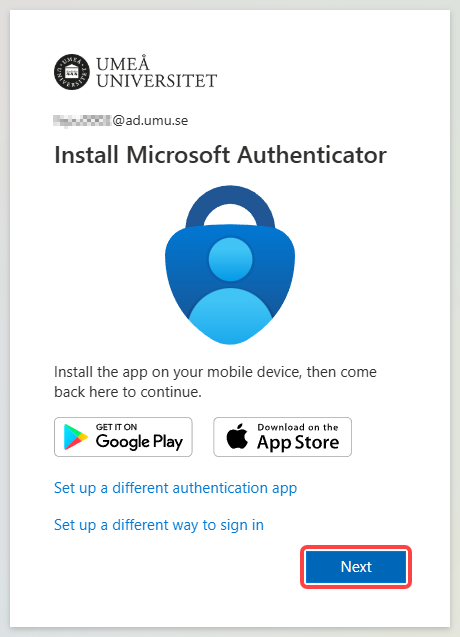
When you add the account to the app, it should be of the Work or School type.
Click Next.
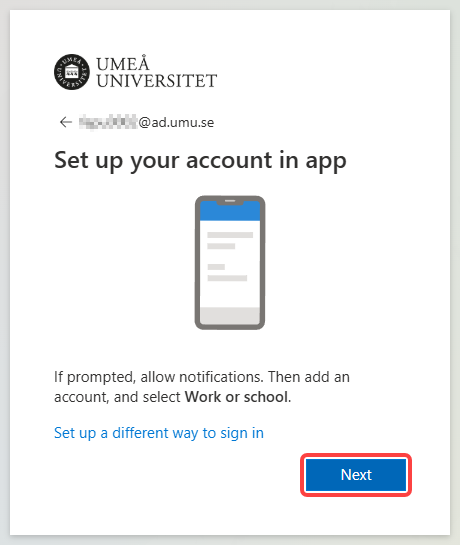
A QR code will appear that you should scan with the Microsoft Authenticator app.
Once that is done and the account has been added to the app, click Next on your computer.
Now the system wants to verify that everything went well and you will be presented with a two-digit number that you should approve in the app.
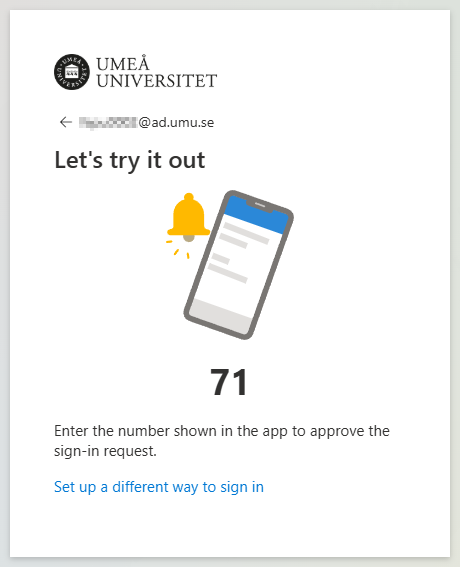
If everything went well, you should now be presented with the information below and you can click Done.
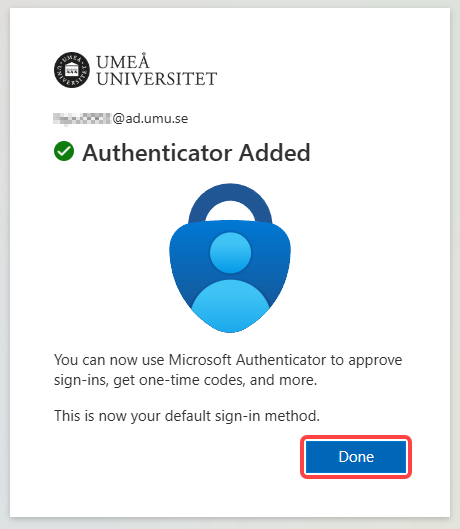
If you have encountered problems and are unable to activate, please read the tips in Help – it doesn’t work for me.
You can also contact the ITS Servicedesk, see the bottom of the page.
Here is an instructional video that describes how to activate MFA
Click here to go to the video where we describe how to activate your MFA (the link will open in a new tab)
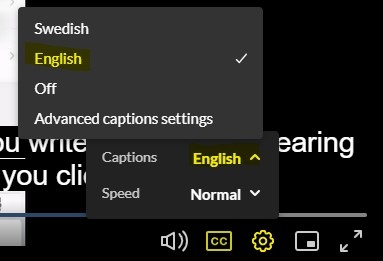
For english subtitles, click on “CC”, and then Settings and choose English.
Please note!
Logging in using MFA is not required every time. How often you need to log in using MFA depends on the user; how often you change networks and what software you use, for instance.
Changed or lost your smartphone?
If you have changed phones or lost your phone, you can reset your MFA using the manual Reset Microsoft MFA with one-time password. If you do not have Swedish digital ID, contact ITS Service Desk for assistance.