Manual

Manual
  • Svenska
  • Menu Menu
Jonas Sundström

Log in using multi-factor authentication (MFA) at Office 365

Updated: 2026-08-19/in Employee, Multi-factor authentication /by Jonas Sundström

Multifactor authentication (MFA) is a service that gives you increased protection when logging in to some of the university’s systems. With multi-factor authentication, you log in to the university’s systems in two steps: using your Umu-id and password, and using the Microsoft Authenticator app on your phone/tablet or a hardware token. In this guide, we will describe step-by-step how to log in to the University’s systems using multi-factor authentication on both your phone/tablet or hardware token.


Log in using code

  1. When logging in to a system that uses multi-factor authentication – log in using your Umu-id and password.
  2. Click Next.
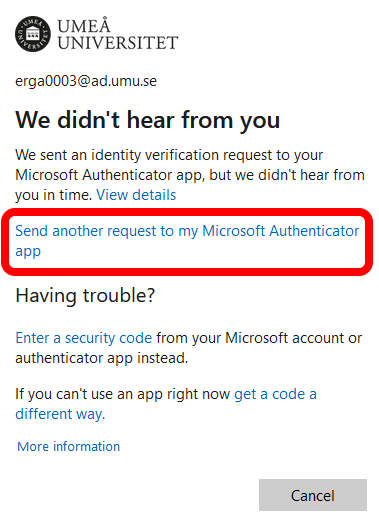
  3. A window will show and you’ll be asked to open Microsoft Authenticator on your Phone.
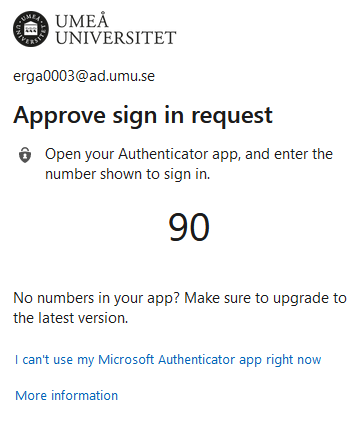
  4. Start Microsoft Authenticator on your phone and choose your Umu account.
  5. Enter the code in “Enter number here” that is presented on your computer screen on your phone.
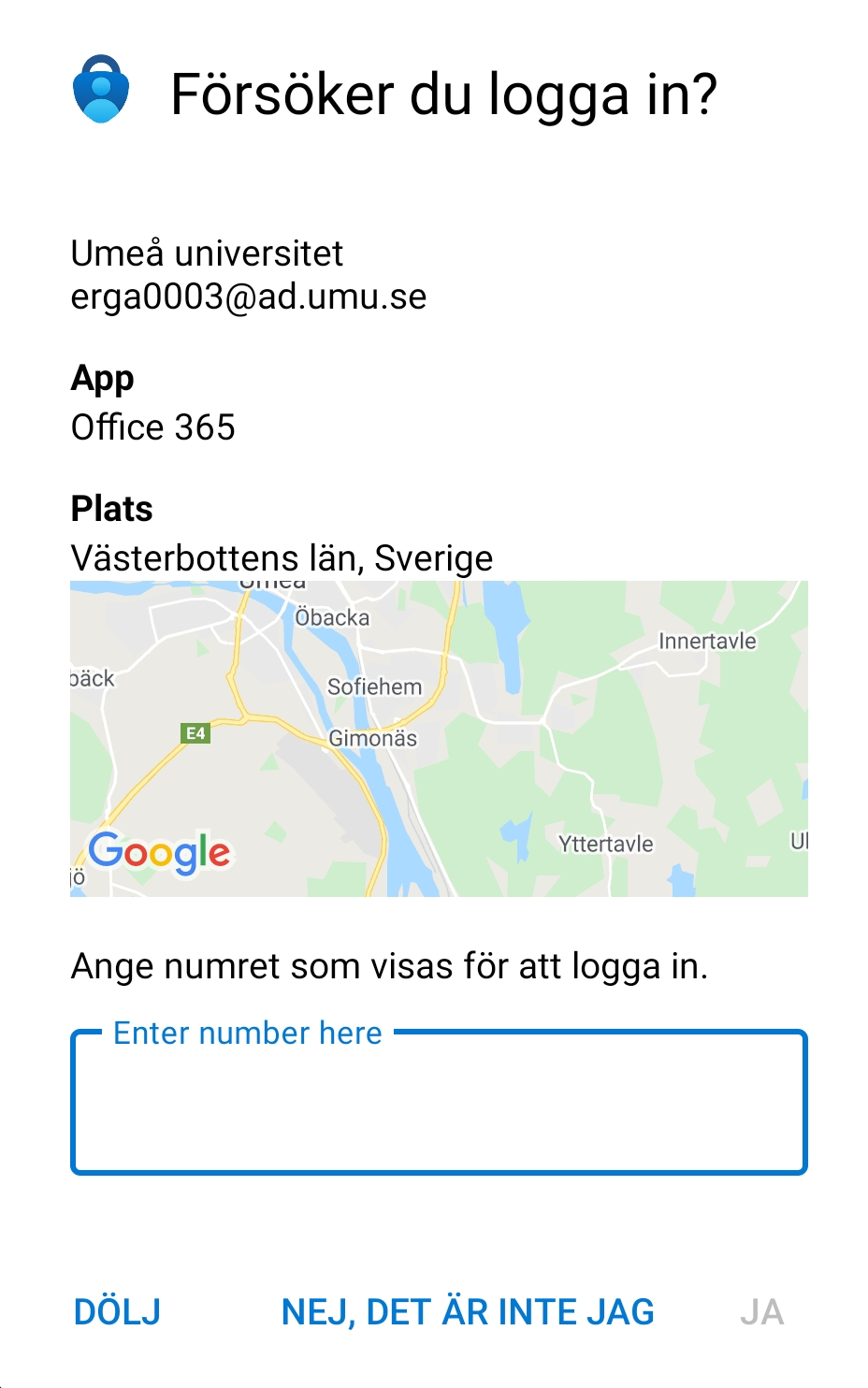
  6. Click Yes.
  7. You are now logged in!

Log in using a hardware token

  1. When logging in to a system that uses multi-factor authentication – log in using your Umu-id and password.
  2. Click Next.
  3. A window will be pop up on your computer asking you to accept the log in.
  4. Start your hardware token.
  5. The token will show six numbers. Fill in the numbers in the field Code on your computer.
  6. Click on Verify.
  7. Done!

If you can’t see the numbers on your mobilephone

Does it look like this when you open Authenticator on your iphone?
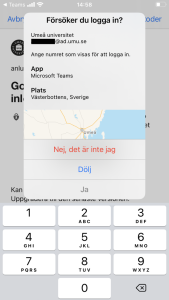
  1. Click on Hide.
  2. Then press to enter a new code from Microsoft Authenticator.
  3. You should see the numbers now.
  4. Go back to the app on your phone and enter the code being shown.
https://manual.umu.se/wp-content/uploads/2018/02/manual-loggo.png 0 0 Jonas Sundström https://manual.umu.se/wp-content/uploads/2018/02/manual-loggo.png Jonas Sundström2021-05-24 13:41:102026-08-19 16:12:41Log in using multi-factor authentication (MFA) at Office 365
Erik Öhman

Change standard method for login (MFA)

Updated: 2026-08-19/in Employee, English, Multi-factor authentication /by Erik Öhman

If you want to change your standard method for login, you can change it with this method.

  1. Visit the website Microsoft Safety info.
  2. Click the menu Security info.
    Add method multi-factor authentication
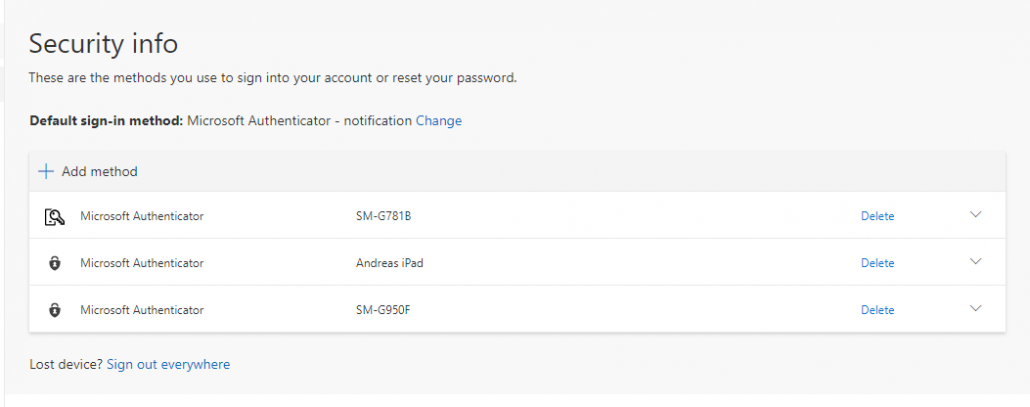
  3. Click on Default sign-in method.
  4. Choose between using a code from you app or getting a notification from the app.
  5. Done!
https://manual.umu.se/wp-content/uploads/2018/02/manual-loggo.png 0 0 Erik Öhman https://manual.umu.se/wp-content/uploads/2018/02/manual-loggo.png Erik Öhman2021-05-21 13:40:352026-08-19 15:35:23Change standard method for login (MFA)
Erik Öhman

Add MFA to an additional device

Updated: 2026-06-17/in Employee, English, Multi-factor authentication, Student /by Erik Öhman
Read more
https://manual.umu.se/wp-content/uploads/2018/02/manual-loggo.png 0 0 Erik Öhman https://manual.umu.se/wp-content/uploads/2018/02/manual-loggo.png Erik Öhman2021-05-21 13:38:192026-06-17 12:17:46Add MFA to an additional device

Contact ITS Service Desk

Create a support ticket at www.umu.se/servicedesk, call 090-786 63 00 or visit us next to Infocenter.

Kategorier

Scroll to top Scroll to top Scroll to top