Review results in Forms

In this manual we show how to review results in Forms. We also show the difference between reviewing results from a form (survey) and questionnaire (test, quiz).

Review results from a Form (survey)

  1. Enter your Forms portal and select the form you want to view the results from.
  2. Select the Responses tab.Show responses in forms
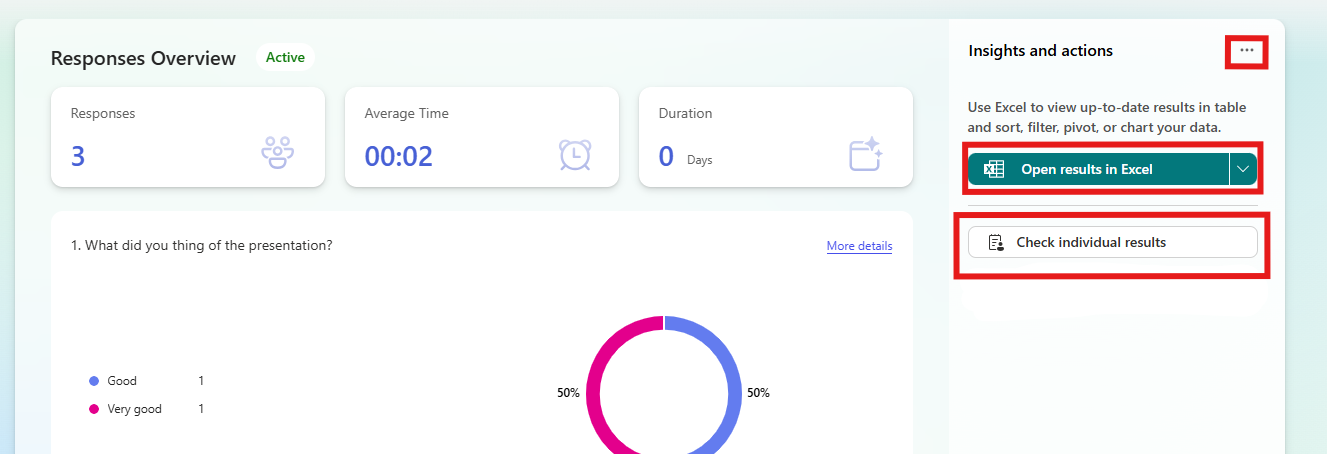
  3. Select the three dots to delete all responses, print a summary, or create a summary link.
  4. Select Open in Excel to see the results in Excel. The questions will become columns and the responses will become rows.
    • Note that if you change anything in Excel, it will not change in Forms.
  5. If you want to see every result individually, you click on Check individual result.
Responses in forms

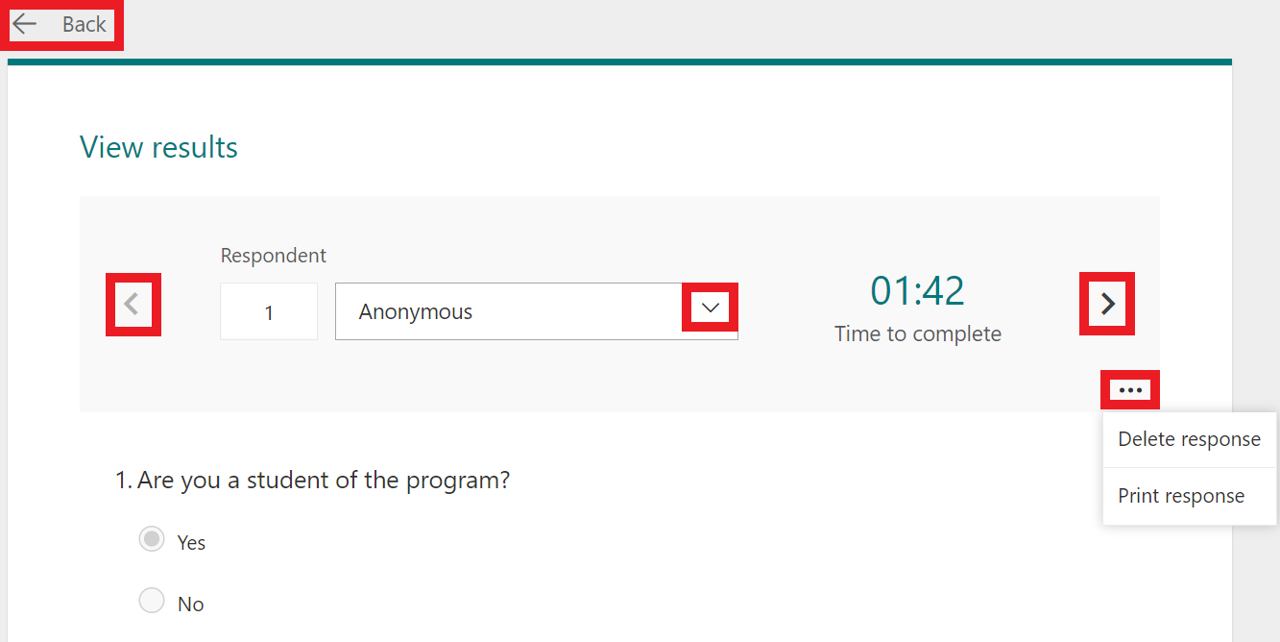
  1. Select the arrows to view another respondent’s answers.
  2. Select the three dots and then Delete response to delete the respondents answers or Print response to print them out.
  3. Select Back to return to the responses tab.
    reveiw results from a form - reveiw tab decription
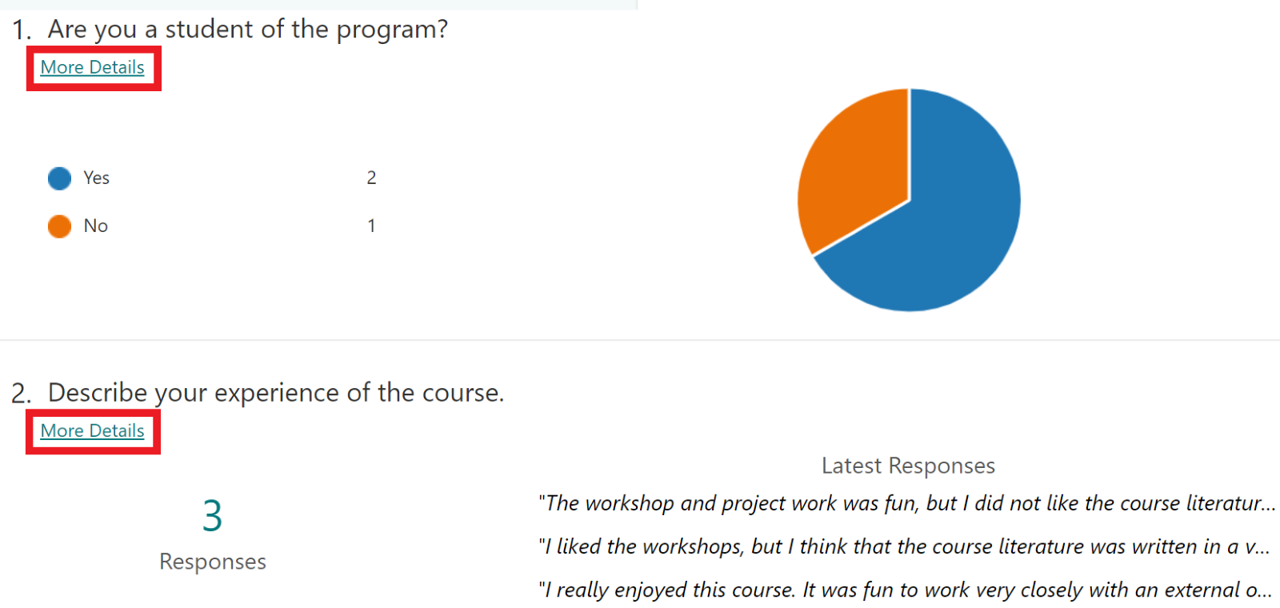
  1. There you can see all questions and a summary of the answers. Select More details below each question to see a list of all the answers to that specific question.
    review results from a form - more details

Review results from a qestionnaire (test, quiz)

Here we will show the differences between reviewing a questionnaire and a form (survey).

  1. Click three dots to delete all answers, print a summary or create a summary link.
  2. Click Excel Icon to open results in Excel
    • In Excel, each question will become a column and each answer will be a row.
    • The columns show start / end times, names, questions and answers.
    • NOTE! If you change something in Excel, it is not reflected in Forms.
  3. Click Review Answers to review each person’s answers individually. (go to heading review answers)
  4. Click Post scores to select which results you want to publish. (go to the heading post scores).
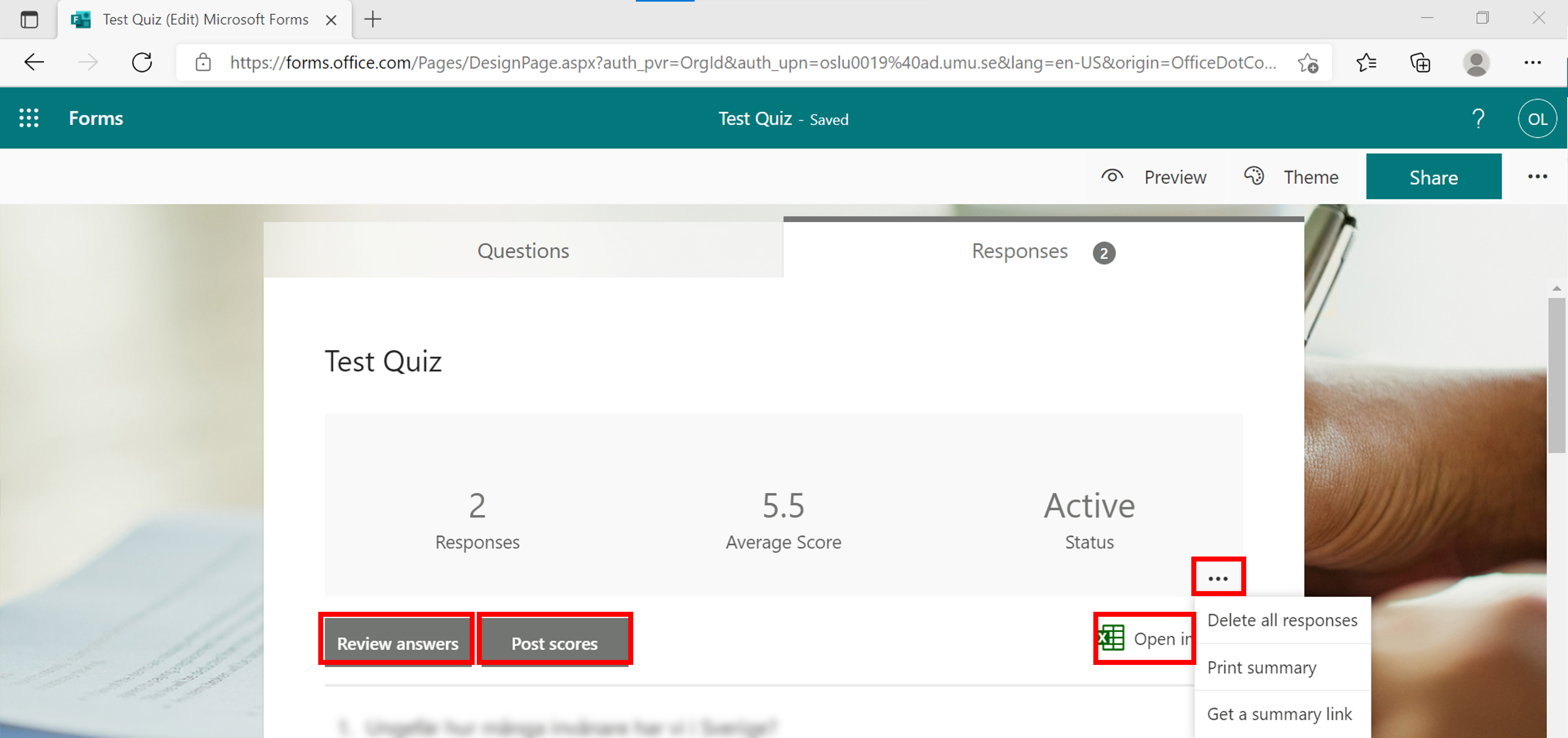
    review results from a questionnare (test, quiz)
  5. Scroll down in the answer file to see all the questions and answers, in a graphical layout.
  6. Click on the link more details on each question, to see each person’s answers.
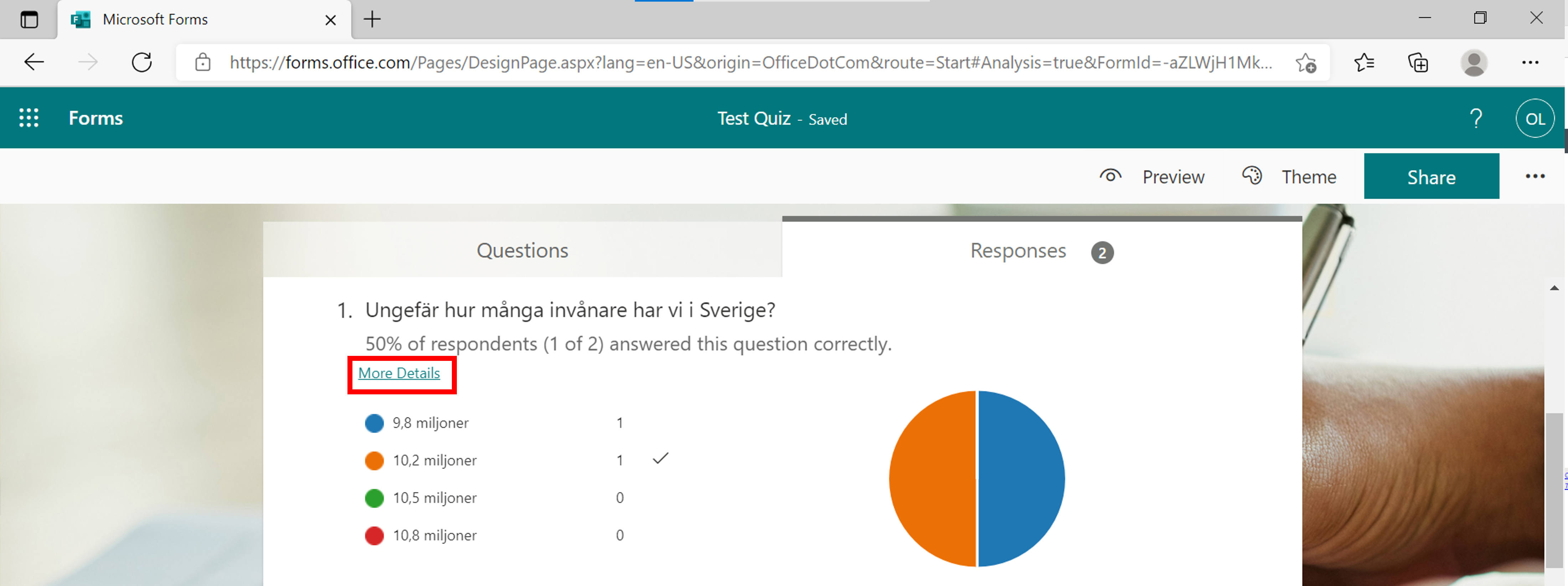
    review results in a questionnare - answer file
  7. A list of all participants’ answers to the selected question appears.
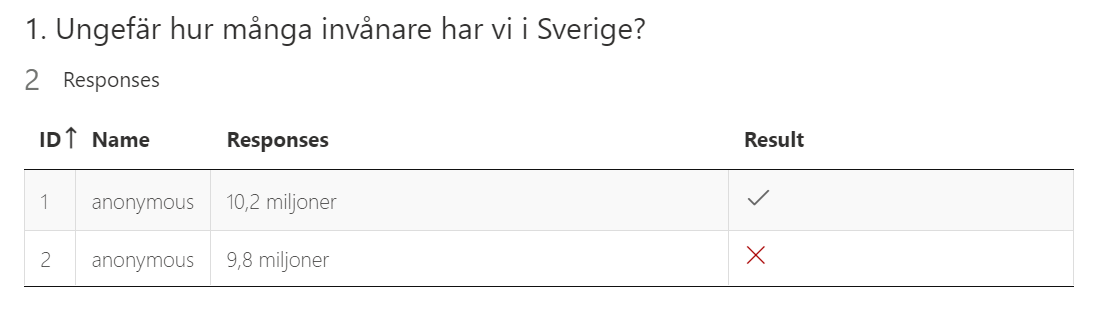
    review results from a questionnare - more details

Review results

  1. Click on questions to change the review mode from questions instead of person.
  2. Click on the arrows to change the person/question you want to check results on.
  3. Click on the chat bubble with question marks to give feedback (maximum 1000 characters) on the selected person/question.
  4. Click on the three dots and delete or print answers or publish results on the selected person / question answer.
  5. Click Back to return to the answer file.
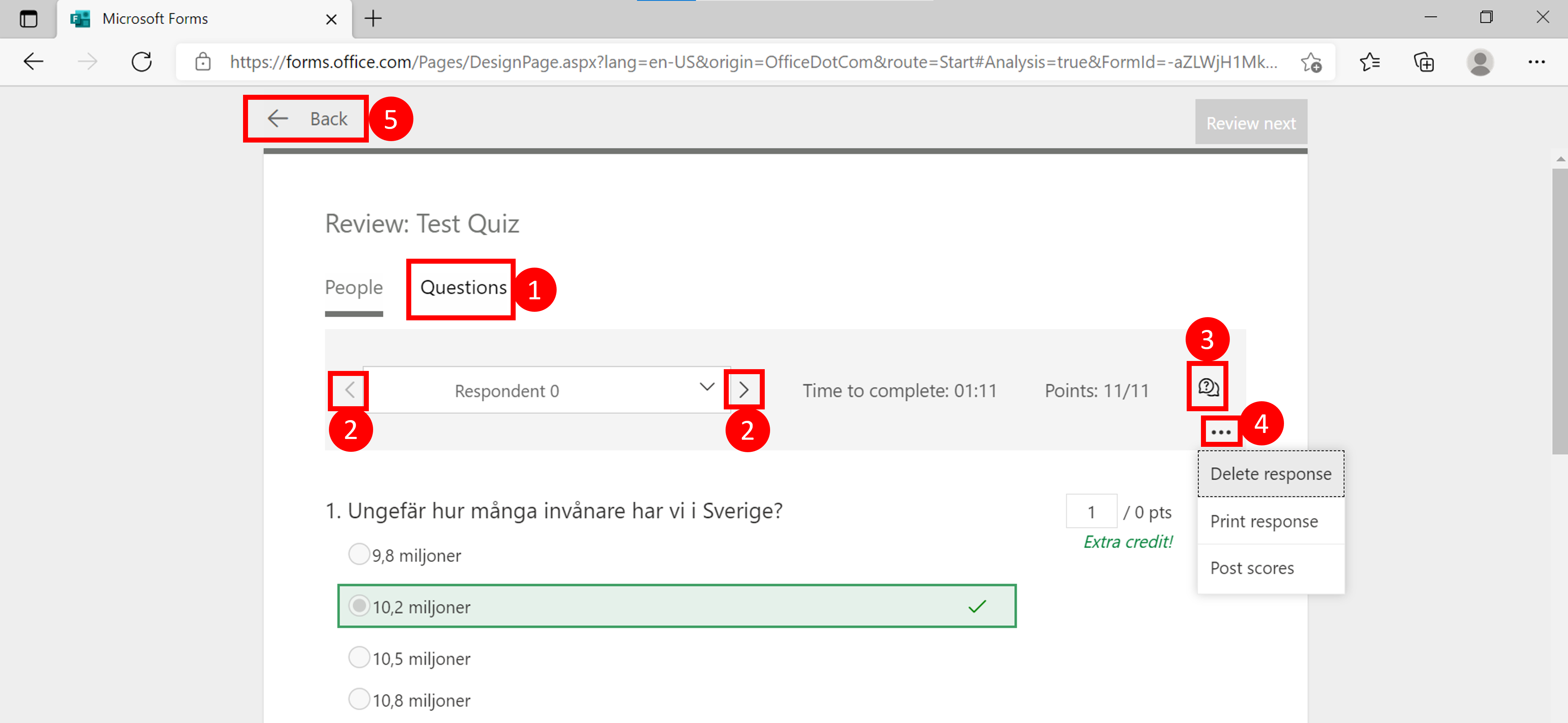
    review results in a questionnare - induividual review

Post scores

You can only publish results if you have created a questionnaire (test, quiz).

  1. Select which person’s answer you want to publish by clicking in the checkbox.
  2. Click on preview to review the response you will send to that specific person.
  3. Click Publish scores to send the results to the person. Note: If you publish scores, respondents can view test feedback and results. The respondents can display the result with the same link that they use to start the test.
  4. Click Back to return to the answer file.
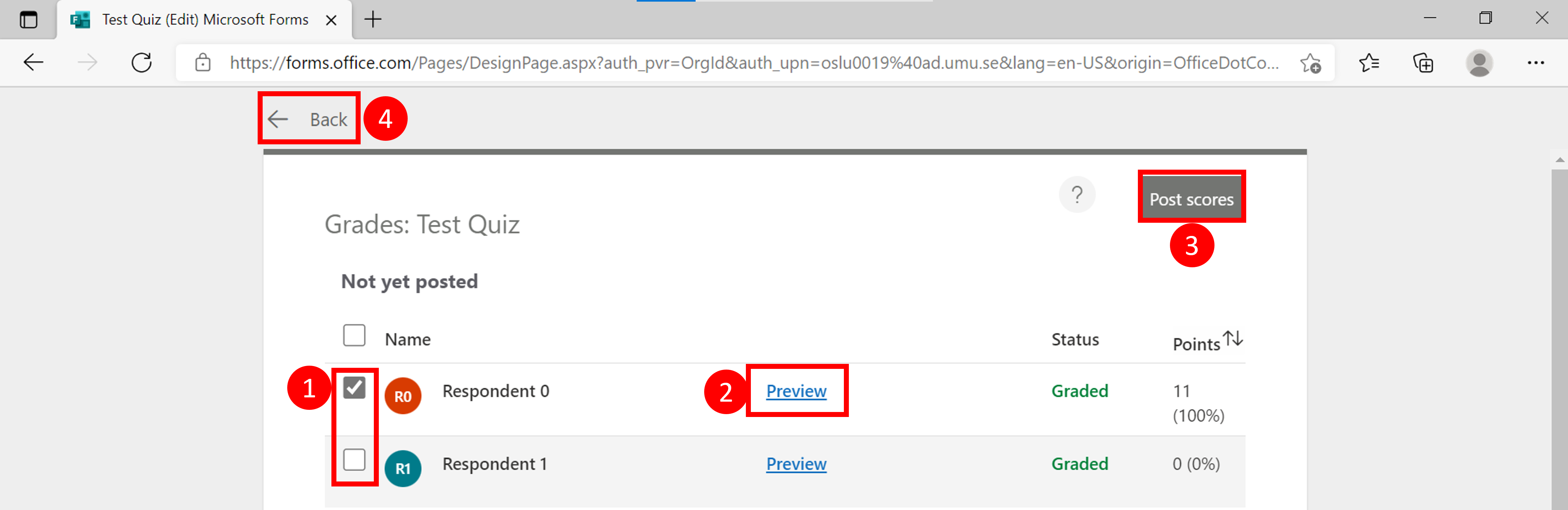
    Review results questionnare - grading

Create questions for a form in Forms

In this manual we will show all types of questions that can be created in a form. Use a form to collect data, for example through a survey. If you want to create a quiz with right and wrong answers instead, se our manual for that. (link

Add a new question

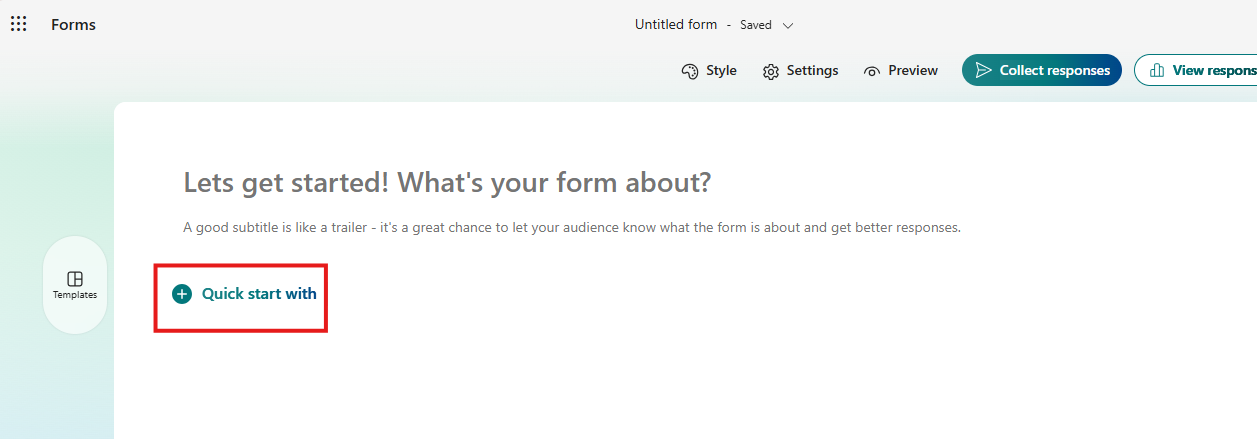
  1. Open the form you want to add questions to.
  2. Select Quick start with to add a new question.
    Image showing how to create a form
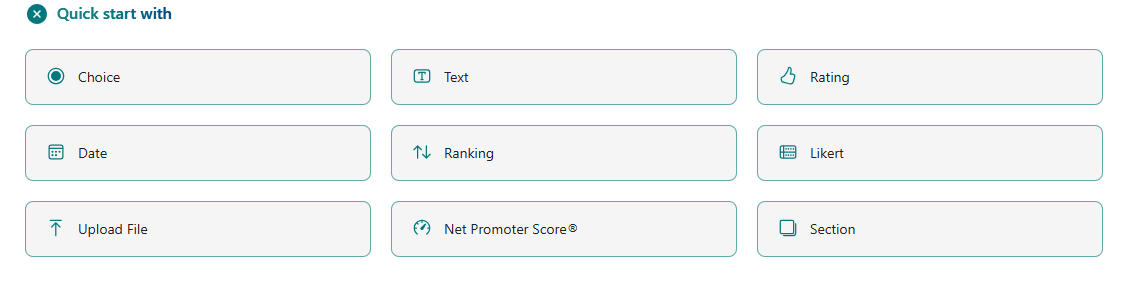
  3. You will see a panel with the options: Choice, Text, Rating, and Date etc.
    Image showing how to create a form
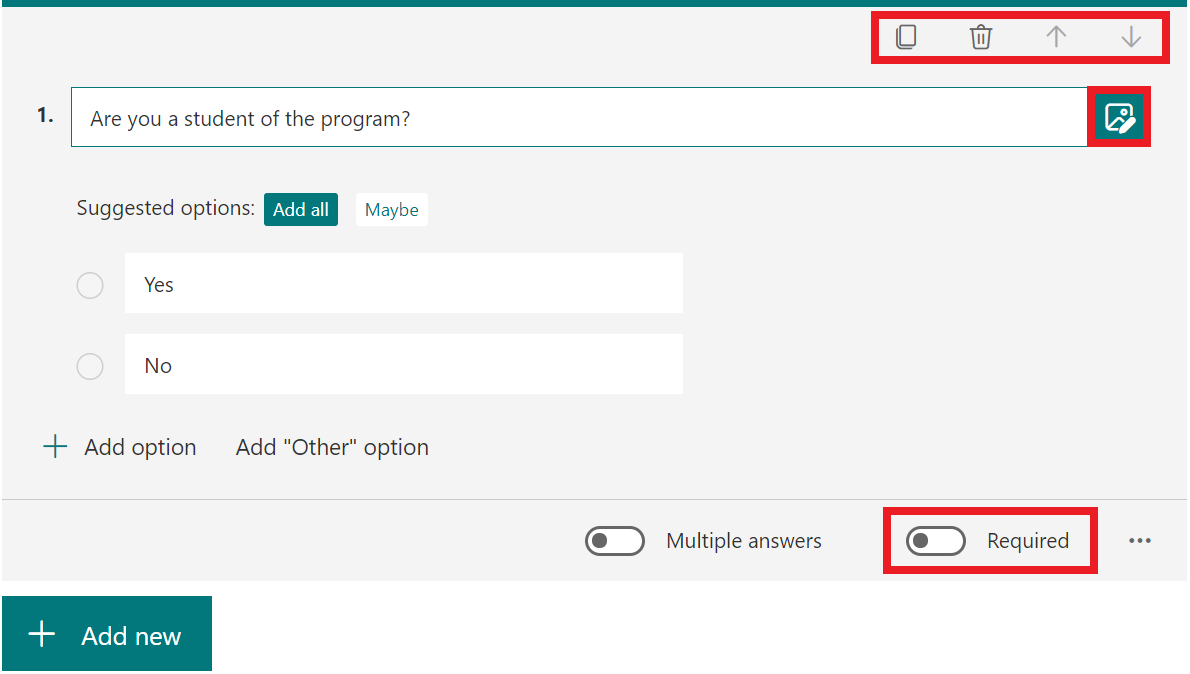
  4. These settings are available for all question types:
    1. Copy the question.
    2. Delete the question.
    3. Change the order of the question (move it up or down).
    4. Insert media, you can choose an image or a video.
    5. Decide if the question requires an answer.
      features in all questions


Question types

In this section we describe the different types of questions you can add to a form.

Choice question

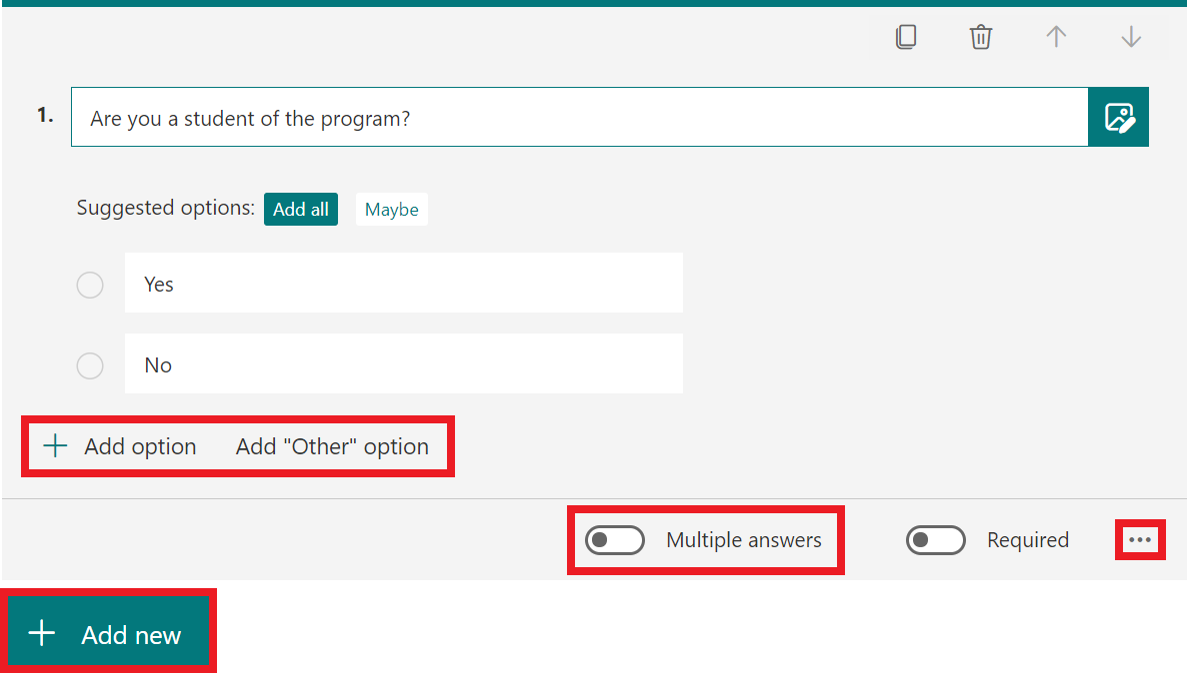
A choice question allows you to add answer options to a question. You can add more than 100 different options. Below we describe the different settings you can make when creating a question.

Image showing the questions type Choice

  1. Add your question.
  2. Add an option.
  3. Add the “Other” option.
  4. Decide if the respondents can choose multiple answers.
  5. Select the three dots to get more options: shuffle options, drop-down list, subtitle or add branching.
  6. Select Add new to save the question and add another one.
    choice question full decription


Text question

A text question allows the respondents to write a text to answer the question.

Image showing different question types

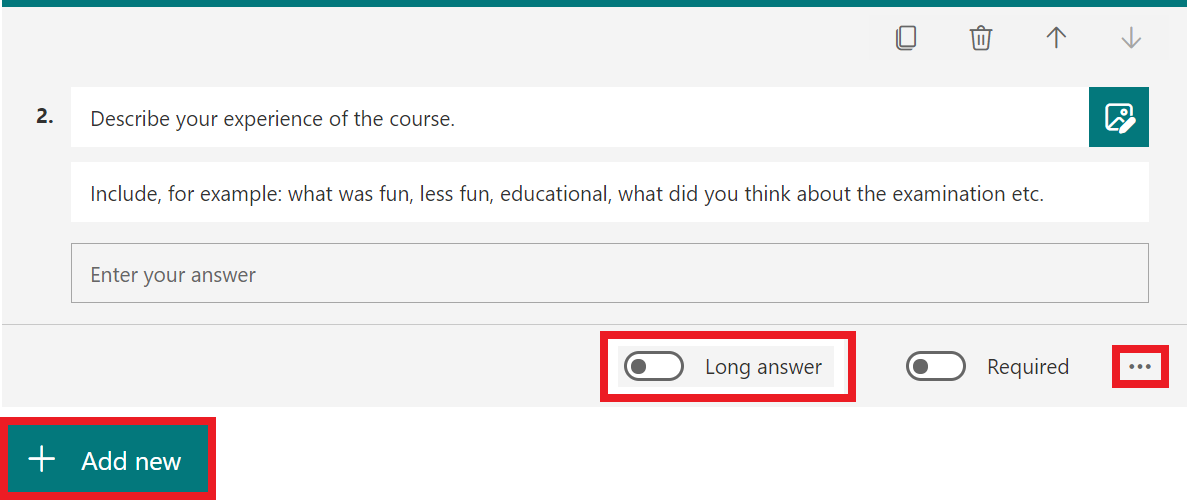
  1. Add your question, and possibly a description/clarification.
  2. Decide if the respondents will be able to write a long answer.
  3. Select the three dots to add a subtitle, restrictions or add branching.
  4. Select Add new to save the question and add another one.
    text question full decription

Rating question

A rating question allows the respondents to rate a statement from 1 to 10.

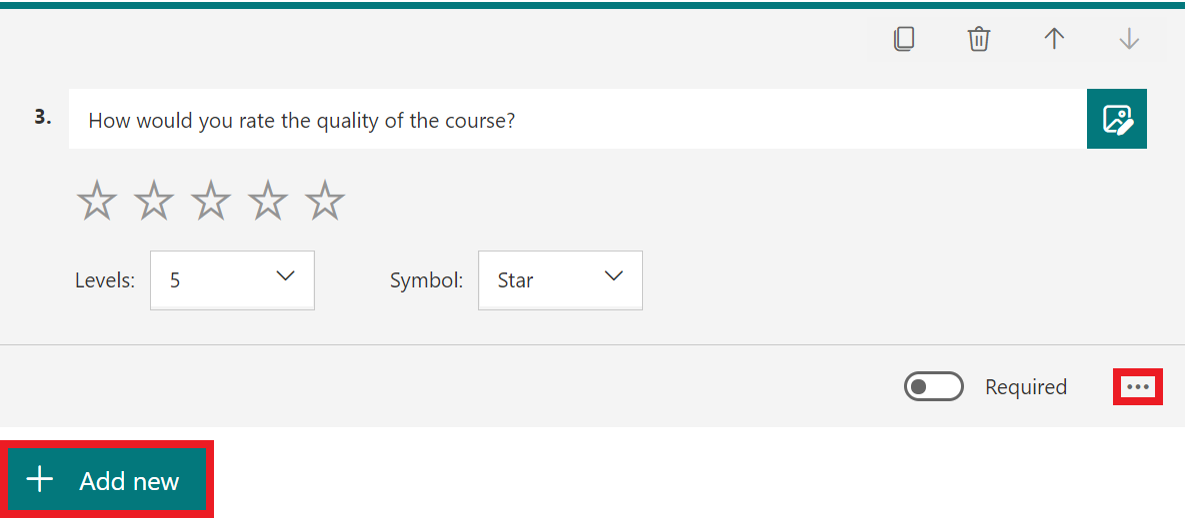
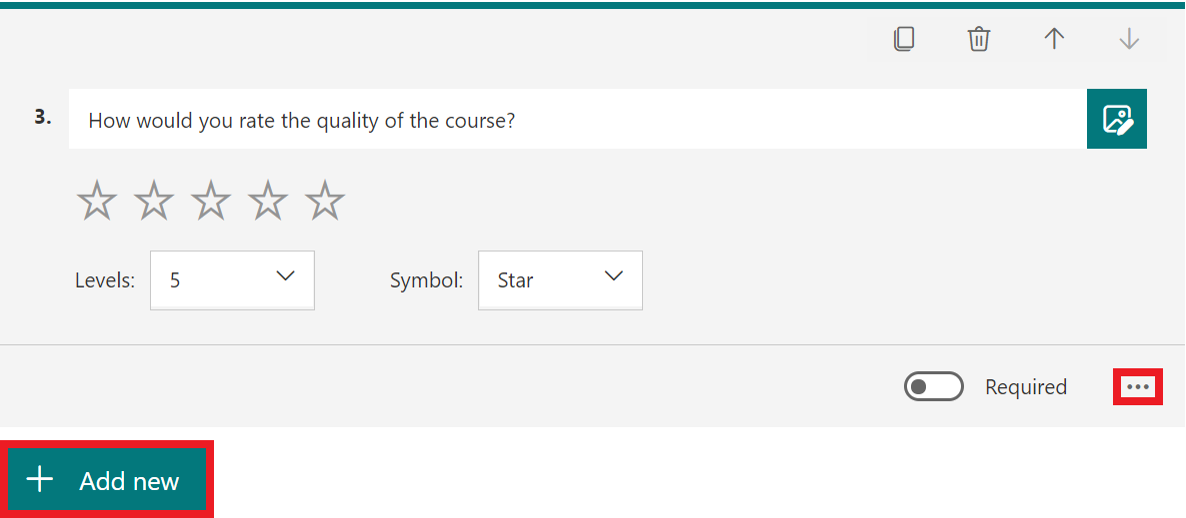
  1. Add your question.
  2. Choose the levels, the maximum level is 10.
  3. Choose the symbol, you can choose either stars or numbers.
  4. Select the three dots to add a subtitle, label or branching.
  5. Select Add new to save the question and add another one.
    rating question full decription


Date question

A date question lets the respondents choose a date to answer the question.

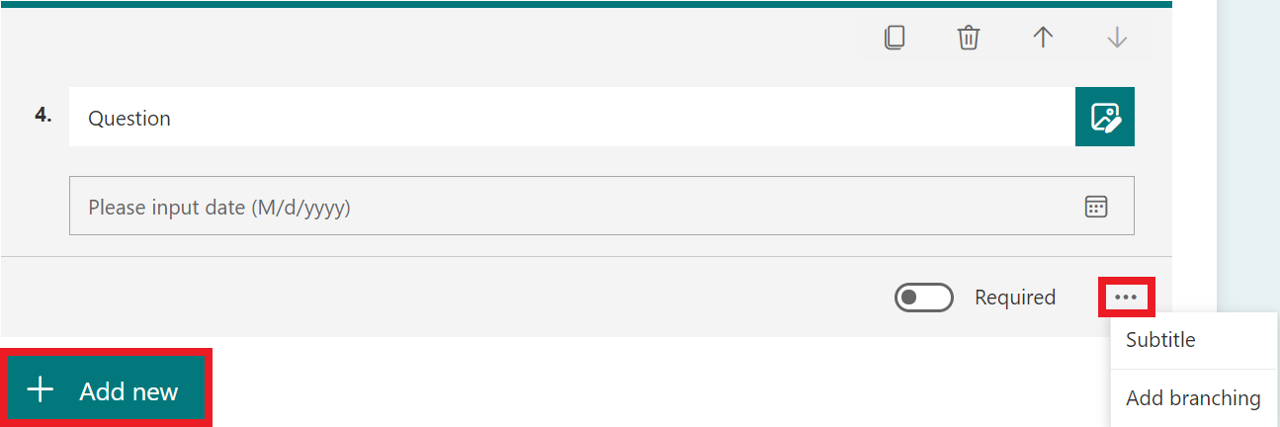
  1. Add your question.
  2. The respondent can add their answer by typing the date or choosing it from the calendar.
  3. Select the three dots to add a subtitle or branching.
  4. Select Add new to save the question and add another one.
    date question full decription

Ranking question

A ranking question allows the respondents to grade the options by dragging and dropping them.

  1. Add your question.
  2. Select Add option to add more answer options. The maximum is 10.
  3. Select the three dots to add a subtitle or branching.
  4. Select Add new to save the question and add another one.
    rating question full decription


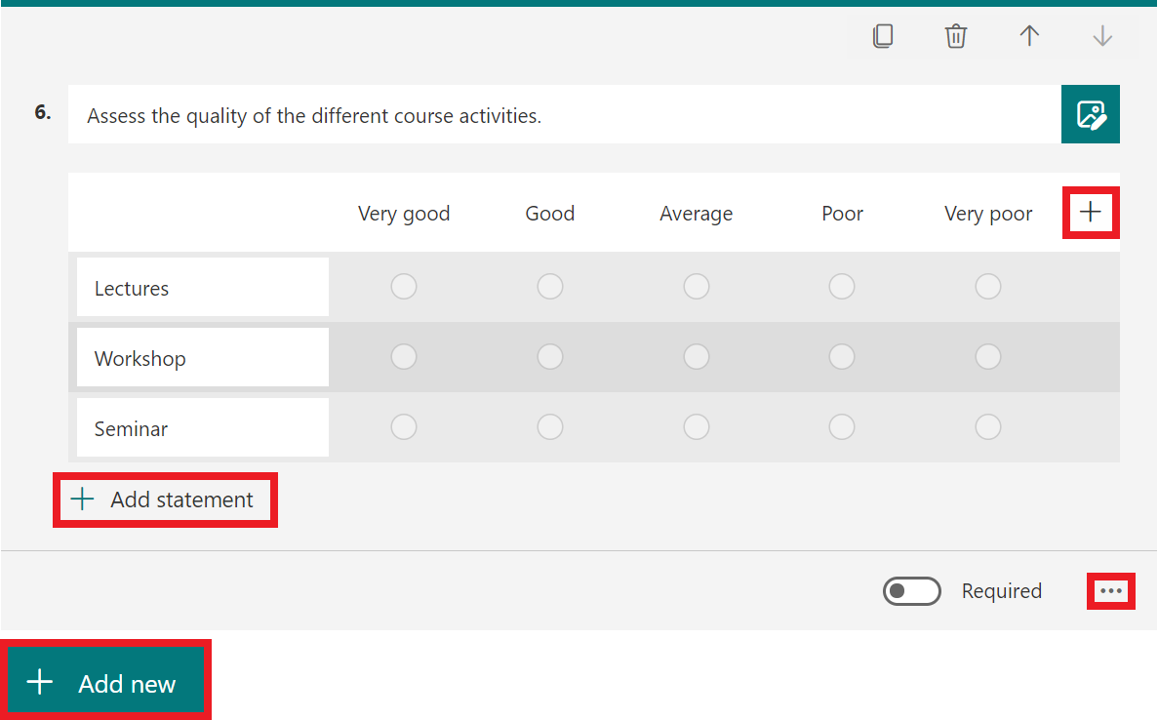
Likert question

A Likert question allows the respondents to grade their perception of something.

  1. Add your question.
  2. Select the plus sign to the right to add more answer options. You can add a maximum of 7. Click on an option to edit or delete it.
  3. Select Add statement to add more statements (rows). You can add a maximum of 20. Click on a statement to edit or delete it.
  4. Select the three dots to add a subtitle or branching.
  5. Select Add new to save the question and add another one.
    likert question full decription


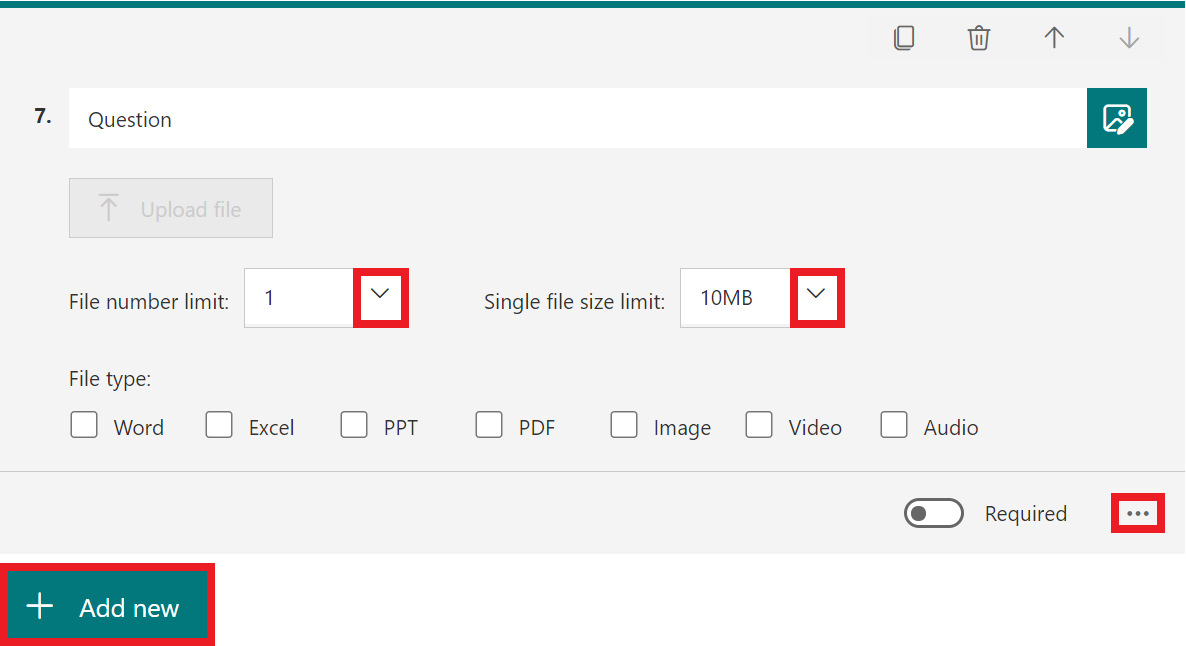
File upload question

A file upload allows the respondents to upload a file as an answer to the question.

  1. Add your question.
  2. Select the arrow next to File number limit to decide how many files the respondent can upload. The maximum is 10 files.
  3. Select the arrow next to Single file size limit to decide the size limit (10MB, 100MD or 1GB).
  4. Select the tree dots to add a subtitle or branching. You can also choose the allowed file types (see picture).
  5. Select Add new to save the question and add another one.
    file upload qustion full decription


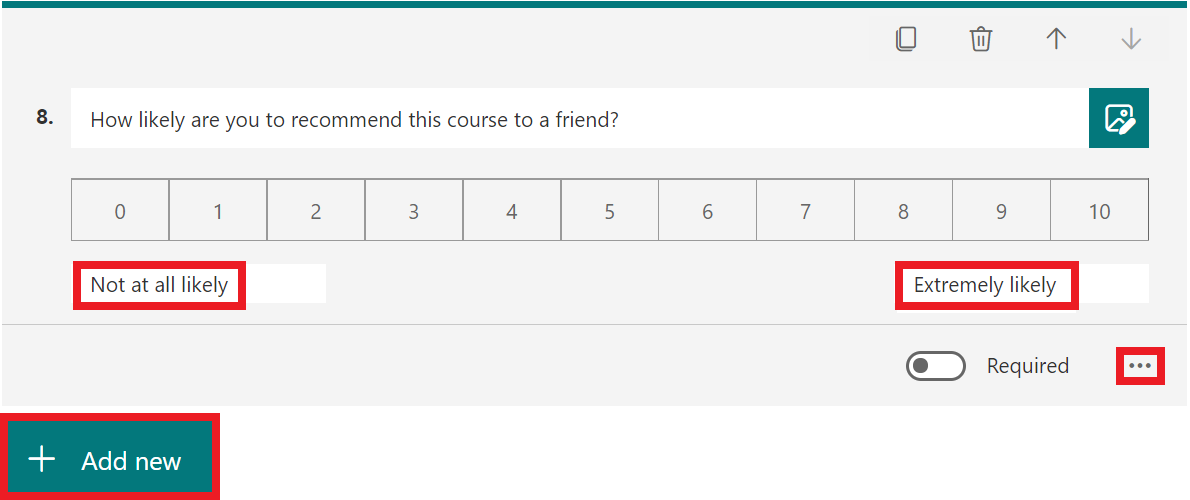
Net Promoter Score question

A Net Promoter Score question allows the respondents to grade a statement from 1 to 10.

  1. Add your question.
  2. Select Not at all likely and Extremely likely to change the text.
  3. Select the three dots to add a subtitle or branching.
  4. Select Add new to save the question and add another one.
    net promoter score question full decription

Create a form or quiz in Forms

In this manual we decribe how to create a form or quiz in Forms. 

  1. Open your browser, go to www.m365.umu.se and sign in with your Umu-id.
  2. Select Apps in the menu to the left.
  3. Forms should be in the list of apps, you might have to click on “All apps” to see it.
  4. At the top you have three buttons: New Quiz, New Form and Quick Import.
    For a new quiz: Click on the button “New Quiz
    For a new form: Click on the button “New Form
    Quick import: Upload a word document or pdf that can be converted into a form.
    Image showing how to create a quiz or form
  5. A new window will open. Click on the text in the title to change the title of the form.
    For quick import there is a link “see import guide” to see how your document should be formatted.

Get started with your new form

  1. To give your new form a name click on Nameless form and add a description for the form. If you create a new quiz there will instead be written Nameless quiz.
  2. Choose a template if you want with the button on the left.
  3. Click on “Quick start with” to get started on you questions.
  4. In the menu on the top right you can change Settings and edit format of your form.
  5.  When you are done you can click on Collect answers. There will be a last windows to change how the form should be sent out.

Group forms

You can also create group forms, that can be connected with a group (team). This makes it possible to edit and work within a group.

  1. When you are inside the Forms app, scrool down to my groups. Here you will see all groups (teams) you are a member of and the amount of forms that exists within that group.
  2. If you cannot se your group, click on show more.
  3. Choose the group you want to create or manage a form in.

Share a form or quiz to collaborate in Forms

In this manual we show you how to share a forms or quiz to collaborate.

  1. Open the form/quiz you want to collaborate on with others.
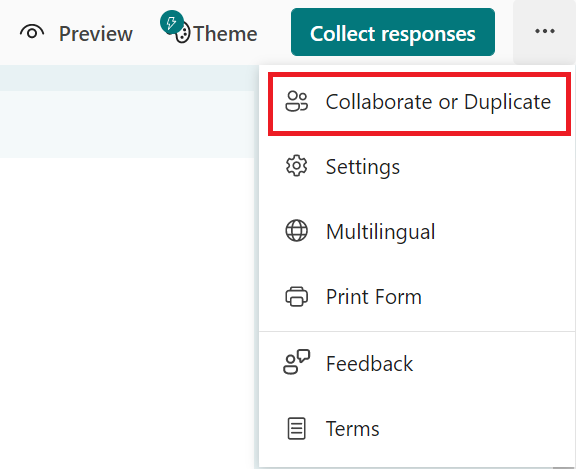
  2. Click on the three dots in the upper right corner, then select Collaborate or Duplicate.
  3. Select Get a link to view and edit below the headline Share to Collaborate.
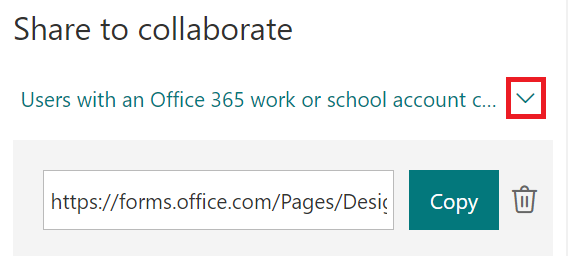
  4. A link will be created, but before you copy it you can select the arrow to decide the permissions.
    Share to collaborate
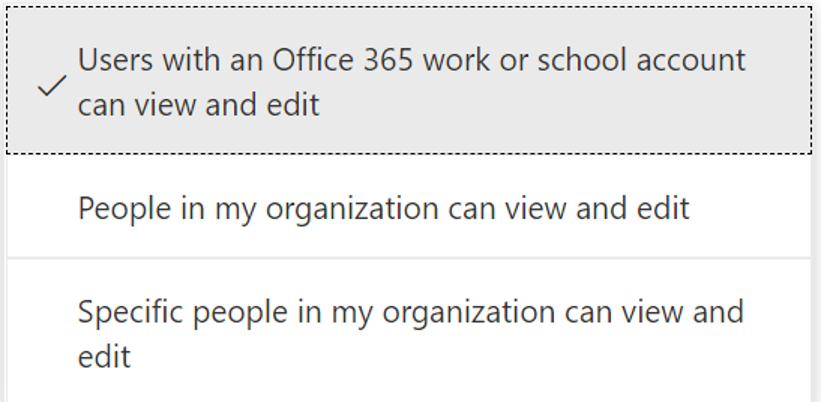
  5. Select who will have access to the form/quiz. The ones you choose will be able to both view and edit it.
    • Choose Users with an Office 365 work or school account can view and edit if you want to share to everyone (regardless of organization) who has an Office 365 work or school account.
    • Choose People in my organization can view and edit if you want to share to someone at Umeå University.
    • Choose Specific people in my organization can view and edit if you want to share to specific people at Umeå University. Then, you will have to enter their name, email address or a group.
      Check premissions before share to collaborate
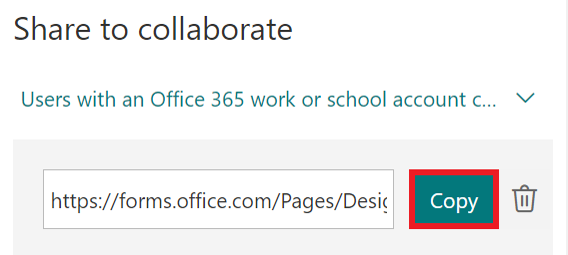
  6. Select Copy and send the link to the people you wish to collaborate with.
    Share to collaborate - select copy