Clear cache files in your web browser
How to clear browser cache, cookies and history in Edge, Firefox, Chrome, Safari, Mobile Safari and Android.

How to clear browser cache, cookies and history in Edge, Firefox, Chrome, Safari, Mobile Safari and Android.
Manual to help you reset your password.
There are a few computers around the university that are open for all students to use. These belong to the University Librarys computer labs.
There is also a computer lab in the Medical Library (building 6M NUS)
All other computer labs are the responsibility of individual departments. Students of those respective departments have access to these labs. To have access to these labs requires that your UmU-card has the correct permissions. UmU-cards can be updated for permissions by the appropriate House Services department. The only exception is for the MIT-building which is administered by Study Administrators.
Booking
Universum has a few group rooms available that you as a student can book.
Group rooms are booked via the University library’s homepage.
To be able to see the booking page surf to http://www.ub.umu.se/en/booking
To be able to book a group room you need a student email to confirm your booking. If you need an email, contact Servicedesk.
Access after hours
Everyone that has a UmU-card at the university should automatically have access to group rooms at Universum after working hours. if this does not work for you, please contact House Services Department in order to gain access.
Questions?
For questions about group rooms, please contact the Library personal.
Umeå universitet gives active students access to MS Azure Dev Tools for Teaching (has replaced MS Imagine), containing the most common development tools from Microsoft. The use is for scientific/technical studies or evaluation for this purpose. You will e.g. not get access to MS Office.
The Windows versions accessible through MS Azure Dev Tools for Teaching are there to facilitate access to use the development applications. Please note that MS Windows at MS Azure Dev Tools for Teaching is not allowed to be installed on a computer where there is no license for a full version of Windows.
See more information from Microsoft about MS Azure Dev Tools for Teaching:
https://azureforeducation.microsoft.com/en-us/Support/FAQ
Here you can reach MS Azure Dev Tools for Teaching:
https://aka.ms/devtoolsforteaching
As a doctoral student, teacher and researcher at Umeå University, you can also access MS Azure Dev Tools for Teaching if the software is only used in research and learning (non-commercial or productive purpose).
You can log in to universityadmissions.se via Swedish Universities with help of your UMU-id.
To login at universityadmissions.se do the following:
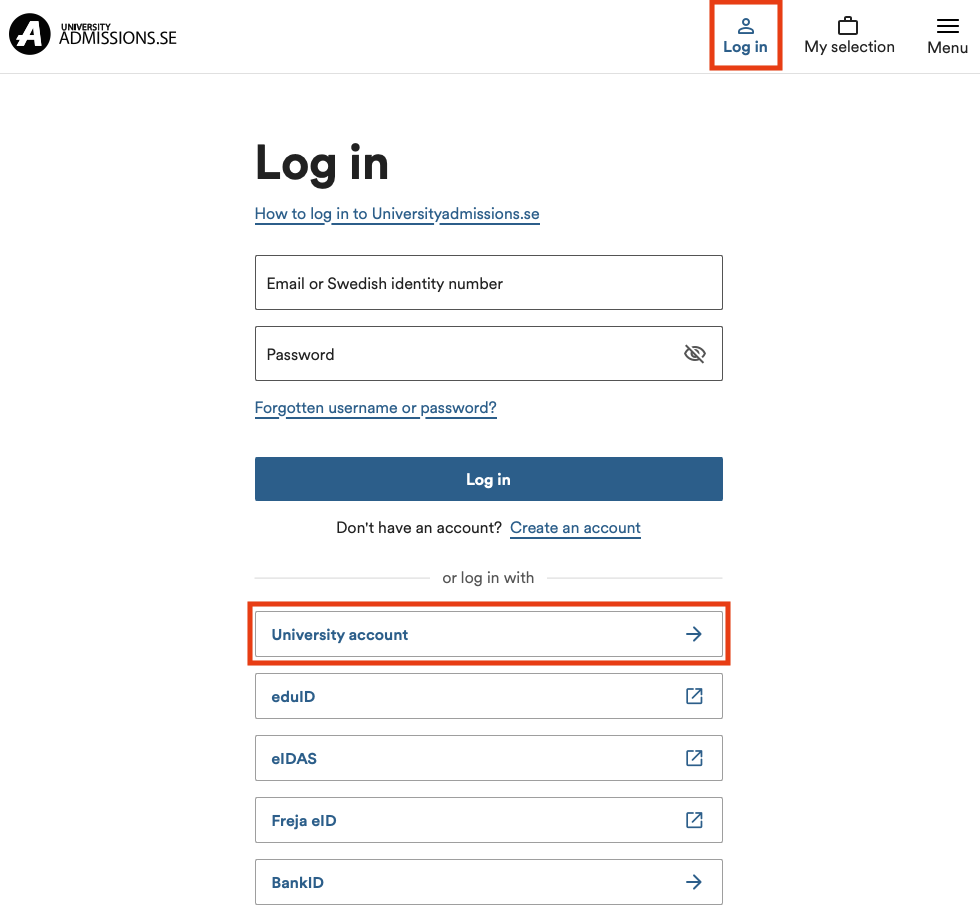
1. Go in to the website https://www.universityadmissions.se/intl/start and click on the Log in tab in the upper right.
2. Go to University account and select Umeå University from the drop down list and then click on To Student Portal.
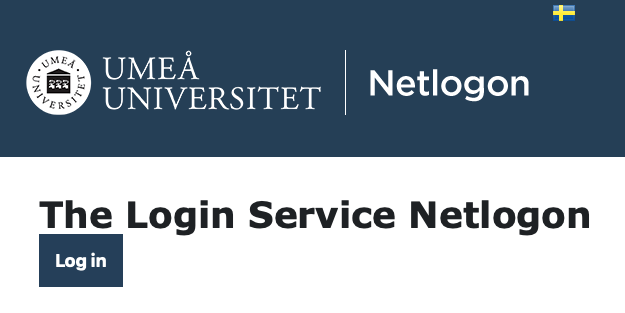
3. You will be redirected to a login page where you are required to login with help of your UMU-id along with accompanying password.
If you don’t remember the password to your student mail
Information about methods to activate your Umu-id and other things related to your account at Umeå University.
Important!
All programs and all information is removed from the device and features disappear, except the ability to make emergency calls (112). You can also use this procedure to delete a drive before you dispose of it or submit it to a new user.
To delete a mobile device remotely
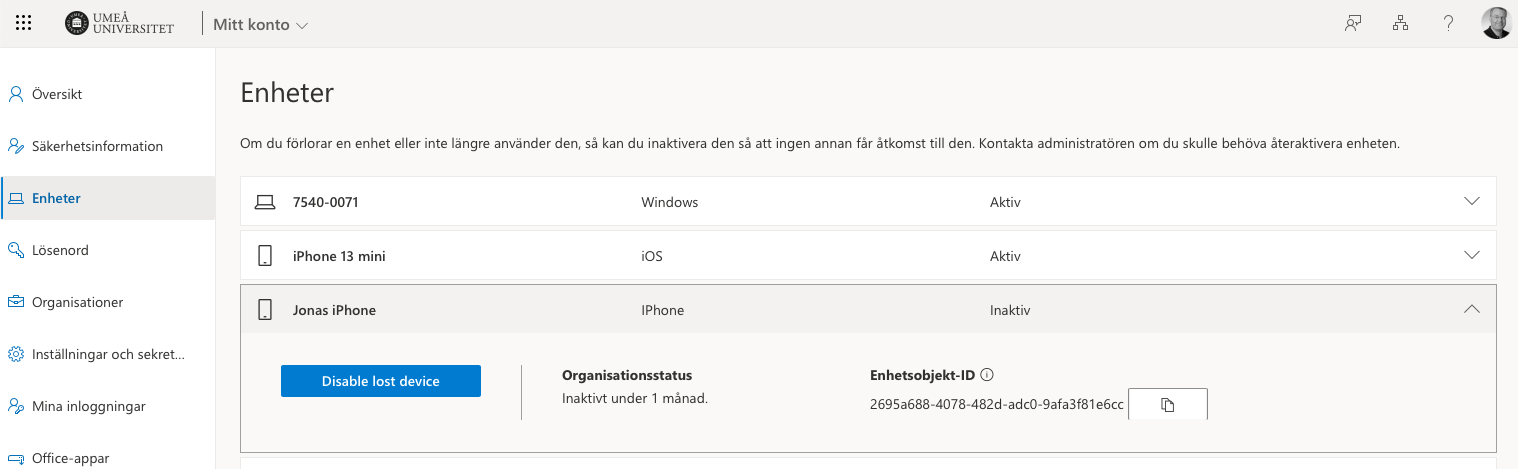
1. Log on to Outlook Web App on https://m365.umu.se with the user account that the mobile device synchronizes with.
2. Click My account (Visa konto) in the title bar, Devices (Enheter).
3. Click Phone in the Navigation pane.
4. First, click the ID of the drive you want to erase the distance, then Wipe all data from the device and then click OK.
5. Click Remove Device from List.
The deletion is usually performed within a few minutes. If the mobile device is switched off or outside the service area when the deletion begins, performed deletion as soon as the device reconnects to
the network.
As a student or employee, you need an UMU-id to be able to log into most of the University’s systems and services, such as Canvas, Intranet and administrative systems.
Your UMU-id consists of a username and a password. The username consists of 8 characters in a combination of letters and numbers. The letters are based on your first and last name while the numbers are a serial number.
Password to your UMU-id is something you set yourself. A password must be between 16-50 characters long and must contain 3 of the following 4 parameters: Capital letters, small letters, numbers, special characters (like * # ! & )
You use UMU-id to log in to most of the university’s central IT systems.
This guide is intended for guest who have received a guest account for the wireless network at Umeå University.
NOTE!