Manual

Manual
  • Svenska
  • Menu Menu

Creating a channel in Teams

2020-03-17/in Employee, English, Microsoft 365, Teams

In this manual we will show you how to create a channel in Teams.

  1. Go in to the team you wish to create a channel in.
  2. Choose the 3 dots to the right of the name.
  3. Choose Add channel
    Note that your Teams can look different, especially in colour and layout
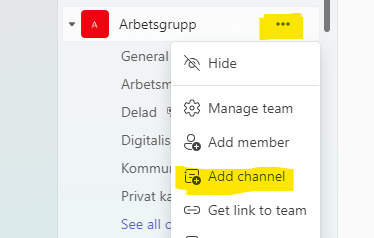
    Image showing how to add a channel in a team
  4. Choose a name and description for your channel.
  5. Choose a channel type.
    Standard: Every member in the team has access to this channel.
    Shared: You can invite people that is not a member in this team to access this channel. (You can only invite people whwo works in Umea University)
    Private: Only specific people who you invite have access to this channel. (You can only invite people who already is a member in the team)
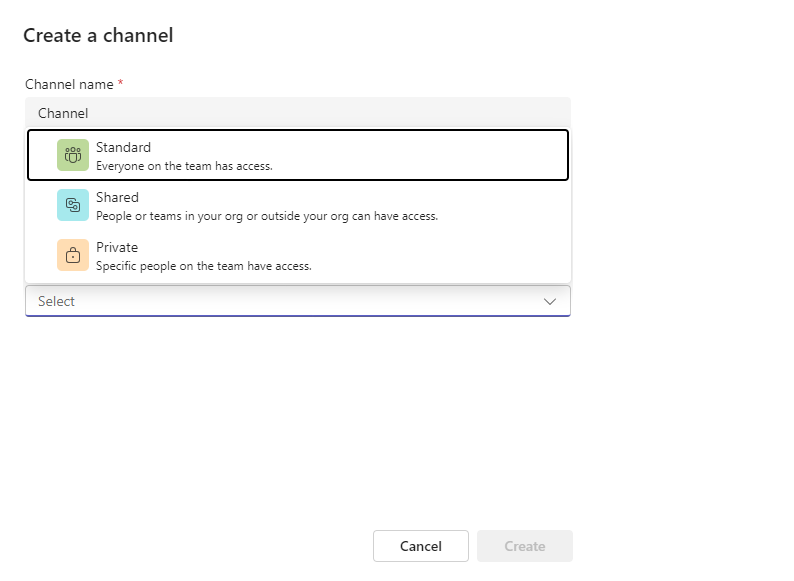
    Image showing how to create a channel
  6. Click on Create. You have now successfully added a channel to your team.
https://manual.umu.se/wp-content/uploads/2018/02/manual-loggo.png 0 0 Maja Wik https://manual.umu.se/wp-content/uploads/2018/02/manual-loggo.png Maja Wik2020-03-17 13:37:342026-10-05 09:14:28Creating a channel in Teams

Frequently asked questions about Microsoft 365

2020-03-17/in Employee, English, Microsoft 365, Teams
Read more
https://manual.umu.se/wp-content/uploads/2018/02/manual-loggo.png 0 0 Maja Wik https://manual.umu.se/wp-content/uploads/2018/02/manual-loggo.png Maja Wik2020-03-17 13:19:382026-09-04 13:18:55Frequently asked questions about Microsoft 365

Tips for a successful team in Teams

2020-03-17/in Employee, English, Microsoft 365, Teams

Create a good base structure

  • What is the main reason for the team? 
  • What does the group need? 
  • Which channels will you have?  ….to start with and why?

Choosing the correct rights and permissions

  • Decide which rights and permissions each member will have with regards to channels, messages and tabs.
  • Always have at least two (2) “owners” of a team.

Understanding channels

  • Discuss the proposed channels with members of your team.
  • Create a clear and meaningful name.
  • Describe the channel and what it shall be used for. 

Communicate clearly within the team

  • Use titles that have a clear meaning to make it easier to understand what they are about 
  • You can use the @ to notify a specific person. 
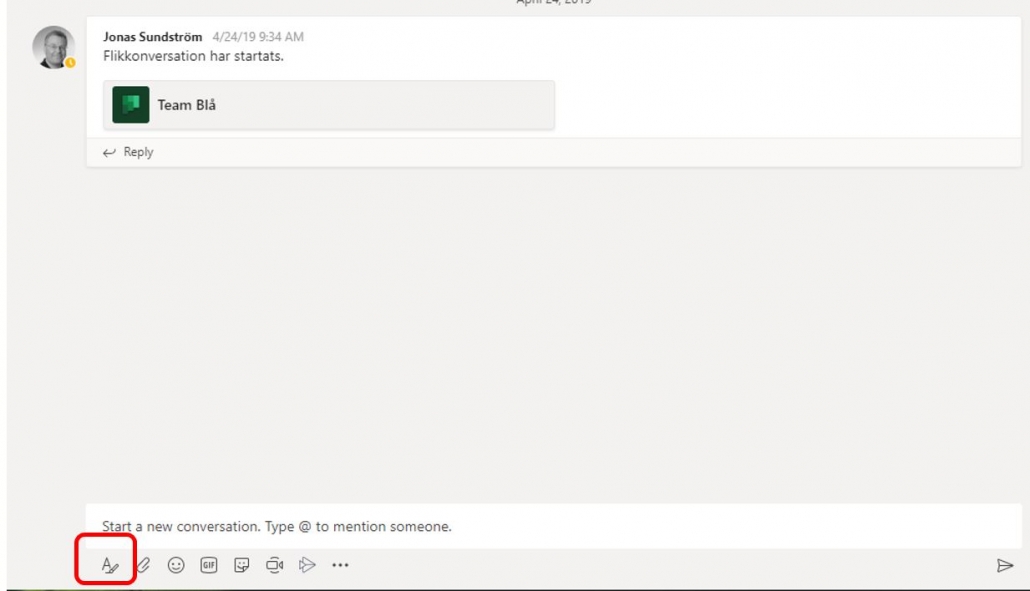
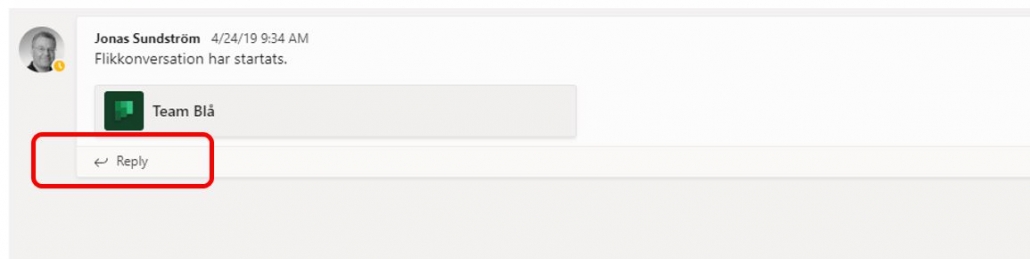
  • To answer a post click on “Reply” so you don’t need to start a new conversation.  This way all the communication is in one place.Click on the A at the bottom of the screen if you wish to change the formatting of your post.

Moving Shared Files

  • Create a folder for respective files 
  • Upload shared files to the team and remove them from your existing folders so you don’t have multiple documents in multiple places
  • Decide together that from a certain date ALL files will be put into Teams and nowhere else (to prevent multiple copies of documents)
  • If you work a lot with specific files, synchronize your teams files in explorer. That way you can directly access them from your computer.

Notifications in Teams

  • Set up your personal notifications for the entire application, how you want to be notified when someone sends a message to you, etc.
  • Set up channel notifications for the teams/channels you are active in and want to know when someone has updated.

Digital meetings

  • Just as for physical meetings, it is a good idea to prepare an agenda for the meeting.
  • If there are many participants in the meeting, a recommendation is to mute the microphone when you are not speaking. That way, you will avoid any disturbing background noise. When you need to speak, unmute your microphone. If there are only a few participants in the meeting, it will usually be a more active meeting if everyone has their microphones turned on the whole meeting.
  • The meeting will also be more active if all participants have their cameras on. However, if someone has a slow internet connection it may be a good idea to only use the microphone.
  • All participants can use the chat to share documents and links with each other during the meeting. When the meeting is over, the chat is saved, and you can go back to see what was written there.
  • You can share an entire screen, a window, a PowerPoint, or a Whiteboard with the meeting participants.
https://manual.umu.se/wp-content/uploads/2018/02/manual-loggo.png 0 0 Maja Wik https://manual.umu.se/wp-content/uploads/2018/02/manual-loggo.png Maja Wik2020-03-17 12:28:262026-09-11 08:53:26Tips for a successful team in Teams

Create a team in Teams

2020-03-17/in Employee, English, Microsoft 365, Teams

In this manual we describe how to create a team in Microsoft Teams.

  1.  Open Teams.  You will find Teams as an app in your computer, or via att log in to Microsoft 365 in your web browser.   Log in with your UMU-id. 
    Log in to Microsoft 365
  2. From the menu on the left hand side choose Teams
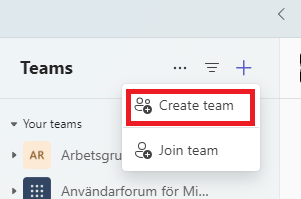
  3. In the menu in the top to the left you clikc on the plus-symbol, and choose Create team
    Image showing how to create a team
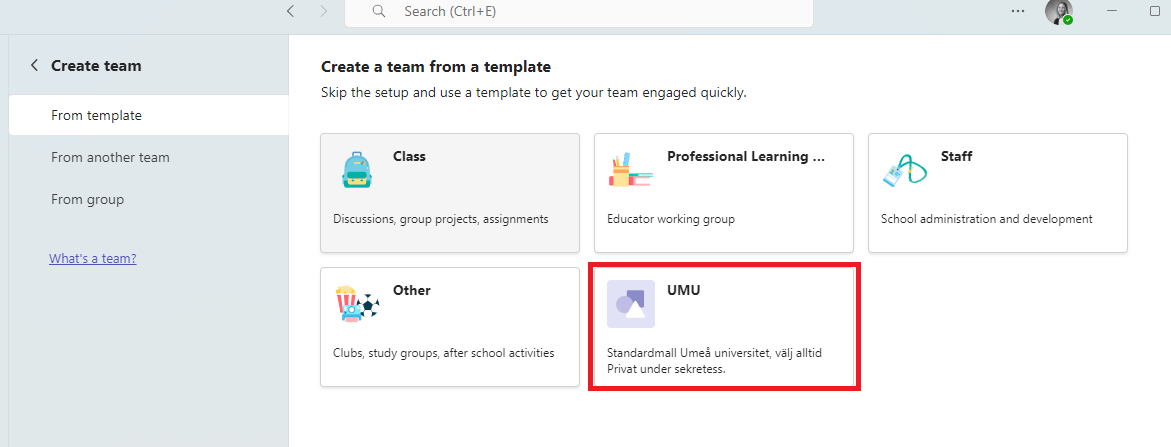
  4. There are five different types of templates. Choose the template that i called “UMU”.
    More information on the types of Teams
    Image showing which template to choose when creating a team

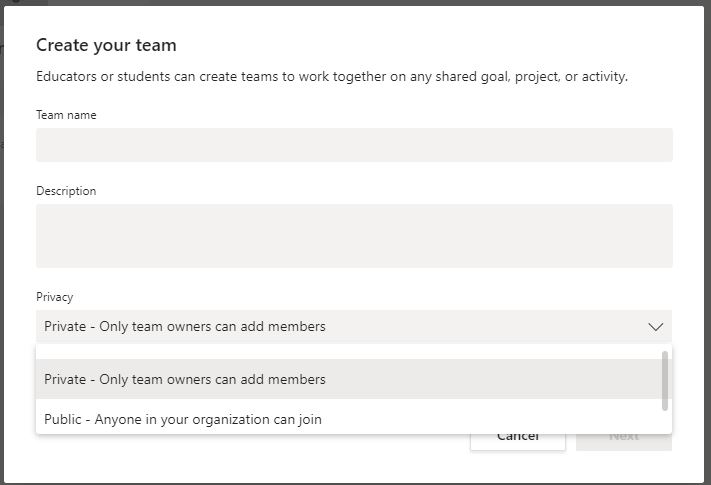
  5. Once you have chosen your team type it is time to give your team a Name and a Description (you can change either or both afterwards).  You can also choose if your new Team will be a Private team or a Public team. We always recommend that ypu create a Private team. This team will be the center for your collaboration.  In every team you can later create different channels for more detailed work.

    Creating a channel in Teams (swedish)
     
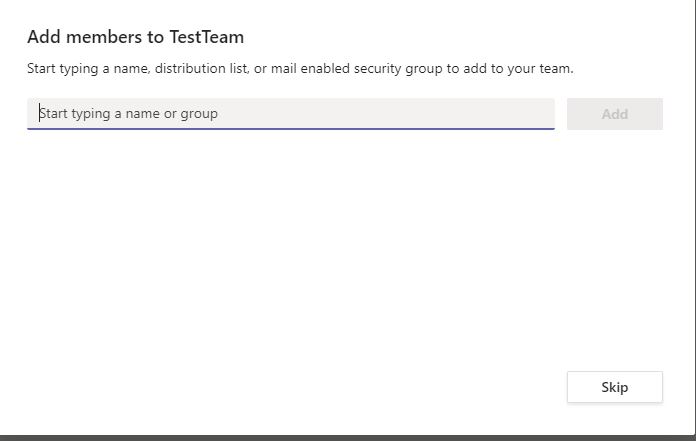
  6. The last step in creating your team is to invite members.  In the box you can write in the name of the person or people from within your organisation (one at a time).  Once you have your list click on “Add”.   You can then decide the rights and permissions for each member.  Owner or Member. The recommendation is always to have at least two owners for a team, to decreas the risk that a team is without an owner.

    More on rights and permissions   If you choose to invite external members to your team you must type in their email address.  They will then receive an invitation with which they can join as a guest.

  7. Your team is now ready for you to work in.
https://manual.umu.se/wp-content/uploads/2018/02/manual-loggo.png 0 0 Maja Wik https://manual.umu.se/wp-content/uploads/2018/02/manual-loggo.png Maja Wik2020-03-17 10:23:572026-04-09 09:10:44Create a team in Teams

Download Matlab

2020-03-10/in Employee, English, Student

Matlab for students

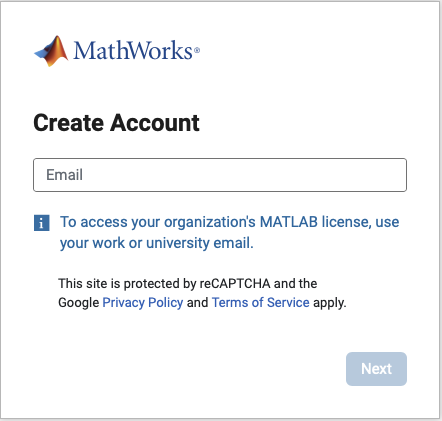
  • Go to the page: https://se.mathworks.com/mwaccount/register. Create a user and enter your student email address which is: UmU-ID@student.umu.se.
  • Employees enter their email address, UmU-id@umu.se.
  • NOTE: Note that you must enter your student email ending with “student.umu.se”. Your email address is therefore not “abcd1234@umu.se” and not “abcd1234@ad.se”. You have probably seen these usernames when you log into various systems at the University, but they are not e-mail addresses and it is not possible to send e-mail to them.
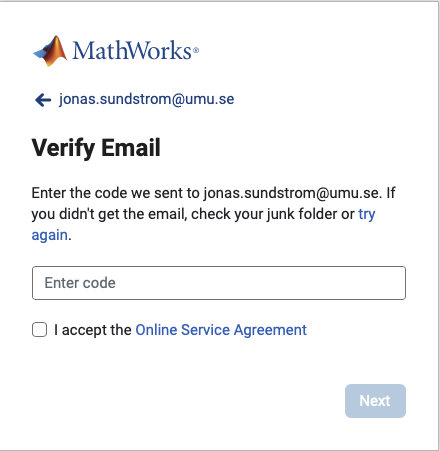
  • You will receive a confirmation email from Mathworks sent to your student email. It is common for the confirmation email to end up in the junk folder.
  • If you have not forwarded emails from your student email, you can read them here: http://m365.umu.se/
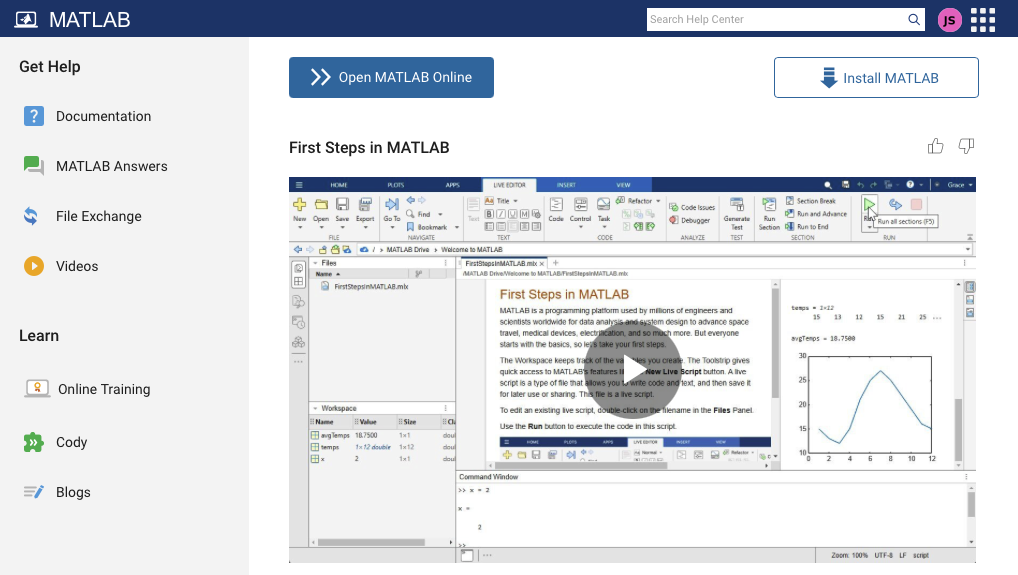
  • Otherwise, the process is the same as when you create a user on any other website. When you are finished, you can download and install Matlab on your own computer. You can also use the online version of Matlab.

https://manual.umu.se/wp-content/uploads/2018/02/manual-loggo.png 0 0 Elin Sköld https://manual.umu.se/wp-content/uploads/2018/02/manual-loggo.png Elin Sköld2020-03-10 12:21:352026-01-28 15:37:25Download Matlab

Nomination instructions for partner universities

2020-01-22/in English, exchange studies, partner university, Solemove
Read more
https://manual.umu.se/wp-content/uploads/2018/02/manual-loggo.png 0 0 Jessica Bergström Grahn https://manual.umu.se/wp-content/uploads/2018/02/manual-loggo.png Jessica Bergström Grahn2020-01-22 12:44:162026-08-24 16:10:53Nomination instructions for partner universities

Application for incoming exchange students

2020-01-10/in English, exchange studies, Solemove, Student
Read more
https://manual.umu.se/wp-content/uploads/2018/02/manual-loggo.png 0 0 Jessica Bergström Grahn https://manual.umu.se/wp-content/uploads/2018/02/manual-loggo.png Jessica Bergström Grahn2020-01-10 09:52:312026-09-01 15:21:20Application for incoming exchange students

Application for outgoing exchange students

2020-01-08/in English, exchange studies, Solemove, Student
Read more
https://manual.umu.se/wp-content/uploads/2018/02/manual-loggo.png 0 0 Jessica Bergström Grahn https://manual.umu.se/wp-content/uploads/2018/02/manual-loggo.png Jessica Bergström Grahn2020-01-08 10:17:002026-10-15 17:18:57Application for outgoing exchange students

Anti-spam UMU

2019-04-08/in Email, Employee, English

On a normal day, the university receives a few million emails, most of which are stopped immediately because the server/address that sent the email has been classified as someone who sends spam. The remaining mail is then analyzed and approx. 10,000 are then classified as spam and stored in the user’s spam quarantine. About 5,000 are classified as phishing. In the end, about 82,000 emails get through.

Of the 10,000 e-mails that are classified as spam, there may be some of these that are correct e-mails but for some reason classified as spam. A likely cause is mail with only links and from mail domains that have not received high trust scores before (e.g. have sent spam or come from a new server).

How to use the filter

If you are missing any mail or want to verify what is in the quarantine go to the following link: security.microsoft.com/quarantine

Log in with your UMU id and password.

You will then see a list of all the emails that are in quarantine.
Mail in quarantine will sit there 30 days before they are removed.

*NOTE*

You can mark the mail(s) that are not spam and choose to “release” them and ‘whitelist’ the sender so that they do not get stuck in the SPAM filter again, or ‘blacklist’ them and these mails will never come into your inbox. 

Initially, a mail will be sent every day if there are new messages in your quarantine. 

Block or release quarantined email

https://manual.umu.se/wp-content/uploads/2018/02/manual-loggo.png 0 0 Jonas Sundström https://manual.umu.se/wp-content/uploads/2018/02/manual-loggo.png Jonas Sundström2019-04-08 13:41:092026-02-13 13:32:34Anti-spam UMU

Clear cache files in your web browser

2018-06-18/in Employee, English, Student

How to clear browser cache, cookies and history in Edge, Firefox, Chrome, Safari, Mobile Safari and Android.

Read more
https://manual.umu.se/wp-content/uploads/2018/02/manual-loggo.png 0 0 Erik Öhman https://manual.umu.se/wp-content/uploads/2018/02/manual-loggo.png Erik Öhman2018-06-18 12:03:372026-08-03 11:07:55Clear cache files in your web browser
Page 9 of 11«‹7891011›»

Contact ITS Service Desk

Create a support ticket at www.umu.se/servicedesk, call 090-786 63 00 or visit us next to Infocenter.

Kategorier

Scroll to top Scroll to top Scroll to top