Meetings in Teams
How many people can you see at the same time during a meeting in Teams?
It is possible to see 49 people at a time during a meeting.
Does the meeting automatically end when the meeting goes over time?
No, the meeting only ends when someone chooses to end the meeting or all participants have left it.
How many can participate in a Team Meeting?
250 people can attend a meeting.
Can I book a Teams meeting via Outlook?
Yes, you can schedule a Teams meeting directly in Outlook. To do this, you need to have Teams installed on your computer.
Can I raise my hand during a Teams meeting?
Yes, it is possible to raise your hand during a meeting.
Raising your hand during a Teams meeting
Can I use Whiteboard during a Teams meeting?
Yes, you can use Whiteboard during a Teams meeting. To start a whiteboard, click the share screen button. Once you click there, you can select Whiteboard.
If you want more features, it is recommended to download Microsoft Whiteboard to your computer.
Frequently asked questions about Whiteboard
Can I moderate a meeting in Teams?
Yes, you can choose to mute participants’ microphones, invite more participants or remove participants during an ongoing meeting. You can also choose whether participants should have the opportunity to activate their microphone during the meeting and whether the chat should be available.
Can I set up a lobby for Teams meetings?
Yes. You can choose to exclude all, external or none at all. You as the creator of the meeting will always be able to join the meeting.
Change participant settings for a Teams meeting
Is it possible to divide the meeting into breakout rooms?
Yes, it is possible to divide the meeting into smaller groups (breakout rooms). Only the booker of the meeting can create breakout rooms.
Can I invite an entire team to a meeting?
Yes, if you book the meeting via Teams, you can add the meeting to a channel in a team.
Schedule a meeting in Teams
Can I record a meeting?
Yes, if you click on the three dots in a meeting, you can choose to record it. It is important that you always inform the participants beforehand so that they can decide whether it is okay to be recorded or not. All participants in the meeting will get a popup telling them that the meeting is being recorded.
Record a meeting in Teams
Team
What is the difference between a private and a public team?
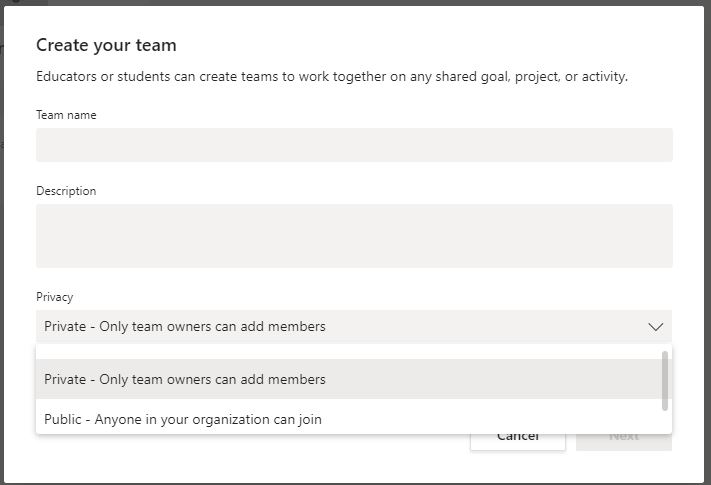
There are some differences between having a private and a public team.
Private team: A private team is only available to the people you invite or approve. In most cases, you should choose a private team.
Public team: A public team is available to everyone at Umeå University. This means that when someone searches for teams, they can find your team in a list and can then join without your approval. All files and content in a team is searchable for members of a team.
Both students and staff can see and join public teams.
How many channels can I create?
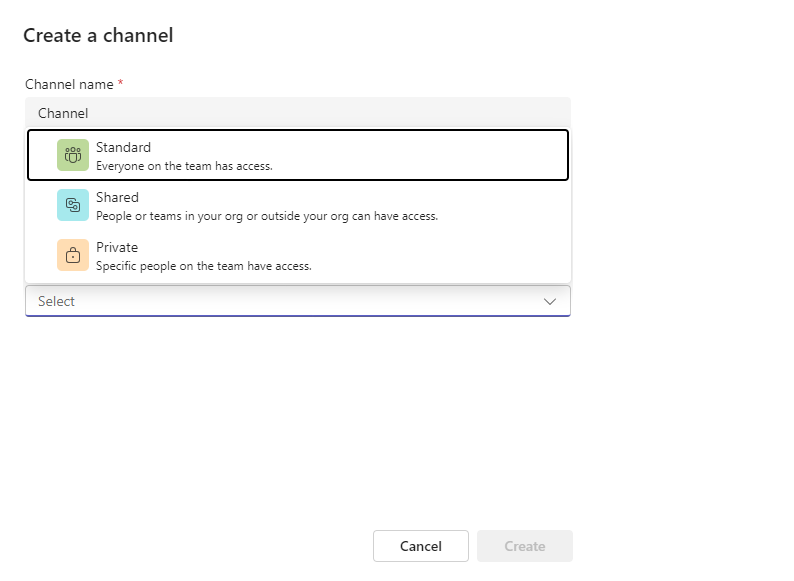
You can create 200 standard channels and 30 private channels in a team.
What is a private channel?
A private channel is only available to the people you specify should have access to the channel. The people must be participants in the team. It does not work to only invite one person to a private channel but not to the team in general.
Create a private channel
Can everyone in a team create channels?
It depends on the attribute set by the team owner. Under Manage teams the team owner can choose whether a member can create and delete channels. There are also more settings that can be customized.
Manage team settings and permissions in Teams
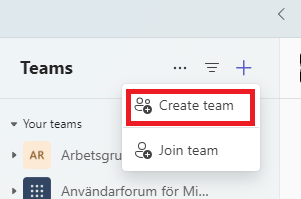
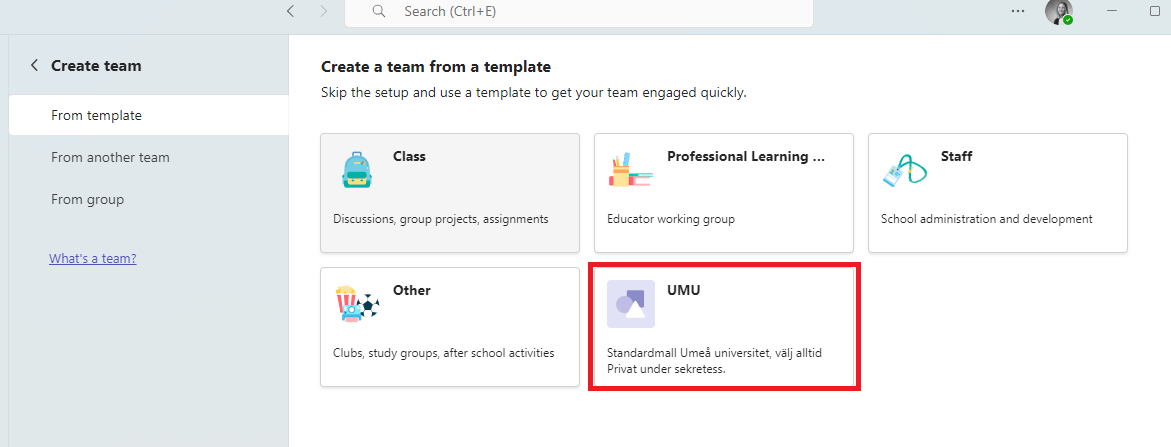
When I create a team, what type should I use?
Of the four options provided (Class, PLC, Personal, Other), the last type “Other” is to be used. This is without formatting and gives you the opportunity to build your team completely according to your needs.
What is the difference between being an owner and a member of a team?
An owner of a team is the one who administrates the team. The owner can add and remove members and decide what the members should have permissions to do in a team. It is possible to have several owners of a team.
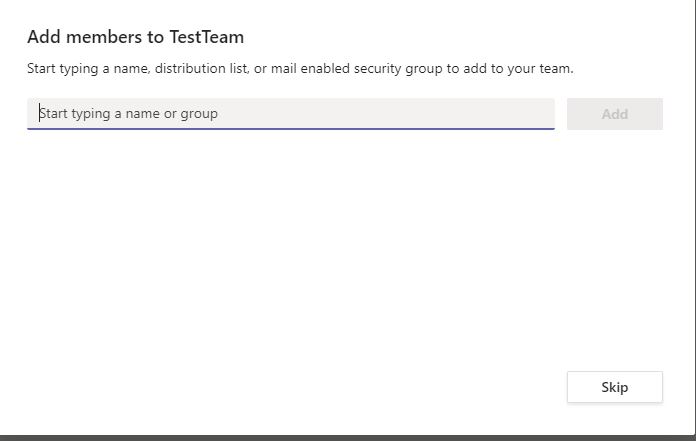
Adding members and changing ownership in Teams
What happens if someone accidentally deletes a file?
If someone accidentally deletes files in a team, the files can be downloaded from the team’s trash in SharePoint, where they are stored for 30 days. After 30 days, the files are placed in a secondary trash can for 60 days before disappearing. Your files are stored in the Trash for 90 days.
Delete and restore files in Teams
What is the difference between Chat and Posts in a Team?
The chat function allows you to communicate with individual colleagues or groups in text and conversation.
To create areas for collaboration, you are recommended to create a team. The conversations under Posts in the team are visible to everyone in the team and unlike in the chat, the conversations are tied together in threads to keep the current topic together.
In the chat, you communicate in a constant flow while conversations under Posts in teams are divided into threads for easier follow-up in the collaboration. You can use the chat for everyday talk and short conversations, while Posts in teams can be seen as a more formal forum.
Can I move files to another channel or team?
Yes, you can move files. Click on the three dots and then choose Move. You can also open the files in Sharepoint for easier handling of the files.
Can I create “subchannels”?
No, you can only create channels in a team.
Can I change the name of a team?
Yes, it is possible to change the name of a team. Keep in mind that all teams get their own SharePoint site, these cannot be renamed. This means that when you change the name of your team in Teams, this is just a display name. The SharePoint site will still retain the original name.
Can I rename a channel?
Yes, it is possible to rename a channel. To do this, click on the three dots and then Edit this channel. Here, too, the original name will remain in the associated document library in SharePoint.
Why are the team files in SharePoint?
When you create a team, a Sharepoint is also created in the background. The files are technically stored in SharePoint, but you can manage them directly in Teams. Sharepoint makes it possible to share files in Microsoft 365.
Can I invite an external participant to Teams?
You can add external people as a guest in Teams. Anyone who has an email account, such as Outlook, Gmail or similar, can join your team as a guest.
Add guests to your team
What can an external participant (guest) do in a team?
A guest can do everything that other participants in a team can do, except add tabs. The owner of the team can also set whether the guest should be allowed to create channels or not in a team.
Manage team settings and permissions in Teams
Can you add AD groups to a team?
No, this is not possible at present. We hope to be able to offer this in the future.
Why do I not have the AutoSave feature in Word?
It depends on which version of the office suite you have. If you download Office from the portal (m365.umu.se), you will have the opportunity to use Save automatically in Word, Excel and PowerPoint.
Can I create folders for files?
Yes, you can build your folder structure just like on your computer. Create folders in the file area for each channel exactly as you want.
Is there any difference to edit from the desktop app or directly in teams?
In the desktop app, you have the opportunity to do more advanced functions. Otherwise, it’s the same thing to edit directly in the Teams or desktop app. If you choose to open in the desktop app and save, it will be saved automatically in the team, so you do not need to download a copy, and all members will have access to your changes.
If you work in the desktop app at the same time as your colleagues, we recommend that you download the Office package from the portal so that you get the function “Save automatically”. You will then, just like in the web, see where your colleagues edit (otherwise you need to save regularly for your colleagues to see your changes).
How do I get notified that something is happening in Teams?
You can set notifications in general for the entire program.
You can also set notifications for specific channels in a team. You can choose how you want to be notified for each channel.
Can students use Microsoft Teams?
Yes, students have access to Microsoft 365.
Can I view previous versions of a document?
Yes, you can see previous versions and even revert to previous versions if you want.
View previous versions of a document
Can I move posts between different teams or channels?
No, unfortunately it is not possible to move posts between different teams or channels.
Chat
Can I have a chat with several people?
Yes, it is possible to create a chat with several people. Enter the names one after another when starting a new chat. You can also invite more people to an existing chat by clicking on the plus icon in the top right corner.
Start a chat in Teams
Can I delete a chat?
Yes, you can delete a chat, it will be permanently deleted for you, but not for the person you are chatting with. You can however delete your own instant messages, but only one at a time. To delete a message, click on the three dots on your message and then click on Delete.
Can I leave a chat?
Yes, you can choose to exit a chat by clicking on the three dots that appear if you move the mouse pointer to the chat name and then click Leave.