
Email notifications to group forms
When you create group forms in Forms, and want to receive email notifications when a response is submitted in the form, you need to make additional settings than just in the form. In this manual, we describe how you can receive notifications to a group email, when you create group forms in Forms.
- Go to Microsoft Forms
- Go to the bottom of the page and find the group/team form you want notifications from
- Click on the team you want to set up email notifications for
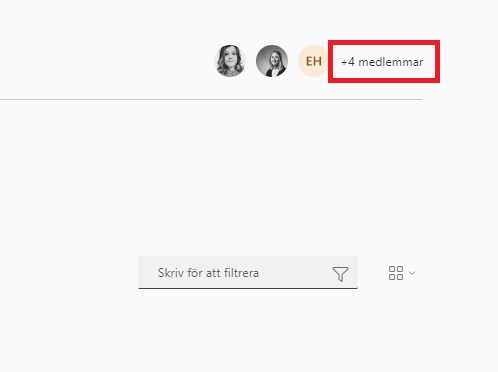
- Up in the right corner you see the members of the Team. Click on the button that says how many members the team has
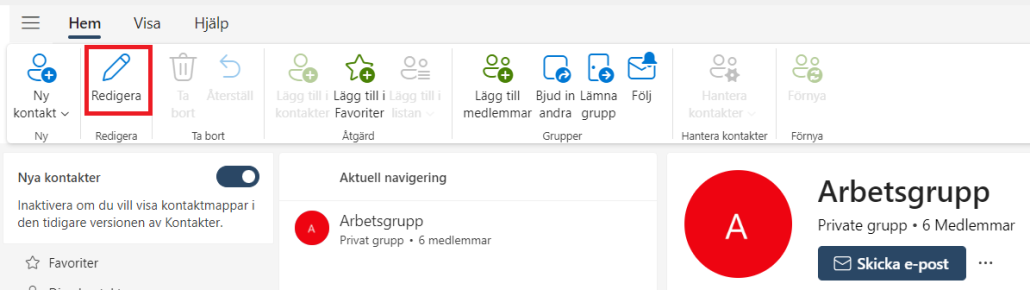
- Now Outlook on the web opens. At the top left of the menu, click Edit
- In the box that now opens, check Allow people outside the organization to send email to the group (you may need to scroll down a bit in the box)
- Then click Save.
- Done! You have now set your group forms to be allowed to receive email notifications. Make sure you also set in the group form that you want to receive email notifications for each submitted answer.