
Programfolder in the graphic design tool
This page explains what is important to consider when creating a programme folder in the graphic design tool, as well as how to use the template step by step. The template is called “Programfolder” in the graphic design tool. The template is designed to create a physical printed programme folder that presents and promotes the programme to prospective students. You do not need any special permissions to use the template.
About the Folder
Format: The printed folder becomes an A4 sheet folded twice. Content is printed on both front and back. In the step-by-step guide below, each page’s function and suggested content are described.
Number of pages: The folder has a total of 6 pages with different types of content.
About the content: The content should resemble the structure and tone of the programme page on the education website. It should be simple, credible, and motivating for the target group: prospective students. The content should inspire them to read more about the programme online. Read more about content guidelines here: https://umeauniversity.sharepoint.com/sites/webbredaktor/SitePages/Inneh%C3%A5llsguide-f%C3%B6r-utbildningswebben.aspx
Find the template: Log in here (link: https://umu.bmc.nu/System/) and open the document template “Programfolder” in the design tool. Choose english as your language under “My user account”.
Front
This page becomes the folder’s front cover. It displays the programme name, structure, and a suitable image.
Step by Step
- Select language, organisation, and background color in the top module. Depending on the organisation you choose, the logo will change.
- Enter the name of the programme in the heading field.
- Keep the heading short.
- In the subheading, you can add a specialization or a natural continuation of the name.
- Example:
- Heading: Bachelor’s Programme in Sports Science
- Subheading: with a specialization in strategic leadership and development
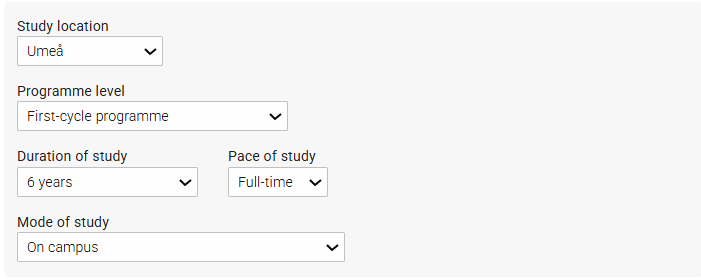
- Select study location, duration of study, and pace of study. (Note that the number of credits is affected by both duration of studies and pace of studies.)
- Select programme level and mode of studies.
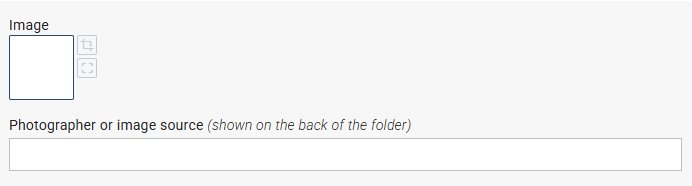
- Insert an image (fills the page below the top module). Read more about inserting images: https://manual.umu.se/en/insert-an-image-in-the-graphic-design-tool/
- Considerations for image selection: Our Visual Language
- Click the image field to choose an image from the Media Bank.
- Crop if needed (the image has fixed dimensions, but you can adjust which part is visible).
- Specify photographer or image source (appears on the back page).
Fold-in flap
This page is visible when the folder is first opened. It consists of an image at the top and 1–3 modules with strengths and/or quotes. When fully unfolded, this page is placed on the far right of the back side. The purpose is to quickly give a positive impression of the programme and highlight its main qualities.
What is a “strength”?
It can be opportunities for internships, work during studies, hands-on learning, study abroad options, elective courses — anything that creates value for the target group. Highlighting 1–3 selected strengths helps prospective students quickly understand the program’s profile and advantages. These should not be perceived as a complete description, but rather as a selection of the program’s most attractive or unique qualities. Read more about strengths here: Styrkor med programmet
The quote serves as a validation that the strengths presented are true in practice.
Step by Step
- Select number of module rows (max three). Each row can have one wide module or two smaller ones.
- Select a module row and edit it.
- Choose number of modules per row (1 or 2).
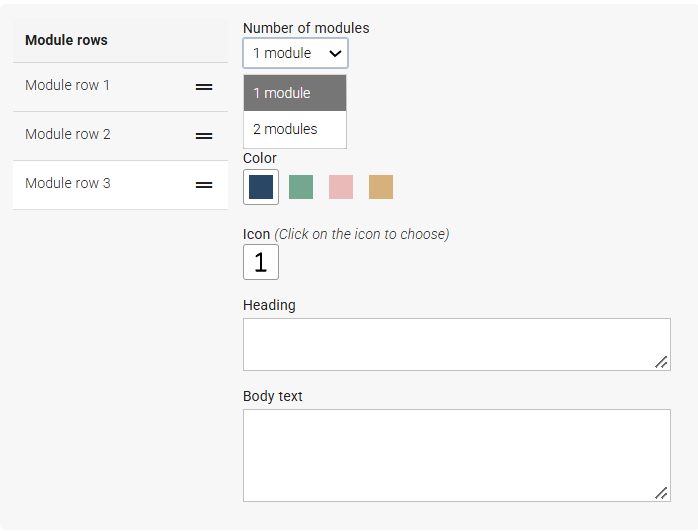
- If two modules: edit the first in the top field and the second further down.
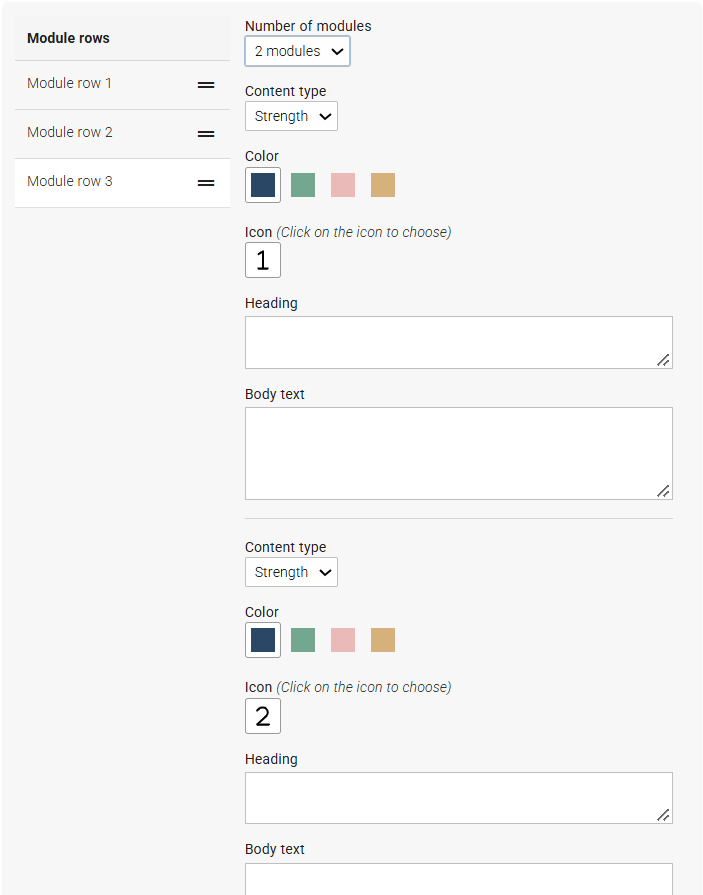
- Choose content type: strength or quote.
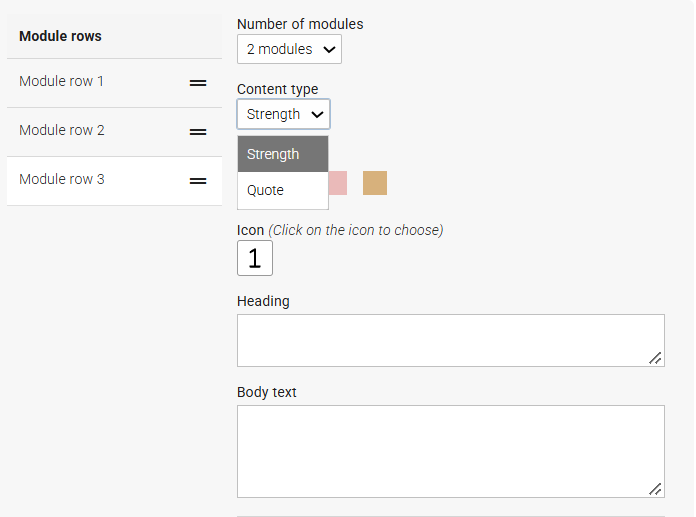
- Strength
- Choose color (module background color)
- Choose icon
- Write a short and concise heading
- Add a short and concise body text (optional)
- Quote
- Choose color (module background color)
- Write the quote (text becomes italic with quotation marks automatically)
- Specify quote source (name, role, or both)
- Image
- Click the image field to choose an image from the Media Bank
- Crop if needed
- Specify photographer or image source
- Write heading and body text (text appears on the image)
- Gradient behind text can be turned off. Consider readability.
Edit all your modules according to the instructions above. Updates appear in real time in the preview.
Inside Left & Center
These two pages together present the program’s content, structure, and opportunities. Keep the layout airy with paragraphs, subheadings, and elements that break up the text. The spread has two columns in total, one column per page.
Consider answering:
- How does one study in the programme?
- What careers can graduates pursue? How does the programme connect to real-world roles?
- What makes the programme special or particularly interesting? Exchange opportunities? Extensive practical components?
Step by Step
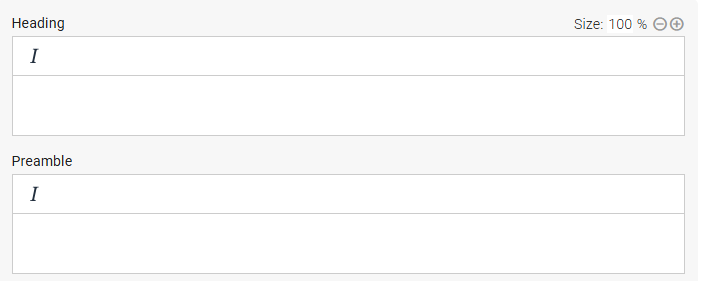
- Write the main heading (appears across both pages). You may draw inspiration from the programme page online.
- Write a short preamble. The text is slightly larger than body text. You can use italics if you like.
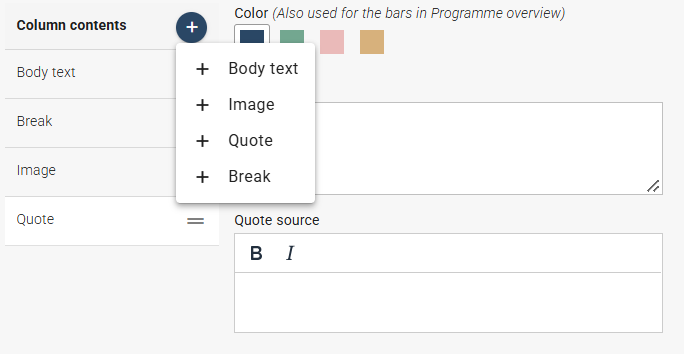
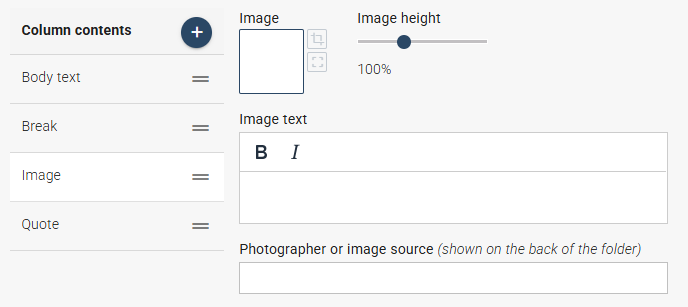
- Insert all your content. A column with body text is included by default. If you add more text than fits in one column, it flows into the next. Under the plus sign in the blue box, you can add different column content types. They appear in a list where you can reorder them by dragging the two lines on the right.
Column content types available:
- Body text
- Image
- Quote
- Break
Body Text
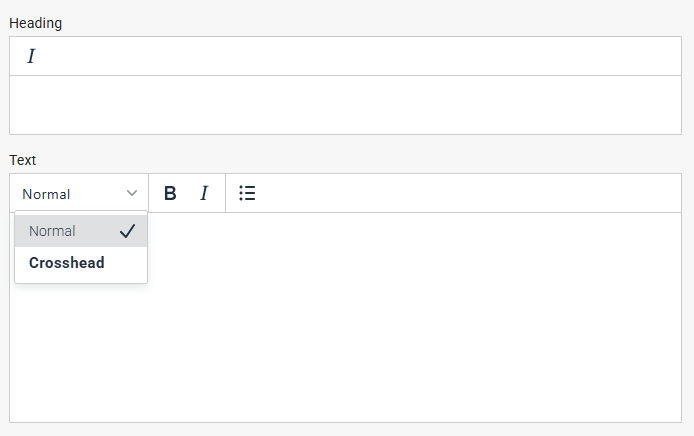
To place an image or quote at the correct position, you may need to divide text into different column content blocks. In this block för body text, you can write a crosshead, body text (normal), and bullet lists.
- Write crosshead
- Write body text (normal)
- Add bullet list if needed
Image
- Click the image field to choose an image from the Media Bank
- Crop and adjust height if needed (image width is standardized)
- Write image text (appears as smaller text below the image)
- Specify photographer or image source
Quote
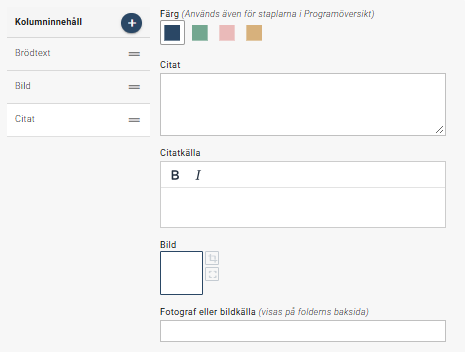
This block allows you to insert a quote that visually breaks up the page. Choose a quote from a current student or alumnus that reinforces the content.
- Choose text color
- Write the quote (italic + quotation marks automatically)
- Specify quote source (e.g., Name Surname, student/alumnus)
- Would you like to include a photo of the person quoted? Click the image field to select an image from the Media Bank. Then enter the photographer’s name or image source. The image will be displayed in a smaller, circular crop alongside the quote.
Column Break
You can manually force text to continue in the next column using the column break module.
Inside Right
Here you choose between two page types:
- Programme overview (horizontal percentage bars)
- Image panel (full-page image with headline and short text)
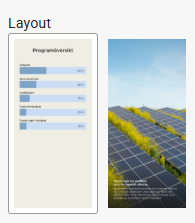
If you have a programme overview on the website, you can use it here. Note that if the overview has few bars, the page may look empty.
Programme Overview
Provides a quick overview of the program’s content.
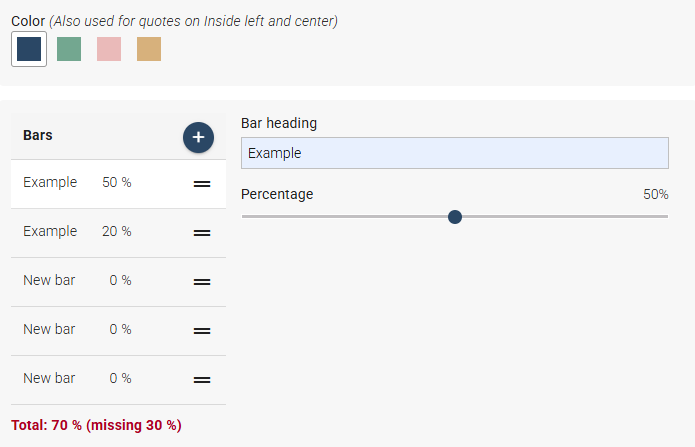
- Choose bar color
- Add number of bars (max 10)
- Specify bar heading and percentage for each bar.
A red text indicates if the total exceeds or falls below 100%.
- Below the programme overview, you have the option to add body text, an image, and a quote. This can be useful if the programme content needs further clarification regarding elective courses, specialisations, or similar topics. If the programme overview is relatively brief, you can also use this content to make the page more visually appealing. Please note that the content below the programme overview should relate specifically to the programme content, as the overall heading of this page is Programme Overview.
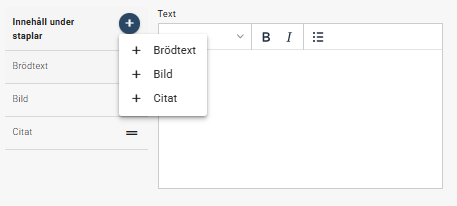
Image panel
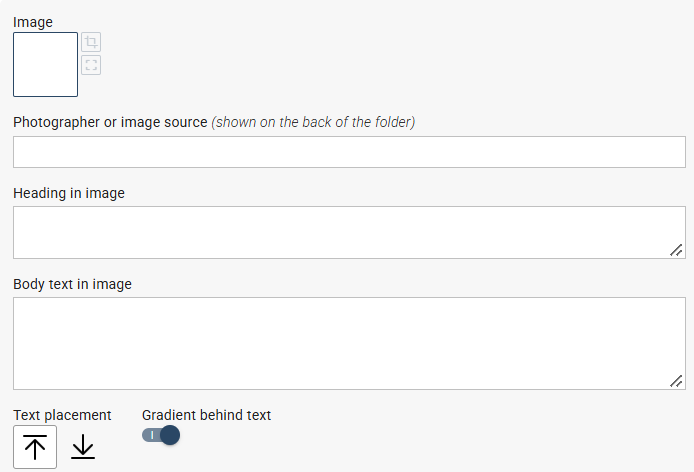
This page type uses an image, headline, and short text to convey a strong sense of the program.
- Click the image field to choose an image from the Media Bank (preferably portrait format)
- Specify photographer or image source
- Write heading (appears on the image)
- Write short body text (3–4 lines, appears on the image)
- Adjust text placement with arrows if needed
- Gradient behind text can be turned off. Consider readability.
Back
This is the folder’s back cover when folded. Highlight briefly why one should choose the programme.
Step by Step
- Write heading (e.g., Why should I choose Programme X?)
- Add a bullet list with the program’s main advantages
- Add short text if needed
- Finish with contact information
- Subheading: Contact
- Body text: role, programme, email and/or phone number
A QR code linking to umu.se/utbildning is placed on the back. It cannot be changed or removed.
Alternative log in methods to Ladok for students
The purpose of this manual is intended for current and former students at Umeå University who do not have a Swedish personal identity number. It explains how to connect an alternative login method to Ladok for Students. Doing so allows you to continue accessing Ladok for Students even after your Umeå University student account becomes deactivated (normally two years after completing your studies).
You must set up this connection before your Umeå University student account is deactivated. You can use one of the following login methods:
- European eID (eIDAS): If you have an eID issued in an EU country other than Sweden, you can use it as an alternative login method.
- Freja for foreign nationals: If you have an international passport with NFC, you can create a Swedish eID via Freja and use it as an alternative login method. Create an account at: https://frejaeid.com/.Instructions follow below. You can also choose to use a recorded instruction in English.
Do the following:
1. Log in to Ladok for Students using your Umu-ID.
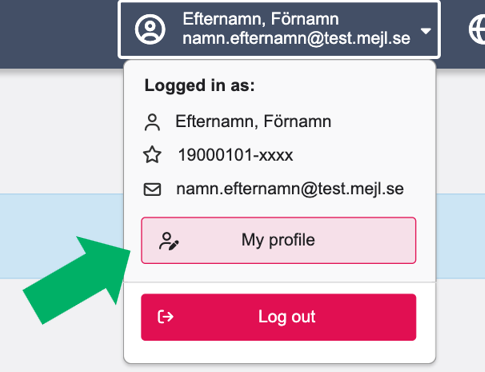
2. Click your name at the top of the menu and select My profile.
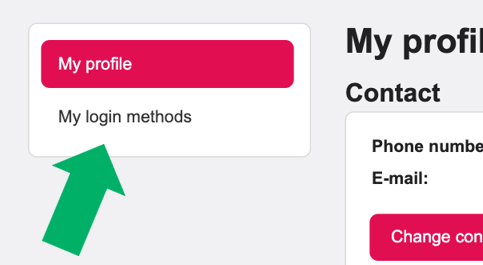
3. Select My login methods in the menu on the left.
4. Click Add another way to log in.
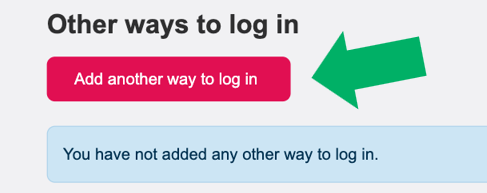
5. Choose a login method: eIDAS or Freja.
6. Follow the instructions for the selected method and complete the authentication.
7. Once you have authenticated, you will return to Ladok. Your new login method will be listed under Other ways to log in.
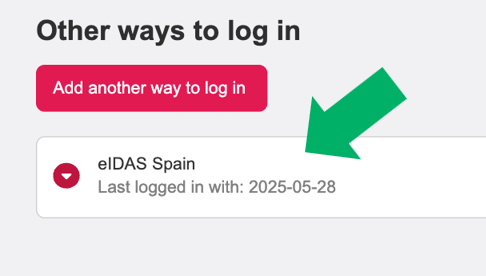
The next time you log in, you can use the login method you just connected to Ladok.
You may add an additional login method if you wish.
Step by step – This happens when a computer becomes client-managed
When a computer becomes client-managed, a number of basic components are installed to ensure it can be managed properly and kept secure. The computer receives:
- Central management: A “management framework” that increases security and allows the device to receive the correct settings, policies, and applications.
- Security certificates: Used to ensure secure communication between the computer and our IT systems.
- Company Portal: An app that shows whether the computer meets security requirements and allows you, as a user, to install approved applications and software.
Differences between client management on Windows and Mac computers
On Windows computers, much of the management takes place automatically in the background using built-in Windows features. More settings can be centrally controlled (Start menu, applications, Windows Update, firewall, etc.) because Windows is deeply integrated with the client management system Intune.
On Mac computers, the user needs to manually approve the installation of a management profile. The client management system Intune can control many aspects, but not quite as extensively as on Windows.
Microsoft Defender – why we use it
Both Apple and Windows already include basic built-in protection, but Microsoft Defender adds stronger, more comprehensive security that is essential in an organizational environment. Microsoft Defender provides the following on both Mac and Windows computers:
- Improved protection against viruses and malware: Detects more threats than built-in protections alone.
- Protection against malicious websites (phishing): Blocks harmful links and fraudulent websites before you click.
- Continuous monitoring: Detects suspicious activity in real time.
- IT gains an overall view of all computers: Enables detection of deviations, alerts, and faster protection of the organization.
- Consistent protection across platforms: Computers receive the same level of security regardless of whether they run Windows or Mac.
This manual describes the steps you need to take in order to create an account and gain access to the certificate service from Harica.
The certificate service from Harica offers the possibility to obtain certain types of certificates free of charge; these are marked as “free”. We recommend using only the types that are procured through Sunet/Geant (server certificates and email certificates).
Create an account and gain access to the service
To gain access to the service, approval from your manager/head of department is required, as well as a list of the domains for which you should be able to issue certificates. Certificates may only be issued for the institution you belong to (for example, an employee at institution X may only issue certificates for x.umu.se). If certificates need to be issued for other institutions, approval from the head of that institution is required. Approval is handled by placing an order via the ITS Servicedesk.
- If you do not already have a user account, create one by going to:
Harica CertManager – Register (https://cm.harica.gr/Register) - Fill in the fields. Note that the fields for first name and last name may not contain å/ä/ö or other special characters. Replace these characters with other letters.
- The email field must contain an @umu.se address.
- Then log in to the portal at: https://cm.harica.gr/
We do not provide support for certificate types that are obtained by paying for them with a credit card. More information about the service is available here: Sunet TCS 2025- Information for administrators – Sunet Wiki
REDCap closing and archiving
How to proceed when closing and archiving a REDCap project
When you are finished with your project, it is recommended that you complete the following steps:
- Change the project status to “Analysis/Cleanup” in the “Other functionality” menu.
- Export data for archiving: Download/export and save the following files:Menu: Project Home
- Click the download icon for “Current users” to download a file containing all users and their names.
Menu: Project Home → Other Functionality
- XML file (metadata)
- XML file (metadata and data)
Menu: Project Home → Project Setup
- Project events and arms (if applicable)
Menu: Codebook
- Codebook
Menu: Logging
- Click “All logging”
Menu: User rights Download the following three files:
- users
- user roles
- user role assignments
- List of users’ full names and UmU IDs
- Data Access Groups (if applicable)
Menu: Project Dashboard
- Data Resolution Dashboard (if applicable)
Menu: Alerts and notifications (if applicable)
- Download Alerts
- Download the log: Entire logMenu: Data export, reports
- Data export in desired format
- PDF of all forms with saved data (Data Exports/Other Export Options)
- ZIP file containing the project’s other uploaded files (Data Exports/Other Export Options)
- Change the project status to “Completed” under “Other functionality.”
- Submit a ticket via ServiceDesk informing them that you have closed your REDCap project. The project name must be included in the ticket.
Activate Umu-id account with Freja+
This manual describe how to get Freja eID without Swedish personal identification number.
If you have Swedish personnummer or samordningsnummer you should use a Swedish identification, read more at frejaeid.com.
To use Freja eID, you must:
- Have a biometric passport, and
- Be a citizen of one of the countries supported by Freja (currently 167 countries).
You can check the list of supported countries here:
🔗 frejaeid.com/en/freja-supported-countries
Step 1: Download and Register in Freja eID
Go to:
🔗 frejaeid.com/en/get-freja-eid
Follow the instructions to:
- Download the Freja eID app to your mobile phone.
- Register and verify your identity using your biometric passport.
Step 2: Activate Your UMU Account with Freja
After you have registered in Freja eID, go to:
🔗 https://administrationsverktyg.umu.se/kontoaktivering
Choose to activate your UMU account using Freja eID.
Once your UMU account is activated, a Freja identifier will be saved for you.
Step 3: Reset Passwords or MFA Later (If Needed)
After activation, you can later reset your password or multi-factor authentication (MFA) through Freja eID:
🔗 https://administrationsverktyg.umu.se/Settings/
Important:
- This option only works if you have already activated your UMU account with Freja, so that your Freja identifier is saved. You can reactivate your account to add the Freja identifier to your account.
Change your application for recommended study support
This manual describes how you change your application for study support in Ladok for students. In order to change your application, the registration period for the exam must still be open.
- Go to Ladok for students, www.student.ladok.se, and use your UMU-id to log in.
- On the Home page, you will see the exams/tests you are registered for. To change your application for support, click on “Show more.”
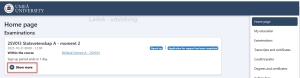
- Scroll down until you see the button “Change application for study support.”
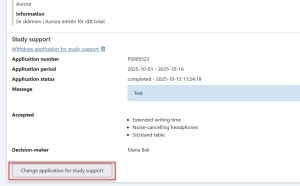
- Here you can see the study support that you have already applied for, and you can add more support types. You can also remove support types that you have applied for earlier.
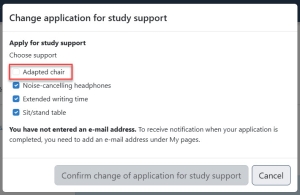
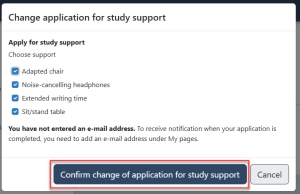
- Then click on “Confirm change of application for study support.”
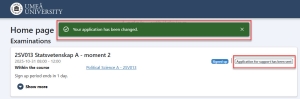
- You will receive confirmation that your application has been changed and will also see that the status of the examination is “Application for support has been sent.” Once the department have processed your application, you will be notified of the outcome via Ladok for students. You will receive a notification (email) when there is new information about your application in Ladok for students.
Apply to use your recommended study support
This manual is intended for students who have a NAIS certificate off recommended study support during on campus-examinations (including Inspera examinations). The recommended study support may include, for example, extended writing time or sitting in a separate room.
When you register for an on campus-examination in Ladok for students, you simultaneously apply to use your recommended study support. This manual describes how to do this.
Apply to use your educational support during an on campus examination, step by step:
- Log in to Ladok for students with your UMU ID and password: www.student.ladok.se
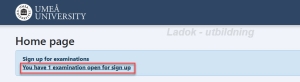
- Your home page will show whether there are any examinations open for registration. Click on the link “You have x examination open for sign up” to continue.
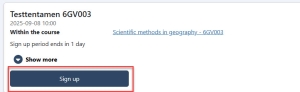
- Click on “Sign up” for the examination you want to register for.
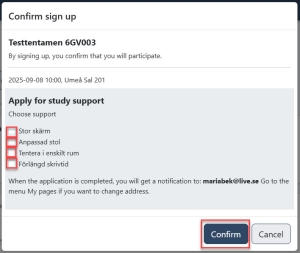
- Select the study support you want to apply for during the examination. Check the box in front of each type of support you want to apply for and then click Confirm. This means that you are both registering for the exam and applying to use your selected study support.
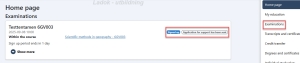
- On the start page, you will see that you are registered for the examination and that your application for study support has been submitted. You can also click on “Examination” in the menu on the right to see the examinations you are registered for.
If you have any questions about your application before it has been decided and finalized (see point 6), contact the person at your department who is the contact person for students with disabilities. Contact details can be found on this page: Contact person for students with disabilities (umu.se)
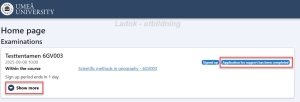
- Once your application has been decided and finalized, you will receive a notification via email. In Ladok for students, you can read more about which study supports have been granted or not, as well as any notifications. Click on “Show more” to view the information.
Identification at Umeå University
Identification is required for account activation, password changes, trust level elevation (AL level), and resetting Multi-Factor Authentication (MFA).
AccessLevel (AL) 2 is currently required for individuals with a Swedish personal identity number when logging into Ladok.
The following functions can be used for identification: account activation, password change, trust level elevation (AL level), and reset of Multi-Factor Authentication (MFA).
Option 1: Electronic ID
You identify yourself using a Swedish e-identification.
We support Bank-ID and FrejaID+.
Freja eid is also possible to use for citizens in 167 countries, see this manual Activate Umu-id account with Freja+ – Manual
Applicable for:
- Account activation
- Password change
- Trust level elevation (AL level)
- Resetting Multi-Factor Authentication (MFA)
Option 2: Foreign Electronic ID (eIDAS)
You identify yourself using a foreign e-ID.
This works for the following countries: Belgium, Cyprus, Estonia, France, Italy, Croatia, Latvia, Liechtenstein, Lithuania, Luxembourg, Malta, Netherlands, Poland, Portugal, Slovakia, Slovenia, Spain, Czech Republic, Germany, and Austria. (more countries will be added)
You use the respective country’s e-ID; some countries offer multiple e-ID options.
Applicable for:
- Account activation
- Password change
- Resetting Multi-Factor Authentication (MFA)
Option 3: Visit the Service Desk
Visit the service desk and present valid identification.
We accept the following IDs: Swedish passport, Swedish national ID card, Swedish driver’s license, Swedish SIS-marked ID card, ID card for residents registered in Sweden, National ID card from the EU, International passport.
Applicable for:
- Account activation
- Password change
- Trust level elevation (AL level)
- Resetting Multi-Factor Authentication (MFA)
Option 4: Two-Party Call (Students Only)
Identification is done through a two-party call with a service desk employee.
A case is created via https://umu.se/servicedesk.
A high-resolution copy of a valid passport must be attached to the case.
The service desk will schedule the call.
During the call, the same ID must be shown and readable.
Applicable for:
- Account activation
- Password change
- Resetting Multi-Factor Authentication (MFA)
Note: This method lowers the trust level to level 1.
Option 5: Three-Party Call (Employees Only)
Identification is done through a three-party call with a service desk employee and a trusted party at the university.
The trusted party must be a university employee with trust level 2 and have personal knowledge of the user.
A case is created via https://umu.se/servicedesk.
A high-resolution copy of the user’s valid passport must be attached.
The user identifies a trusted party and informs them.
The service desk schedules the call.
During the call, the same ID must be shown and readable.
The trusted party is identified remotely via a code sent by the service desk and confirmed at https://administrationsverktyg.umu.se/Konto/LoginVerification.
The trusted party’s UMU ID is registered and confirmed in account administration.
Applicable for:
- Account activation
- Password change
- Trust level elevation (AL level)
- Resetting Multi-Factor Authentication (MFA)
Option 6: Utility Bill (Students Only)
Identification is done by confirming your address through a utility bill that matches the address in our system.
Examples: electricity bill, water bill, gas bill.
A case is created via https://umu.se/servicedesk.
A copy of the utility bill must be attached.
Applicable for:
- Account activation
- Password change
- Trust level elevation (AL level)
- Resetting Multi-Factor Authentication (MFA)
Option 7: Activation Code by Mail (Students Only)
Identification is done by confirming your email against the one previously registered in our system.
An activation code is sent to the registered email.
Note: This method lowers the trust level to level 1.
Applicable for:
- Account activation
- Password change