Manual

Manual
  • Svenska
  • Menu Menu

Install eduroam manually

Updated:2026-05-21|Published:2022-05-20

Should the “automatic” method of installing eduroam on your device not work, there are manuals below for how to do it via a more manual approach.

Mobile menu:

Windows | macOS | Android | iOS / iPadOS | Chromebook | Ubuntu

Windows

This guide is written for manual installation of the certificates needed to connect to the eduroam wireless network on a PC running Windows.

NOTE: This manual is written with the help of a Windows PC running Windows 11 using the 22H2 update and the Edge browser but it should work for earlier versions of Windows 11 and Windows 10 and other browsers but some of the images might not look the same for you if you are using a different version of Windows or another browser. Also note that Window 8.1 and earlier is not compatible with this guide.

Step 1

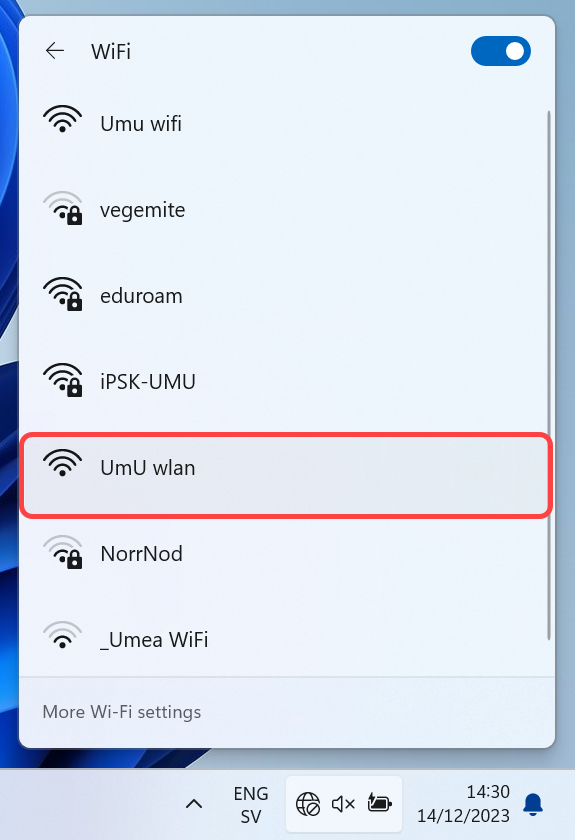
To download the certificates, you need to be connected to the internet. Our recommendation is that you connect to the network called UmU wlan. Select UmU wlan in the network list and follow the on-screen instructions.
If nothing happens after connecting, please refer to Access to wireless guest network at Umeå University.

Step 2

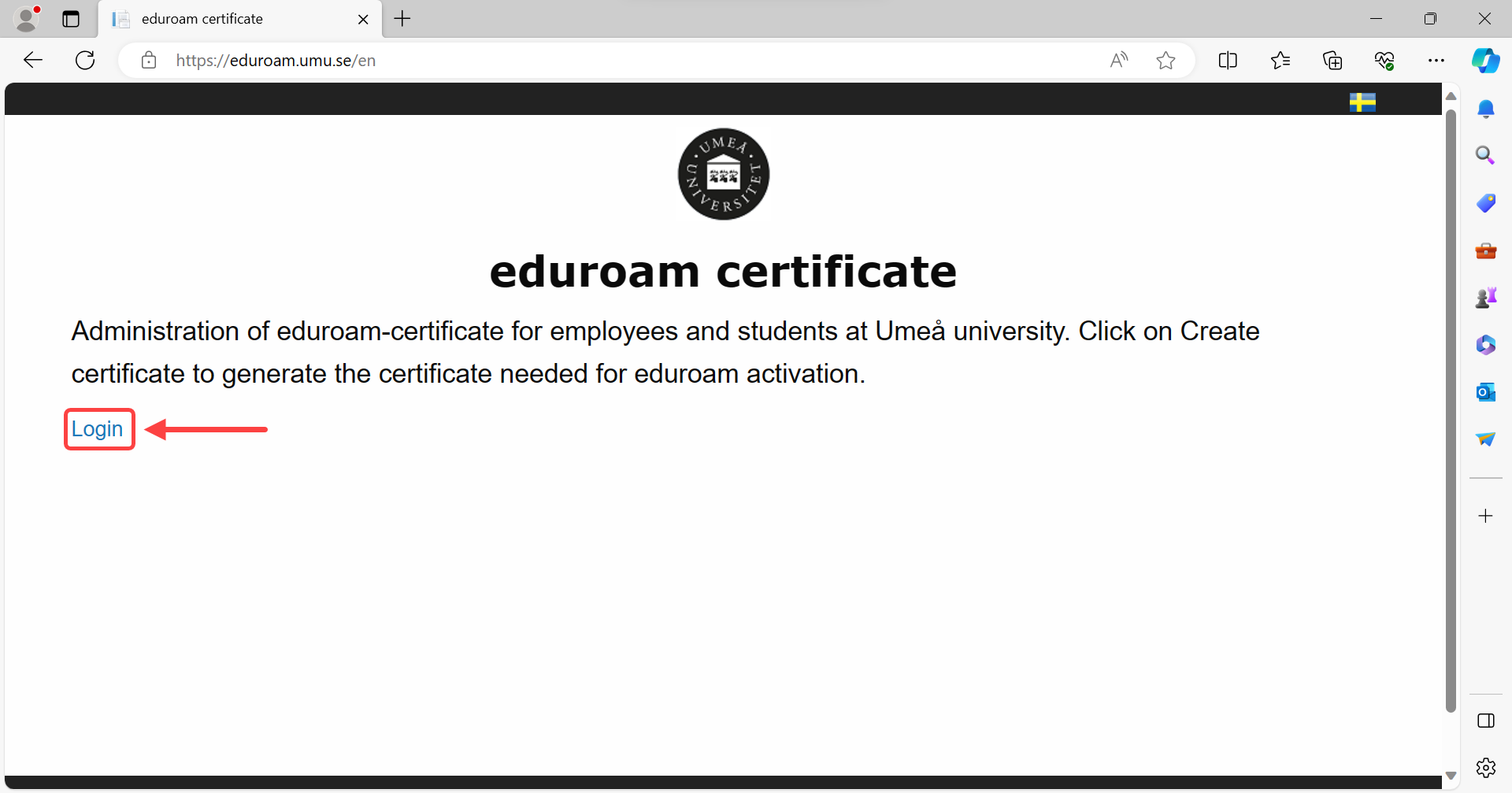
Start Edge and go to http://www.eduroam.umu.se
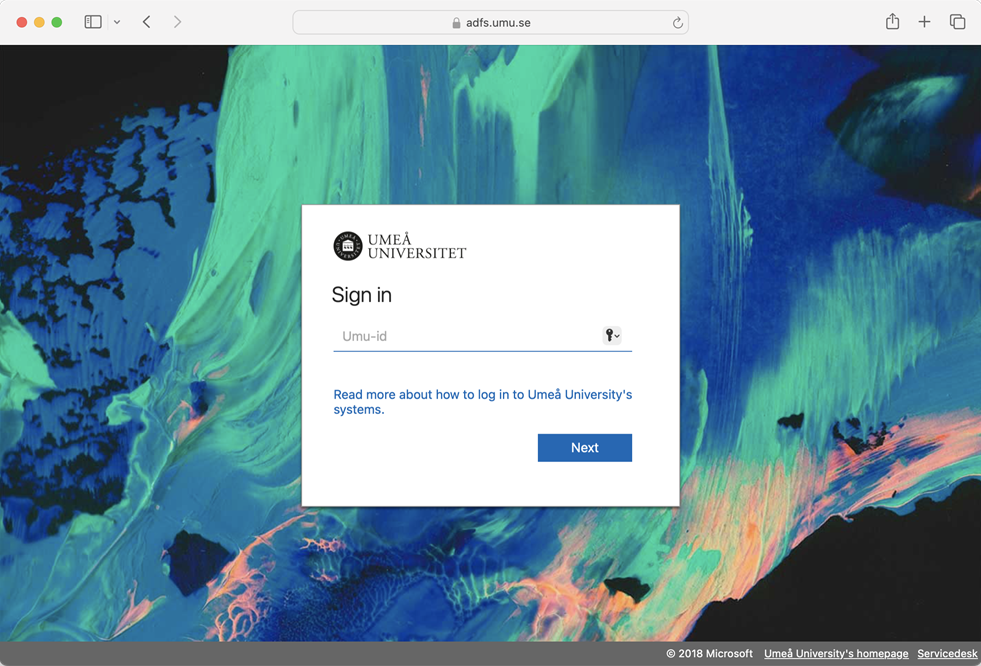
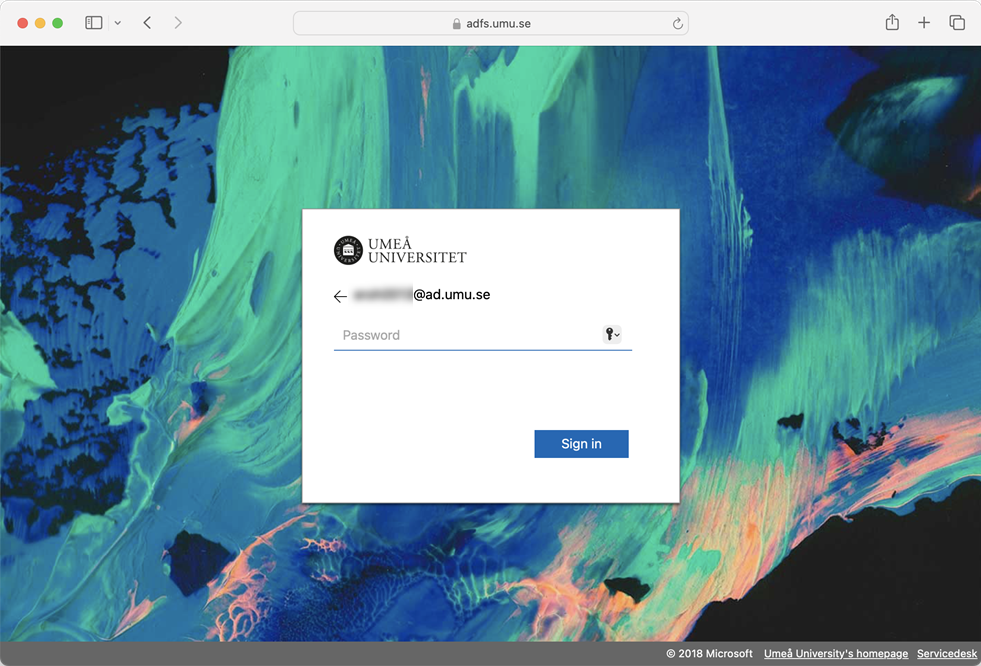
Log in with your Umu-id and password.
Step 3 – Create Certificate

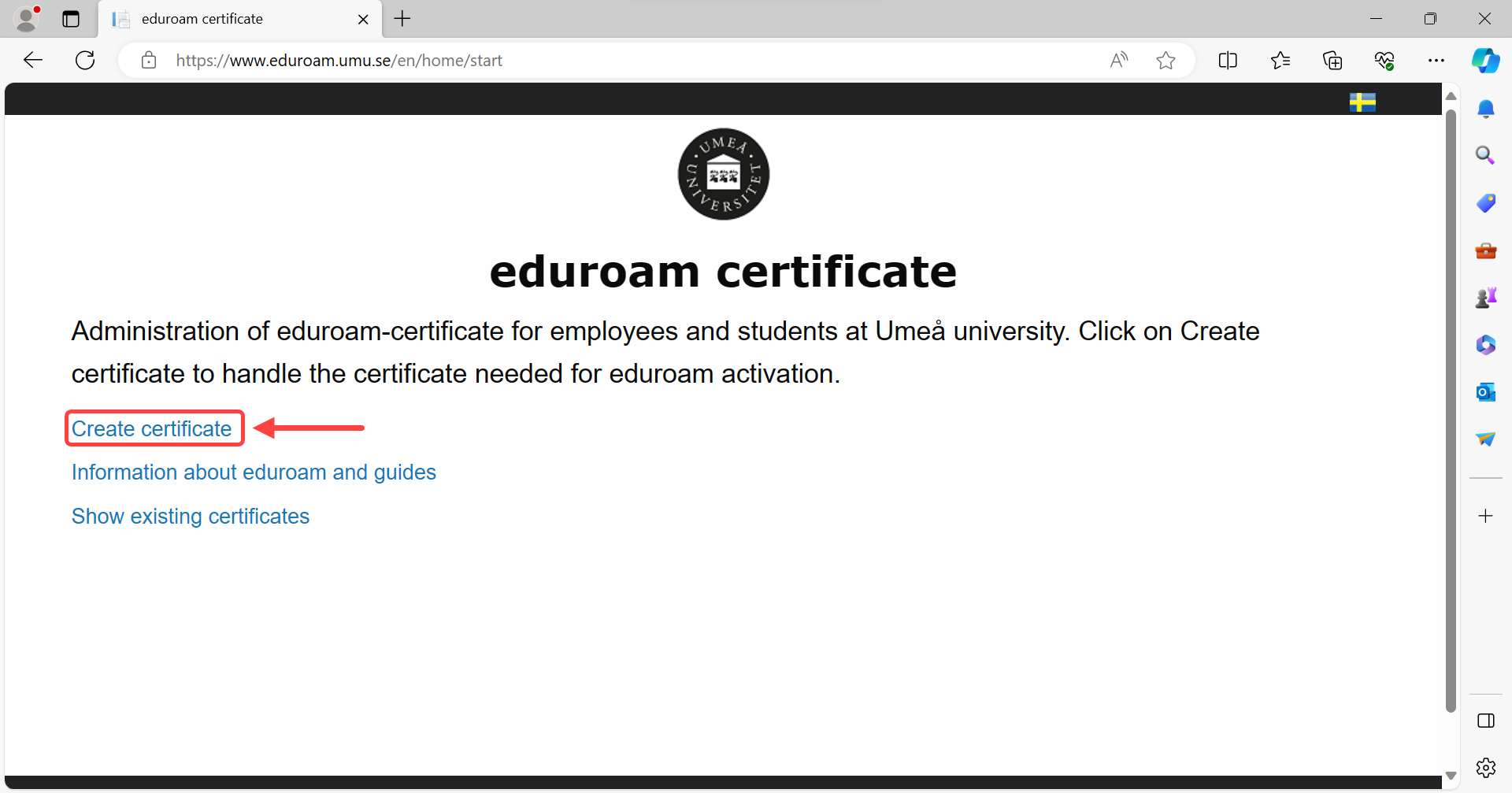
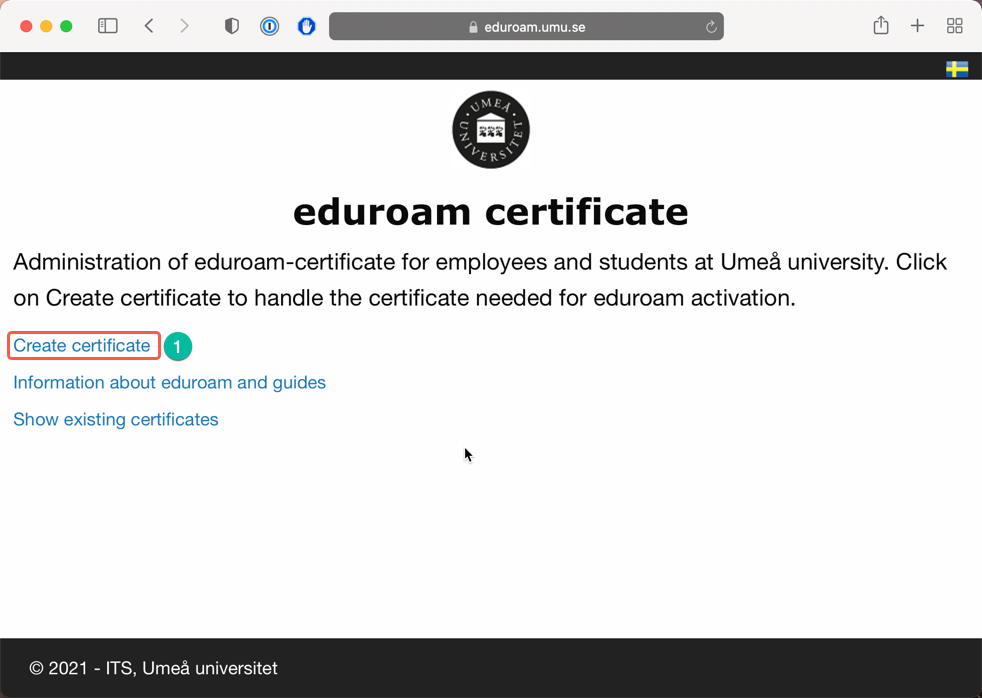
Once logged in, you will need to create your certificate. Click Create Certificate.

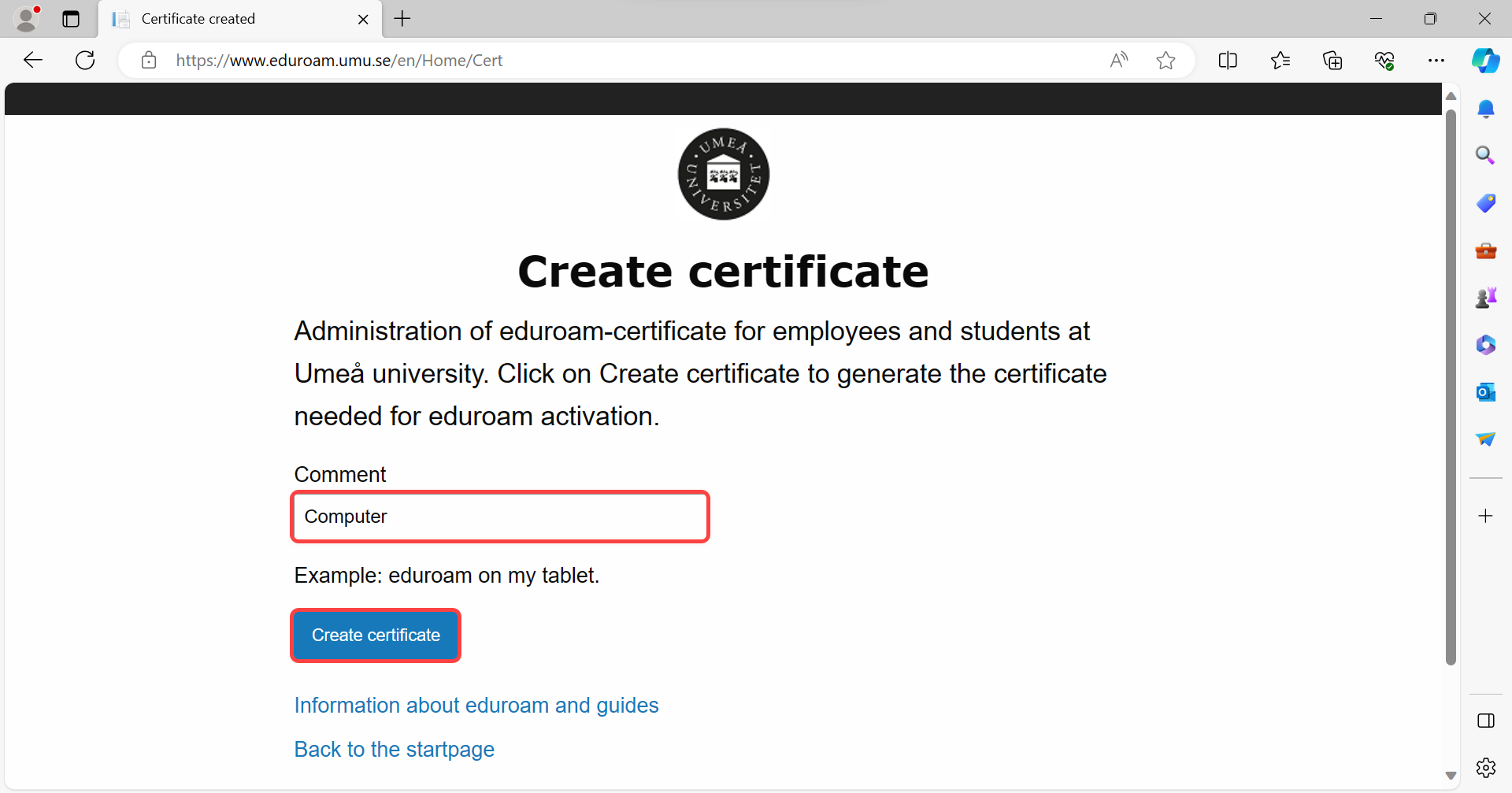
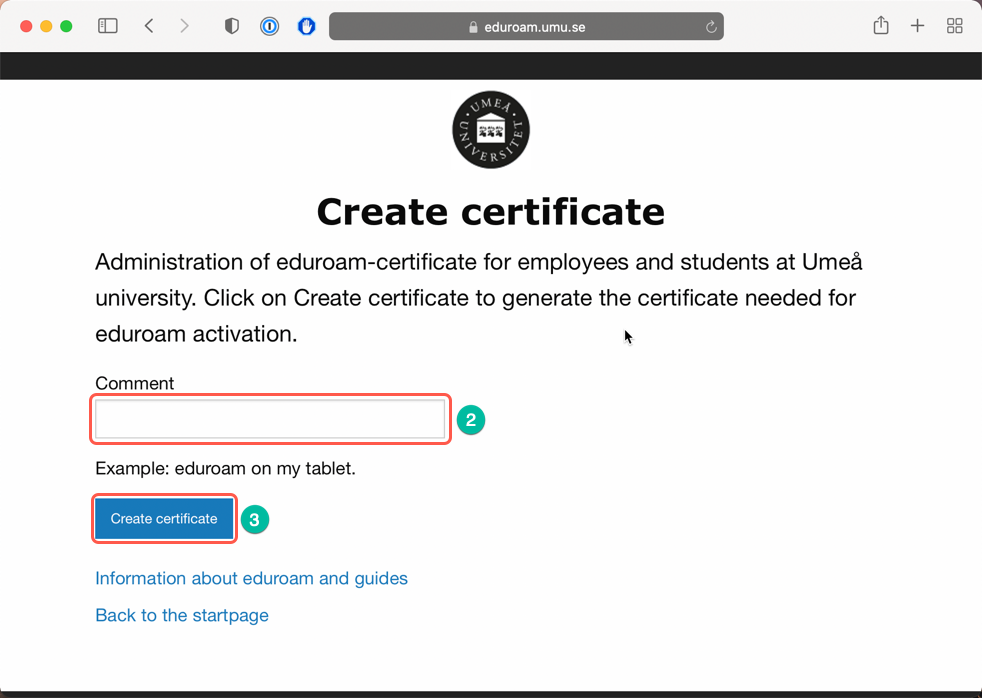
On the next page, you need to give the certificate a “name”,
then click on the blue Create Certificate button.

It may take a while but eventually you will come to a new page.

Step 4 – Download the certificates

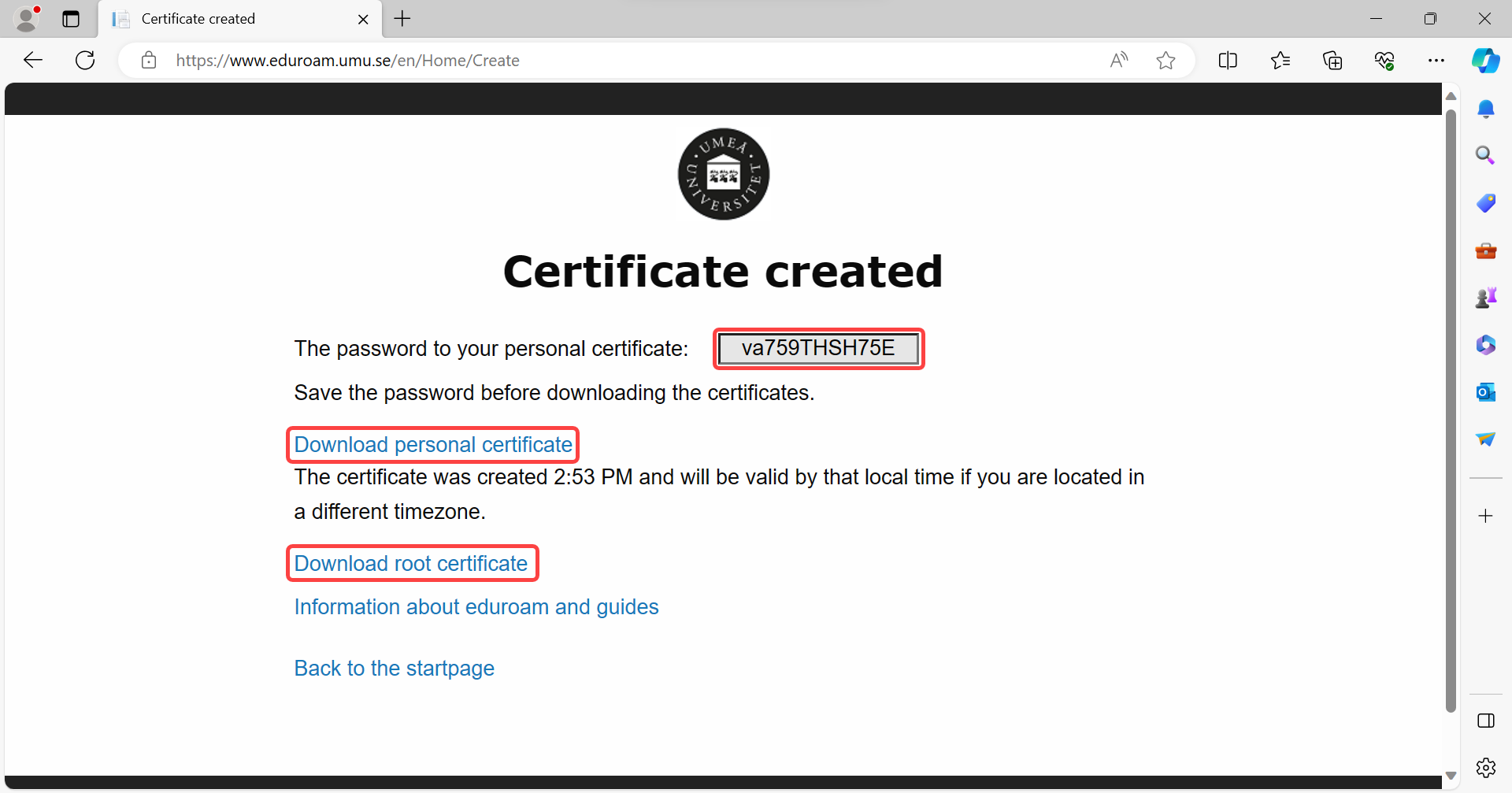
Once the certificates have been created, they need to be downloaded.
In addition to a personal certificate , you also need to download a so-called ROOT certificate.
The personal certificate has also been given a password.

Start by copying the password for the personal certificate. Then click Download Personal Certificate. Then click Download Root Certificate. You will probably then be met by a warning, if so click on Keep.

Step 5 – Install Root Certificate

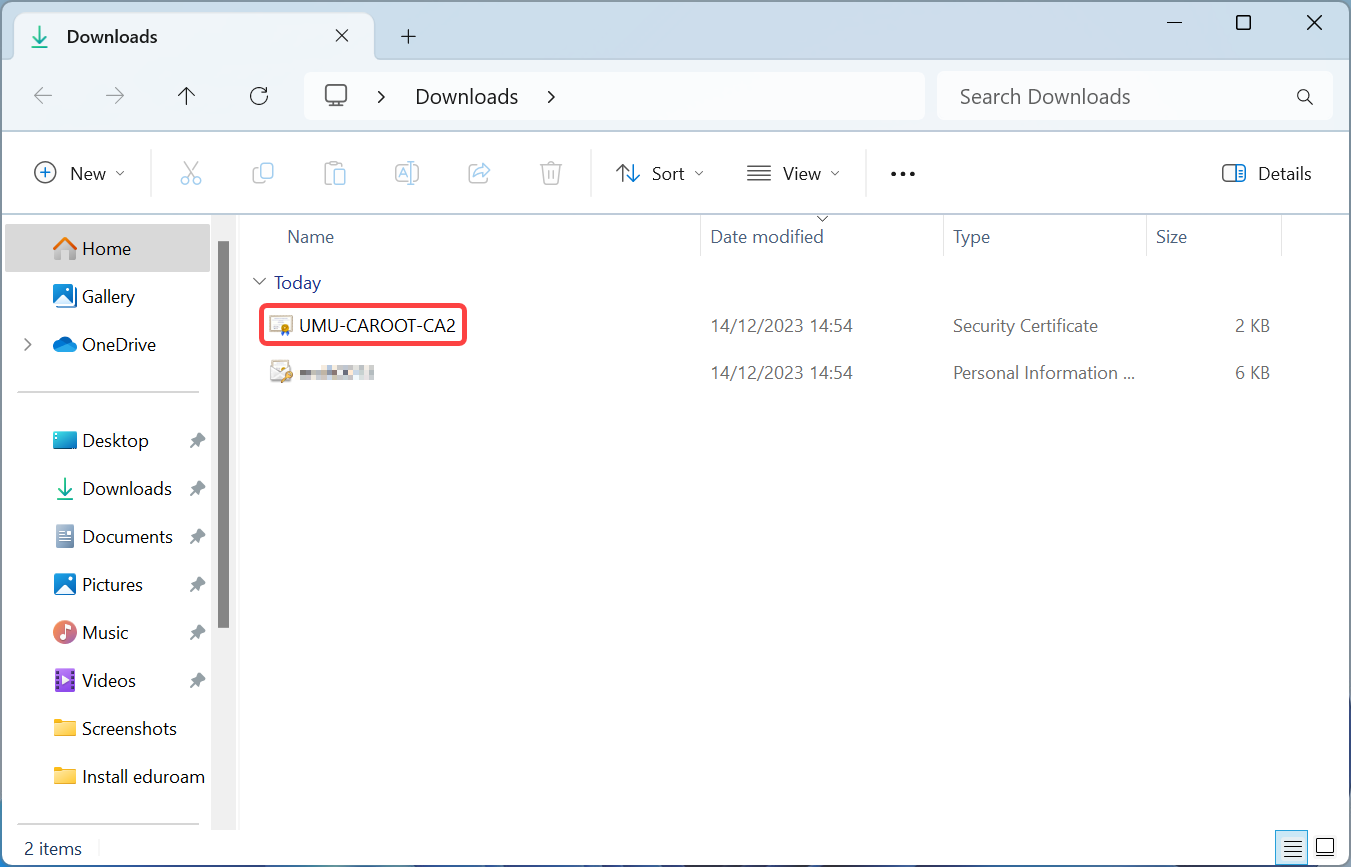
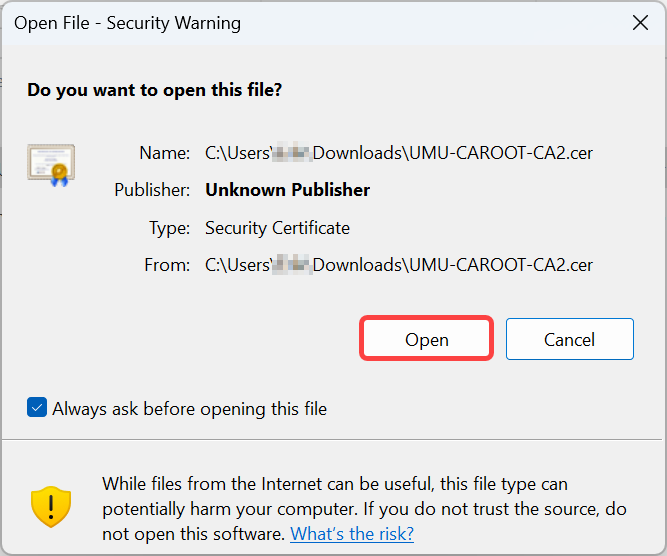
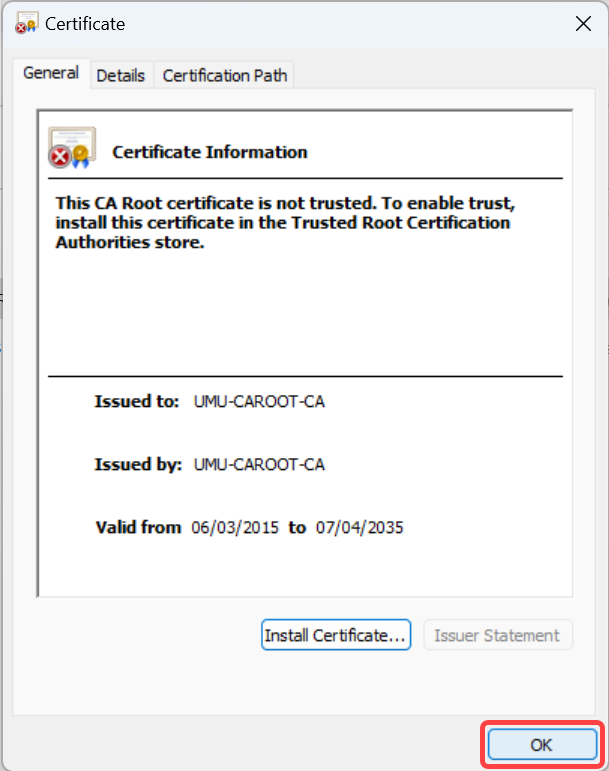
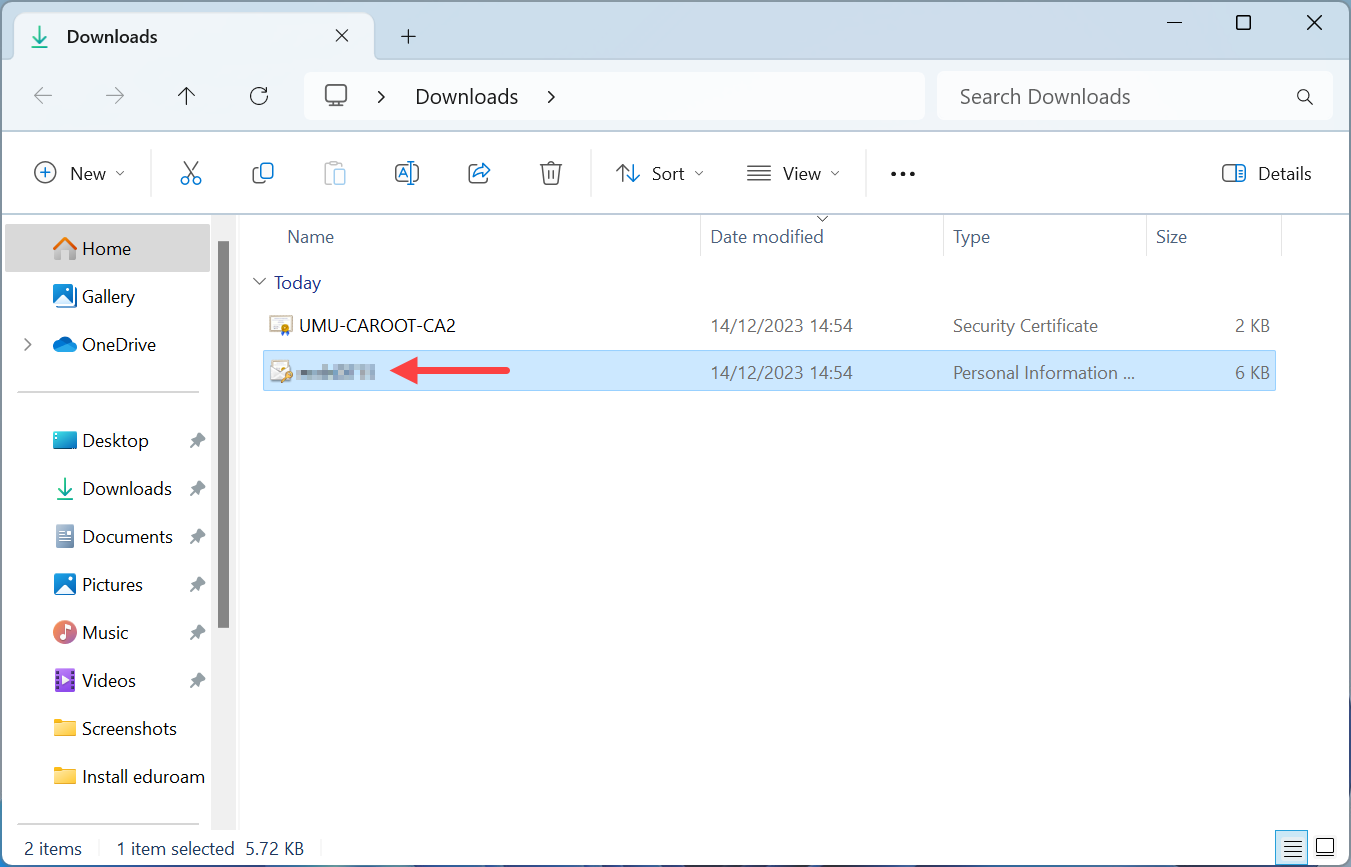
Open the Downloads folder in Windows Explorer. Double-click on the root certificate named UMU-CAROOT-CA2.

Click on Open if met by this Security Warning.

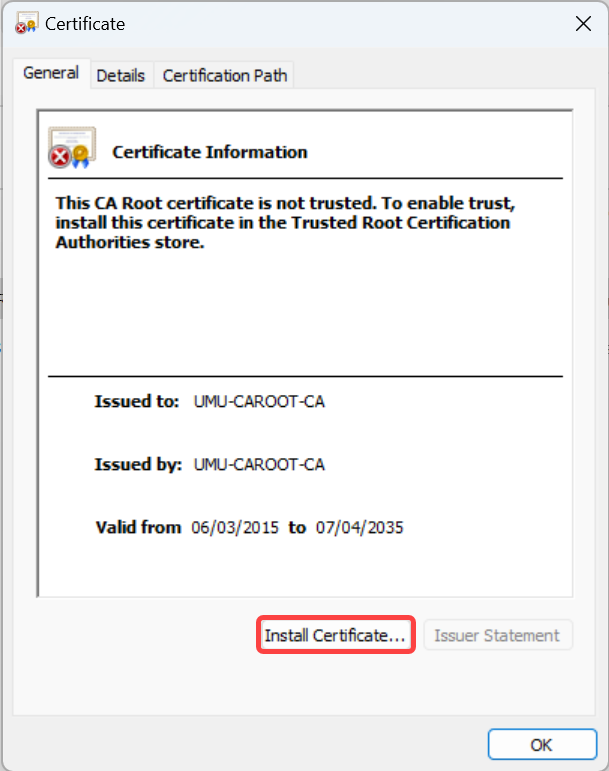
Click on Install Certificate…

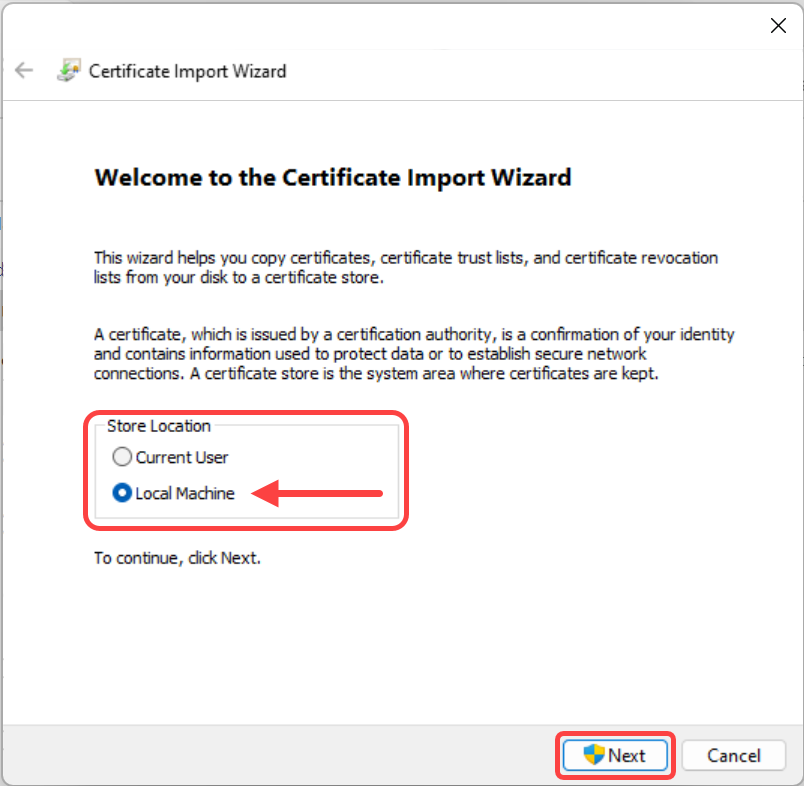
Under Store Location change it to Local Machine och click Next. You will also most likely get a warning from User Account Control that is making sure you are an administrator on the computer your are installing on, click on Yes.

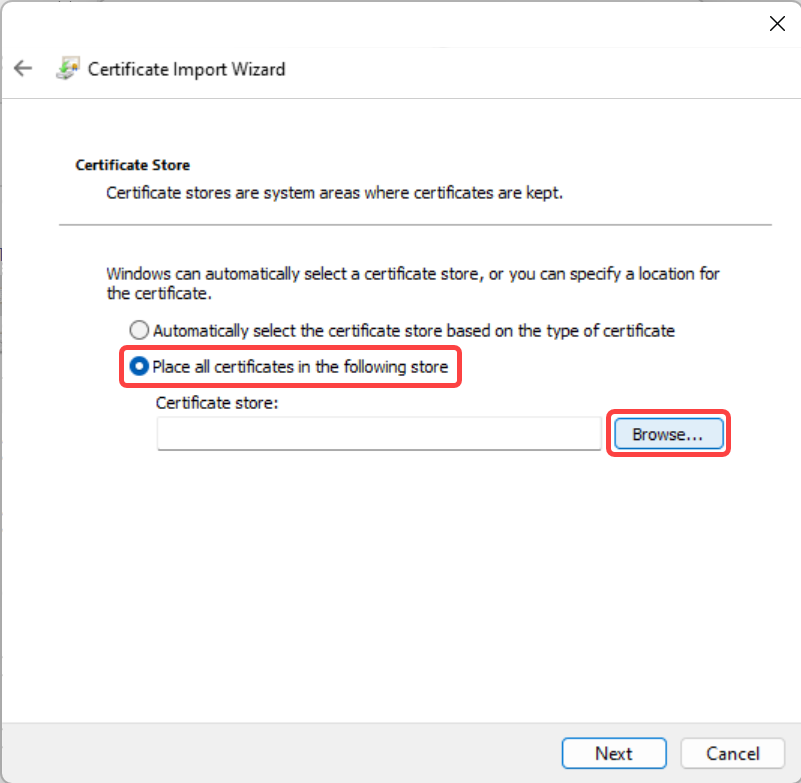
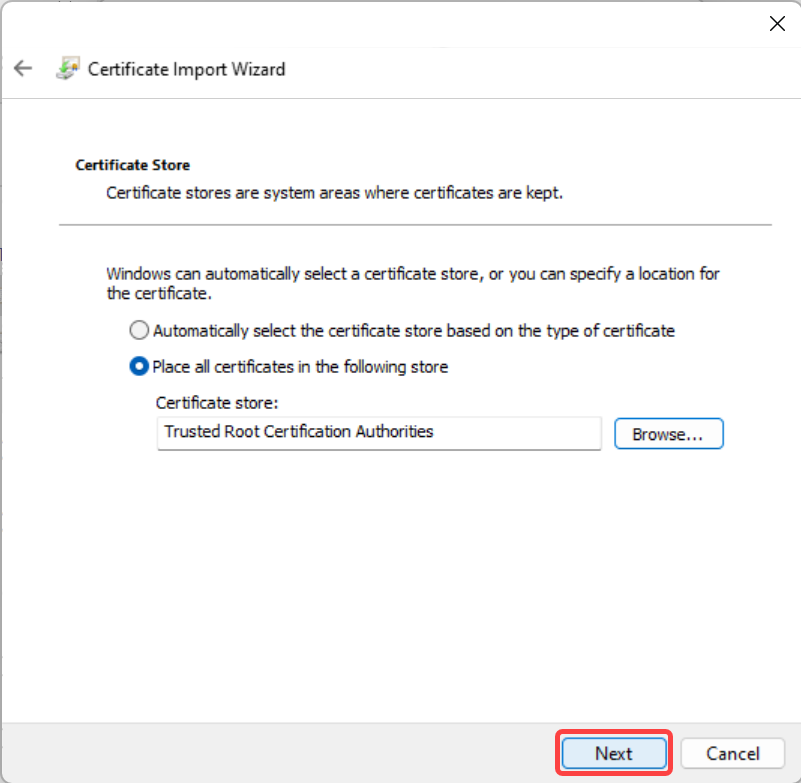
Specify the location for the certificate as Place all certificates in the following store and then click Browse…

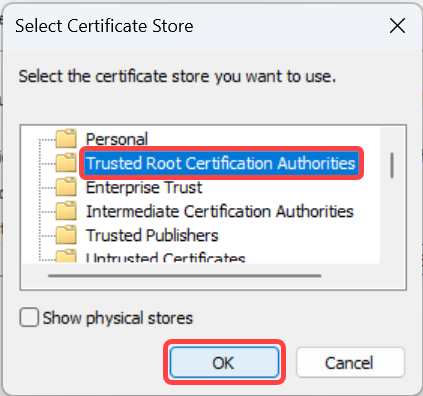
Mark the folder Trusted Root Certification Authorities and click OK.

Click Next.

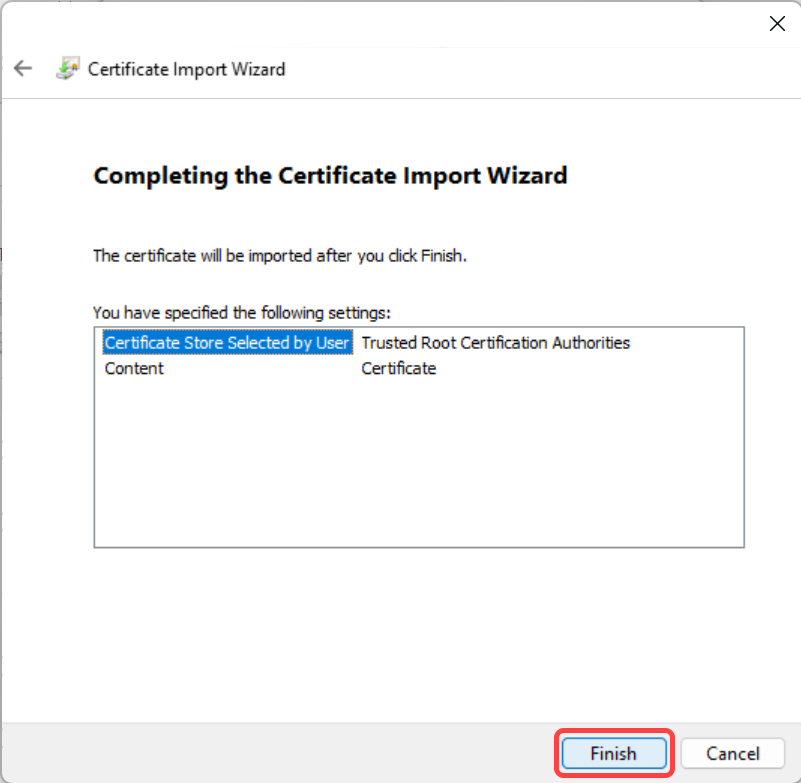
Click Finish.

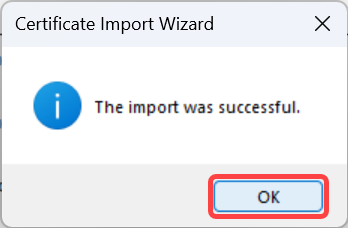
Click OK.

Click OK.

Step 6 – Install Personal Certificate

To install the personal certificate double-click on the file named your Umu-id.

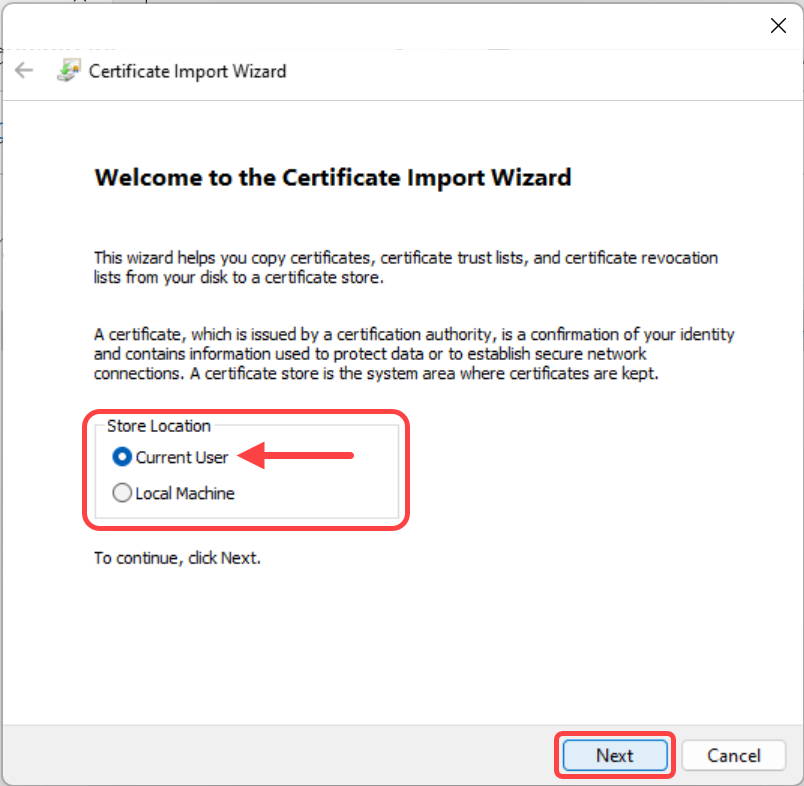
Keep the Store Location as Current User and click Next.

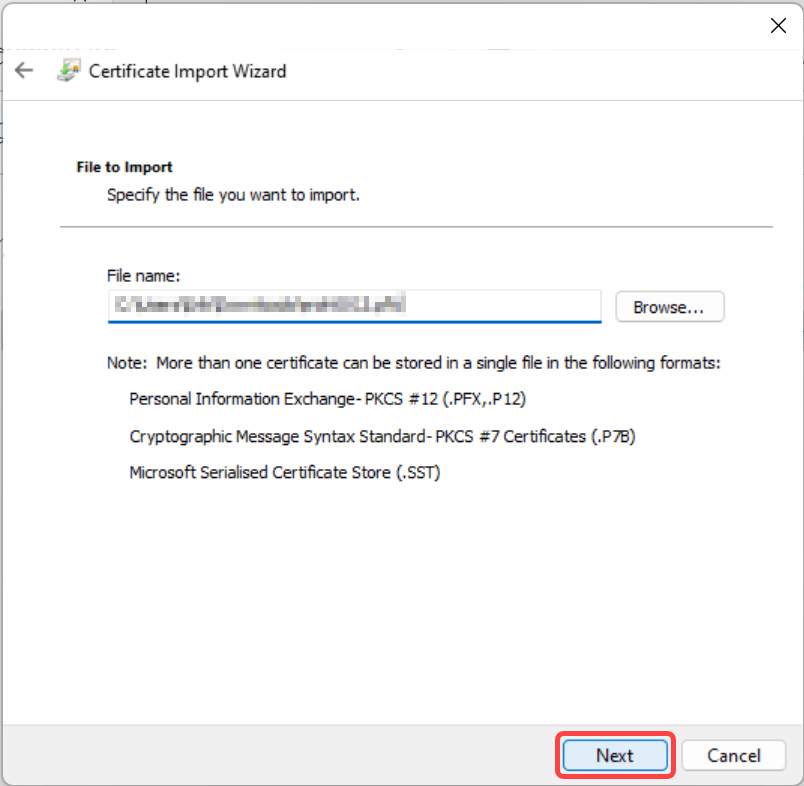
Click Next.

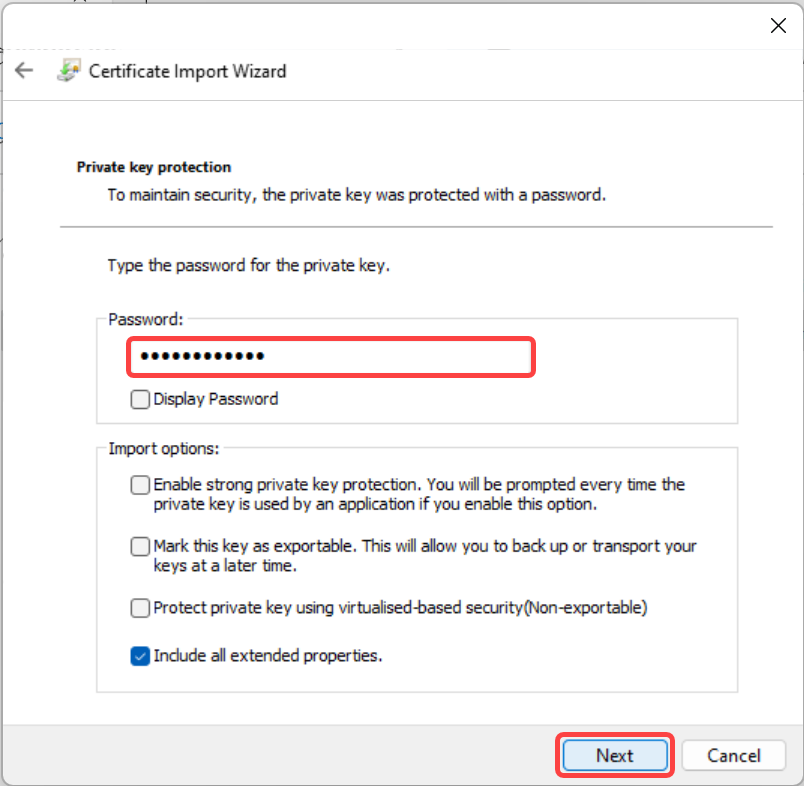
Paste the password you received and copied in Step 4 and click Next.

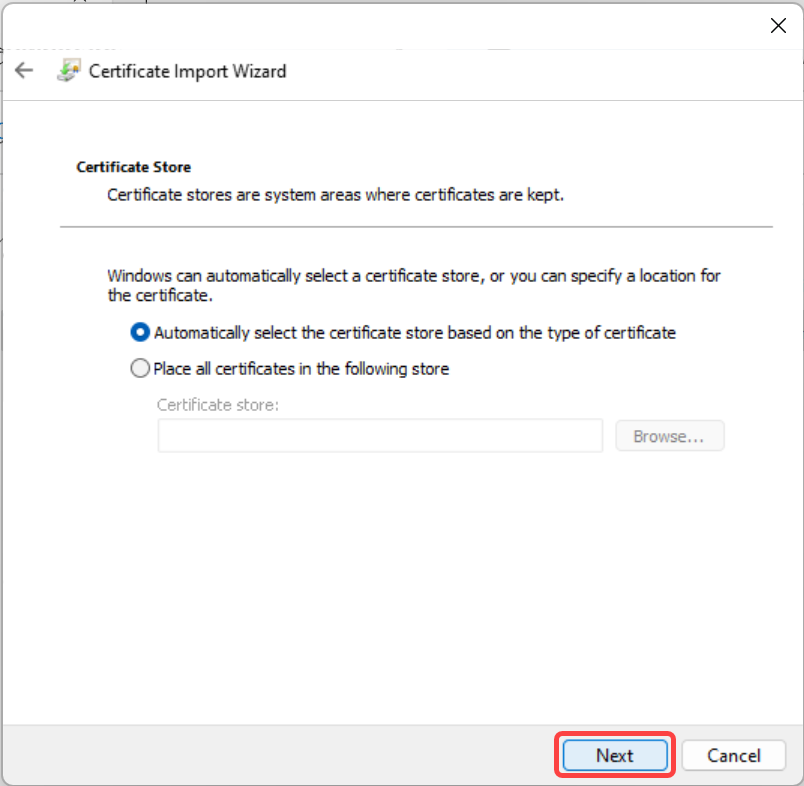
Leave as selected and click Next.

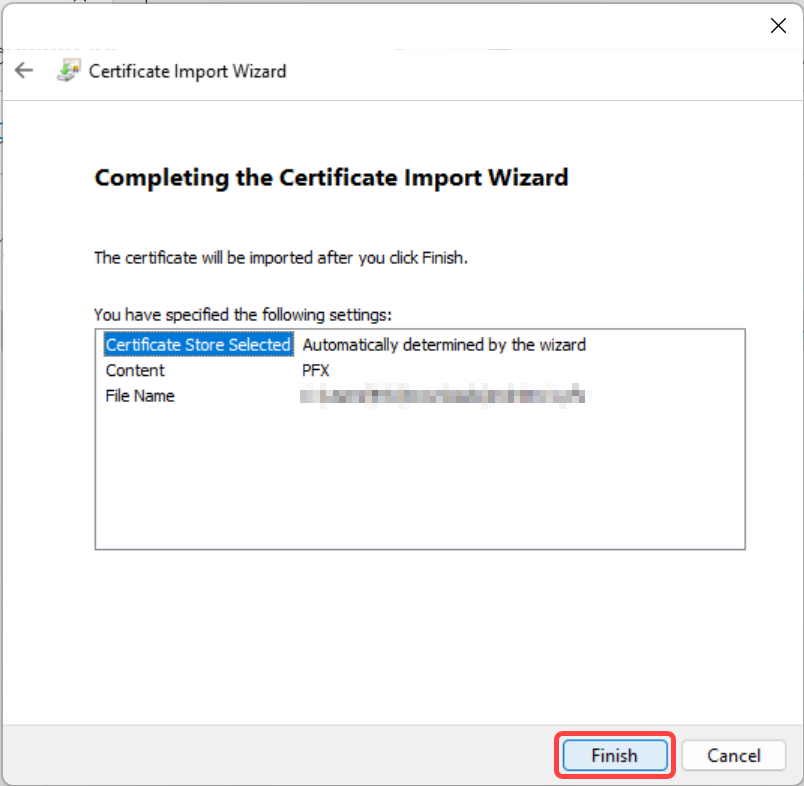
Click Finish.

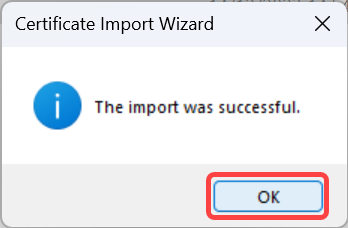
Click OK.

Step 7 – Connect to eduroam

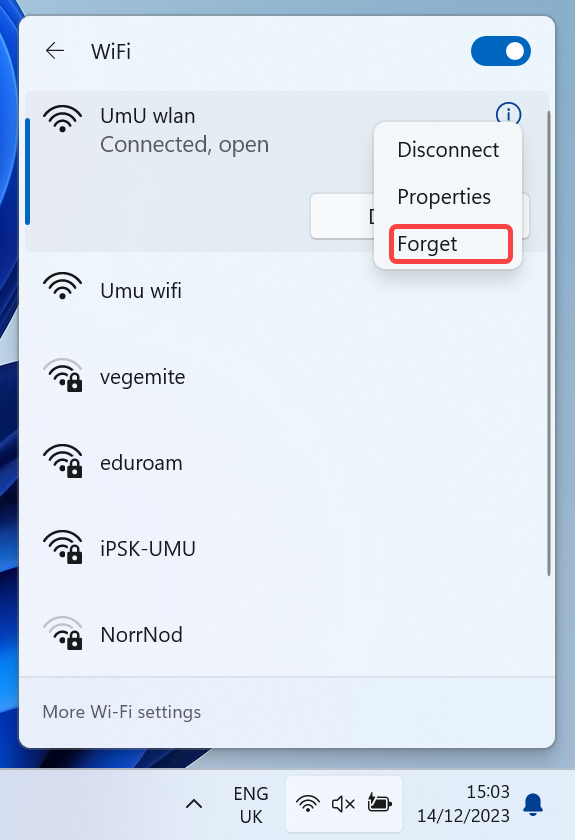
Open the list of available networks again and right-click on UmU wlan and click Forget.

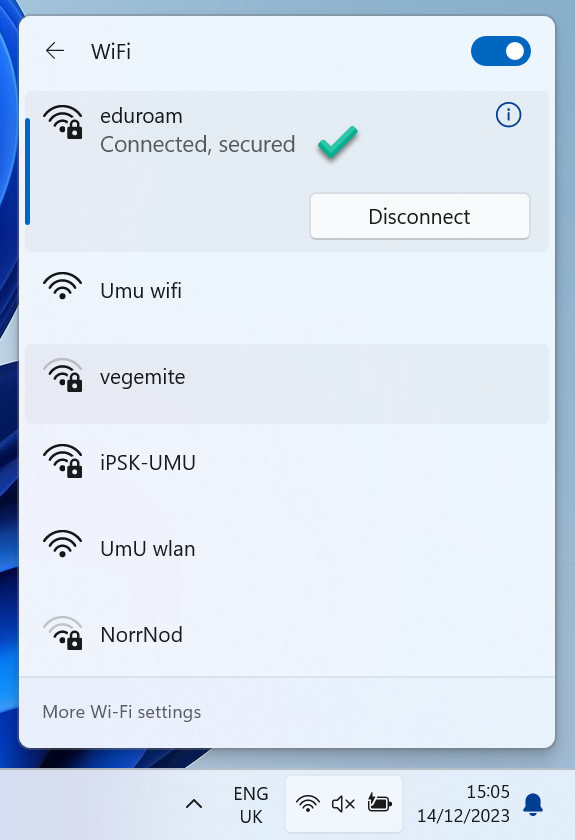
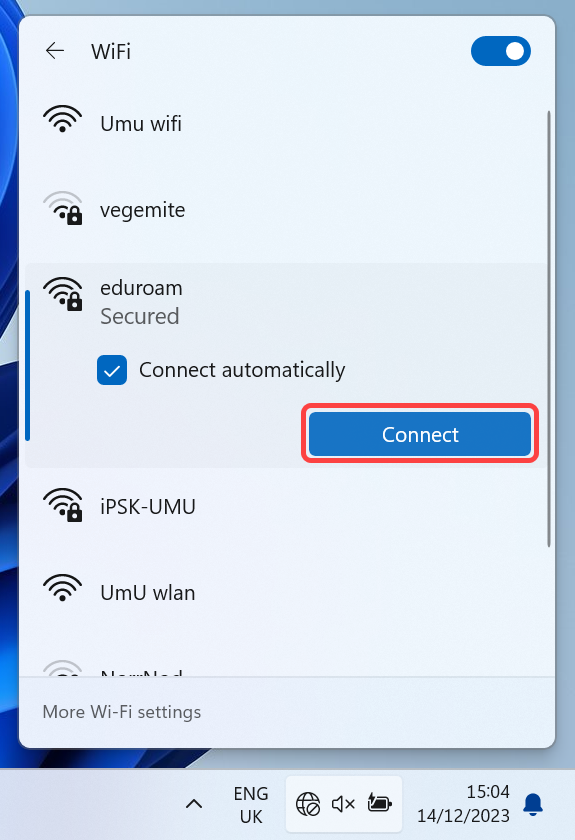
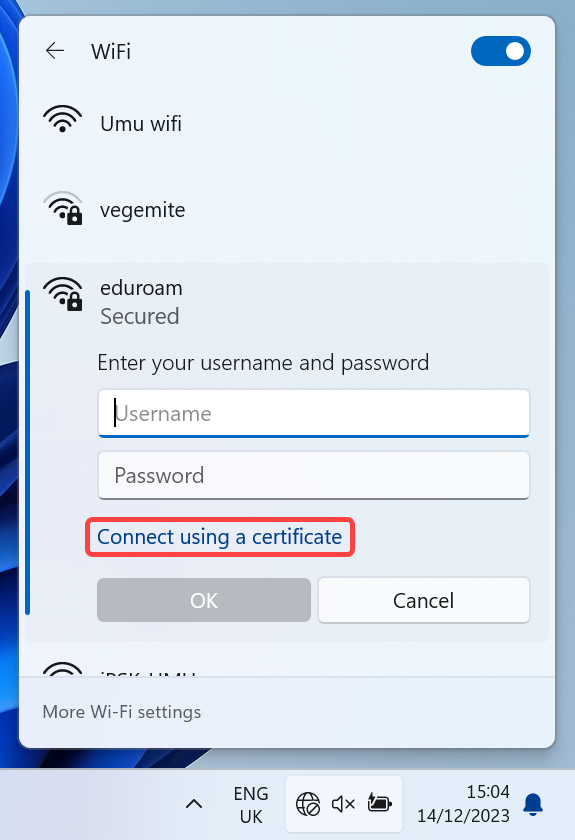
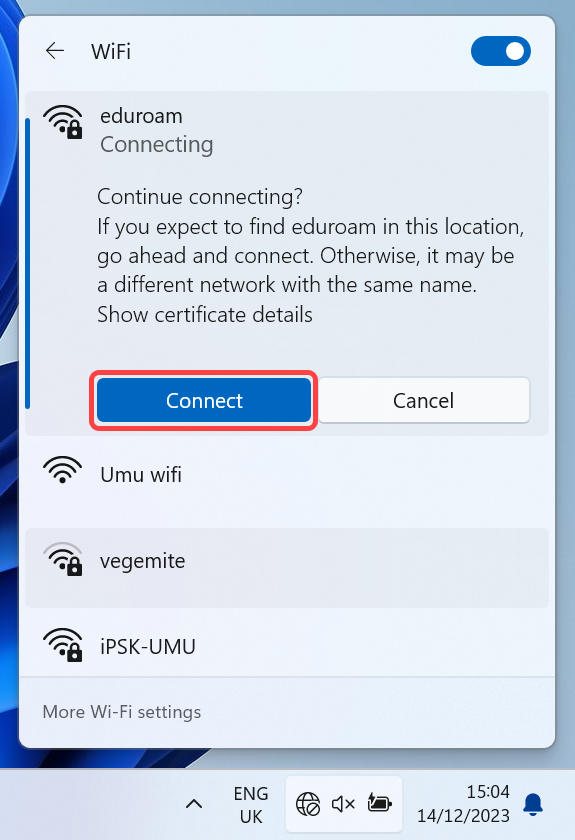
Click on the eduroam network and click Connect, then click Connect using a certificate and Connect once more.
NOTE! If you have previously had eduroam, you usually need to forget the network before you can connect again.

You should now be Connected, secured.

macOS

This guide is written for manual installation of the certificates needed to connect to the eduroam wireless network on a PC running macOS.

NOTE! The guide is written with the help of an MacBook Pro that has had eduroam before and is running macOS 12 Monterey. If you have had eduroam before on your computer, it is recommended that you uninstall/delete certificates and profiles and perform a reboot before trying to follow this manual. If you are unsure on how to proceed, you can contact Servicedesk.

Step 1

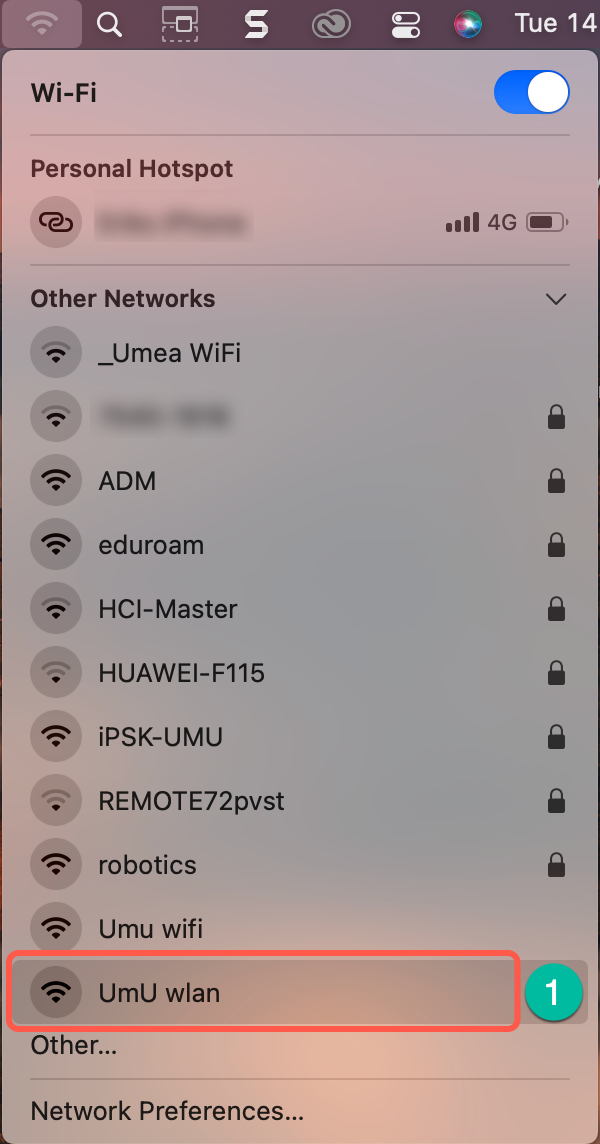
To download the certificates, you need to be connected to the internet. Our recommendation is that you connect to the network called UmU wlan. Select UmU wlan in the network list and follow the on-screen instructions.

If nothing happens after connecting, please refer to Access to wireless guest network at Umeå University.

Step 2

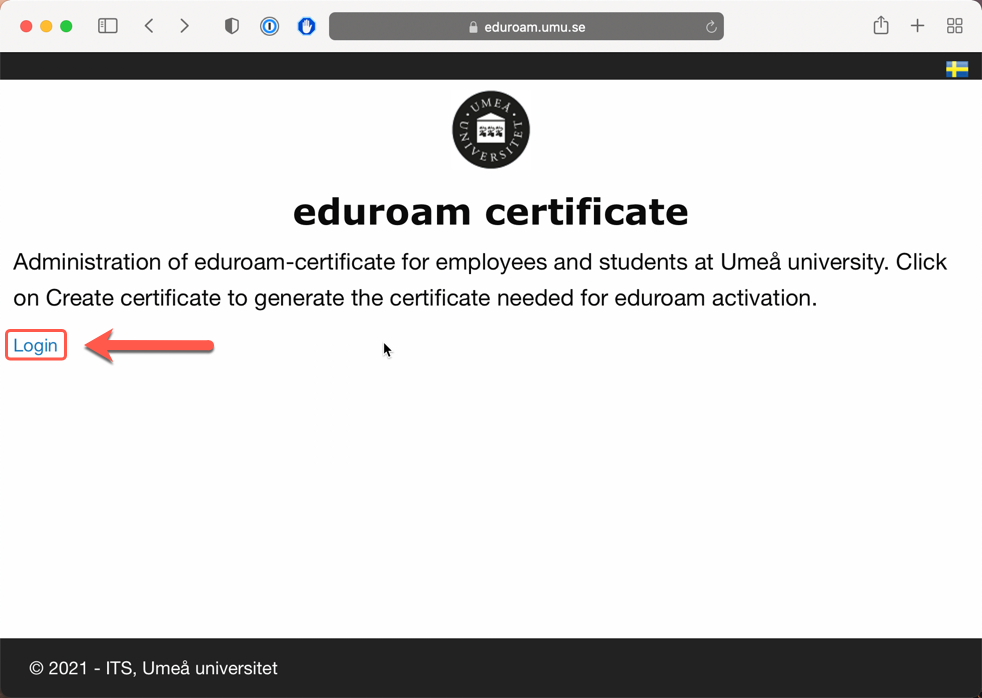
Start Safari and go to http://www.eduroam.umu.se
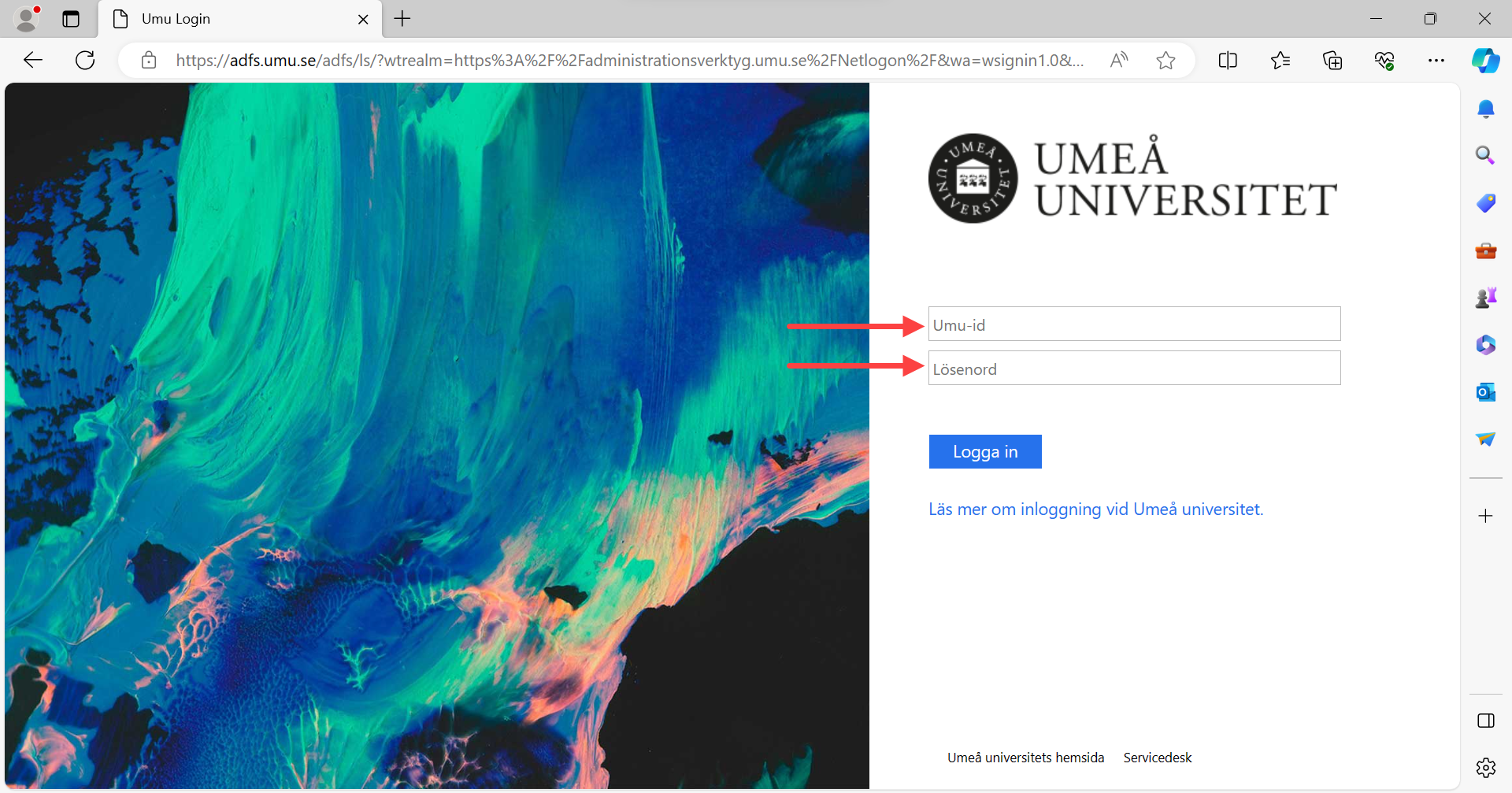
Log in with your Umu-id and password.
Step 3 – Create Certificate

Once logged in, you will need to create your certificate. Click Create Certificate .

On the next page, you need to give the certificate a “name” ,
then click on the blue Create Certificate button .

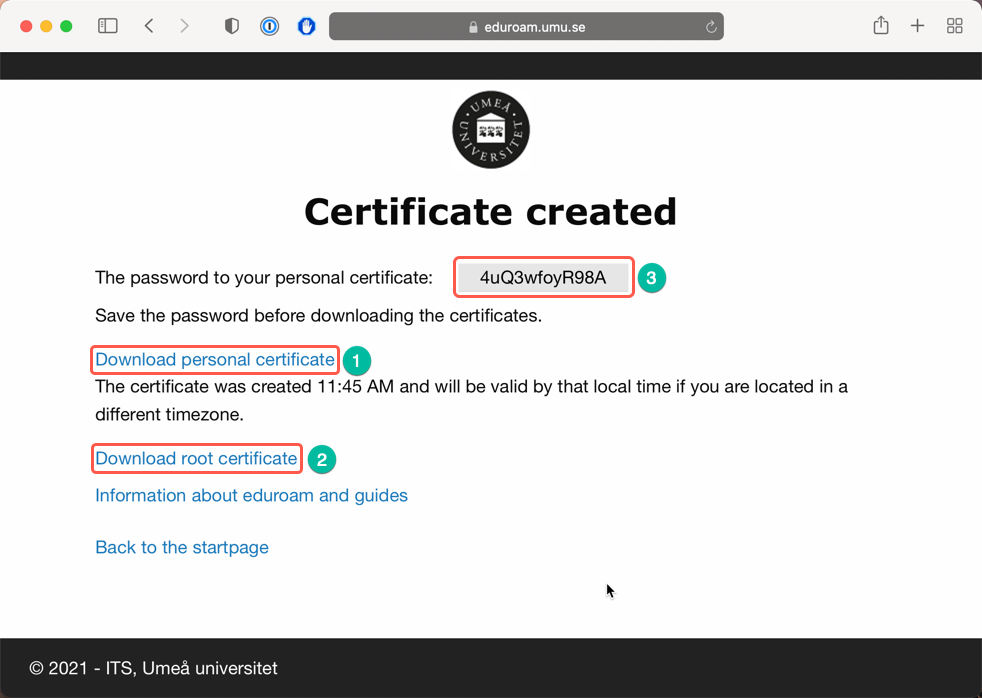
It may take a while but eventually you will come to a new page.

Step 4 – Download the certificates

Once the certificates have been created, they need to be downloaded.
In addition to a personal certificate , you also need to download a so-called ROOT certificate .
The personal certificate has also been given a password .

Start by copying the password for the personal certificate . Then click Download Personal Certificate . You will probably then be met by a warning, if so click on Allow. Then click Download Root Certificate .

Step 5 – Install Root Certificate

NOTE! Now the root certificate sometimes gets an extra file extension called .p12, this usually needs to be deleted from the file before it can be installed.
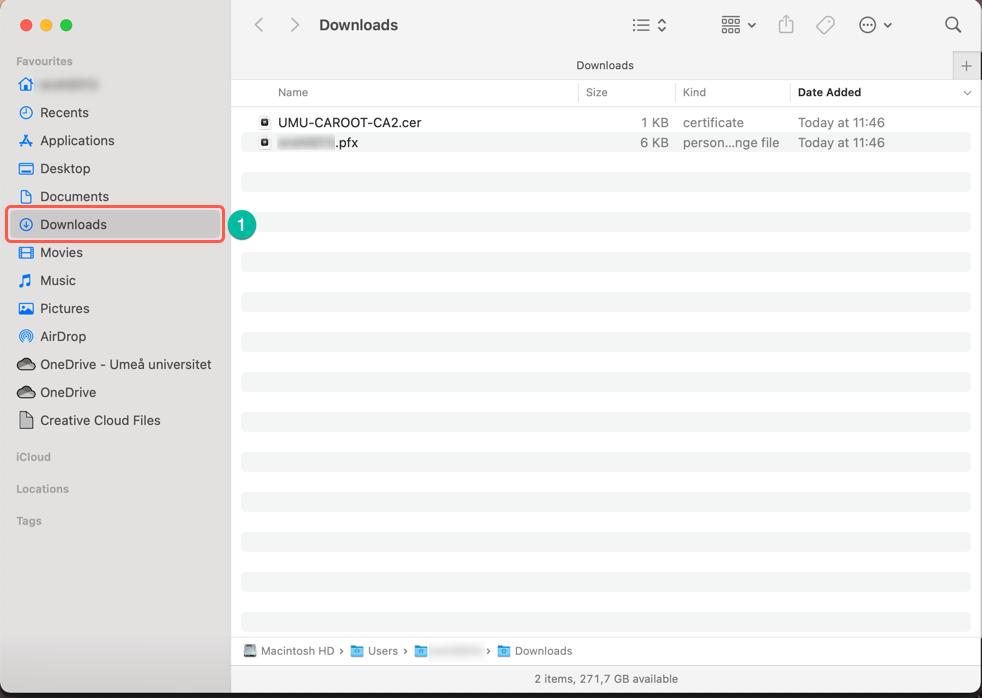
Locate the file UMU-CAROOT-CA2.cer.p12 in the Downloads folder in the Finder app.
When the file is selected, click the Enter key to enable the name of the file to be edited.
Make sure that .p12 is removed and that it ends in .cer
The system wants you to confirm this, then click .cer in the box that appears.

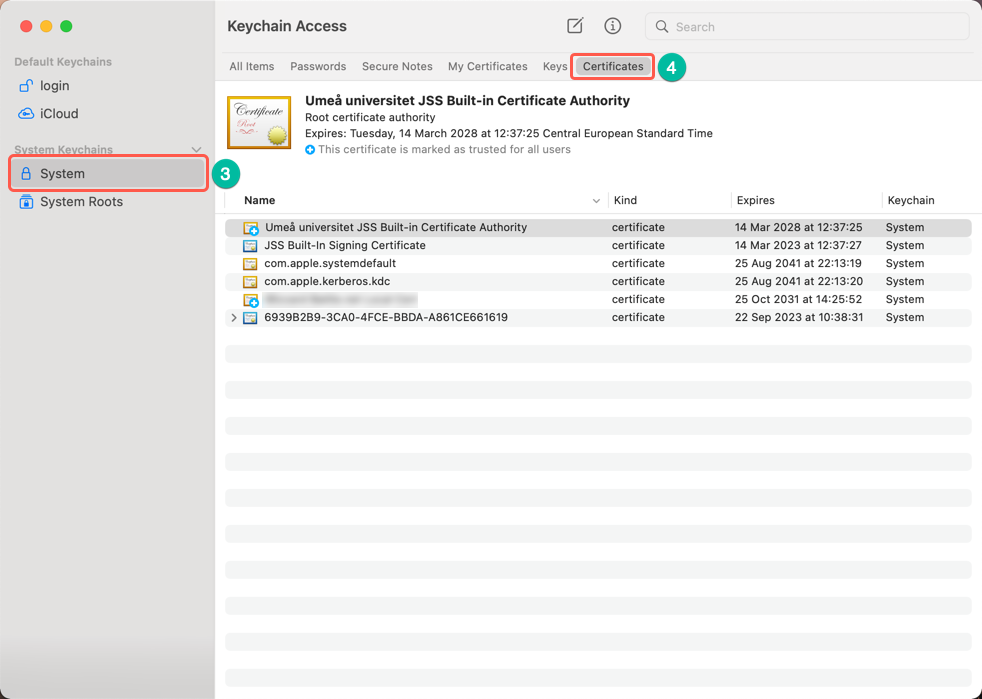
Open the Downloads folder in Finder . Also open Keychain Access ,
suggested via the search function Spotlight.

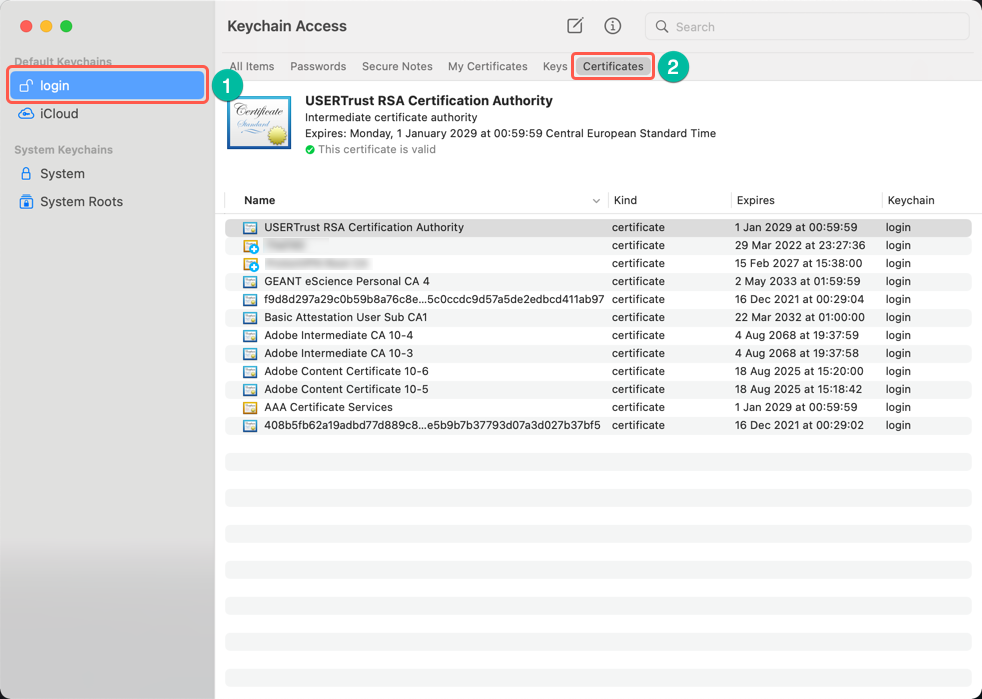
In Keychain Access click on System then on Certificates .

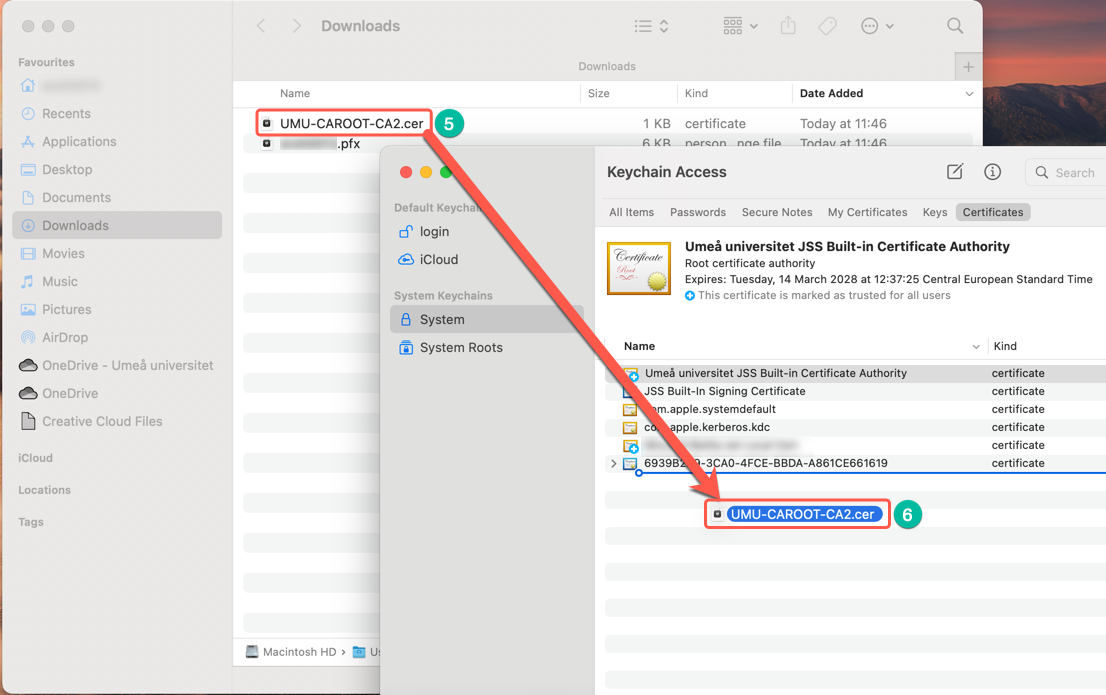
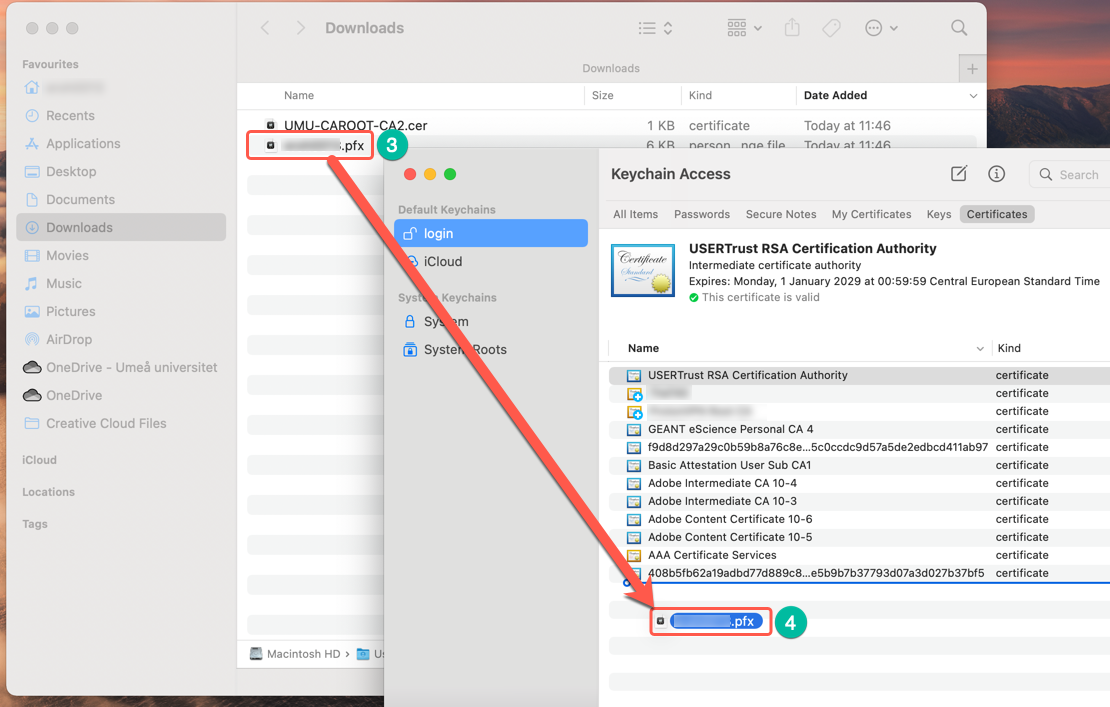
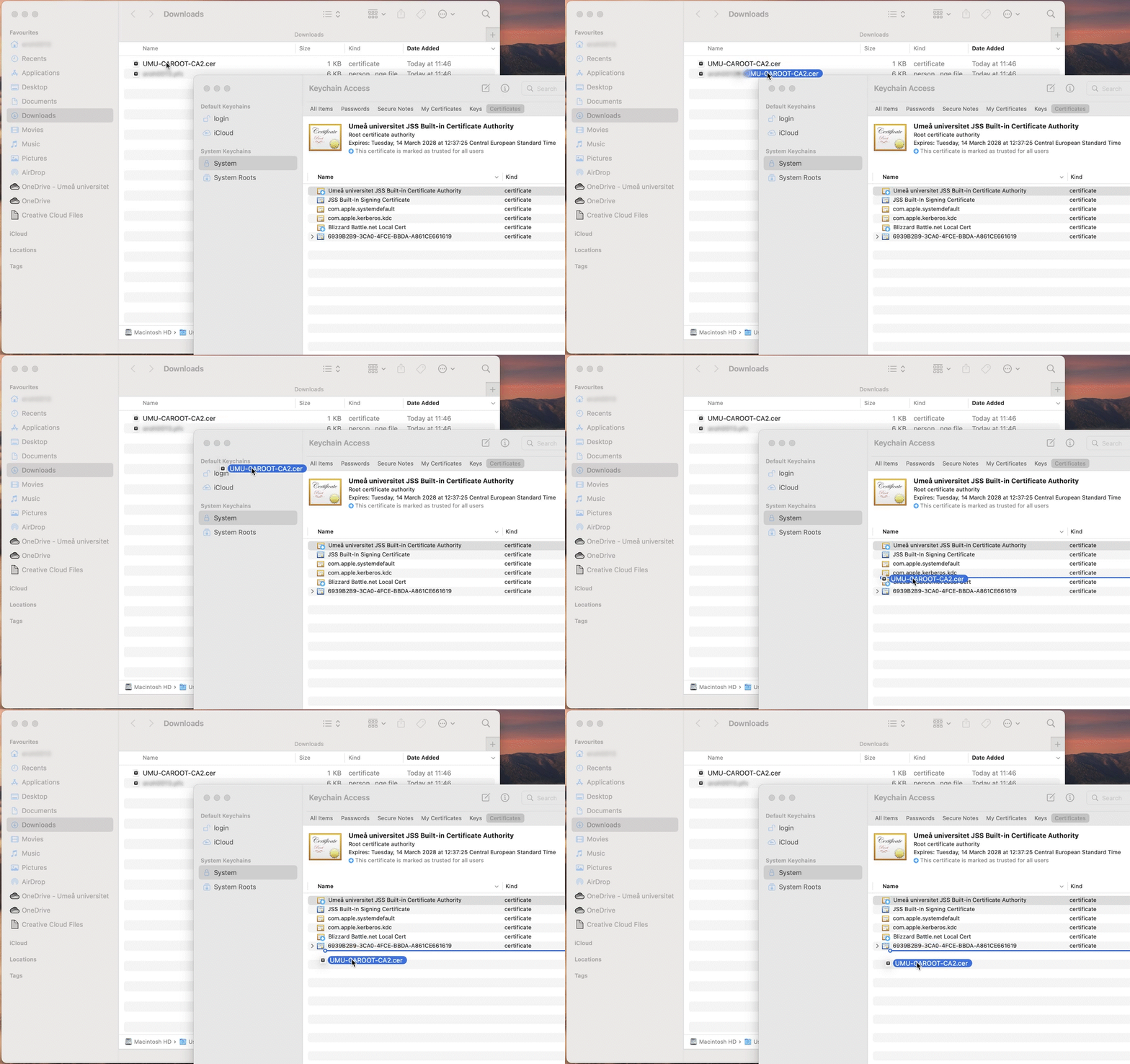
Make sure the Downloads folder in the Finder and Keychain Access are open at the same time. You need to drag and drop the UMU-CAROOT-CA2.cer certificate from Downloads to the Keychain Access .
Then follow the information on the screen. See Tips and Tricks for drag and drop help.

Step 6 – Install Personal Certificate

Change the view in Keychain Access to Login and Certificate .

Now you need to drag and drop your personal certificate named Umu-id.pfx from Downloads in Finder to Keychain Access . In the same way dragged and dropped the Root Certificate in Step 5.

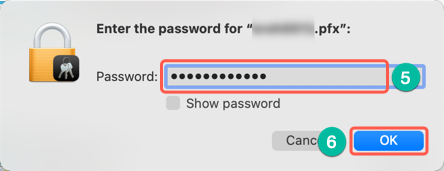
You will now be prompted to enter the password you received and copied in Step 4. Paste and click OK .

Step 7 – Connect to eduroam

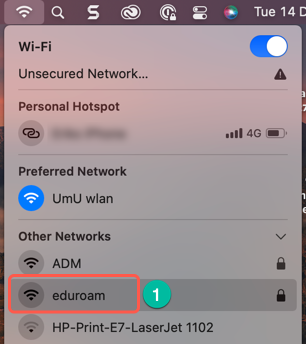
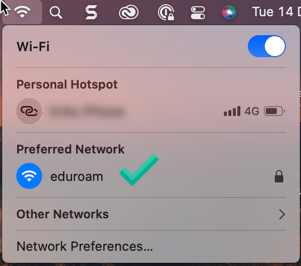
Open the list of available networks again and click on eduroam.
NOTE! If you have previously had eduroam, you usually need to forget the network before you can connect again.
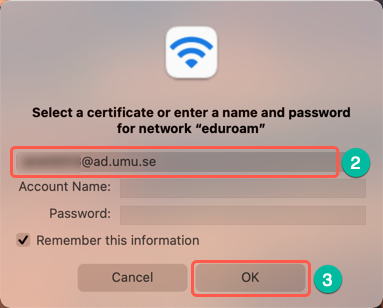
If everything is correct, you should now see the window below where you can select your personal certificate (Umu-id@ad.umu.se) . Account name and Password can be left blank. Click OK .

NOTE: If you are using an older version of macOS (11 or earlier) you will likely need to change mode to EAP-TLS.

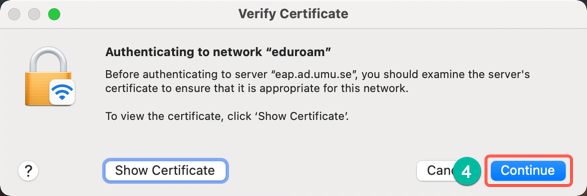
Click Continue .

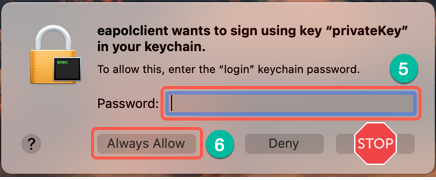
Type your computer username password and then it is important you click Always Allow .

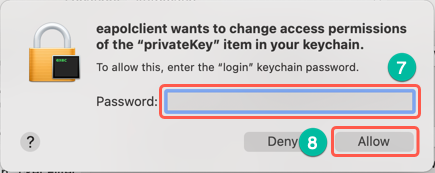
Type your computer username password once more and click Allow .

Give it a few seconds and then you should be connected to eduroam.

Tips and Tricks – Drag and drop the certificate

Click and hold the file and while holding down move the cursor to the destination and then you can release to drop it. Click on the image below for an animated GIF that shows the process.

Android

This manual will guide you on how to connect to eduroam after the manual installation of the required certificates.

NOTE! Due to the different implementations of Android because of many manufacturers, this manual might not work for your phone but hopefully, it can give you some idea on how to connect to the eduroam network.
The manual is written with the help of a Samsung Galaxy S20 FE 5G, Android 11, Samsung One UI 3.1, and Chrome 92.

Step 1

You need to be connected to the internet. If you have 4G/5G you are all set but if you need a temporary internet connection we recommend you connect to the network UmU wlan.

Step 2

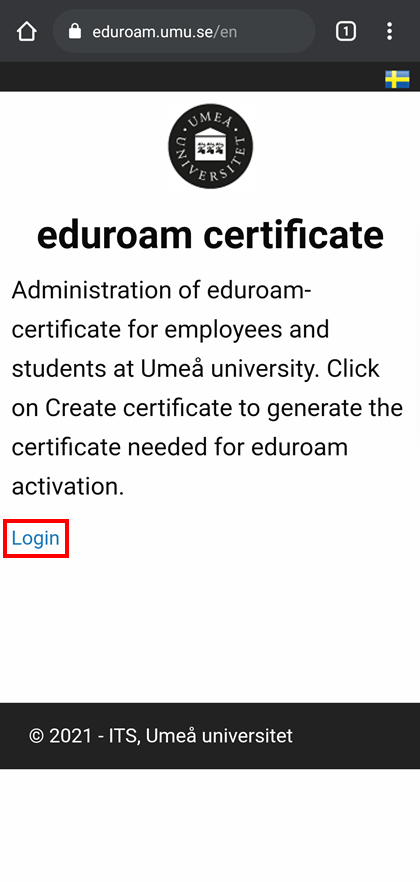
Open Chrome and go to https://www.eduroam.umu.se/ and click Login.
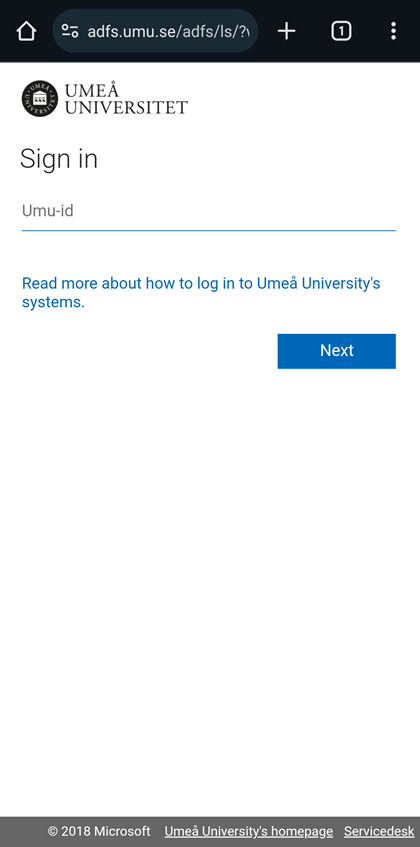
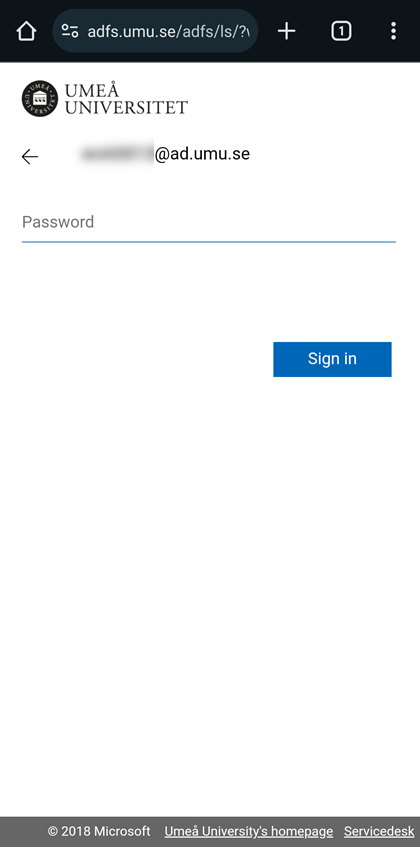
You will be forwarded to the Umeå University login page. Sign in with your Umu-id and password.

Step 3

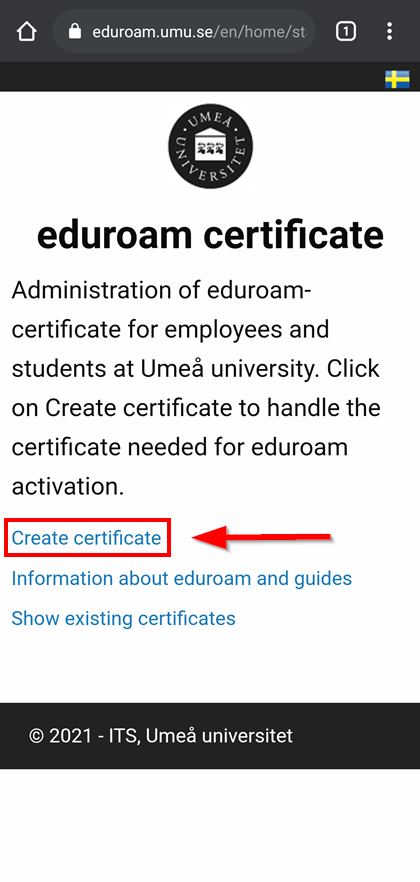
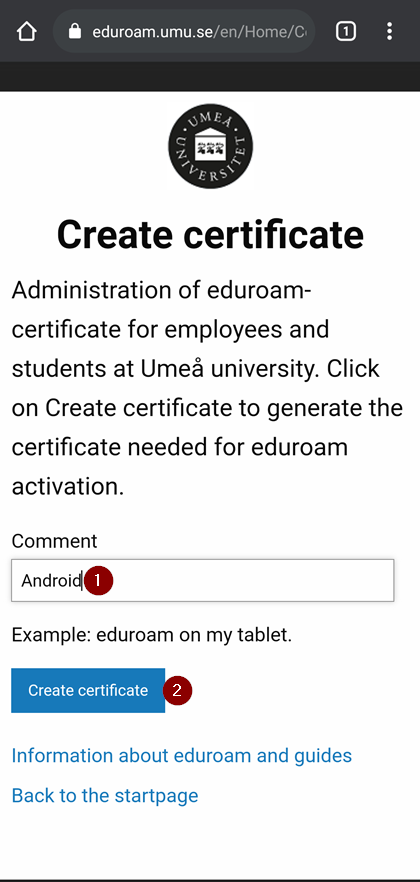
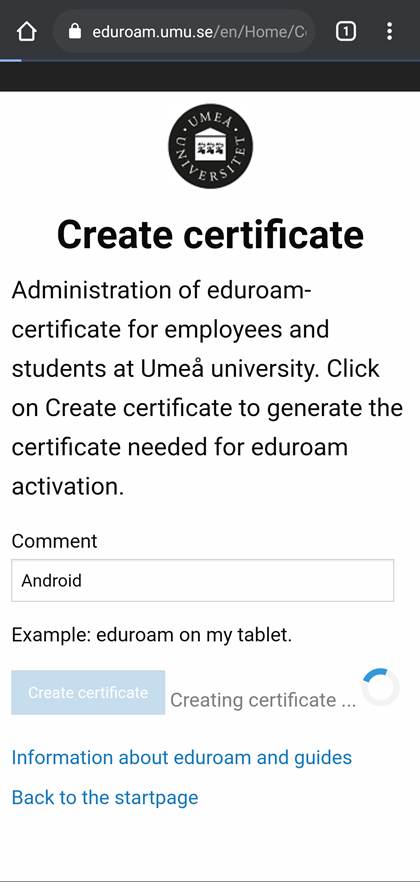
To create your certificate click on Create certificate. On the page, after that, you need to give it a comment. Type whatever you want, for example, Android, and then click the Create certificate button. A circular progress animation will let you know that your certificate is being created.

Step 4

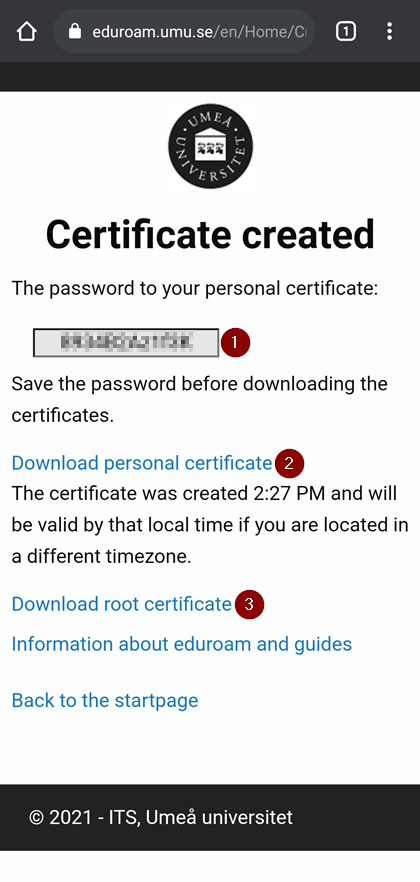
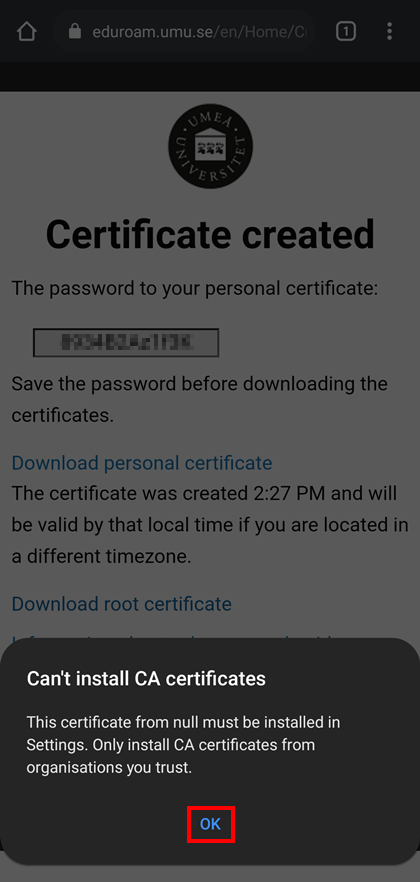
The next page will look something like the screenshot below. Here you have a password for your personal certificate, a link to download your personal certificate, and a link to download the root certificate.

Step 5 – Download and install the personal certificate

Copy the password for the personal certificate and click on the link Download personal certificate.
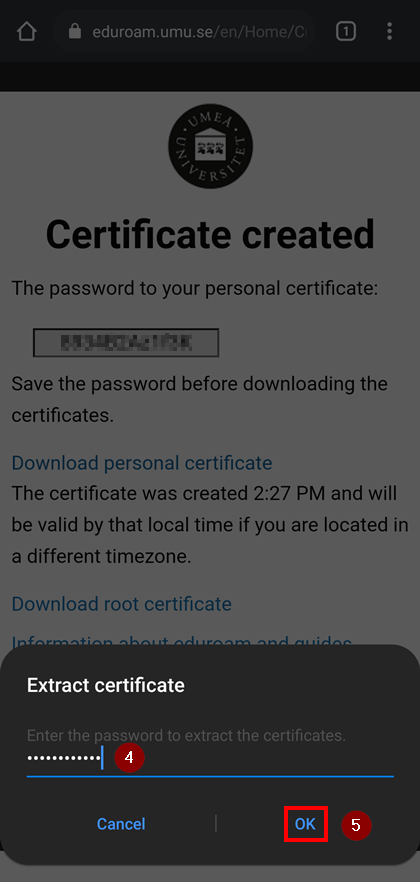
The system/browser wants to install the certificate and the first thing you need to do is to extract it, to do this paste the password you copied and click OK.
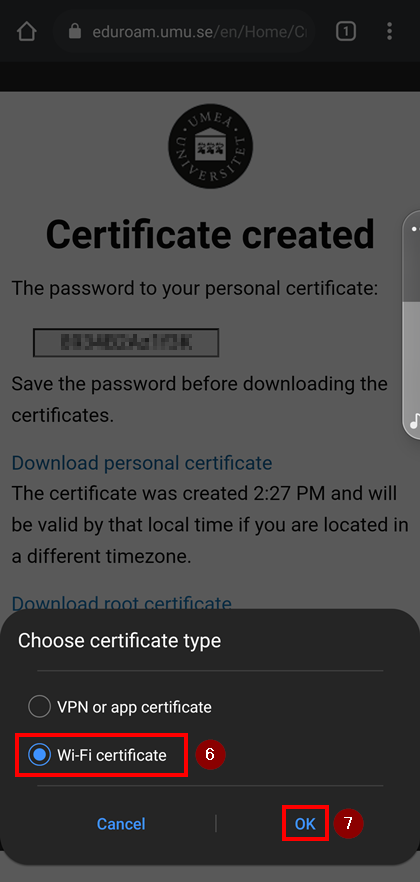
The next thing to do is to choose the type of the certificate, click Wi-Fi certificate and then click OK.
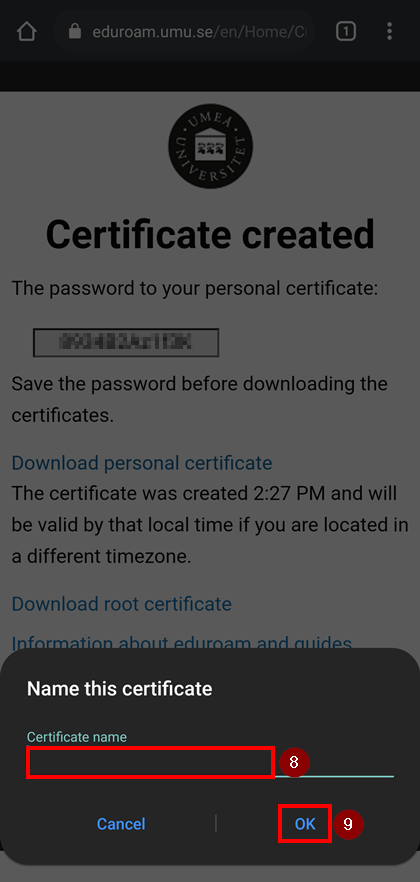
The certificate will be given a long and random name but we recommend you change that to your Umu-id and click OK.

Step 6 – Download the Root certificate

After the download and installation of the personal certificate, you will again see the Certificate created page.
You now need to click Download root certificate. You will, however, most likely see an error saying it can’t be installed but that is fine, just click the OK button.

NOTE: If you get a field that requires you to add a password for the Root certificate, click Cancel. The file should still download and you still need to change the file extension, see Step 7.

Step 7 – Change Root certificate file extension

To be able to install the Root certificate we first need to make sure the file has the correct file extension.
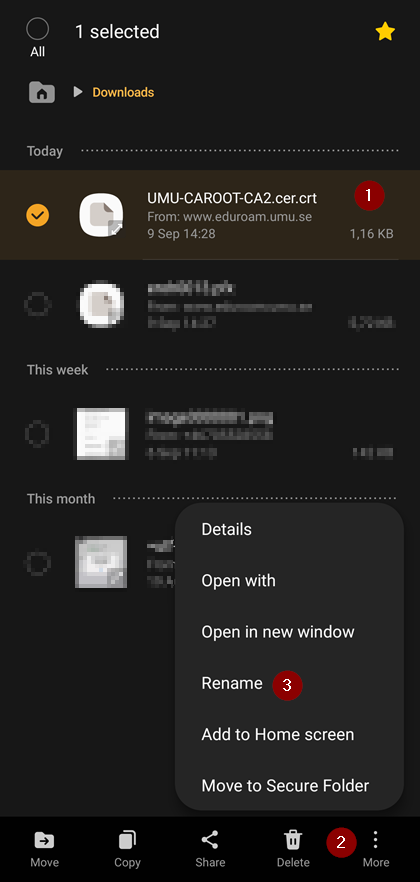
Open the My Files (or equivalent for your phone) and find the Downloads folder where the file is.
In this example, we can actually see that the file (UMU-CAROOT-CA2) has the wrong file extension, or rather, it is two (.cer.crt or .cer.p12). What we need to do is to remove the .crt (or .p12) part of the file.
Hold down on the file to mark it and so the options menu is showing.
Click on More and then Rename.
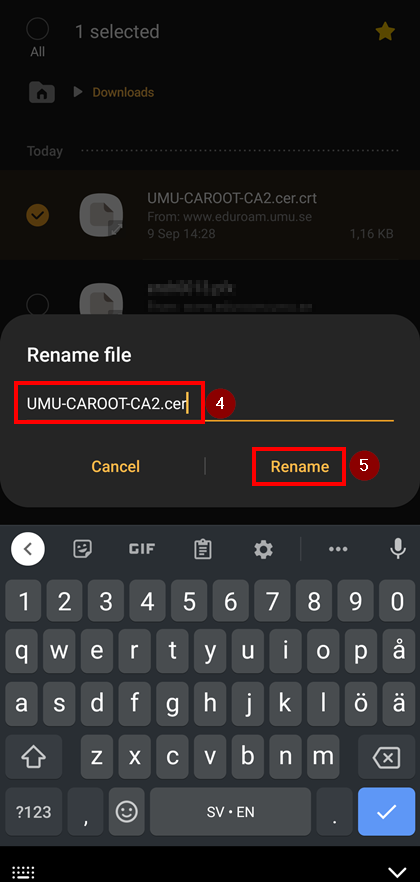
The file name including the file extension can now be edited. Remove the .crt (or .p12) part so the file name is
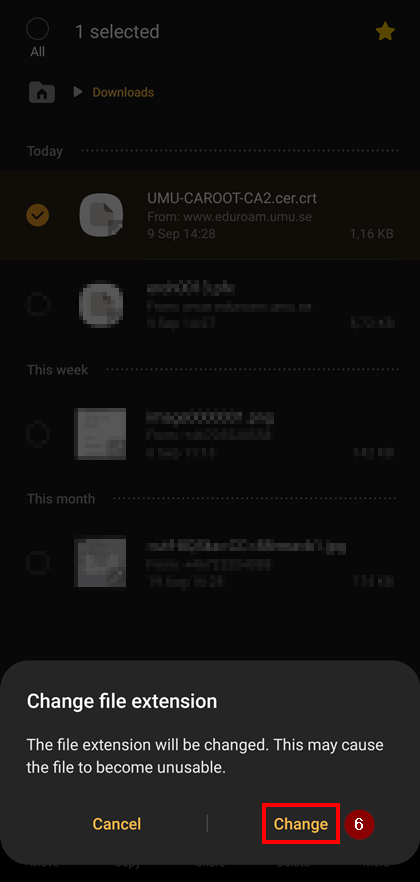
UMU-CAROOT-CA2.cer and click Rename. You will be prompted that the file extension has changed, this is fine and just click Change.

Step 8 – Install Root Certificate

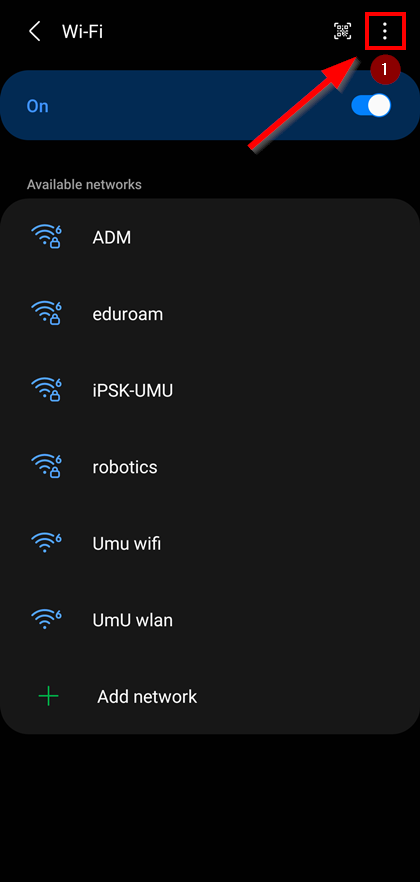
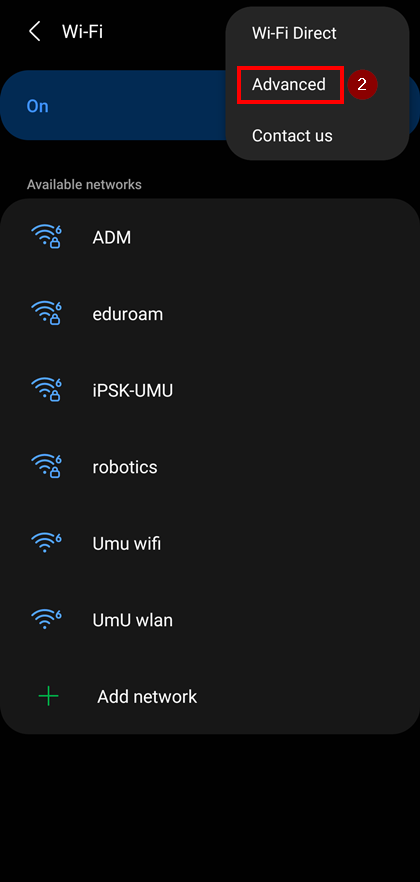
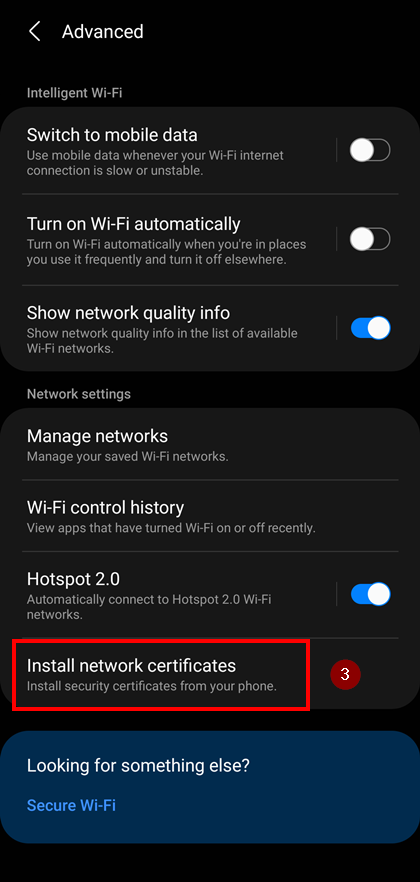
You now need to navigate to Settings > Connections > Wi-Fi. Here you need to find the Advanced settings.
In this example, you need to click the three dots in the upper right corner and then click Advanced.
For other phones, you can find it below the Available networks.
At the Advanced settings for Wi-Fi, you need to click on Install network certificate.

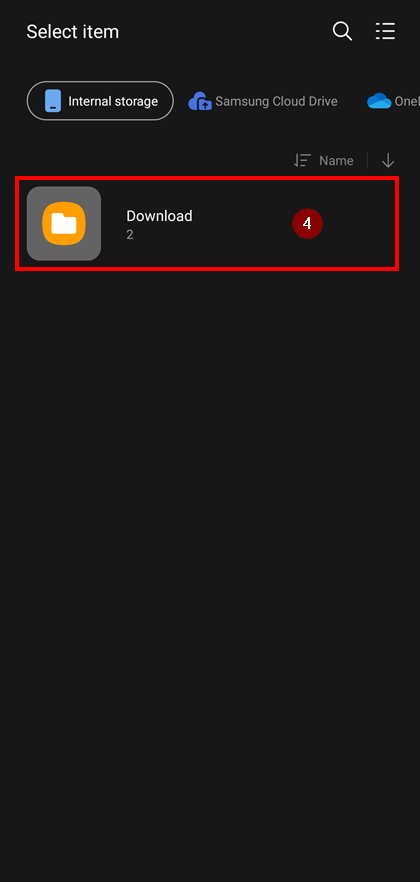
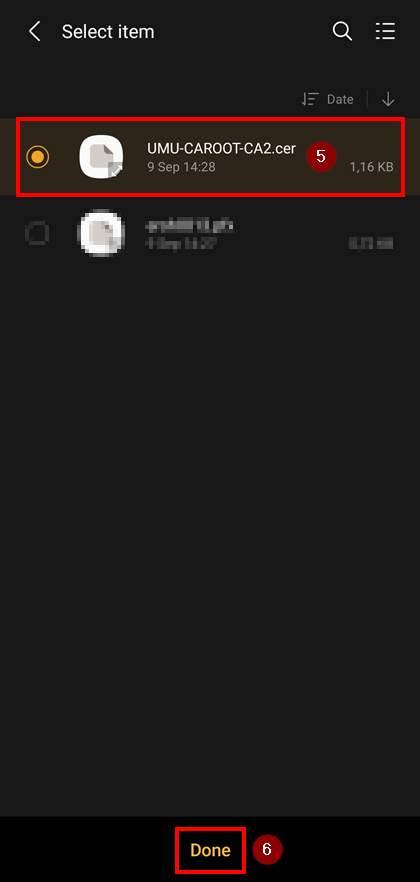
Open the Download folder and find the UMU-CAROOT-CA2.cer, mark it and click Done.
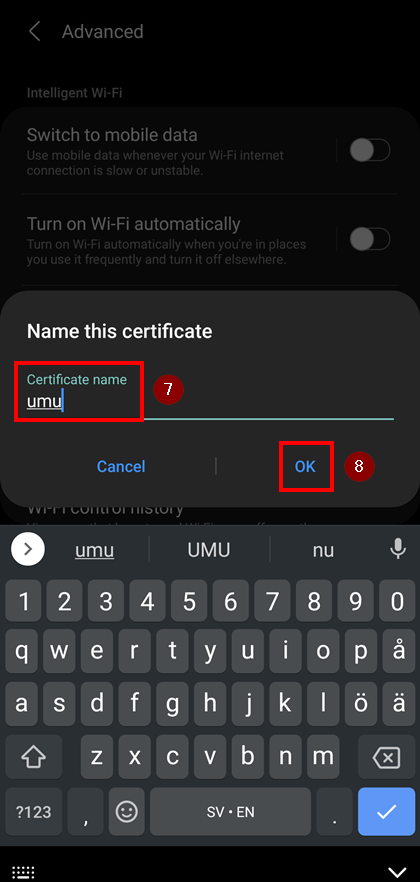
You are now prompted to give it a name. Type umu and click OK. The certificate should now be installed.

Step 9 – Connect to eduroam

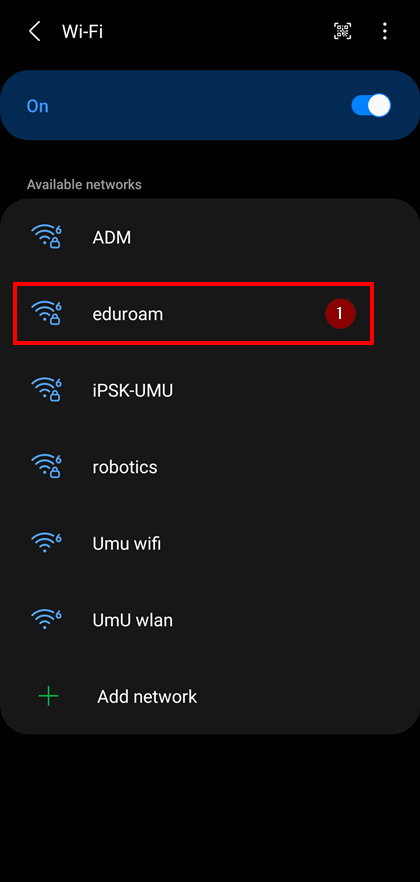
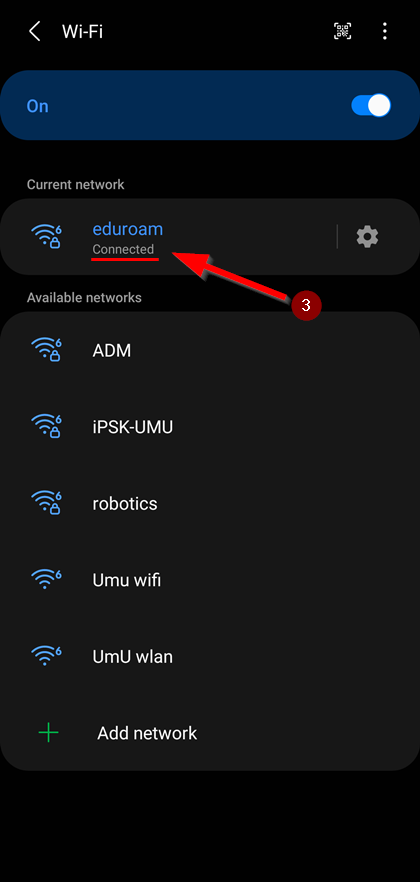
Return to the page where you see the Available networks and click on eduroam.
NOTE! If you have previously had eduroam, you usually need to forget the network before you can connect again. This also applies when switching phones and settings has been transferred from the previous mobile.
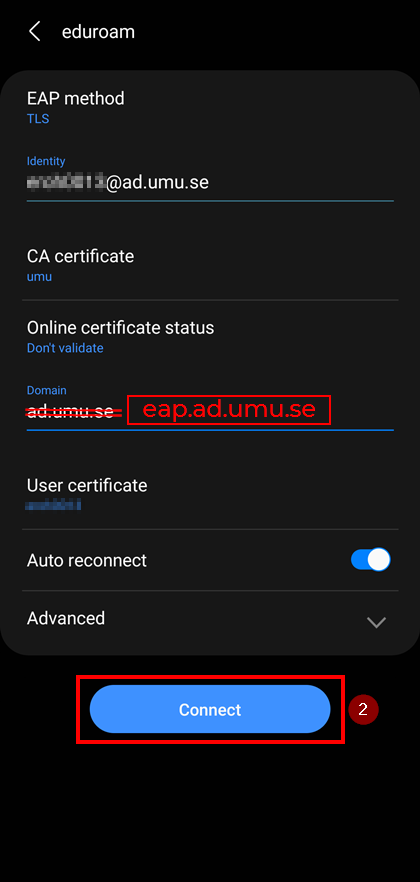
Here you need to make sure the settings are as shown in the example.

EAP method: TLS
Identity: Umu-id@ad.umu.se
CA certificate: umu
Online certificate status: Don’t validate
Domain: eap.ad.umu.se
User certificate: the one called your Umu-id
Auto reconnect: Yes

And then click Connect and you should now be connected.
iOS / iPadOS

This manual will guide you how to connect to eduroam on an iPhone (and iPad) after manual installation of the required certificates.

NOTE! Make sure you have updated iOS/iPadOS to version 15.2 or later before following this guide.

Step 1

You need to be connected to the internet. If you have 4G/5G you are all set but if you need a temporary internet connection we recommend you connect to the network UmU wlan.

Step 2

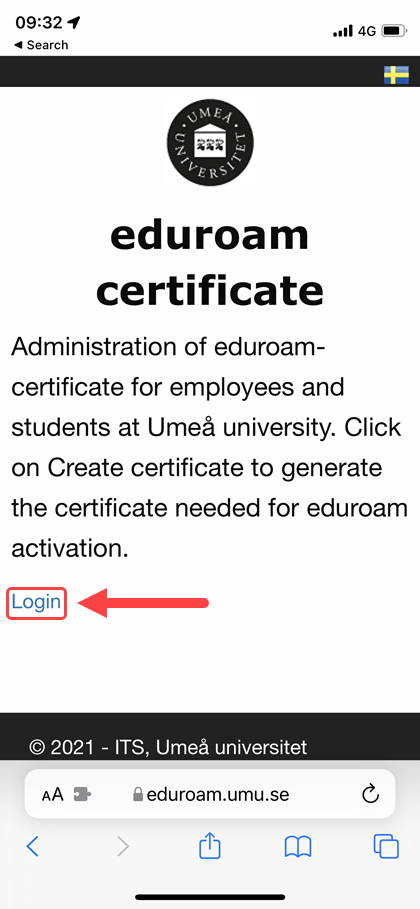
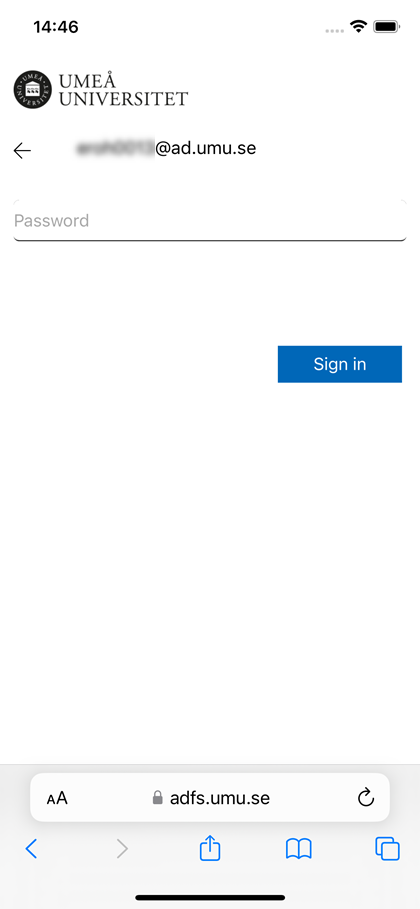
Open Safari and go to https://www.eduroam.umu.se/ and click Login.
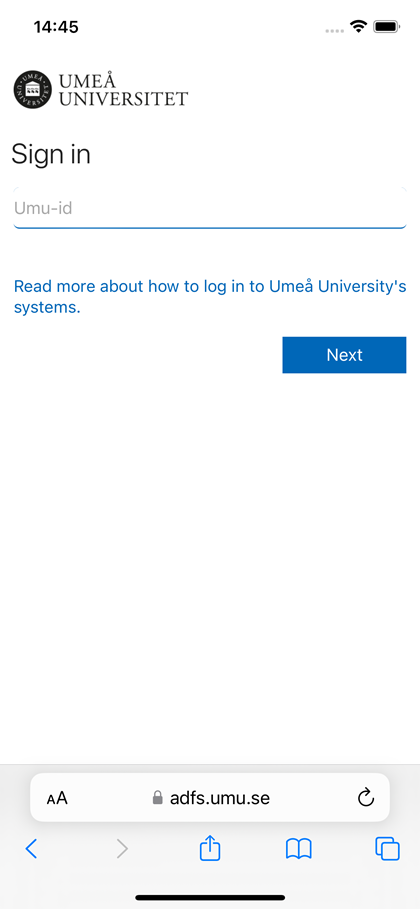
You will be forwarded to the Umeå University login page. Sign in with you Umu-id and password.
Step 3 – Create certificate

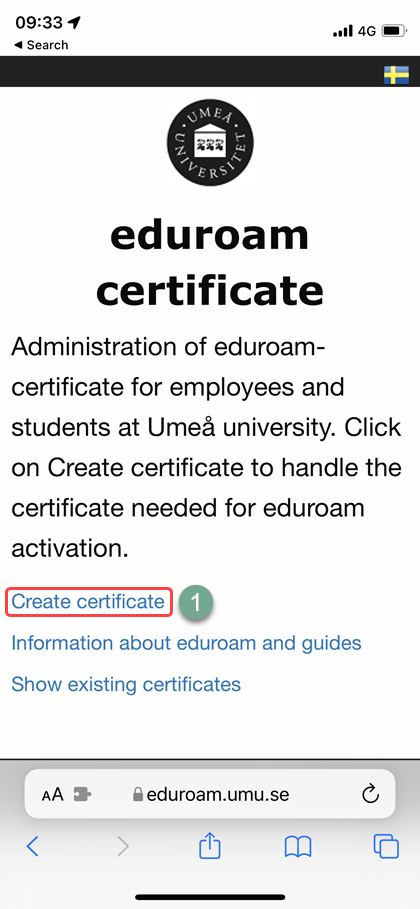
To create your certificate click on Create certificate .
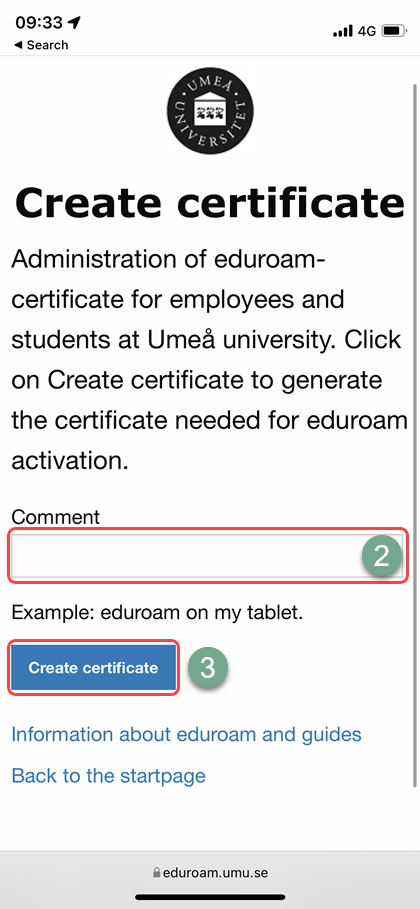
On the page after that you need to give it a comment .
Type whatever you want, for example iPhone, and then click the Create certificate button .
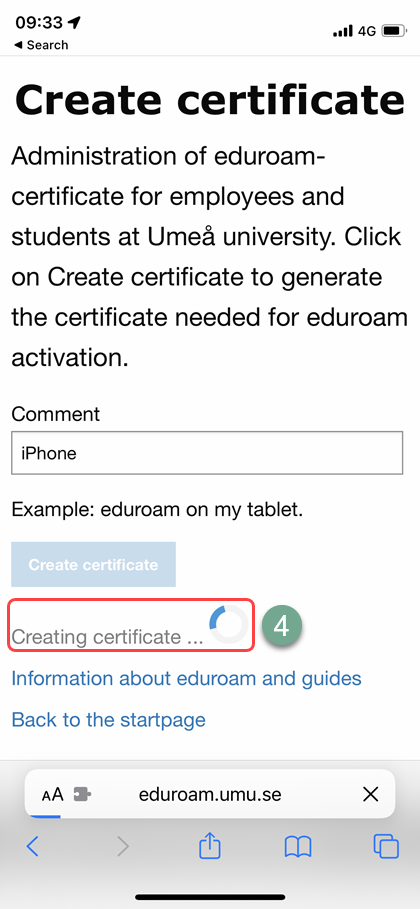
A circular progress animation will let you know that your certificate is being created .

Step 4 – Certificate created

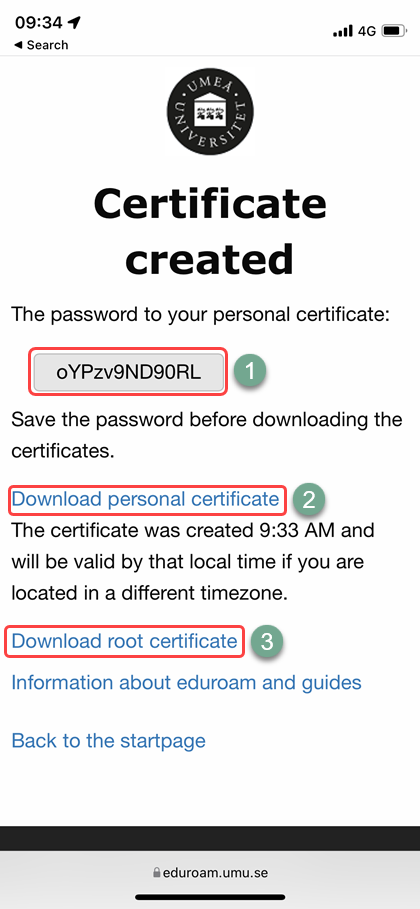
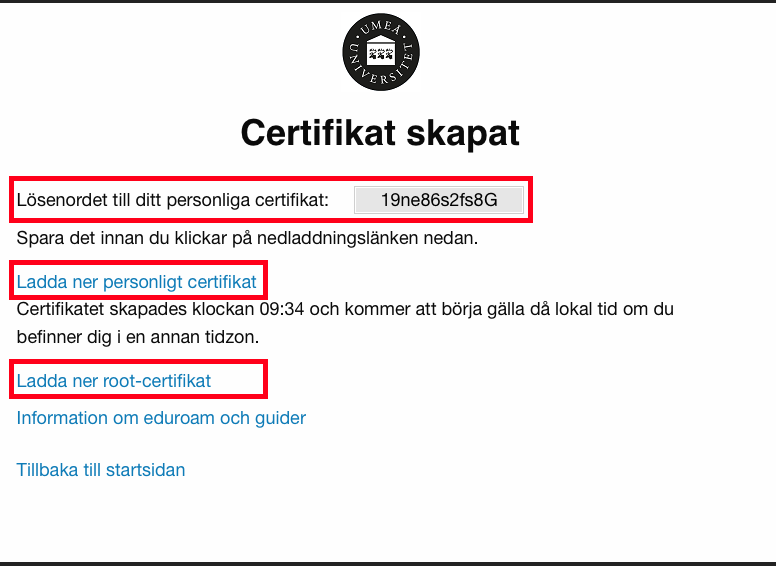
After a while you will see the Certificate created page that has the password for your personal certificate , a link to download you personal certificate and a link to download the root certificate .

Step 5 – Download and install personal certificate

Copy the password for the personal certificate and click on the link Download personal certificate .
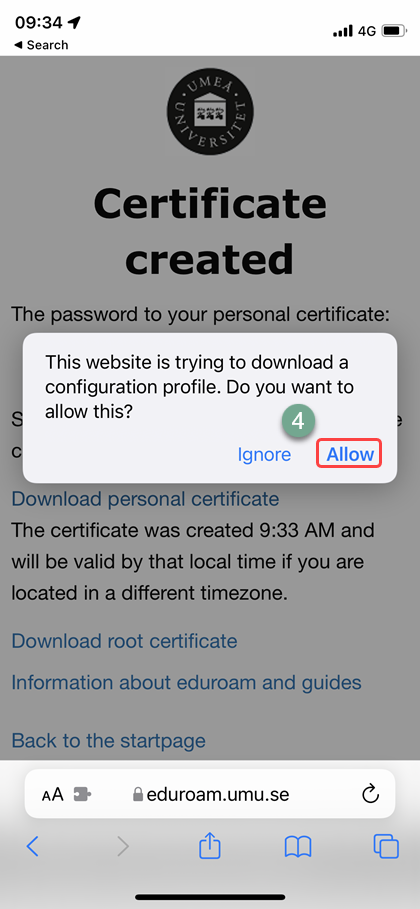
You will be prompted to allow the downloading of the certificate, this is OK so click Allow .
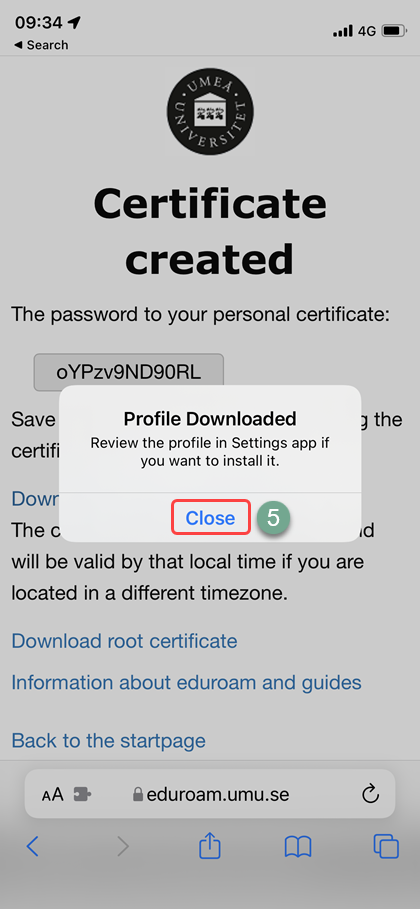
After the certificate/profile has been downloaded click Close .

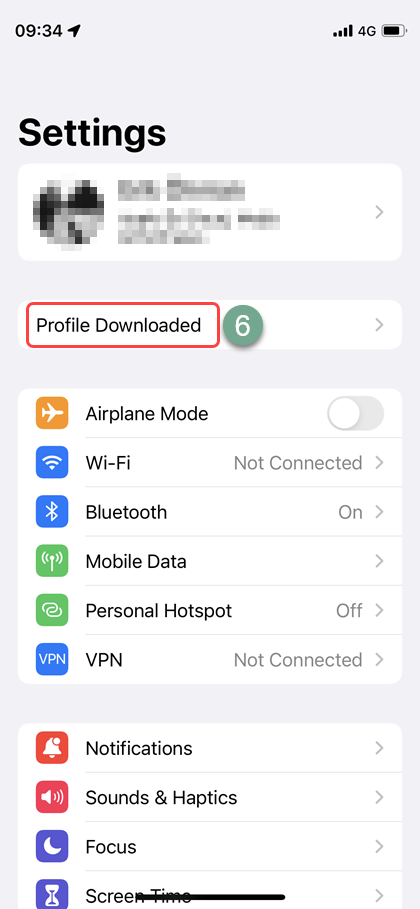
Open the Settings app and click on Profile Downloaded .
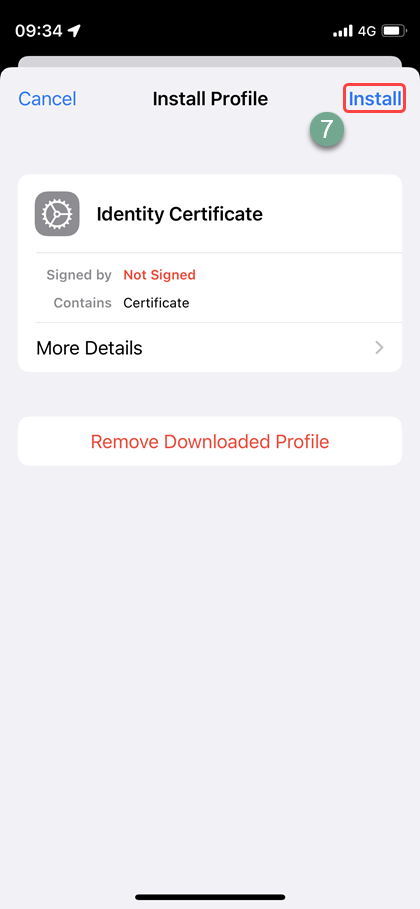
Click on Install in the upper right corner .
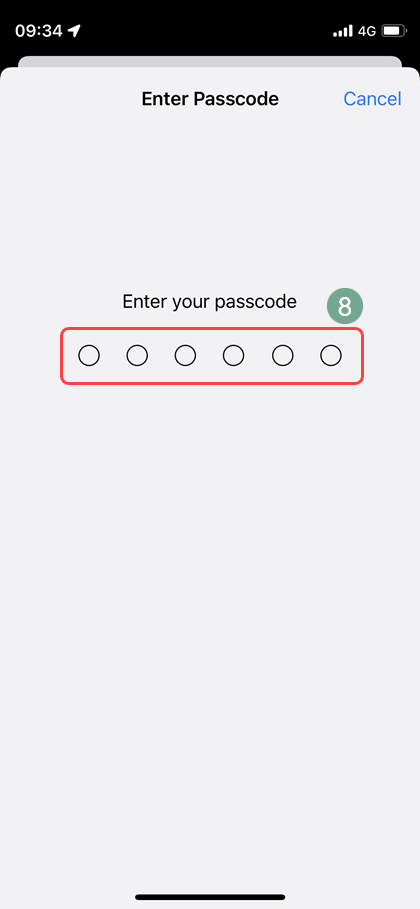
Enter the iPhone passcode .

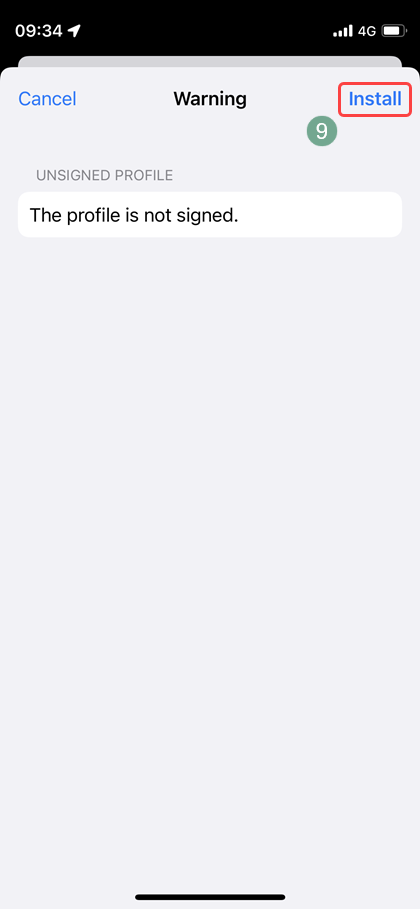
Click Install again in the upper right corner then click Install again to verify.
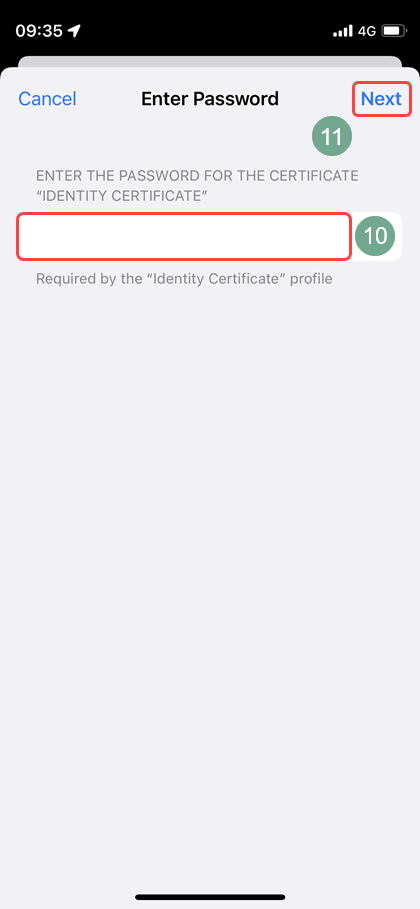
Paste the password we copied in the beginning of Step 5 and click Next .
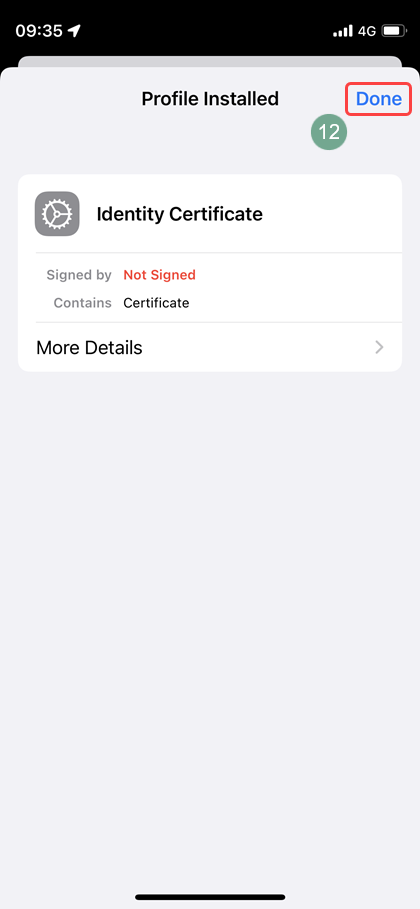
When you see the Profile Installed page, click Done .

Step 6 – Download and install root certificate

Go back to Safari and click on the link Download root certificate .
As you did in Step 5, Allow the certificate and Close when done.

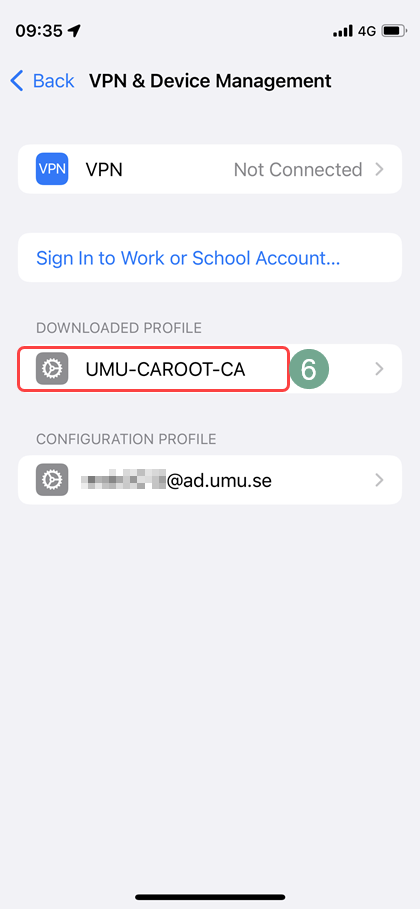
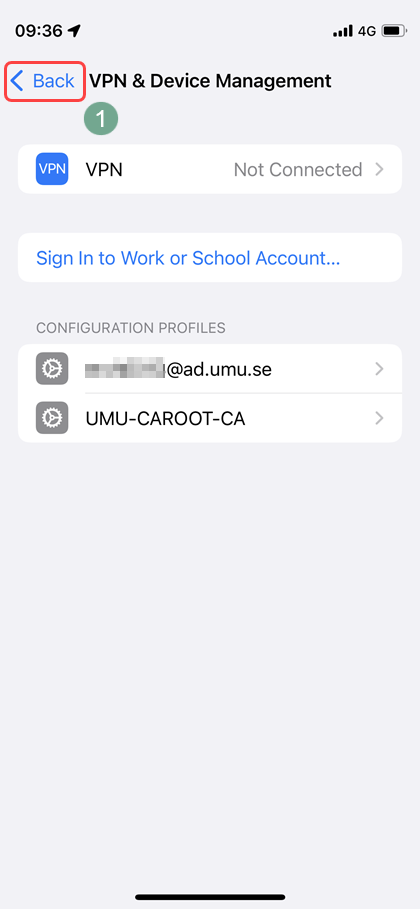
Go back to the Settings app and you should be on the page VPN & Device Management.
Click on UMU-CAROOT-CA under the header Downloaded Profile.
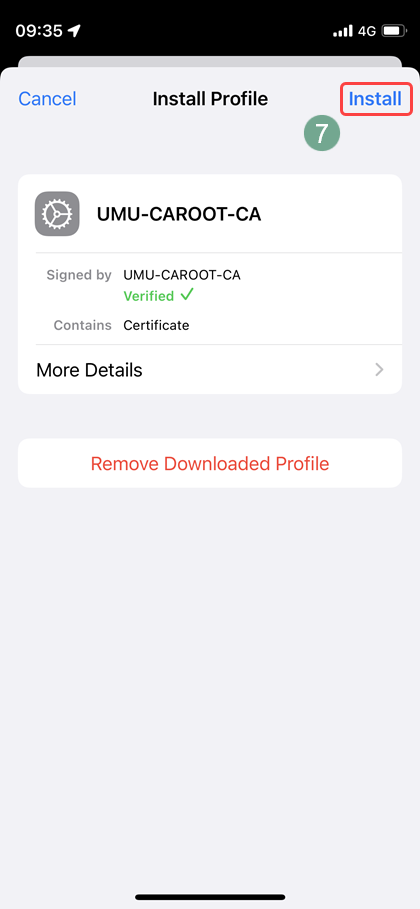
Click Install in the upper right corner and verify by clicking Install again.
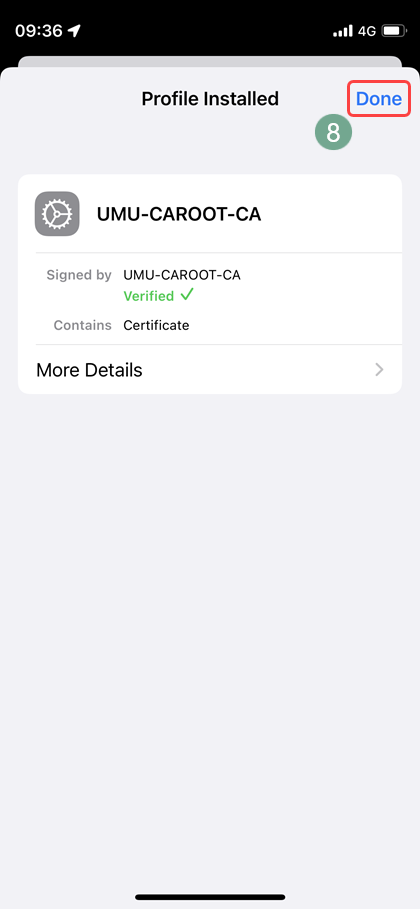
When you see the page Profile Installed, click Done .

Step 7 – Connect to eduroam

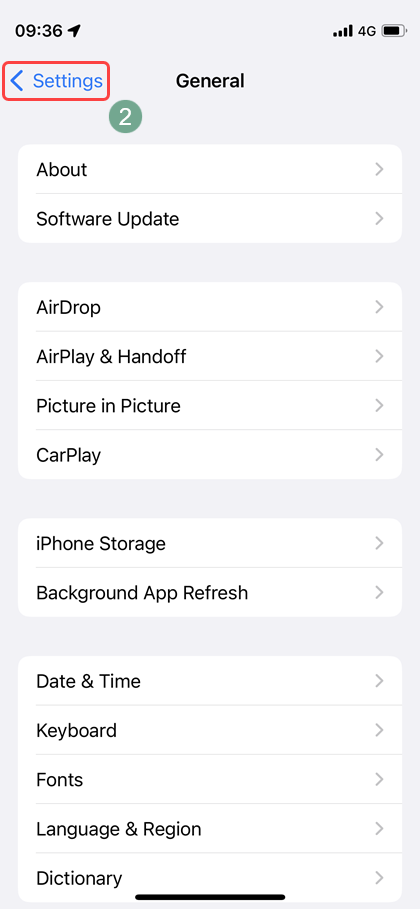
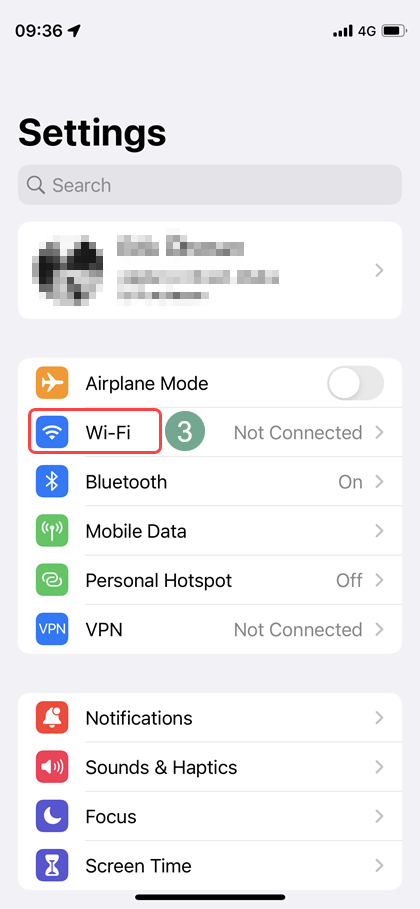
Go back to the main Settings page.
From the VPN & Device Management page you can click < Back and
then < Settings in the upper left corner.
On the main Settings page click Wi-Fi .

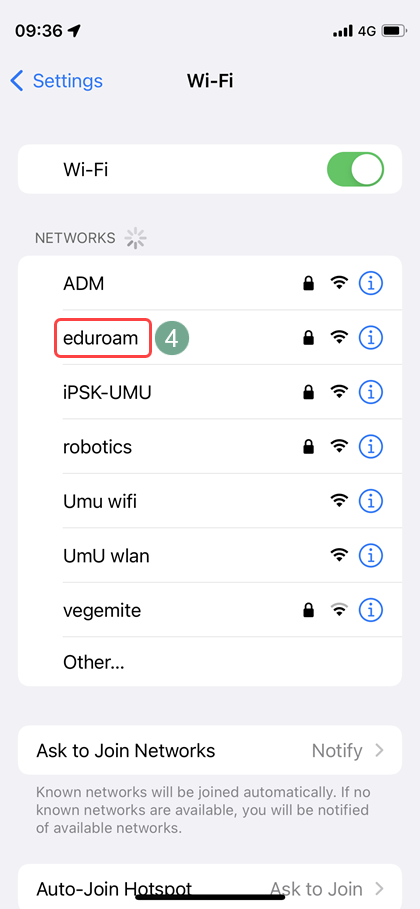
On the Wi-Fi page, click eduroam 4️⃣.
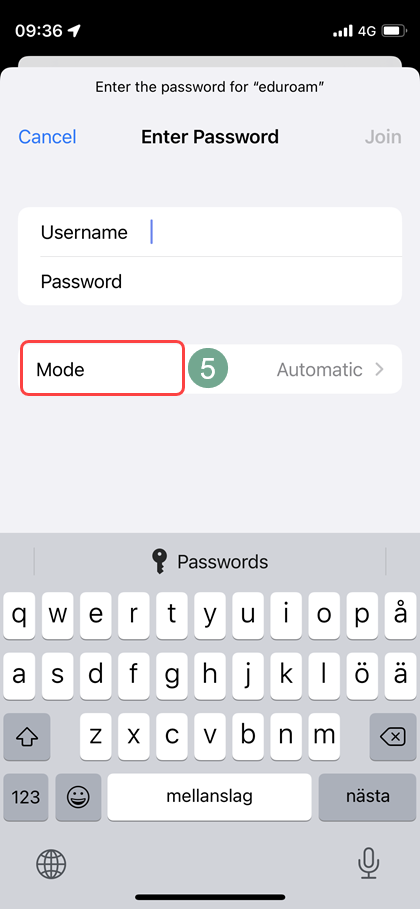
When it prompts you for Username and Password click on Mode 5️⃣ instead.
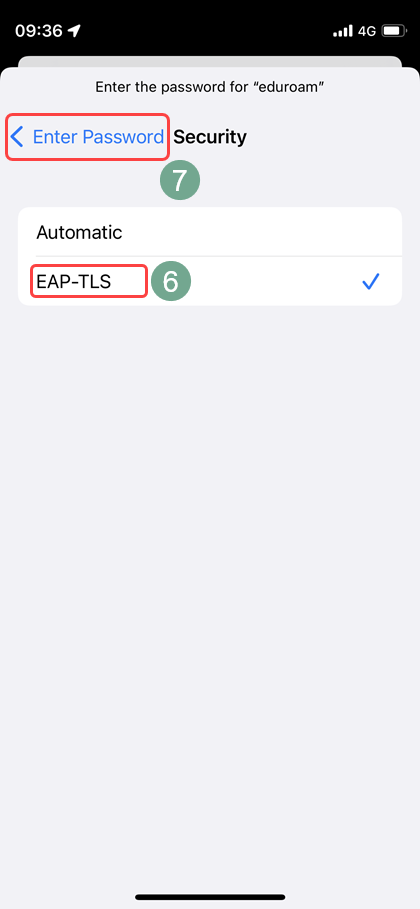
Mark the mode EAP-TLS 6️⃣ and go back by clicking < Enter Password 7️⃣ in the upper left corner.

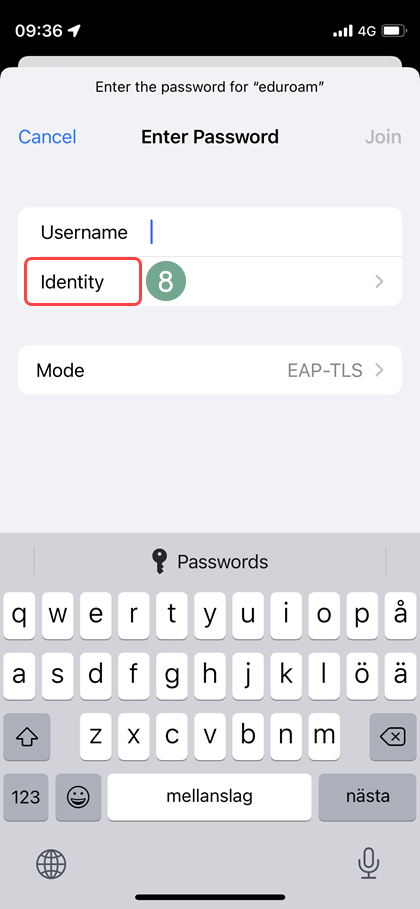
Back on the Enter Password page click on Identity 8️⃣.
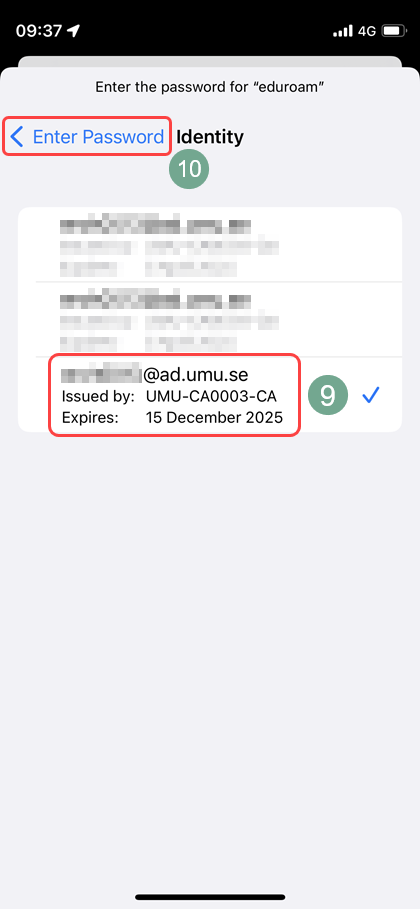
Click on the Identity called Umu-id@ad.umu.se 9️⃣, if you see more than one click on
the one with the latest expiry date.
Go back by clicking < Enter password 🔟 in the upper left corner.
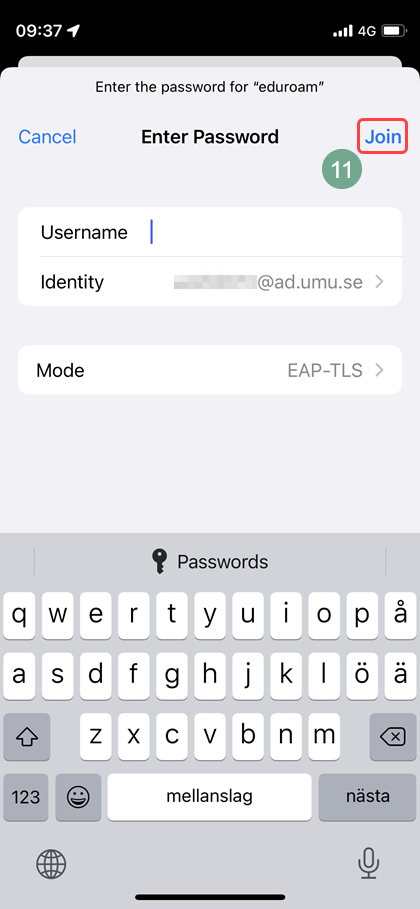
Back on the Enter Password page you can now click Join in the upper right corner.

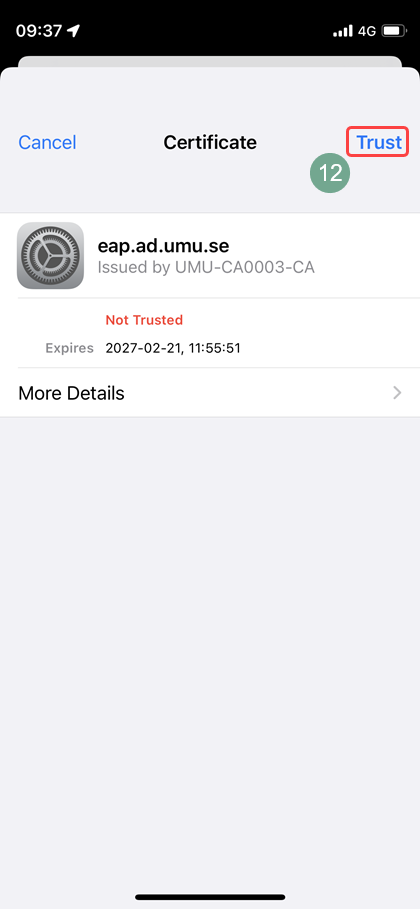
A certificate page will be shown, click on Trust in the upper right corner.
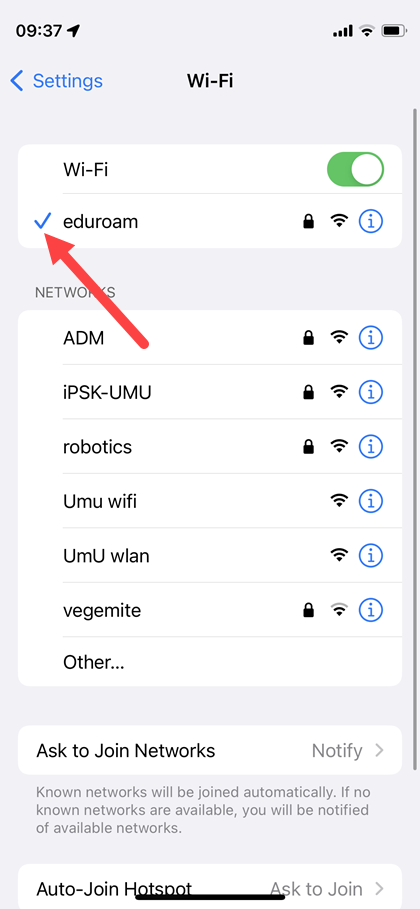
Give it a few seconds and you should now see a check mark to the left of the network eduroam and you are now connected.

Chromebook

How to configure eduroam certificates on Chromebook

  1. 1. Logon to https://www.eduroam.umu.se with your Umu-id.
    If you’re not connected to internet, you might have connect through UmU-Wlan first (logon with a browser).
  2. Click on Skapa certifikat.
  3. Copy the password in the box and click on Ladda ner personligt certifikat and Ladda ner root-certifikat.
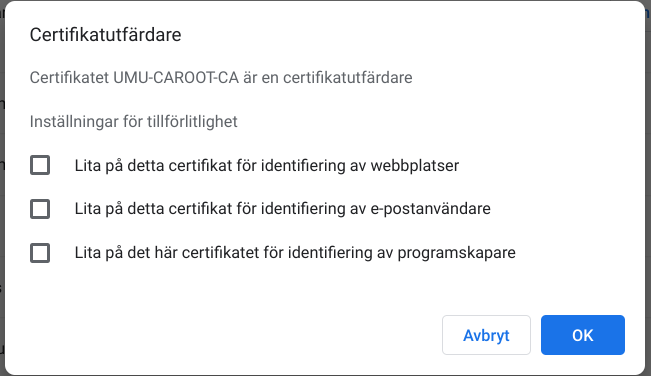
  4. When downloading the root-certificate (UMU-CAROOT-CA) you don’t have check the boxes.
  5. In Chromes address field, type chrome://settings/certificates, choose the tab Authorities. Click on Import…
  6. Go to Downloads, import the file UMU-CAROOT-CA2. You might have to view All files to be able to select it.
  7. Go to Your certificates, choose Import and bind to device your ”Umu-id” certificate, then paste the password you copied in step 3.

Configure your Chromebook to use the certficate

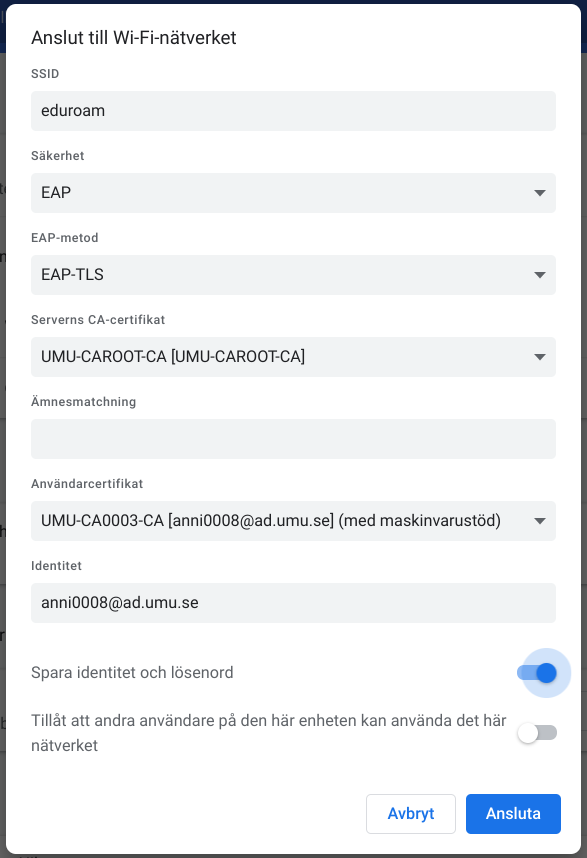
  1. Open Chrome again and go to chrome://settings. Under Network expand Add connection and choose Add Wi-Fi.
  2. Configure Wi-Fi settings
  • SSID eduroam
  • Choose TLS or EAP-TLS as EAP method (depends on version)
  • Choose none as Phase 2 authentication (if available)
  • Server CA-certifikat UMU-CAROOT-CA
  • Användarcertifikat UMU-CA0003-CA
  • Identity Umu-id@ad.umu.se (ex. “abcd0001@ad.umu.se”)
  • Check Save identity and password
  • Click on Connect
Ubuntu

This guide is written for manual installation of the certificates needed to connect to the eduroam wireless network.

NOTE! This guide is written with the help of Ubuntu 22.04 LTS and if you use another version of the OS there might be UI-differences.

Step 1

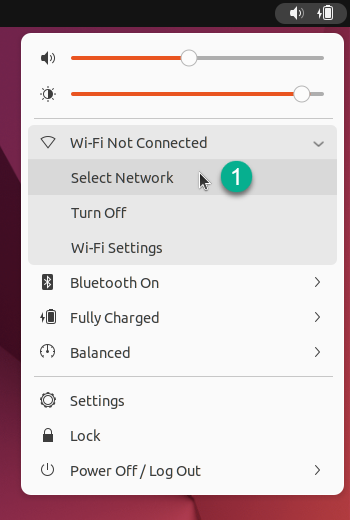
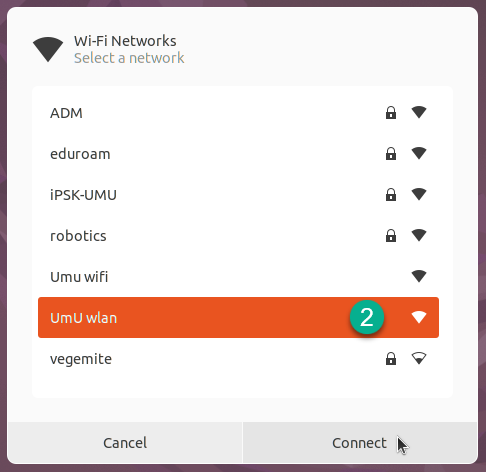
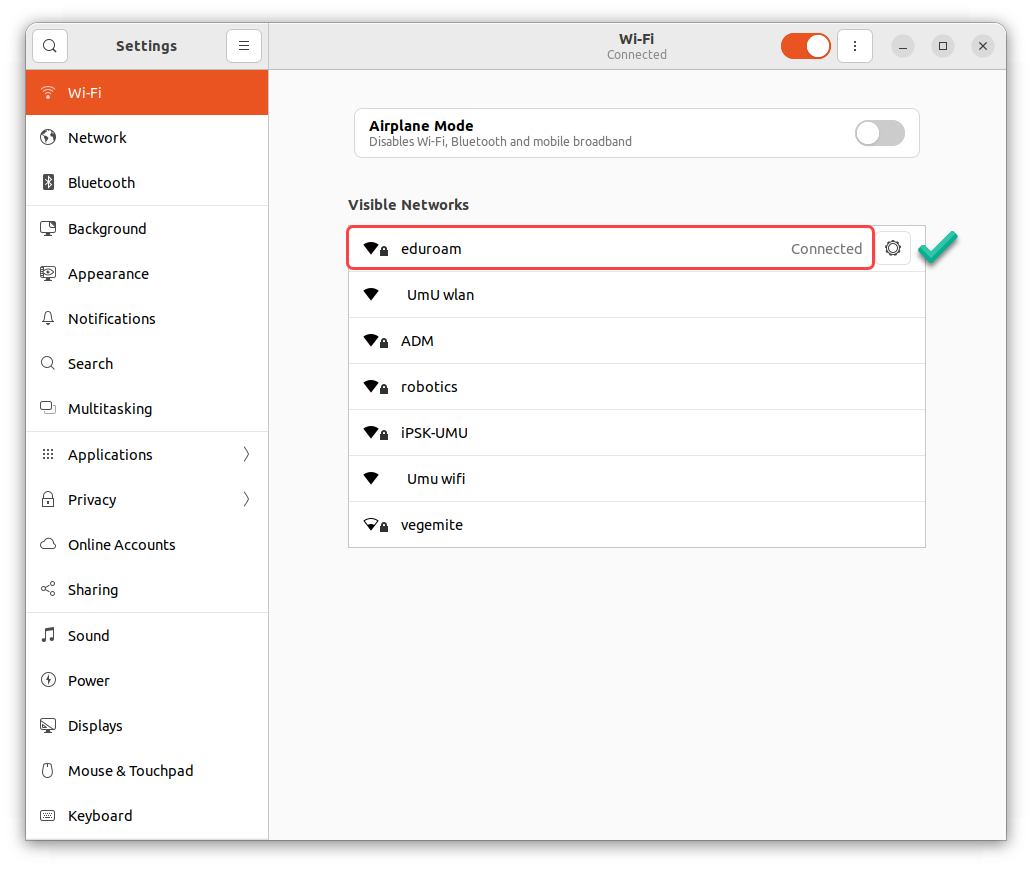
To download the certificates, you need to be connected to the internet. Our recommendation is that you connect to the network called UmU wlan. First Click Select Network and then click UmU wlan in the network list and follow the on-screen instructions.

Step 2

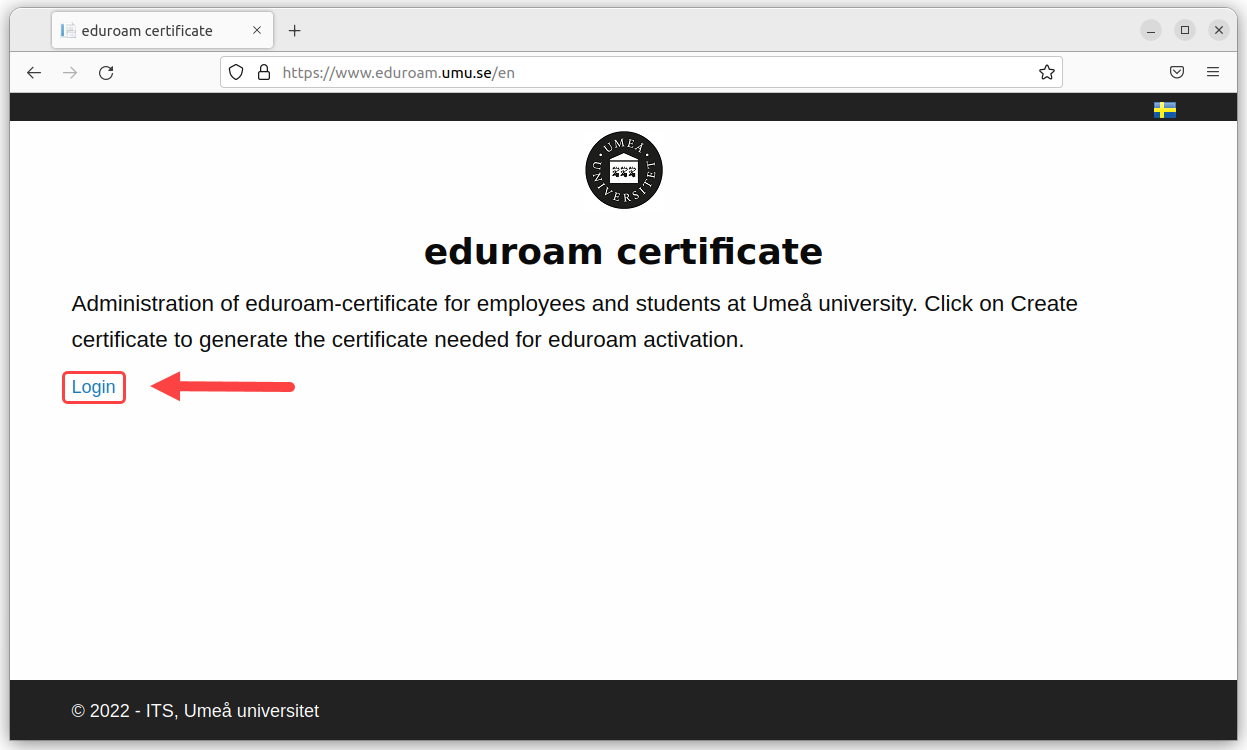
Start Firefox and go to http://www.eduroam.umu.se
Log in with your Umu-id and password.

Step 3

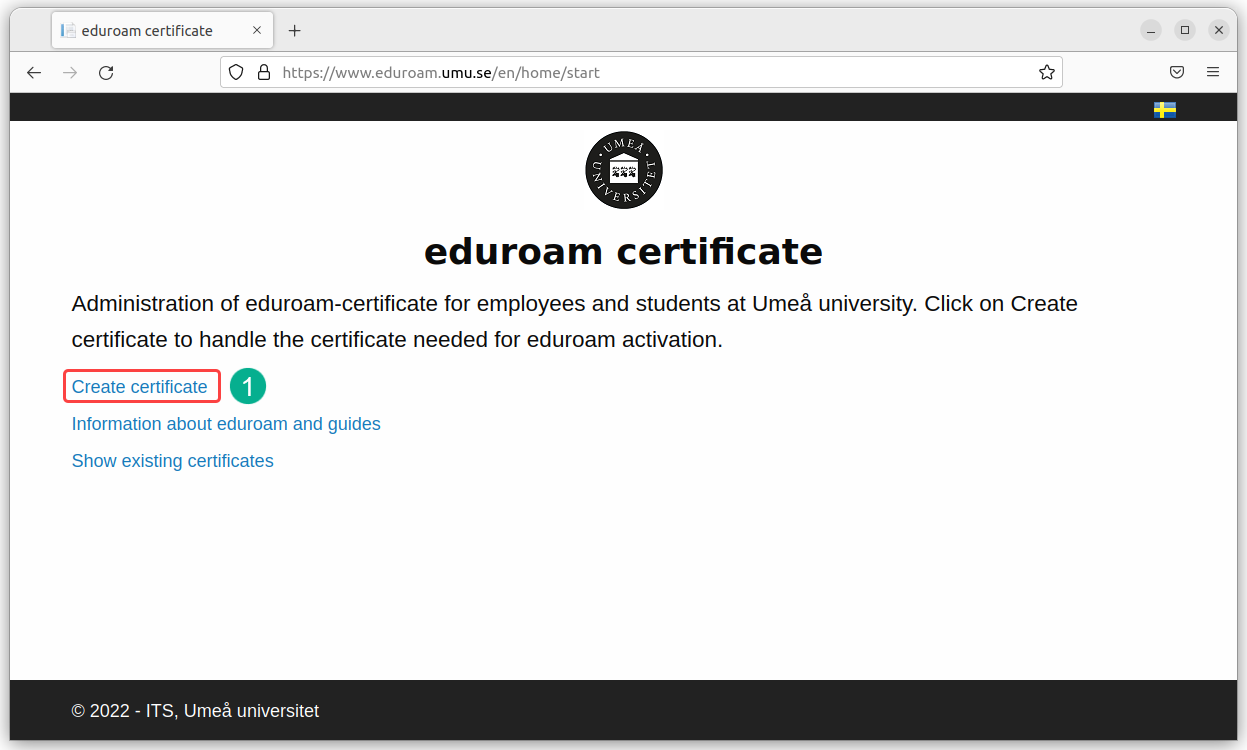
Once logged in, you will need to create your certificate. Click Create Certificate .

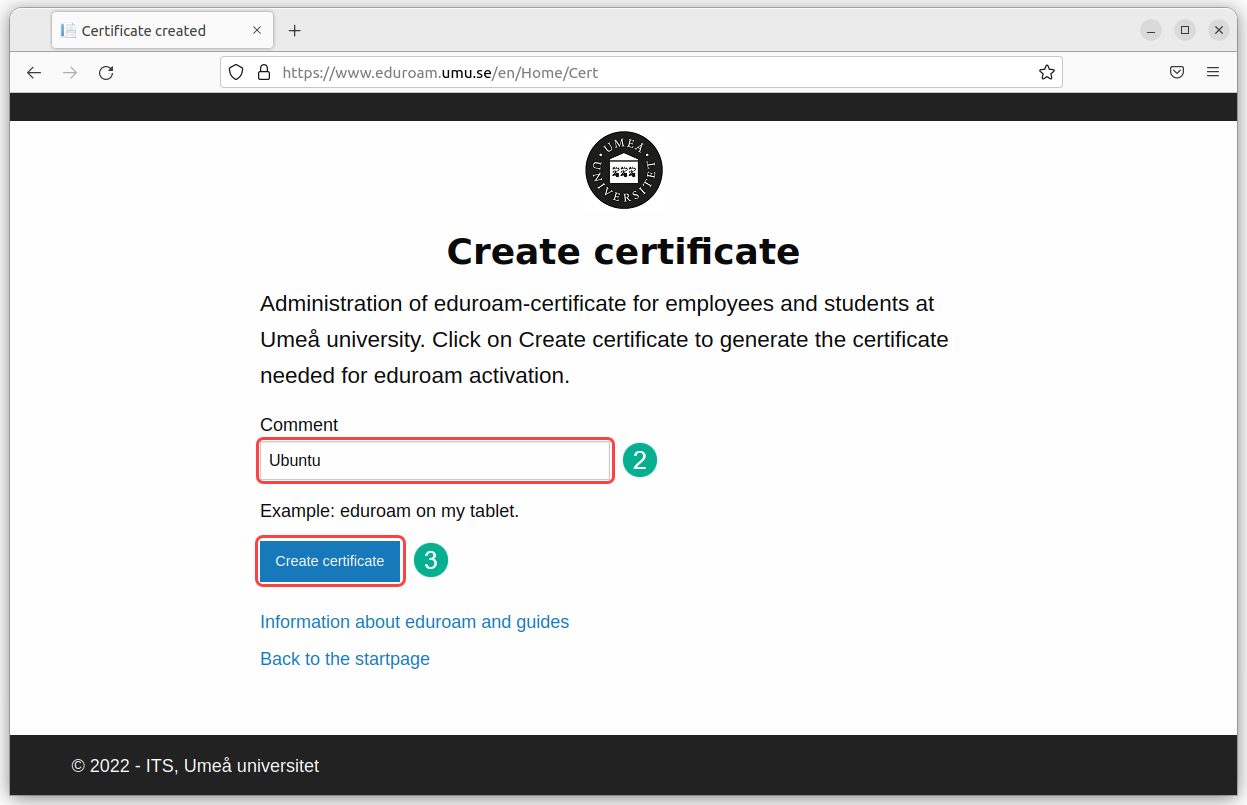
On the next page, you need to give the certificate a “name” 2️, then click on the blue Create Certificate button .

It may take a while but eventually you will come to a new page.

Step 4 – Download the certificates

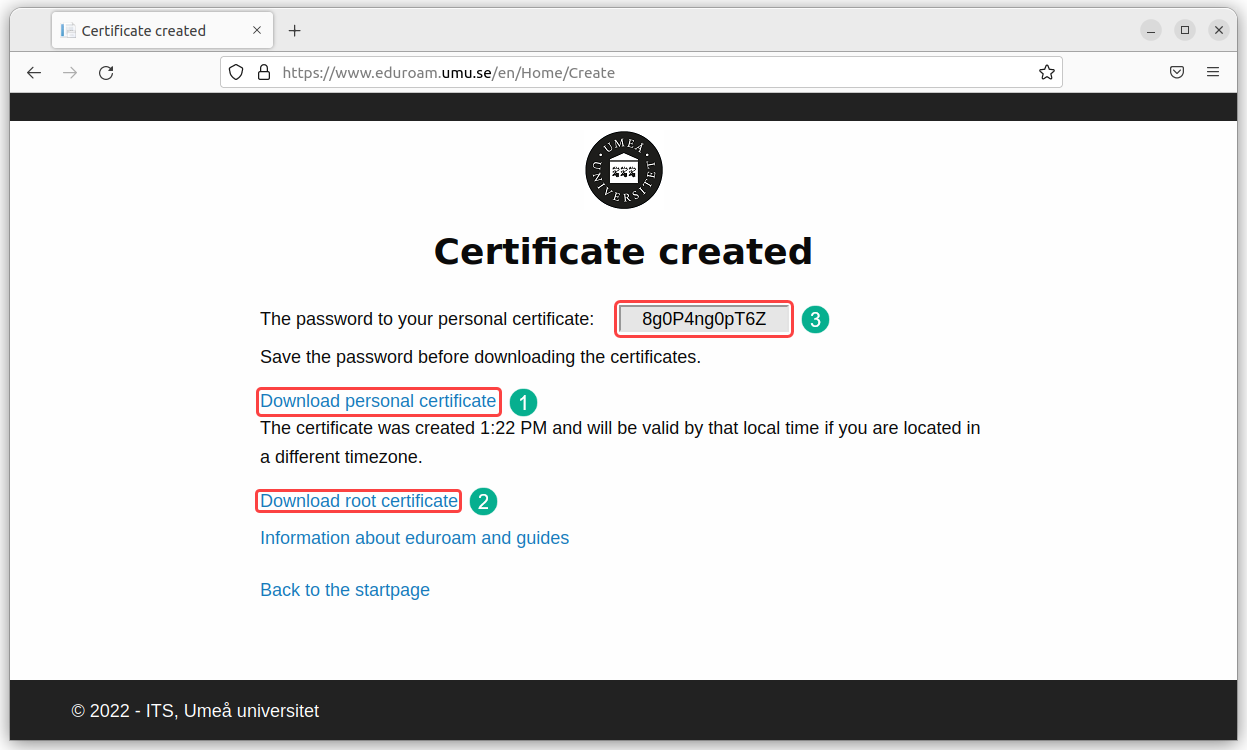
Once the certificates have been created, they need to be downloaded.
In addition to a personal certificate , you also need to download a so-called ROOT certificate .
The personal certificate has also been given a password .

Start by copying the password for the personal certificate . Then click Download Personal Certificate . Then click Download Root Certificate .

Step 5 – Change personal certificate file extension

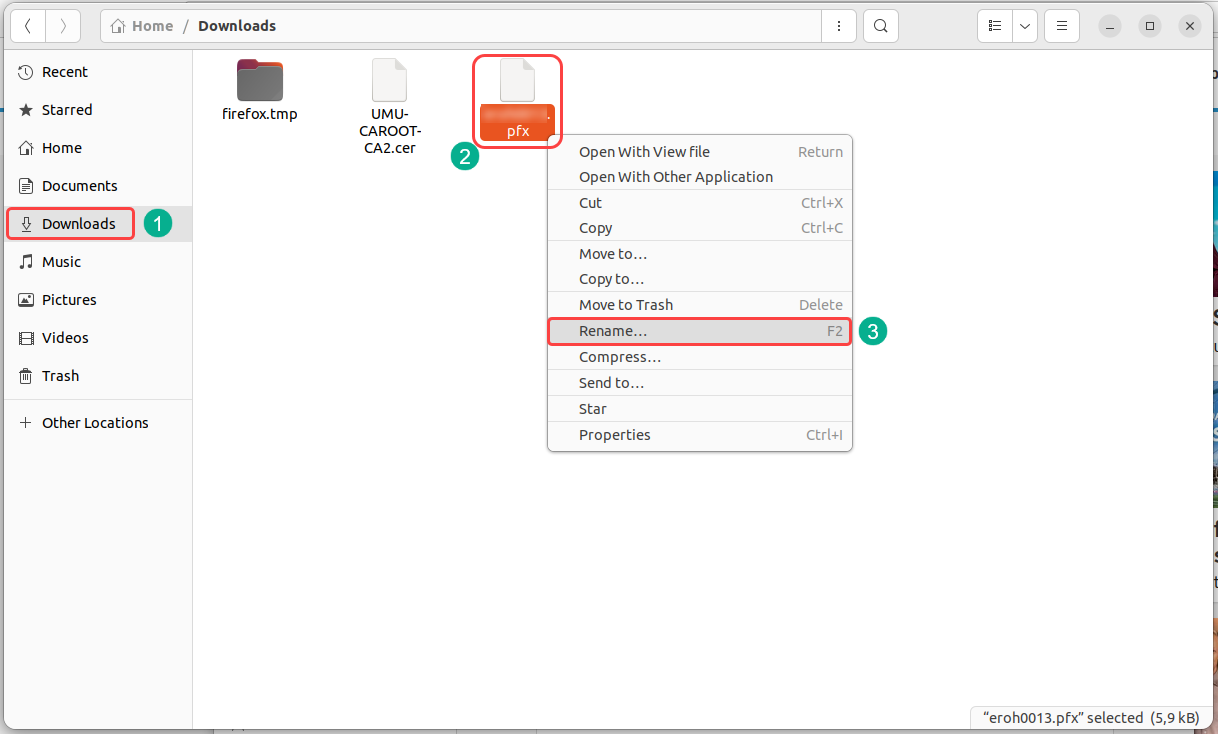
Open the Files app and go to Downloads , right click on the file named Your-Umu-id.pfx and click Rename… .

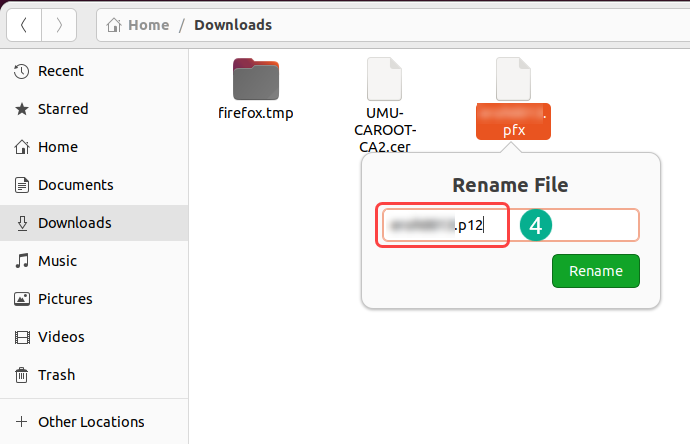
Click in the rename field behind .pfx and change it i to .p12

Close the Files app.

Step 6 – Connect to eduroam

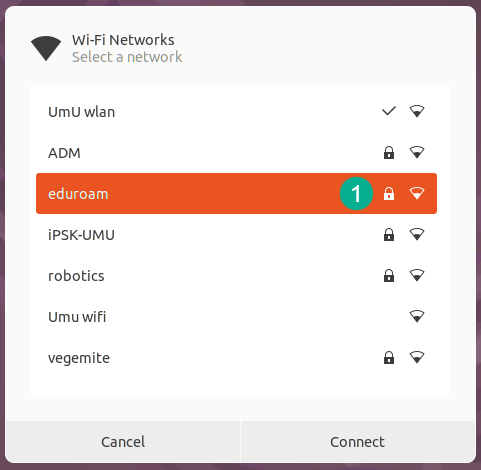
Open the network list again and now click on eduroam .

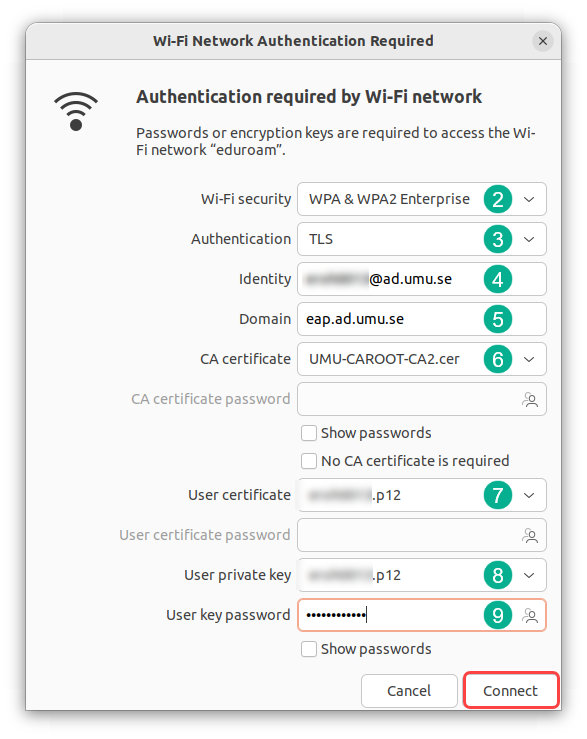
When trying to connect the Wi-Fi Network Authentication Required window will open and the settings need to be as follow.

Wi-Fi security : WPA & WPA 2 Enterprise
Authentication : TLS
Identity : Your-Umu-id@ad.umu.se
Domain : eap.ad.umu.se
CA certificate : UMU-CAROOT-CA2.cer that can be found in the Download folder
User certificate : Umu-id.p12 that can be found in the Download folder
User private key : Added automaticity (same as User certificate)
User key password : Paste password copied from Step 4

Click Connect and you will see that network list again and after a few seconds you should be connected.

Do you still need help?

Click here to contact ITS Servicedesk!

Contact ITS Service Desk

Create a support ticket at www.umu.se/servicedesk, call 090-786 63 00 or visit us next to Infocenter.

Kategorier

Related links

  • The wireless network at Umeå University
  • Install eduroam on Windows
  • Create guest account for wifi (Netlogon)
  • Access to wireless guest network at Umeå University
Scroll to top Scroll to top Scroll to top