
Programfolder in the graphic design tool
This page explains what is important to consider when creating a programme folder in the graphic design tool, as well as how to use the template step by step. The template is called “Programfolder” in the graphic design tool. The template is designed to create a physical printed programme folder that presents and promotes the programme to prospective students. You do not need any special permissions to use the template.
About the Folder
Format: The printed folder becomes an A4 sheet folded twice. Content is printed on both front and back. In the step-by-step guide below, each page’s function and suggested content are described.
Number of pages: The folder has a total of 6 pages with different types of content.
About the content: The content should resemble the structure and tone of the programme page on the education website. It should be simple, credible, and motivating for the target group: prospective students. The content should inspire them to read more about the programme online. Read more about content guidelines here: https://umeauniversity.sharepoint.com/sites/webbredaktor/SitePages/Inneh%C3%A5llsguide-f%C3%B6r-utbildningswebben.aspx
Find the template: Log in here (link: https://umu.bmc.nu/System/) and open the document template “Programfolder” in the design tool. Choose english as your language under “My user account”.
Front
This page becomes the folder’s front cover. It displays the programme name, structure, and a suitable image.
Step by Step
- Select language, organisation, and background color in the top module. Depending on the organisation you choose, the logo will change.
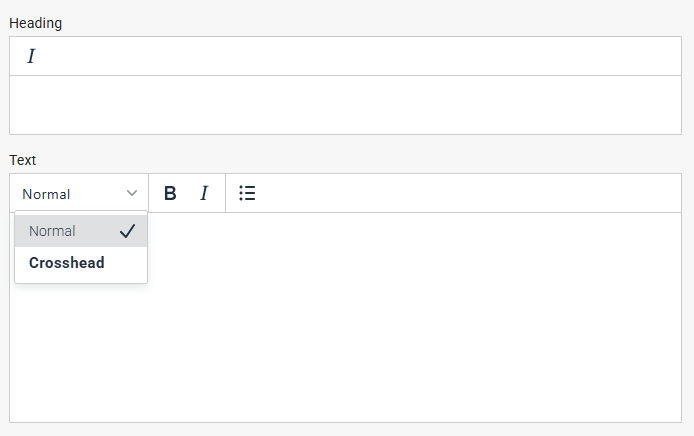
- Enter the name of the programme in the heading field.
- Keep the heading short.
- In the subheading, you can add a specialization or a natural continuation of the name.
- Example:
- Heading: Bachelor’s Programme in Sports Science
- Subheading: with a specialization in strategic leadership and development
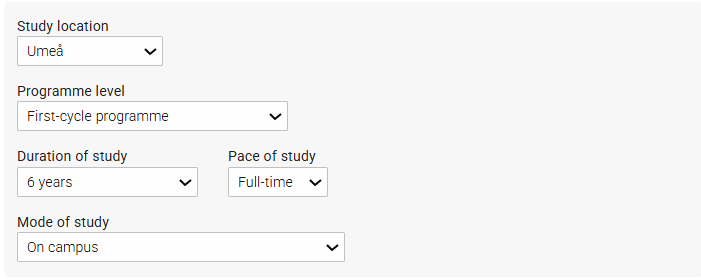
- Select study location, duration of study, and pace of study. (Note that the number of credits is affected by both duration of studies and pace of studies.)
- Select programme level and mode of studies.
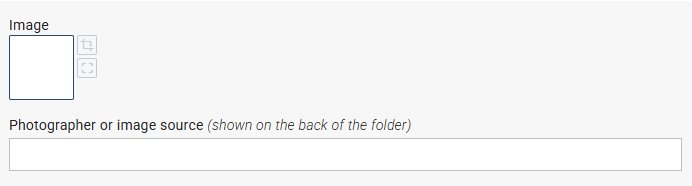
- Insert an image (fills the page below the top module). Read more about inserting images: https://manual.umu.se/en/insert-an-image-in-the-graphic-design-tool/
- Considerations for image selection: Our Visual Language
- Click the image field to choose an image from the Media Bank.
- Crop if needed (the image has fixed dimensions, but you can adjust which part is visible).
- Specify photographer or image source (appears on the back page).
Fold-in flap
This page is visible when the folder is first opened. It consists of an image at the top and 1–3 modules with strengths and/or quotes. When fully unfolded, this page is placed on the far right of the back side. The purpose is to quickly give a positive impression of the programme and highlight its main qualities.
What is a “strength”?
It can be opportunities for internships, work during studies, hands-on learning, study abroad options, elective courses — anything that creates value for the target group. Highlighting 1–3 selected strengths helps prospective students quickly understand the program’s profile and advantages. These should not be perceived as a complete description, but rather as a selection of the program’s most attractive or unique qualities. Read more about strengths here: Styrkor med programmet
The quote serves as a validation that the strengths presented are true in practice.
Step by Step
- Select number of module rows (max three). Each row can have one wide module or two smaller ones.
- Select a module row and edit it.
- Choose number of modules per row (1 or 2).
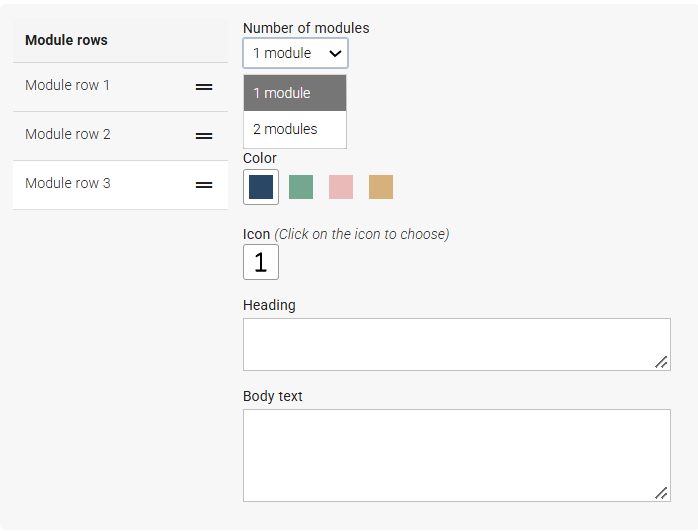
- If two modules: edit the first in the top field and the second further down.
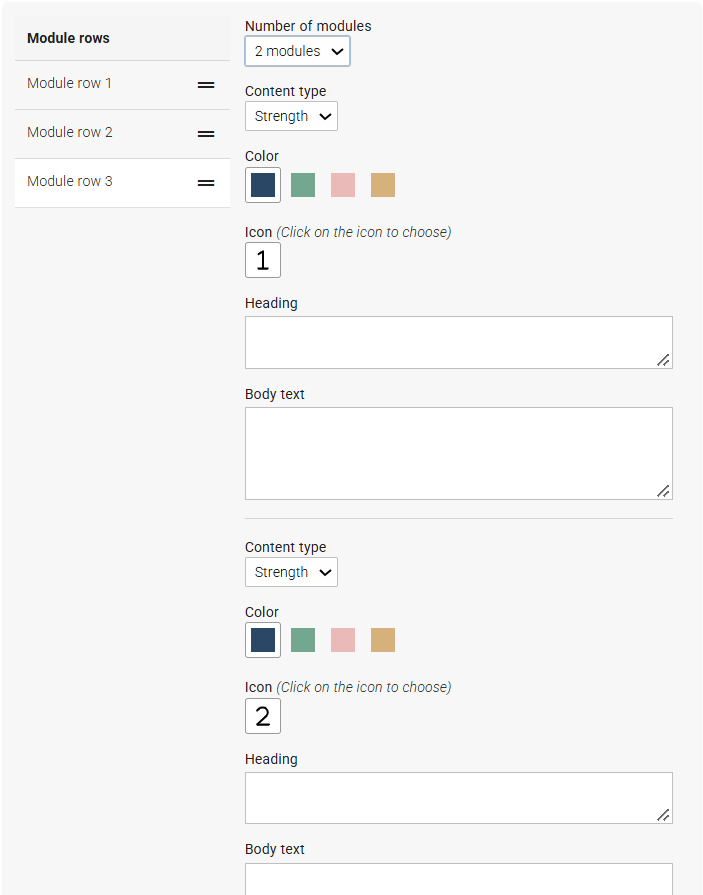
- Choose content type: strength or quote.
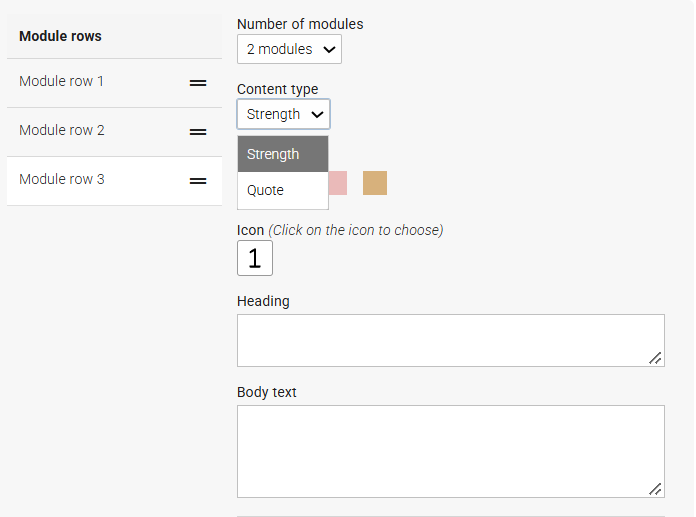
- Strength
- Choose color (module background color)
- Choose icon
- Write a short and concise heading
- Add a short and concise body text (optional)
- Quote
- Choose color (module background color)
- Write the quote (text becomes italic with quotation marks automatically)
- Specify quote source (name, role, or both)
- Image
- Click the image field to choose an image from the Media Bank
- Crop if needed
- Specify photographer or image source
- Write heading and body text (text appears on the image)
- Gradient behind text can be turned off. Consider readability.
Edit all your modules according to the instructions above. Updates appear in real time in the preview.
Inside Left & Center
These two pages together present the program’s content, structure, and opportunities. Keep the layout airy with paragraphs, subheadings, and elements that break up the text. The spread has two columns in total, one column per page.
Consider answering:
- How does one study in the programme?
- What careers can graduates pursue? How does the programme connect to real-world roles?
- What makes the programme special or particularly interesting? Exchange opportunities? Extensive practical components?
Step by Step
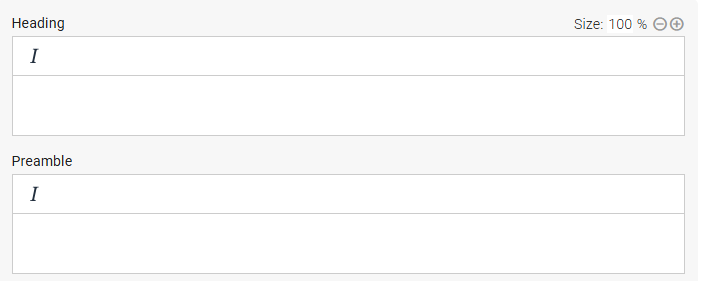
- Write the main heading (appears across both pages). You may draw inspiration from the programme page online.
- Write a short preamble. The text is slightly larger than body text. You can use italics if you like.
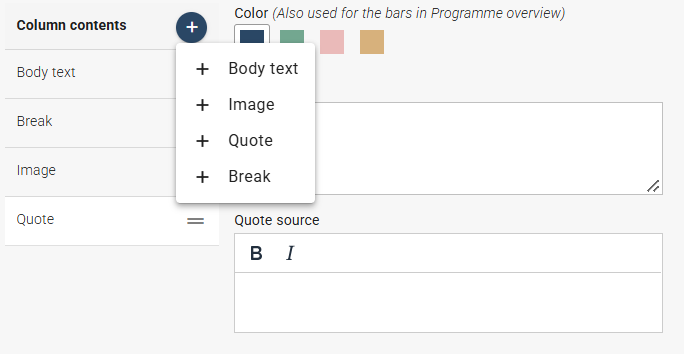
- Insert all your content. A column with body text is included by default. If you add more text than fits in one column, it flows into the next. Under the plus sign in the blue box, you can add different column content types. They appear in a list where you can reorder them by dragging the two lines on the right.
Column content types available:
- Body text
- Image
- Quote
- Break
Body Text
To place an image or quote at the correct position, you may need to divide text into different column content blocks. In this block för body text, you can write a crosshead, body text (normal), and bullet lists.
- Write crosshead
- Write body text (normal)
- Add bullet list if needed
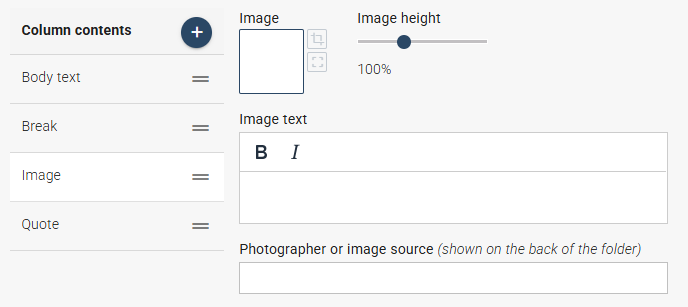
Image
- Click the image field to choose an image from the Media Bank
- Crop and adjust height if needed (image width is standardized)
- Write image text (appears as smaller text below the image)
- Specify photographer or image source
Quote
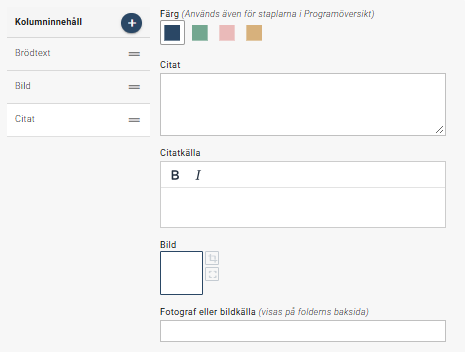
This block allows you to insert a quote that visually breaks up the page. Choose a quote from a current student or alumnus that reinforces the content.
- Choose text color
- Write the quote (italic + quotation marks automatically)
- Specify quote source (e.g., Name Surname, student/alumnus)
- Would you like to include a photo of the person quoted? Click the image field to select an image from the Media Bank. Then enter the photographer’s name or image source. The image will be displayed in a smaller, circular crop alongside the quote.
Column Break
You can manually force text to continue in the next column using the column break module.
Inside Right
Here you choose between two page types:
- Programme overview (horizontal percentage bars)
- Image panel (full-page image with headline and short text)
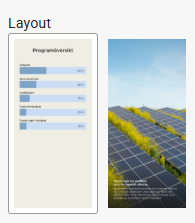
If you have a programme overview on the website, you can use it here. Note that if the overview has few bars, the page may look empty.
Programme Overview
Provides a quick overview of the program’s content.
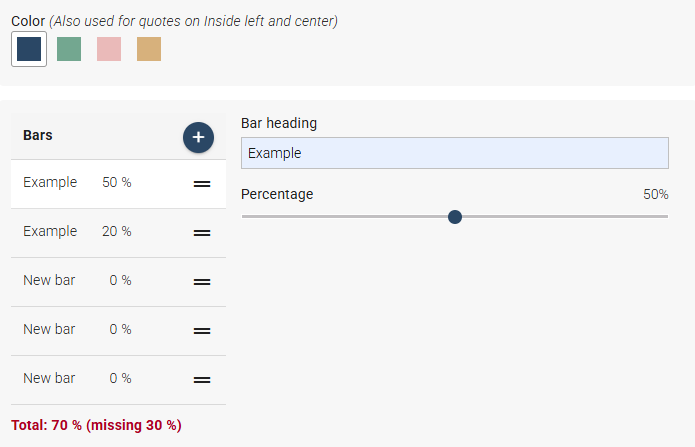
- Choose bar color
- Add number of bars (max 10)
- Specify bar heading and percentage for each bar.
A red text indicates if the total exceeds or falls below 100%.
- Below the programme overview, you have the option to add body text, an image, and a quote. This can be useful if the programme content needs further clarification regarding elective courses, specialisations, or similar topics. If the programme overview is relatively brief, you can also use this content to make the page more visually appealing. Please note that the content below the programme overview should relate specifically to the programme content, as the overall heading of this page is Programme Overview.
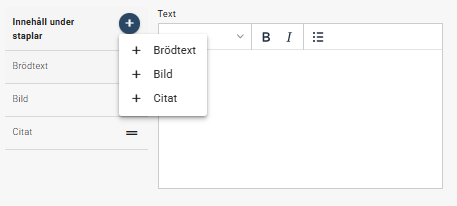
Image panel
This page type uses an image, headline, and short text to convey a strong sense of the program.
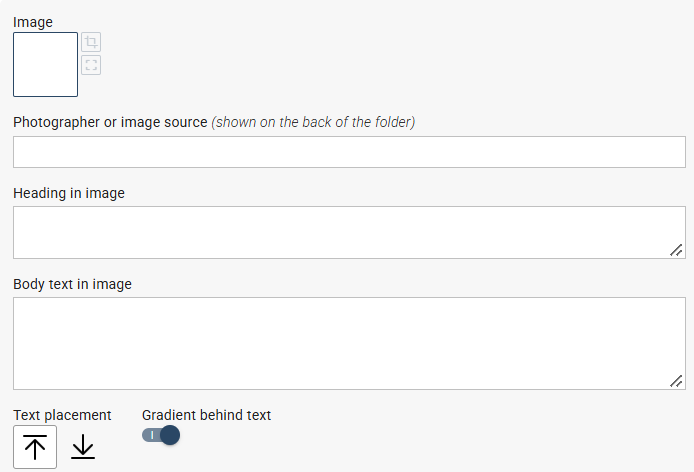
- Click the image field to choose an image from the Media Bank (preferably portrait format)
- Specify photographer or image source
- Write heading (appears on the image)
- Write short body text (3–4 lines, appears on the image)
- Adjust text placement with arrows if needed
- Gradient behind text can be turned off. Consider readability.
Back
This is the folder’s back cover when folded. Highlight briefly why one should choose the programme.
Step by Step
- Write heading (e.g., Why should I choose Programme X?)
- Add a bullet list with the program’s main advantages
- Add short text if needed
- Finish with contact information
- Subheading: Contact
- Body text: role, programme, email and/or phone number
A QR code linking to umu.se/utbildning is placed on the back. It cannot be changed or removed.