Manual

Manual
  • Svenska
  • Menu Menu

Register artistic output in DiVA

2025-09-11/in DiVA, English

This manual covers explicitly the registration of artistic output in Umeå University’s publication database, DiVA.

For basic instructions on how to register scholarly output in DiVA, see the manual:

Register scholarly publication in DiVA

Register in DiVA

What should be registered?

All works/publications/output produced as part of employment at Umeå University must be registered in DiVA.

What should not be registered?

Works/output created outside the scope of university employment must not be registered in DiVA.

Artistic output or Artistic work?

If the work is part of a publication with an ISSN/ISBN, it should be registered under the relevant publication type (e.g. Article, Report, Chapter, Book/Collection). The checkbox Artistic work should also be selected – in the DiVA search interface, this is displayed as Research based on artistic grounds.

In exceptional cases, the output type Other may be used, with the specification Artistic Work (e.g. if it concerns a musical instrument, where the physical object itself is described).

Work presented at a conference

Work/artistic output presented at a conference should be registered in DiVA as Artistic Output. In the field Channel, specify the conference details as follows: Conference title, City, Country, Date, Year.

Conference contributions that were presented orally, or after the conference, published as a poster, an abstract, or a paper, should be registered as a Conference paper. The checkbox Artistic Work may be selected if the contribution also qualifies as artistic output.

Participation only in a conference/workshop/panel discussion should not be registered in DiVA.

Refereed or unrefereed?

Peer review of artistic output can take different forms depending on the art discipline. For example, this may involve a work being presented in a context where, prior to publication or presentation, it has undergone assessment by independent, competent reviewers. Examples include jury evaluation, state/municipal funding based on panel review, or presentation at an international conference applying peer review.

  • Refereed: The content has been reviewed by independent referees and accepted for presentation and/or publication.
  • Unrefereed: The content has not undergone review by independent referees.

Works in exhibitions

A work presented in an exhibition running over a period of time should be registered once in DiVA. If the same work is presented in another exhibition, it should be registered again in DiVA.

Works performed multiple times

For example, a musical work performed several times within a concert series should be registered once in DiVA, as long as it is part of the same concert series.

If the work is performed in a different context, it should be registered again.

Important fields in the registration

Registration of Artistic output differs somewhat from the registration of standard publications. (See the detailed manual Register scholarly publications in DiVA).

Contributor – Role

When registering Artistic Output, you fill out information about the Contributor(s). This should be complemented by the relevant Role. Select the applicable role(s) – but the role Creator should always be included to ensure that publication lists on the University’s webpages are displayed correctly.

Year

The field Year refers to the year the work was first presented/published, not the year it was created. The year must always be specified, even if the work spans across calendar years. If the same work has been exhibited or performed within one continuous context (e.g. an exhibition or a tour) extending across more than one year, this should be indicated in the free-text description field.

Publisher – Publication channel

Under the field Publisher, the subfield Publication channel should specify, for example, gallery, exhibition space, stage, or platform where the work was made public. For conference presentations, enter the relevant conference information here.

URL

Where possible, link to Research Catalogue, documentation, or reviews – and provide a descriptive link text. What the link refers to should be clear.

Fields depending on the type of resource

Depending on the selected Type of resource for the output, different descriptive fields will be available, for example:

  • Type: Free-text field, can be repeated. Specify language.
  • Material: Physical description of the work. Can be specified in multiple languages.
  • Technique: Free-text field, which can be repeated. Specify language.
  • Duration: Time expressed in the format hh:mm:ss.
  • Dimensions: For three-dimensional objects.

Contact the library

If you have questions about DiVA, please contact the library. Select the category Publishing, theses and research data.
Contact the library

https://manual.umu.se/wp-content/uploads/2018/02/manual-loggo.png 0 0 Marika Lundqvist https://manual.umu.se/wp-content/uploads/2018/02/manual-loggo.png Marika Lundqvist2025-09-11 07:24:182025-09-12 13:13:44Register artistic output in DiVA

Register scholarly publication in DiVA

2025-03-28/in DiVA, Employee, English

This is a manual for registering a publication in Umeå university’s publication database (DiVA).

Import publications

If your publication is indexed in a database you can import it to DiVA instead of registering the information manually. See separete instructions:

Import publications to DiVA

Register in DiVA

Is the publication already registered?

Please start by searching DiVA on the publication title. If the publication is already registered, you can edit or add information to the record. If you can’t access the record, contact the DiVA administrator at your department or the library.

Search in DiVA

Begin to register

To register a new publication in DiVA, do the following:

  1. Sign in to DiVA with your UMU ID.
  2. Choose the entry “Add publication / Upload files”.
  3. Select publication type.

Mandatory fields are marked with a red asterisk (*). Some fields have a red question mark – if you hover over the question mark, you will see a help text for that field.

Remember that you can always pause and save an incomplete registration to pick it up later, by clicking “Cancel / Save draft”. Your saved drafts can be found under “My drafts”.

How to register an article

If the article has a DOI, you can easily fetch the information needed by entering the DOI in the field “Get information with DOI-number” on the top of the page.

Check/edit the information in DiVA:

Subcategory

Specify a subcategory if the article is an Editorial, Letter, Meeting abstract, or News item.

Author

Fill in all author names, in the same order as in the article.

Click on “Connect authority record” for each author – if the author has an authority record in DiVA, information such as organisation, email, ORCID, and year of birth will be filled out automatically. If the author does not have an authority record, you can fill out the name, UMU ID and organisation and select “Create authority record”.

Click the button “Another author” to register more than one author. The Other contributor option can be used if there is an UMU-affiliated collaborator/contributor in the publication.

Organisation

The affiliation in the article is the affiliation(s) you select as department, unit, or program. If an UMU-author has multiple affiliations in the article, they should also be stated in the record. If an UMU-affiliated author also has an affiliation to another organisation, you state that in the field “Other organisation”. Authors not affiliated to UMU do not require stated affiliation in the record.

Title

Enter the title and any subtitle and select the language of the title.

Content type

Select the content type of your work:

  • refereed
  • other academic
  • other (popular science, discussion, etc.).

Status

Select the status of your work (“published” is preselected):

  • published
  • accepted
  • epub ahead of print
  • in press
  • submitted.

Part of journal/conference

Begin by entering the title or the ISSN of the journal in Part of journal and select from the list displayed. The journal selected is then displayed under the box. If the journal is not in the list, fill in all the details under “Other journal”.

If you are registering a Meeting abstract – fill out the Conference Title, Place and Country/other, Date, Year.

Fill out the year, volume, number, article-id/pages under “Other information”.

Identifiers

The DOI should (if available) be stated in the DOI field, where it links to the article. If the link leads to a free full text, you tick the box “Free full-text”.

If there is no DOI, you can use the URL field to link to the article. In this case, write the URL in the URL label field. If the link leads to a free full text, you tick the box “Free full-text”.

National subject category

The national subject categories in DiVA correspond to those in the national reference database Swepub and increase the search- and findability of a publication. Please choose a category as specific as possible – the above category in the subject tree will automatically follow.

If you are unsure about the subject category, you can use the function “Suggestion for national subject category”. Then you can copy the suggested subject category and select it under “Choose national subject category”.

Research subject

Research subject is mainly used for doctoral theses.

Keywords, project, and abstract

Allocating keywords and abstract helps others find your publication. Please note, that keywords are to be separated by commas.

If the publication is a part of a project, enter the name of the project in the field “Part of project”.

Research funder

If the publication is a part of a research project that is supported by a research funder with an open access policy, select the funder from the list and enter the project number.


How to register other publication types

The fields used when registering an article are the same that are found when registering other publication types. There are, however, some other fields to consider in addition to those previously covered:

Artistic output

Fill in information about

  • contributor (one or more) – also state role (artist, photographer, editor, etc.)
  • alternative title (for example in another language)
  • type of resource (image, audio, text, etc.)
  • description (time, place, context, etc.).

Book

Fill in information about

  • edition
  • number of pages
  • series, and number in series
  • publisher
  • ISBN or other identifiers.

When registering a book, there are a number of options for Other contributor (photographer, illustrator, etc.). If the series is not available in the list, enter the title, ISSN, and number in the series under “Other series”.

Chapter in book

Fill in information about

  • part of book
  • edition
  • pages
  • series, and number in series
  • publisher
  • ISBN or other identifiers.

When registering a book, there are a number of options for Other contributor (photographer, illustrator, etc.). If the series is not available in the list, enter the title, ISSN, and number in the series under “Other series”.

Collection (editor)

Fill in information about

  • editor
  • edition
  • number of pages
  • series, and number in series
  • publisher
  • ISBN or other identifiers.

When registering a book, there are a number of options for Other contributor (photographer, illustrator, etc.). If the series is not available in the list, enter the title, ISSN, and number in the series under “Other series”.

Conference paper

If the conference contribution has been published as an abstract in a journal, please choose publication type Article with the subcategory Meeting abstract.

Published papers, oral presentations, and abstracts not published in a journal are to be registered as the type Conference paper.
Always fill out Conference title, Place and Country/other, Date, and Year.

If the contribution is published, also fill out

  • part of proceedings
  • pages
  • series, and number in series
  • ISBN, if published as a book/collection
  • DOI or URL, if applicable.

If the series is not available in the list, enter the title, ISSN, and number in the series under “Other series”.

Manuscript

Usually not to be registered in DiVA. Exceptions are:

  • manuscripts that are part of a thesis – only Author, Title, and National Subject Category need to be filled out
  • manuscript available in full text in preprint servers, for example, ArXiv.org – in these cases, link to the preprint repository.

You cannot enter the year of publication for a manuscript.

Patent

Fill in information about

  • country or patent organisation
  • patent number
  • date of approval.

Report

Fill in information about

  • alternative title (for example in another language)
  • number of pages
  • series, and number in series
  • ISBN
  • ISRN.

Working papers are included in this publication type. If the series is not available in the list, enter the title, ISSN, and number in the series under “Other series”.

Student thesis

See separate instructions:
Register student thesis in DiVA (for students)

Administer student theses and degree projects in DiVA (for administrators)

Thesis

See separate instructions:

Register a monographic thesis in DiVA

Register a compilation thesis in DiVA


Uploading files

If you don’t want to upload a file, but merely register details about the publication, choose “Continue”.

If you want to make the publication available in full text in DiVA: please check that the publication has a CC-licence or that the publisher has granted full text publication in DiVA. If you only want to archive the full text, select the option “Only for archiving”.

Which version should be made available in DiVA?

Choose the correct version of the file – Submitted, Accepted, or Published.

When should the file be made available?

If you don’t choose a date for publication, the full text will be available in DiVA as soon as the library has reviewed the record.

Some publications can only be made available after a certain period of time (embargo). In that case, you can select the option “Make freely available later” and choose the date.

Type of file

Articles are to be uploaded as pdf.

Other publication types can be uploaded in other formats; image, audio etc.

Upload the file

Click the button “Välj fil” to upload the file.

Accept the publishing conditions

After you have uploaded the file, read through and accept the publishing conditions. If a file is only archived, you don’t need to accept the publishing conditions.

You can also leave a comment if you like us to contact you about something or if you have permission from the publisher to parallel publish the work in full text in DiVA.


Review/Publish

Before submitting your publication in DiVA, please review the registration:

  • Check the details you have filled in. If you want to change something, used the link “Edit information” or click on “Back” to return to the form and make the necessary changes.
  • When you are satisfied, click on “Submit”.

If you want the publication to be made visible on a specific day, you can set the date for publication in the Available from field before clicking “Submit”.

The registered record will be reviewed by the library. Uploaded files will not appear in DiVA until a librarian has reviewed the record and checked that the full text may be published.

Please note that it may take a day before the record is visible on your staff page.

Contact the library

Contact the library if you have any questions about DiVA. Select “Publishing, theses and research data” as the subject area.

Contact the library

https://manual.umu.se/wp-content/uploads/2018/02/manual-loggo.png 0 0 Marika Lundqvist https://manual.umu.se/wp-content/uploads/2018/02/manual-loggo.png Marika Lundqvist2025-03-28 08:37:282025-08-26 15:03:35Register scholarly publication in DiVA

Create feeds in DiVA

2025-01-28/in DiVA, Employee, English
Read more
https://manual.umu.se/wp-content/uploads/2018/02/manual-loggo.png 0 0 Marika Lundqvist https://manual.umu.se/wp-content/uploads/2018/02/manual-loggo.png Marika Lundqvist2025-01-28 09:31:542025-08-26 15:02:50Create feeds in DiVA

DiVA: Review and publish student theses in DiVA

2025-01-24/in DiVA, Employee, English
Read more
https://manual.umu.se/wp-content/uploads/2018/02/manual-loggo.png 0 0 Marika Lundqvist https://manual.umu.se/wp-content/uploads/2018/02/manual-loggo.png Marika Lundqvist2025-01-24 07:39:232025-08-26 14:59:33DiVA: Review and publish student theses in DiVA

DiVA: Register and publish student thesis

2025-01-16/in DiVA, Employee, English
Read more
https://manual.umu.se/wp-content/uploads/2018/02/manual-loggo.png 0 0 Marika Lundqvist https://manual.umu.se/wp-content/uploads/2018/02/manual-loggo.png Marika Lundqvist2025-01-16 13:36:262025-08-26 14:59:16DiVA: Register and publish student thesis

Create and edit authority records in DiVA

2023-01-24/in DiVA, Employee, English

When registering a publication in DiVA, you can easily retrieve information about an author at Umeå University by searching for the author’s authority record and linking it to the publication. Since the authority record contains information such as name, UMU ID, ORCID and organisation, you don’t need to enter this information manually each time.

Edit your authority record

Log in to DiVA with your UMU ID. You can edit your authority record via the “My authority record” entry on the first page of the DiVA administration interface.

In your own authority record, you can add or change

  • year of birth
  • e-mail address
  • academic title
  • biography
  • links (e.g. to your website or blog).

You can also set whether you want your authority record to be hidden from public view. By default, the authority record is active and public. If you don’t want your record to be public, click on the small box next to “This record is searchable in the public search interface” at the top of the page under “Public authority record”.

You cannot change names or add names/alternative names. Contact the library if you, for example, change your surname.

Update the authority record from the registration form

When you register a new publication or modify an existing record, you can update your personal record directly in the edit form.

  1. Go to “Add new publication / Upload files” or find an existing record to edit.
  2. Enter your name or UMU ID under author.
  3. Link your authority record to the publication by clicking on “Connect authority record”.
  4. Fill in the information you want to change. The following are possible:
    • add alternative name forms
    • change year of birth
    • add an organisation (by clicking on “Select organisation” and searching or scrolling to the right department or unit)
    • change e-mail address.
  5. Click on “Update authority record”.

Create an authority record

If you don’t have an authority record in DiVA, you can create one when registering a publication. To create an authority record, you need to have either an UMU ID or an ORCID. You create the authority record when you register a new publication and enter your author details.

First, check if you have an authority record by entering your name or UMU ID and then click on “Connect authority record”. If you cannot find an authority record, click on cancel. Remember to fill in all author details before creating the authority record itself.

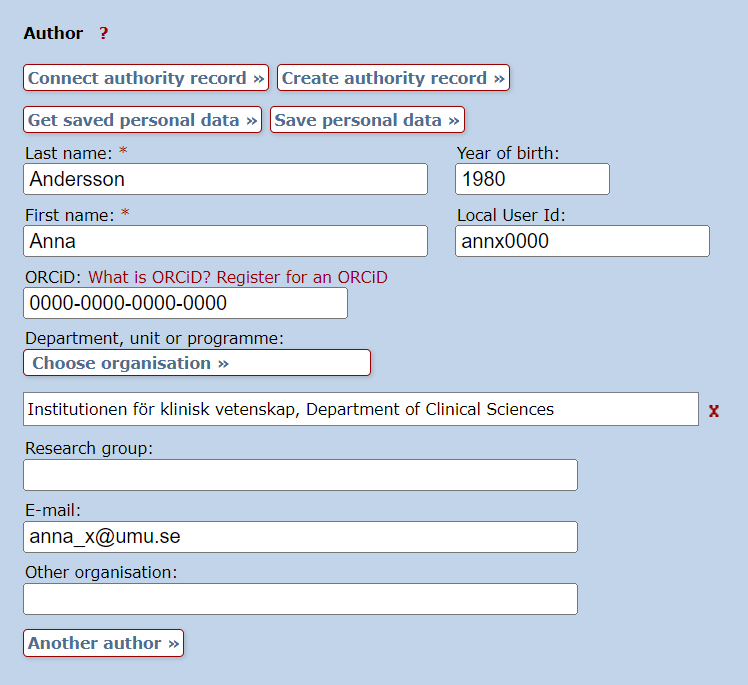
  1. Fill in the following information under author:
    • first name and last name
    • UMU ID
    • ORCID
    • e-mail address
    • organisation (choose from the list of organisations).
  2. Click on “Create authority record”.

Pre-filled information about an author in DiVA. The button Create authority record is above the fields.

You can edit your authority record according to the instructions above if you want to add information afterwards. Please note that you will need to log out and then log back in to edit your authority record via the “My authority record” entry on the home page.

ORCID

An ORCID is a persistent identifier (PID) linked to your person and distinguishes you from other researchers. Read more about ORCID and other identifiers for researchers:

Use an author ID

Contact the library

Contact the library if you need help making changes to your authority record and cannot edit it yourself. Select Publishing, theses and research data as the subject area.

Contact the library

https://manual.umu.se/wp-content/uploads/2018/02/manual-loggo.png 0 0 Marika Lundqvist https://manual.umu.se/wp-content/uploads/2018/02/manual-loggo.png Marika Lundqvist2023-01-24 13:50:462025-08-26 14:58:56Create and edit authority records in DiVA

Register compilation thesis in DiVA

2023-01-20/in DiVA, Employee, English
Read more
https://manual.umu.se/wp-content/uploads/2018/02/manual-loggo.png 0 0 Marika Lundqvist https://manual.umu.se/wp-content/uploads/2018/02/manual-loggo.png Marika Lundqvist2023-01-20 11:55:242026-05-06 13:26:42Register compilation thesis in DiVA

Register monographic thesis in DiVA

2023-01-19/in DiVA, Employee, English
Read more
https://manual.umu.se/wp-content/uploads/2018/02/manual-loggo.png 0 0 Marika Lundqvist https://manual.umu.se/wp-content/uploads/2018/02/manual-loggo.png Marika Lundqvist2023-01-19 15:42:252026-05-06 13:21:24Register monographic thesis in DiVA

DiVA: Register student thesis

2023-01-11/in DiVA, English, Student
Read more
https://manual.umu.se/wp-content/uploads/2018/02/manual-loggo.png 0 0 Marika Lundqvist https://manual.umu.se/wp-content/uploads/2018/02/manual-loggo.png Marika Lundqvist2023-01-11 07:22:422025-08-26 14:57:32DiVA: Register student thesis

Import publications to DiVA

2022-11-09/in DiVA, Employee, English

To simplify registration in DiVA, you can import information about publications from other databases (such as Pubmed and Scopus). You can also import publication lists from ORCID to DiVA, and vice versa.

Search by title before you import

Imports sometimes result in duplicate records in DiVA. Therefore, you must first check if your publications are already registered in DiVA by searching in DiVA for the publication title or your name.

Search in DiVA

Edit existing records in DiVA

You can edit an already registered record if you want to change something (for example, add your UMU ID). If the record is locked for editing, you should contact a DiVA administrator at your department in the first instance. Secondly, you can contact the library.

Importing many publications at the same time

If you are going to import many publications, you can check for duplicates during and after the import. See step 5 and the end of this manual for how to do this.


Import to DiVA

1. Search and export your publications

Start by searching and exporting your publications from a suitable database. When exporting information from databases, you will need to select the format for the export. The following reference file formats can be used in DiVA:

  • BibLaTex
  • BibTex
  • EndNote XML
  • ISI
  • MODS
  • RIS

Here you can read about how it works in some of the most common databases:

DiVA of another institution

  1. Go to DiVA portal or the DiVA domain you want to import from.
  2. Do a search on your name.
  3. Select the records you want to import. You can also change the number of hits or click “all on page”. It is also possible to select “250 forward”.
  4. Select Export, and from the list, select MODS.

Endnote

Endnote Desktop
  1. Open Endnote and select all the references you want to import.
  2. Select File > Export…
  3. Select XML as a file format and Output style = Show all fields. The file is saved on your computer.

Endnote Online

If you are using Endnote Online, it is not possible to export to the XML file format. Instead, do the following:

  1. Select the references you want to export from your library and save them to the Quick List or a folder.
  2. Go to Format > Export references.
  3. Under References, select Quick List or the folder of references you want to export.
  4. Select either BibTex Export or RefMan (RIS) Export as the export style.

IEEE Xplore

  1. Do a search and select the records you want to import.
  2. Click on Export and then Citations above the list of results.
  3. Select Format: RIS and Include: Citation & Abstract.
  4. Click on Export.

ORCID

From your ORCID profile you can export publications to DiVA. You can choose to either export all records or select the records you want to export. Here is how you import to DiVA:

  1. Click on the Actions button under the “Works” heading.
  2. Click on Export (all) works when you have selected records and then on Export selected works to BibTex.
  3. Save the file (file extension .bib).

Pubmed

a) Import single publications

You can import individual publications from Pubmed into DiVA using the Pubmed ID (PMID). Search for your publications in Pubmed so that you have the PMID at hand for the import in step 3.

b) Import multiple publications

You can import multiple publications from Pubmed into DiVA using a reference management software:

  1. Select Send to in the hit list and then Citation manager.
  2. Open the downloaded file in the reference management software of your choice.
  3. Export the references in the BibTex or RIS format.
  4. Import the file into DiVA, as usual. See step 3.

Scopus

  1. Do a search and select the records you want to import.
  2. Click on Export above the list of results.
  3. Select RIS Format. Check Citation information, Bibliographical information and Abstract & keywords (all boxes below should be ticked).
  4. Click on Export.

Web of Science

  1. Do a search and select the desired records. You can choose to either mark all hits, mark the entries on the page displayed or select entries within a specific number range (via the “Add to marked list” button).
  2. Click on the Export button above the hit list. Select the format Plain text file.
  3. You will see the box “Export Records to Plain Text File”. Here you select Full record.
  4. Click on Export.


2. Save the file

If you don’t get a question about where to save the exported file, it is usually found in the Downloaded files folder on your computer.

3. Import

Before performing the import to DiVA, you need to log in to DiVA.

  1. Log in to DiVA with your UMU ID.
  2. Select the “Import references” entry.
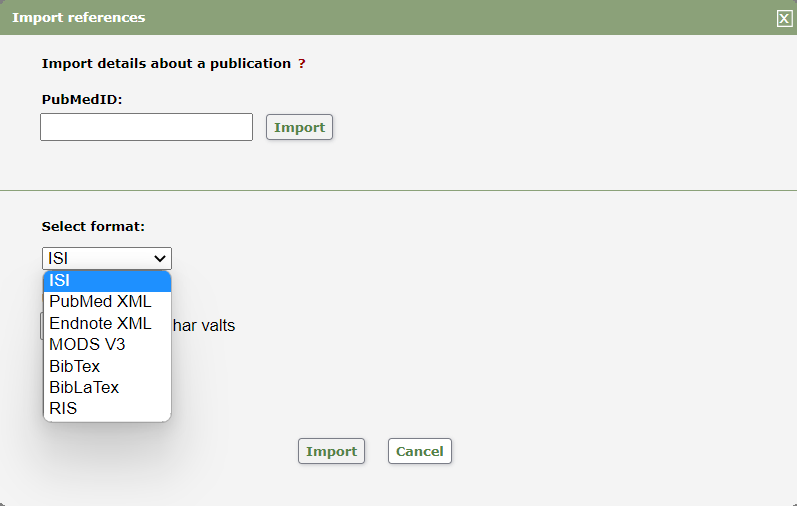
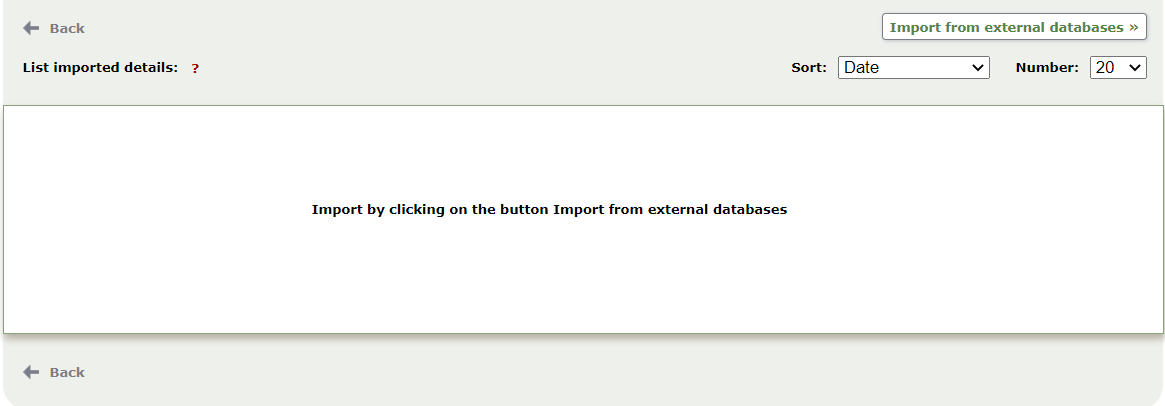
  3. Click on the Import from external databases button (top right).

The import references view in Diva

a) Import single Pubmed records with PMID

To import single publications from Pubmed, enter the publication’s PMID in the PubMedID field and click Import. You can only import one publication at a time using this feature.

b) Importing with an exported file

Select the format from the list before importing it if you have exported a file. For the databases described in step 1, select the following format:

  • DiVA of another institution: MODS V3
  • Endnote: Endnote XML
  • Endnote Online or another reference management software: RIS or BibTex
  • IEEE: RIS
  • ORCID: BibTex
  • Scopus: RIS
  • Web of Science: ISI

Then select the saved export file to upload it to DiVA.

View on two different fields for importing references in Diva

4. Confirm the import

When the file is uploaded in DiVA, you will get a message that the file upload was successful. Click on Import.

5. Review the imported records

The imported records are listed. If you have imported a publication already registered in DiVA with a DOI or any other identifier, it will appear as a duplicate in the list. You can delete the duplicate from the import list (the already registered record remains in DiVA).

Click on a record to go to the registration form. Check the data for each publication carefully. Please use the manual on how to register a scholarly publication:

Register scholarly publication in DiVA

In particular, check the following:

  • Publication type, and Subcategory if applicable.
  • Author information – connect to authority record or enter UMU ID for UMU-affiliated authors. Enter the affiliation stated in the publication.
  • Content type (Refereed, Other academic, Other).
  • National subject category – browse from the subject tree or use the “Suggestion for national subject category” function.
  • Abstract. Please check that paragraphing, etc., looks as in the publication.


On the next page, you can choose to upload a full text of the publication. Then click on Continue.

6. Submit

  • On the last page of the registration form, you will get an overview of the information for that publication. You can go back and edit the form if you want to add or change anything.
  • Once you have checked the information, click on Submit.
  • If you have imported several publications, you will now return to the import list and can review the next entry.

A registered publication will be visible in DiVA within a few minutes. However, it can take up to 24 hours for new publications to appear on the staff and department pages.

Check for duplicate records

Did you check if the publications were registered in DiVA before importing them? If not, you need to ensure that your import did not cause duplicate records. The automatic duplicate check described in step 5 only catches records with the same identifiers, which are sometimes missing. Contact the library if you are unsure.

Here’s how to check for duplicate records:

  1. Go to “Edit / Delete record” in DiVA administration.
  2. Search for either a name or UMU ID.
  3. Sort the publications by title.
  4. If you have accidentally registered a duplicate, you can delete it yourself by clicking on the checkbox on the right.


Publication lists in ORCID

ORCID is a unique identifier that distinguishes you from other researchers. Your ORCID profile allows you to collect your publications as well as other information, such as awards, funding, and other research outputs (e.g. research data or code). Read more about ORCID on the website for researchers:

Use an author ID

Importing records from DiVA to ORCID

You can easily import records from DiVA into ORCID to keep your ORCID profile up to date. Keep in mind that you may need to adjust the type and other details of each record afterwards.

How to import from DiVA to ORCID:

  1. Go to Create feeds in DiVA.
  2. Enter your UMU ID in the search field “Person, id”.
  3. At the bottom of the page is “Select format and sort”. Here you select the format BibTex.
  4. Choose how many records you want to export under “Number of hits”. It is pre-set to 50 records, but you can choose up to 9,999 records.
  5. Click on Create link and copy the link generated under “Search link”.
  6. Paste the link in a new tab in the browser address bar and press Enter. A BibTex file will be created.
  7. Save the file created.
  8. Log in to your ORCID account.
  9. Click on Add under the heading “Works”. Select Add BibTex.
  10. Click on Choose BibTex file to import and select the saved BibTex file. Note that if the file you saved has the extension “.txt”, you must select “All files” in the drop-down list for it to be displayed.
  11. Select Select all to import all records, or select the records you want to import. Click on Import works to your record.
  12. You can edit the information about the imported records and complete it if anything is missing. In addition, you can choose whether the records should be available to everyone, only to selected people, or only to you.


Contact the library

Contact the library if you have any questions about DiVA. Select Publishing, theses and research data as the subject area.

Contact the library

https://manual.umu.se/wp-content/uploads/2018/02/manual-loggo.png 0 0 Marika Lundqvist https://manual.umu.se/wp-content/uploads/2018/02/manual-loggo.png Marika Lundqvist2022-11-09 15:00:122025-08-26 14:55:32Import publications to DiVA

Contact ITS Service Desk

Create a support ticket at www.umu.se/servicedesk, call 090-786 63 00 or visit us next to Infocenter.

Kategorier

  • Contact the Library

  • Contact the Library

Scroll to top Scroll to top Scroll to top