Manual

Manual
  • Svenska
  • Menu Menu

Delete a lost or stolen mobile device

2017-06-30/in Employee, English

Important!
All programs and all information is removed from the device and features disappear, except the ability to make emergency calls (112). You can also use this procedure to delete a drive before you dispose of it or submit it to a new user.

To delete a mobile device remotely
1. Log on to Outlook Web App on https://m365.umu.se with the user account that the mobile device synchronizes with.
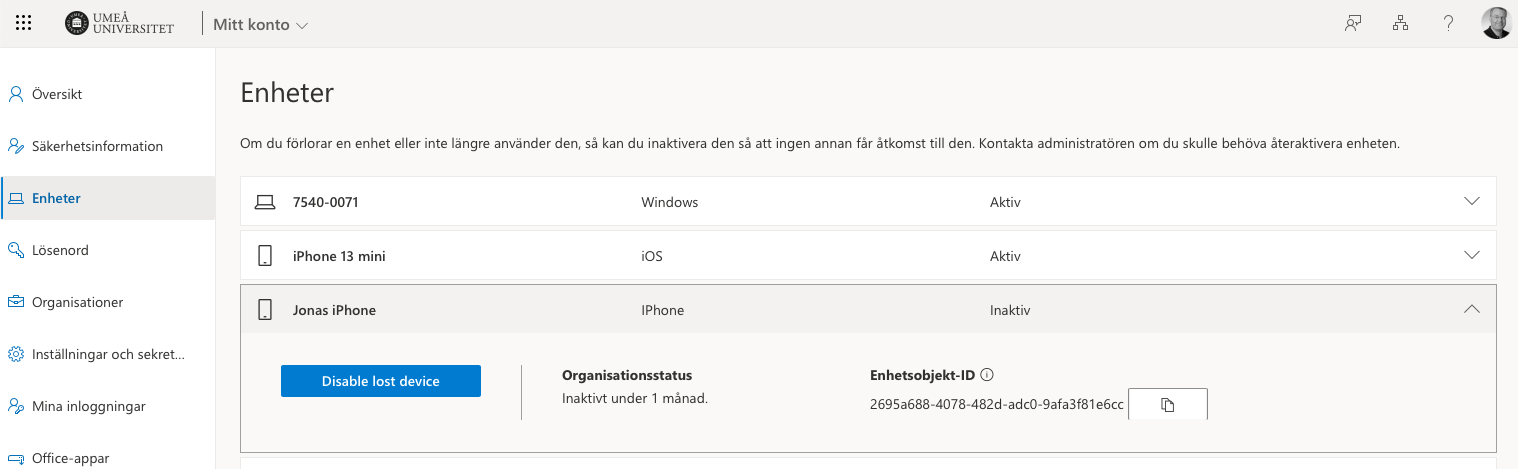
2. Click My account (Visa konto) in the title bar, Devices (Enheter).
3. Click Phone in the Navigation pane.
4. First, click the ID of the drive you want to erase the distance, then Wipe all data from the device and then click OK.
5. Click Remove Device from List.
The deletion is usually performed within a few minutes. If the mobile device is switched off or outside the service area when the deletion begins, performed deletion as soon as the device reconnects to
the network.


https://manual.umu.se/wp-content/uploads/2018/02/manual-loggo.png 0 0 Jonas Sundström https://manual.umu.se/wp-content/uploads/2018/02/manual-loggo.png Jonas Sundström2017-06-30 06:16:092026-02-23 12:24:15Delete a lost or stolen mobile device

What is UMU-id and why do I need it?

2017-06-29/in Employee, English, Student, Umu-id

As a student or employee, you need an UMU-id to be able to log into most of the University’s systems and services, such as Canvas, Intranet and administrative systems.

  • As a student, you will receive your UMU-id automatically when you are admitted to one of our courses.
  • Employees receive your UMU-id when you are entered into the personnel system.

Your UMU-id consists of a username and a password. The username consists of 8 characters in a combination of letters and numbers. The letters are based on your first and last name while the numbers are a serial number.

Password to your UMU-id is something you set yourself.  A password must be between 16-50 characters long and must contain 3 of the following 4 parameters:  Capital letters, small letters, numbers, special characters (like * # ! & )

You use UMU-id to log in to most of the university’s central IT systems.

https://manual.umu.se/wp-content/uploads/2018/02/manual-loggo.png 0 0 Erik Öhman https://manual.umu.se/wp-content/uploads/2018/02/manual-loggo.png Erik Öhman2017-06-29 08:51:052025-12-15 10:31:08What is UMU-id and why do I need it?

Access to wireless guest network at Umeå University

2017-06-28/in Employee, English, Student, Wireless network

This guide is intended for guest who have received a guest account for the wireless network at Umeå University.

  1. Make sure Wi-Fi is running on your computer, smartphone or tablet.
  2. Select the network (SSID) UmU wlan.
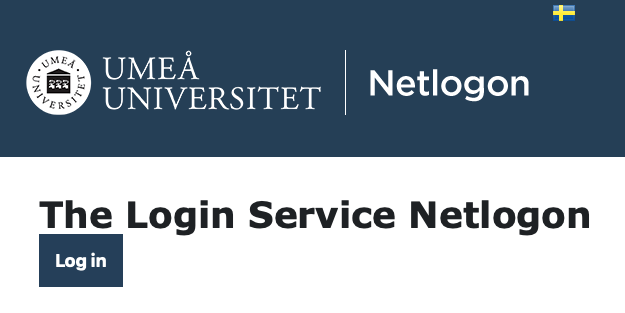
  3. Start a web browser and you will get to a login page. If the login page does not come up, write http://administrationsverktyg.umu.se/Netlogon
  4. Logga in (Log in). <guestid>@ad.umu.se. If you are employed or student use your Umu-id

NOTE!

  • If you your computer goes into sleep mode then you will be logged out.
  • Turn off proxy setting if it is on.
https://manual.umu.se/wp-content/uploads/2018/02/manual-loggo.png 0 0 Jonas Sundström https://manual.umu.se/wp-content/uploads/2018/02/manual-loggo.png Jonas Sundström2017-06-28 11:06:072026-03-26 11:05:01Access to wireless guest network at Umeå University

Forward student email to my private address

2017-06-22/in Employee, English, Student

These instructions are for those who wish to forward their email to a private email address.

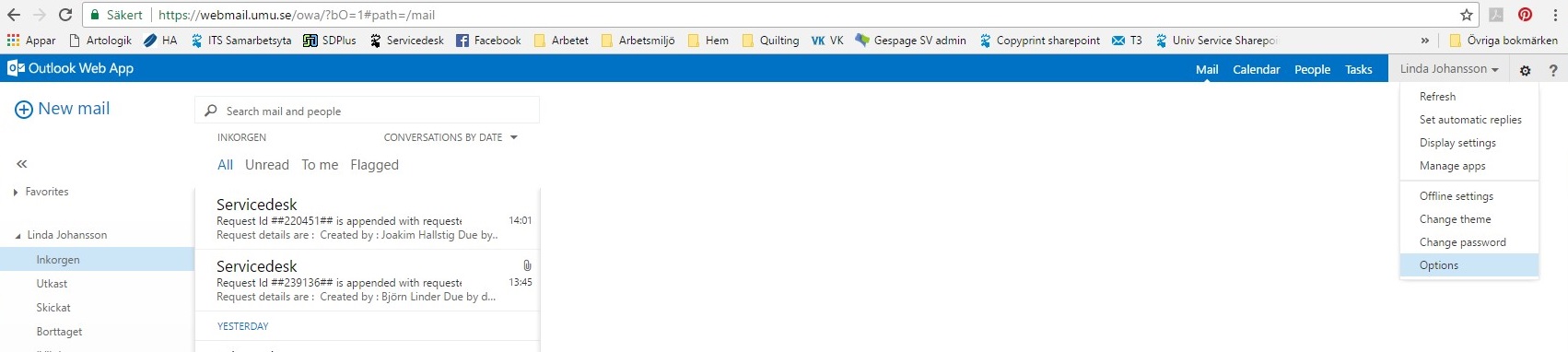
Login to  http://o365.umu.se

Klick on the ‘gear‘ icon in the top right hand corner.

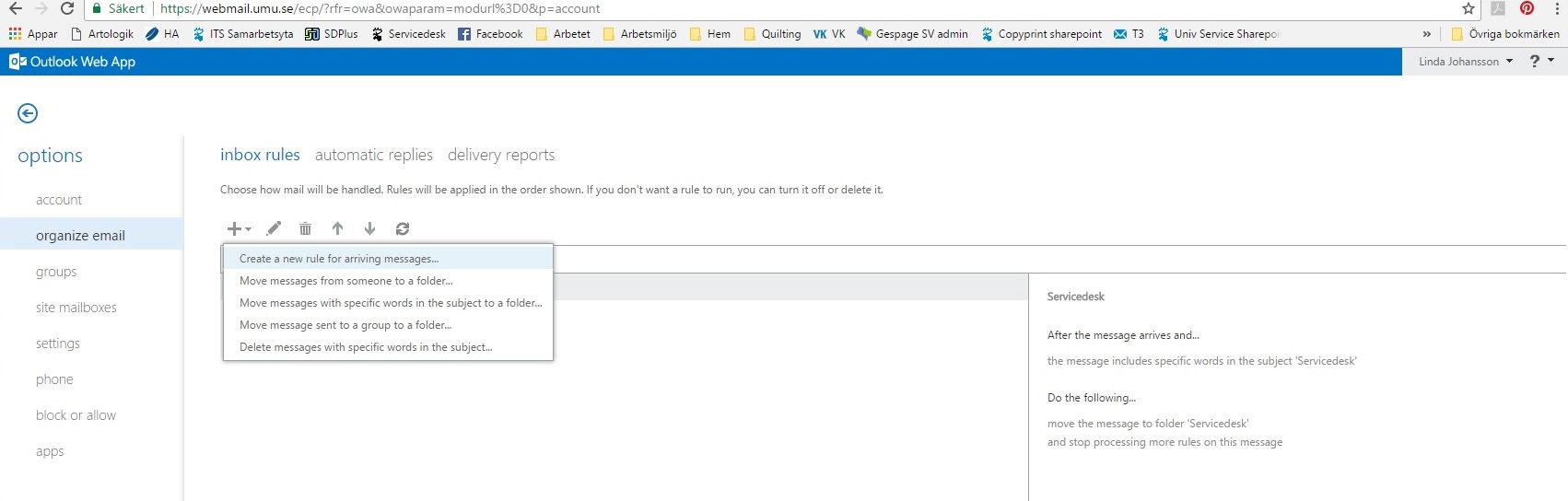
On the left menu system choose ‘organize email’ then Create a new rule for arriving messages.

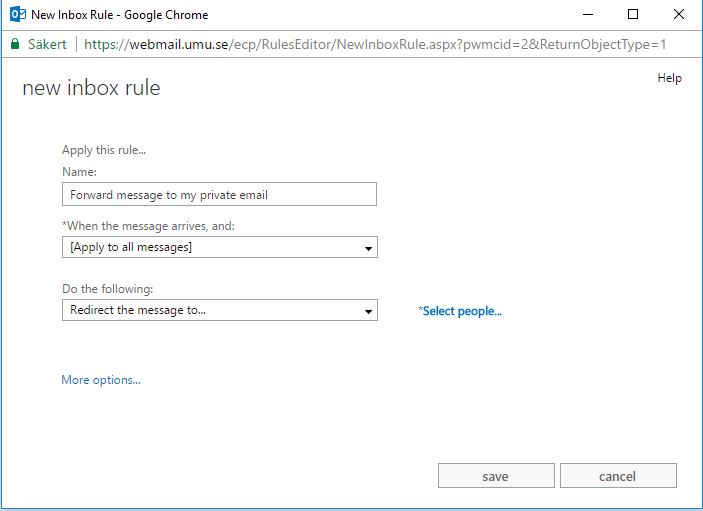
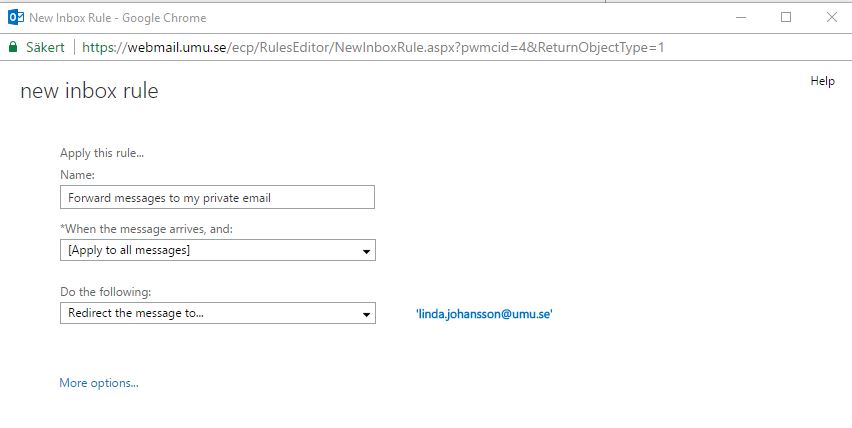
Here you choose the name for your rule, which message(s) it should apply to and the conditions it applies to (for example, forward message to…)

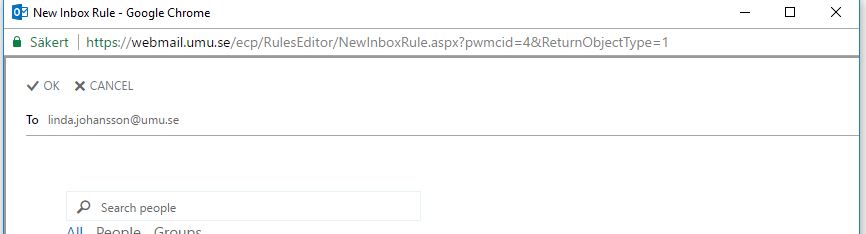
In the box that opens, write in the email address or search after a person or email address you wish the message(s) to be sent to.

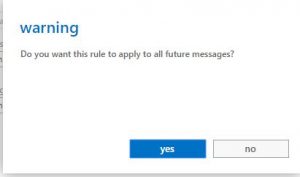
Click on Save.  Choose YES, then OK

You have now created a rule that forwards all email to another address.  This rule appears in your list with a check mark beside it stating that the rule is now enforced.

https://manual.umu.se/wp-content/uploads/2018/02/manual-loggo.png 0 0 Jonas Sundström https://manual.umu.se/wp-content/uploads/2018/02/manual-loggo.png Jonas Sundström2017-06-22 12:34:592019-01-10 12:31:30Forward student email to my private address

Microsoft 365 for telephones/tablets

2017-06-20/in Employee, English, Microsoft 365, Student

As a student you have access to the Office-package during your study time.  That package includes, amongst other things, Word, Excel and PowerPoint. The package is available via your apps download program (ex. App Store, Google Play, Windows Store).

  1. Download and install the package (ex. App Store, Google Play, Windows Store)
  2. When the installation is finished you can start one of the programs  (ex Word) by clicking on Login
  3. Use your Umu-id@ad.umu.se as a login.


https://manual.umu.se/wp-content/uploads/2018/02/manual-loggo.png 0 0 Maja Wik https://manual.umu.se/wp-content/uploads/2018/02/manual-loggo.png Maja Wik2017-06-20 07:24:332026-01-05 14:31:27Microsoft 365 for telephones/tablets

The wireless network at Umeå University

2017-06-16/in Employee, English, Student, Wireless network

Information about the wireless network at the Umeå University campus.

Read more
https://manual.umu.se/wp-content/uploads/2018/02/manual-loggo.png 0 0 Erik Öhman https://manual.umu.se/wp-content/uploads/2018/02/manual-loggo.png Erik Öhman2017-06-16 13:22:212026-04-07 13:20:39The wireless network at Umeå University
Page 10 of 10«‹8910

Contact ITS Service Desk

Create a support ticket at www.umu.se/servicedesk, call 090-786 63 00 or visit us next to Infocenter.

Kategorier

Related links

  • What is eduroam?
    Scroll to top Scroll to top Scroll to top