Clear the Teams client cache
If you’re experiencing issues that affect Microsoft Teams, clearing the cache on your device may help.

If you’re experiencing issues that affect Microsoft Teams, clearing the cache on your device may help.
As a student you need to confirm your group study room bookning no sooner than 30 minutes before and no later than 15 minutes after the start of the booked slot. Unconfirmed bookings will be removed automatically.
Scan the QR-code outside the booked room and it will take you directly to the booking page where you can confirm your booking. You can also directly visit either the page My group study room booknings or the bookning page Book group study room to confirm.
To be able to log in and book, you must have a UMU-id and be registered for a course at Umeå University.
Log in via https://cloud.timeedit.net/umu/web/ and select Booking for students.
You can also use Mazemap to see what is available right now.

Then select Book group study rooms.

Start by filtering rooms. You can use free text search (1), filter (2) by Campus or Building. Click show filter (3) for additional filters if needed.

Under the search section and above the calendar is the date selector (4). The date range used in the calender is also displayed here. You can page backwards and forwards with the arrows. Click on the date to open the date selector. To the left you find buttins to switch between week or day view (5). You can also switch to day view by clicking a date in the week view.
Each row (6) in the Booking calendar represents a room and shows the availability for the room. A grey field (7) means that the room is occupied while white (8) means that it is available for bookning.

In the day view move the mouse cursor over the room and time you want to book. I green booking indicator is shown. Click to select the room and time. On mobile you can touch the screen where you want the bookning.

After you have clicked to select the room and time a bookning window opens. Here you can adjust the start and end times.

Select Reserve to complete the bookning.

Your booking is now complete and information about your booking is displayed. Under the heading “Confirmed,” the times between which you need to confirm your booking to keep it are indicated. You can also choose to send the booking via email.
Don’t forget to confirm the booking when it’s time to use the room!
During a digital examination in the writing hall, you have the option to book a computer to borrow.
In this guide, we describe how to activate MFA for your Umu ID using your computer and mobile.
When an e-exam is signed off in Inspera, your submission will be removed from the system and cannot be recreated.
Log in to Inspera and click on ”Archive” and then on ”See more details” for the exam that you wish to sign off.
You can view your submission without downloading it by clicking the “View submission” button (1).
Download your submission as a PDF-file by clicking the ”Download as PDF” button (1).
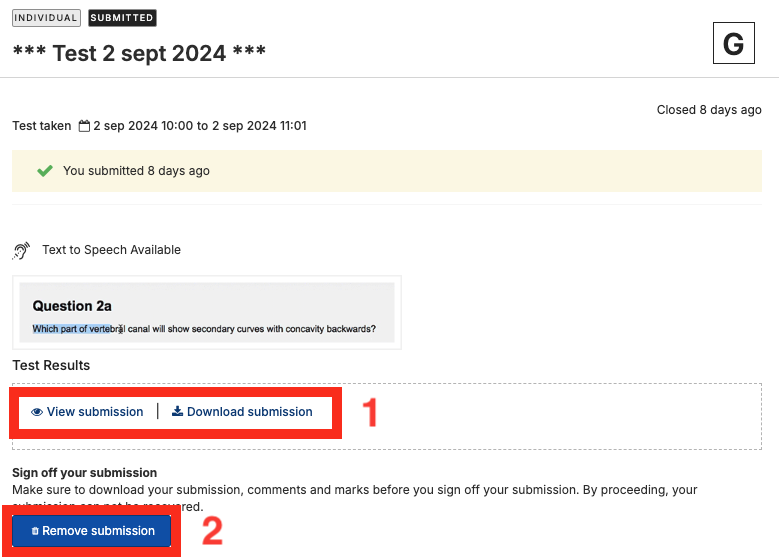
Make sure to download your submission, comments and marks before you sign off your submission.
To sign off your submission and remove it from Inspera. Click on the ”Remove submission” button (2).
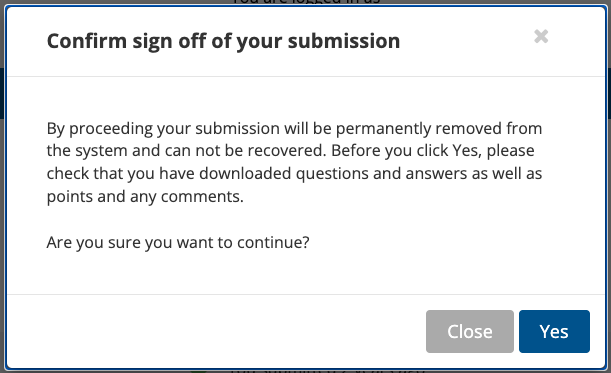
A dialog box will now open where you can confirm that your exam will be removed from the system.
Click “Yes” to confirm the sign off/deletion.
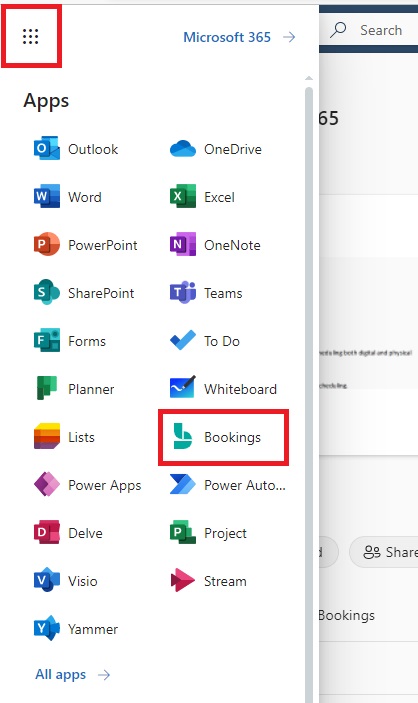
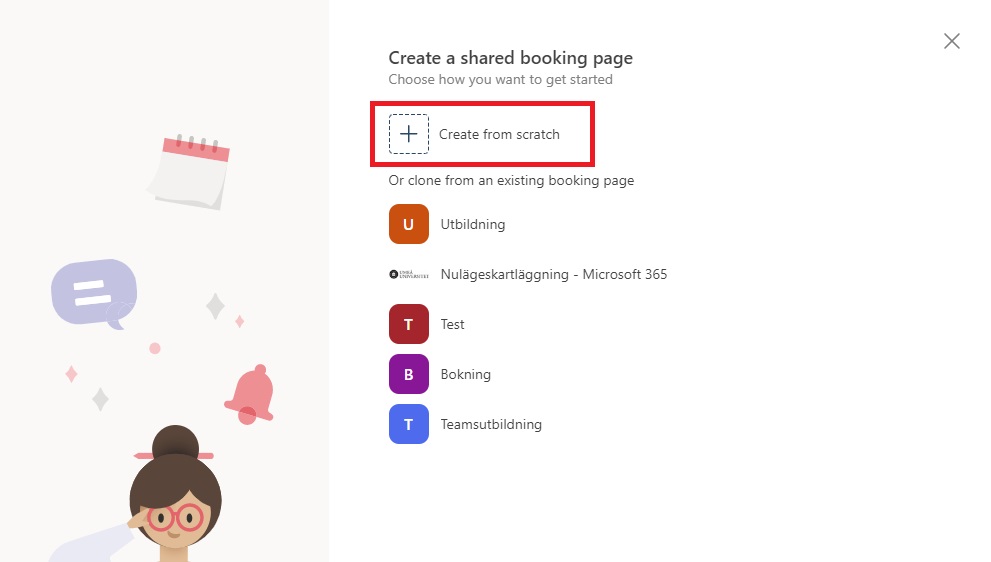
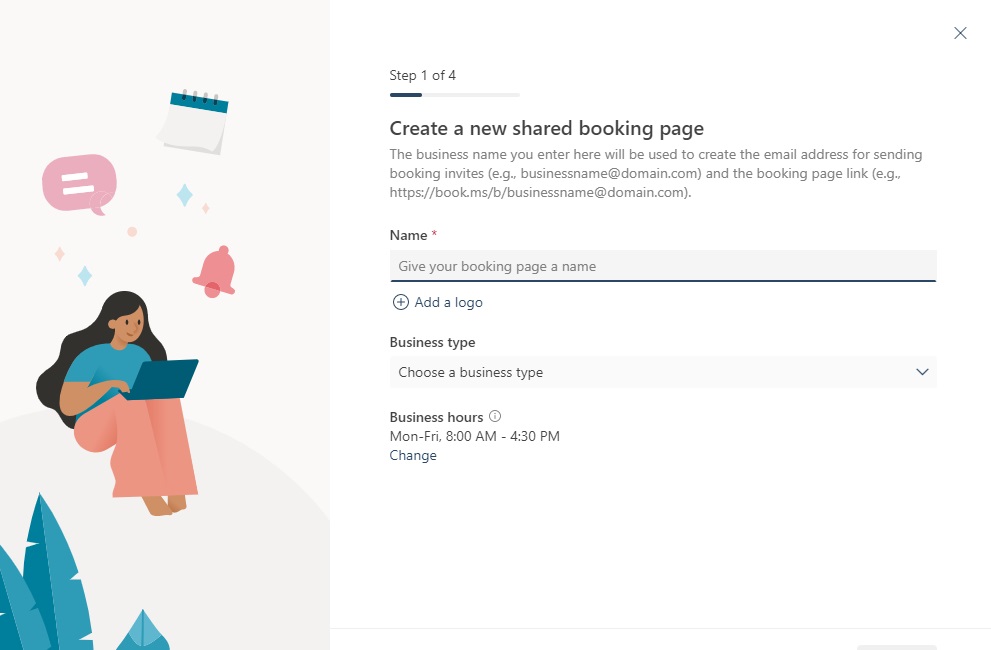
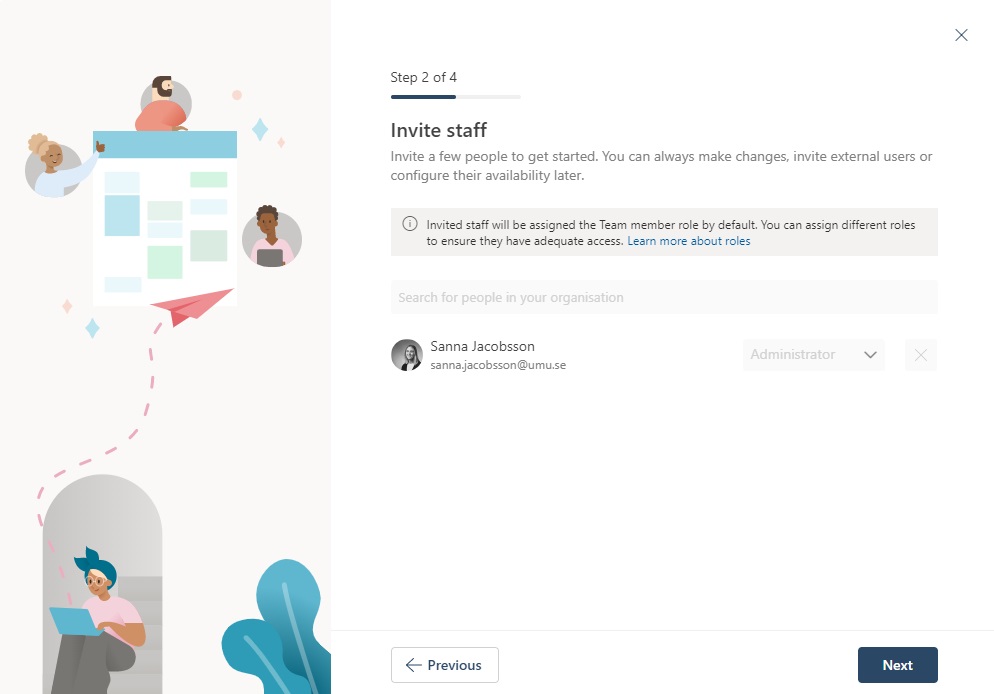
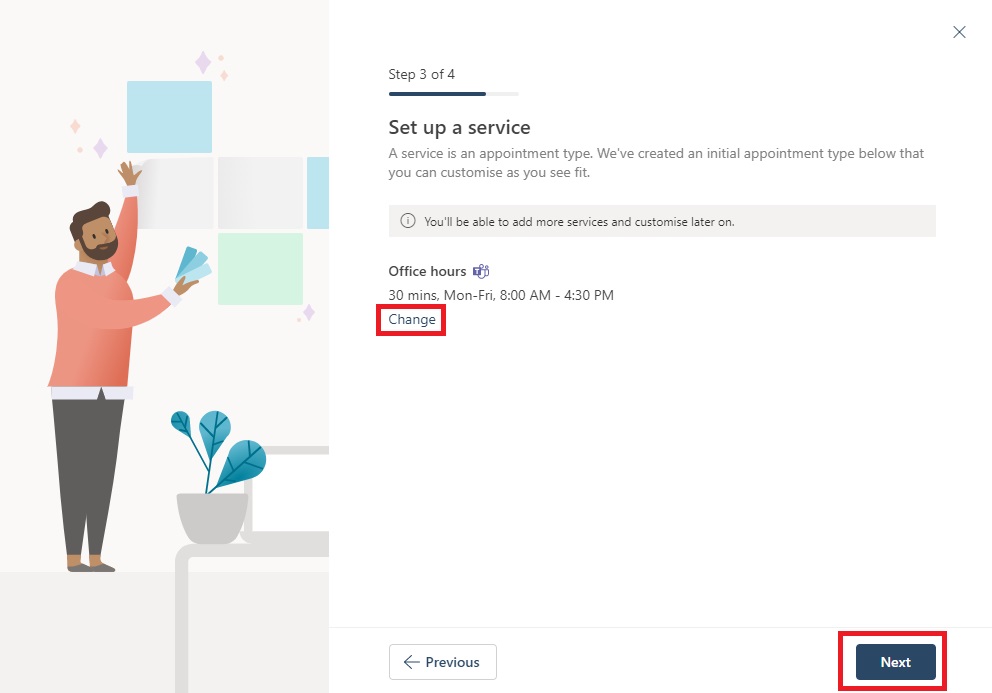
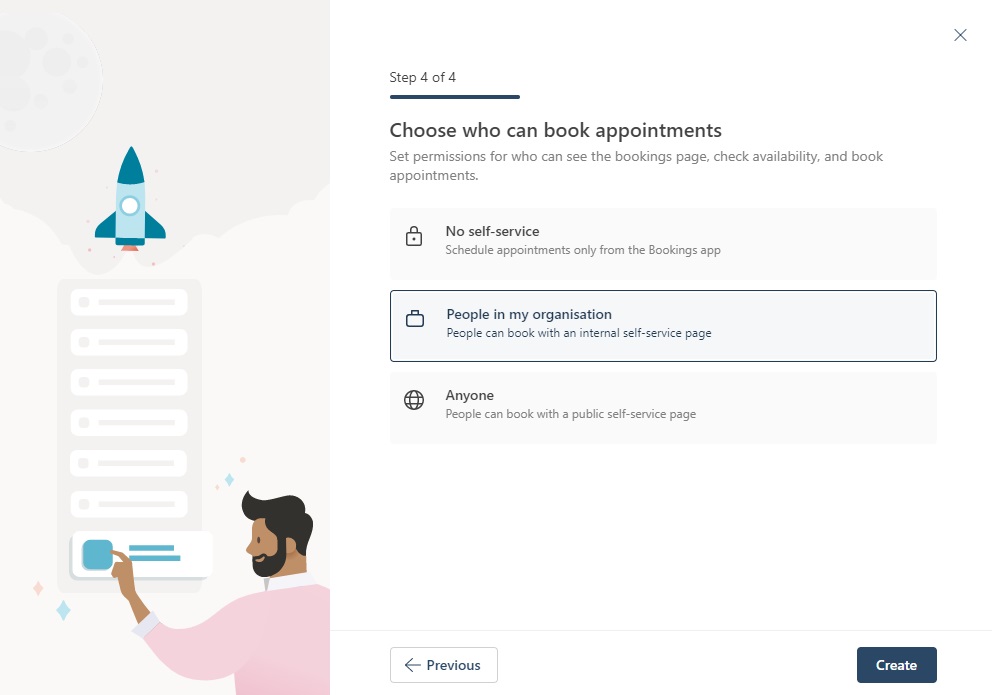
Bookings is a digital booking tool where you can both book other people’s services and create your own pages where people can book your services. For example, it can be tutoring times, counseling, meetings, or other services of your choice. Below you can see a description of how to create your own booking page.
Go to the portal at o365.umu.se

Manuals showing how to enable week numbers in Outlook.
Manuals that describe how to set up email in Outlook on different operating systems/devices.