Manual

Manual
  • Svenska
  • Menu Menu

VPN for Design students

2025-03-27/in English, Student, VPN

Installation of VPN client software.

  • Open a web browser and go to the following URL: https://vpn.student.umu.se
  • Login with your UMU ID.
  • Click on the link “Download for Windows/macOS” to start the download of the client installer.
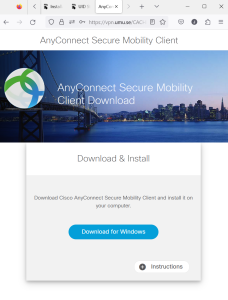
 

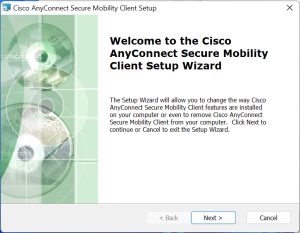
  • Open the downloaded installer and click “Next” to start the installation.
Configure and connect the client

  • Start the application “Cisco AnyConnect Secure Mobility Client”.
  • Type “vpn.student.umu.se” as the server address and click “Connect”.
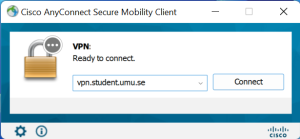
 

  • Login with your UMU ID


As long as the session is active, you will have access to resources protected by UMU’s firewall.

https://manual.umu.se/wp-content/uploads/2018/02/manual-loggo.png 0 0 Jens Mann https://manual.umu.se/wp-content/uploads/2018/02/manual-loggo.png Jens Mann2025-03-27 15:38:442025-03-27 15:43:00VPN for Design students

Install VPN client

2023-02-17/in Employee, Student, VPN

Manuals that describe how to install the VPN client on different systems/devices.

Read more
https://manual.umu.se/wp-content/uploads/2018/02/manual-loggo.png 0 0 Erik Öhman https://manual.umu.se/wp-content/uploads/2018/02/manual-loggo.png Erik Öhman2023-02-17 15:08:442026-05-05 14:15:15Install VPN client

Order and cancellation of VPN account

2020-03-19/in Employee, English, VPN

Information about ordering and cancellation of VPN

Read more
https://manual.umu.se/wp-content/uploads/2018/02/manual-loggo.png 0 0 Kevin Verlin https://manual.umu.se/wp-content/uploads/2018/02/manual-loggo.png Kevin Verlin2020-03-19 14:27:462025-12-17 09:15:35Order and cancellation of VPN account

Contact ITS Service Desk

Create a support ticket at www.umu.se/servicedesk, call 090-786 63 00 or visit us next to Infocenter.

Kategorier

Related links

  • Installation of VPN client
  • Lägga till VPN på din iPhone
Scroll to top Scroll to top Scroll to top