Manual

Manual
  • Svenska
  • Menu Menu
Erik Öhman

REDCap

Updated: 2025-11-19/in Employee, English /by Erik Öhman

REDCap is a web-based service for data collection in research studies.

Read more
https://manual.umu.se/wp-content/uploads/2018/02/manual-loggo.png 0 0 Erik Öhman https://manual.umu.se/wp-content/uploads/2018/02/manual-loggo.png Erik Öhman2024-03-22 15:55:372025-11-19 08:51:08REDCap
Erik Öhman

Open a shared mailbox in webmail

Updated: 2025-10-06/in Email, Employee, Okategoriserade /by Erik Öhman
Read more
https://manual.umu.se/wp-content/uploads/2018/02/manual-loggo.png 0 0 Erik Öhman https://manual.umu.se/wp-content/uploads/2018/02/manual-loggo.png Erik Öhman2024-03-13 15:36:442025-10-06 16:13:09Open a shared mailbox in webmail
Sanna Jacobsson

Blocked account due to risk use in Microsoft 365

Updated: 2025-12-04/in Employee, Microsoft 365 /by Sanna Jacobsson

This manual describes how to handle if your account has been banned due to suspicious activity that indicates a high risk to your account, and you are considered a risky user. To restore your account, you’ll need to reset your password.

If your account is blocked due to risky usage, you will receive a block and will not be able to use Microsoft 365 with your UMU account. Then you’ll see this window below:
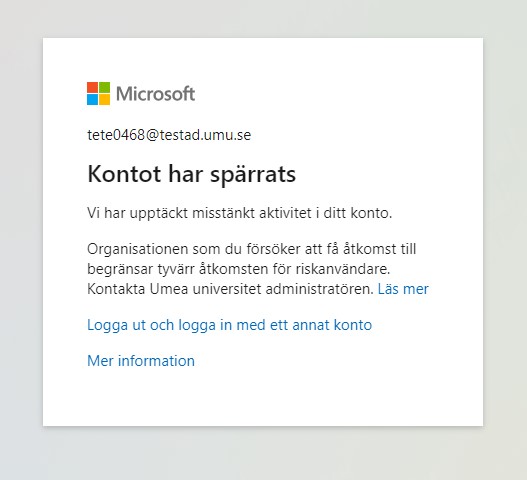
Image showing what it looks like when a your account is blocked

To restore your account and recieve access to it you need to reset your password:
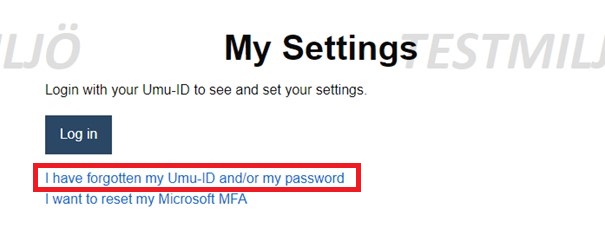
  1. Go to administrationsverktyg.umu.se/Settings. Click on “I have forgotten my Umu-ID and/or password”.
    Image showing your settings in the administrator tool
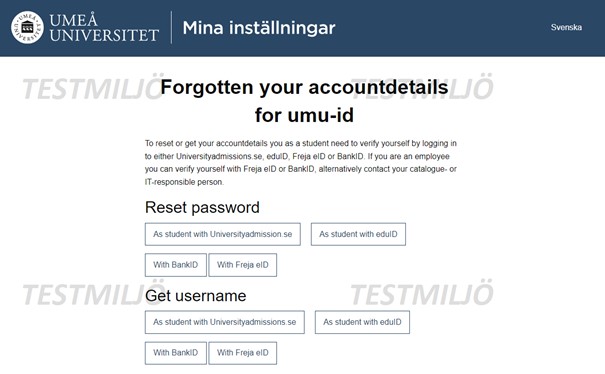
  2. Under Reset password, select the option that’s right for you.
    Image showing where to reset your password
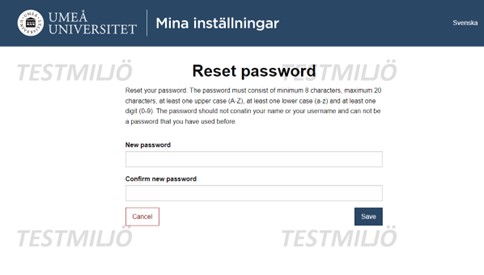
  3. Now, type in your new password, and then click Save.
    Image showing how to reset your password
  4. Done! Now you’ve reset your password and can log in to your UMU-account with your new password.
https://manual.umu.se/wp-content/uploads/2018/02/manual-loggo.png 0 0 Sanna Jacobsson https://manual.umu.se/wp-content/uploads/2018/02/manual-loggo.png Sanna Jacobsson2024-03-12 13:01:282025-12-04 14:58:08Blocked account due to risk use in Microsoft 365
Elin Sköld

Add/remove members in a shared mailbox in Outlook (webmail)

Updated: 2026-08-21/in Email, Employee, Okategoriserade /by Elin Sköld

If you own a shared mailbox, you should regularly check the members in the group. This is because members are not automatically removed from the group when someone, for example, changes departments or leaves the university. Here are instructions on how to add or remove members from a shared mailbox.
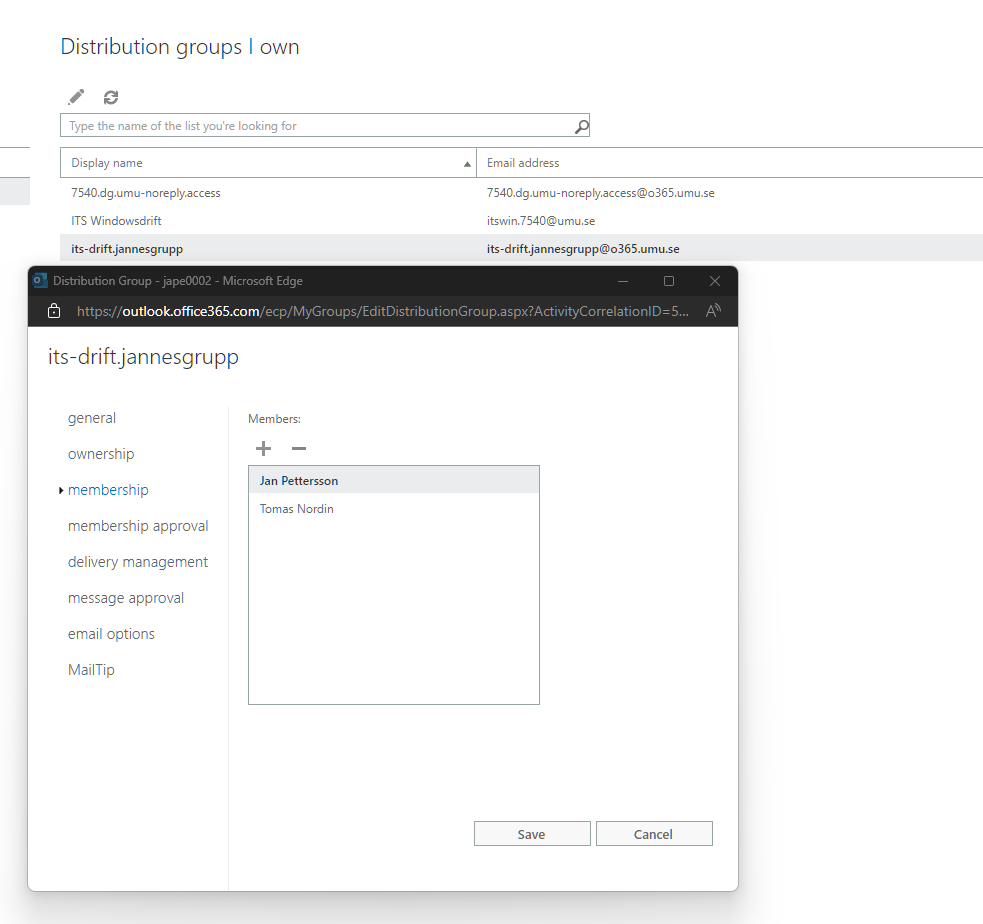
Manage via the Portal

  1. Go to the portal: Distribution groups – Outlook Web App (office365.com)
  2. Under Distribution groups I own, click on the group you want to manage, the group that manages access is named orgnr.dg.lådnamn.access. Then select Membership.
  3. From this view, you can remove and add members to the shared mailbox, click on the person’s name and then + or -. Save.

Manage via Email

As the owner of a shared mailbox, you will periodically receive an email asking you to review the members in the group. In the email, click on Start review.
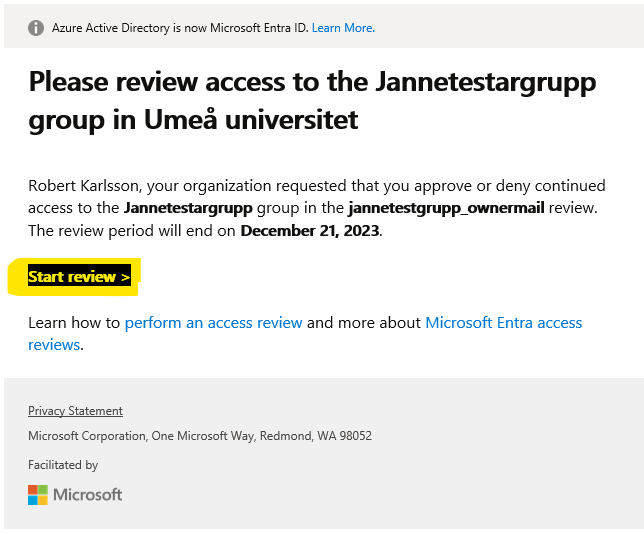
From this view, you can check a member and then Approve or Deny the member.

https://manual.umu.se/wp-content/uploads/2018/02/manual-loggo.png 0 0 Elin Sköld https://manual.umu.se/wp-content/uploads/2018/02/manual-loggo.png Elin Sköld2024-03-11 16:16:162026-08-21 13:58:23Add/remove members in a shared mailbox in Outlook (webmail)

Contact ITS Service Desk

Create a support ticket at www.umu.se/servicedesk, call 090-786 63 00 or visit us next to Infocenter.

Kategorier

Scroll to top Scroll to top Scroll to top