

As Umeå University has switched to the new Ladok, it may be that the e-mail address you have used for your studies here is no longer the same as in Ladok. This may affect the ability to receive notifications from Canvas. Therefore, you need to log in and check your email address.
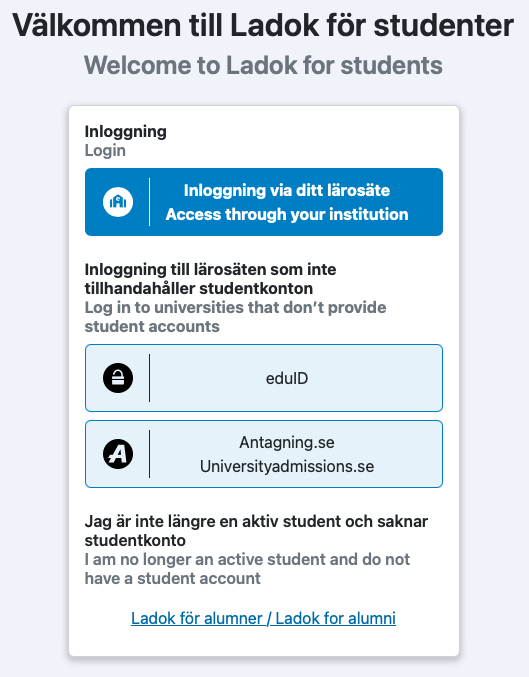
Go to https://www.student.ladok.se/student/loggain and click the Access through your institution button
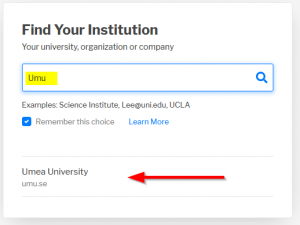
Type Umu in the Search field and Umea University is going to show up as below, click on the result.
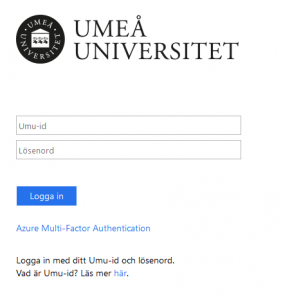
You will be redirected to the Umeå University login page.
Login with you UMU-id and Password
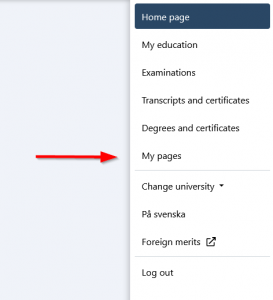
Click on My pages in the menu to the right.
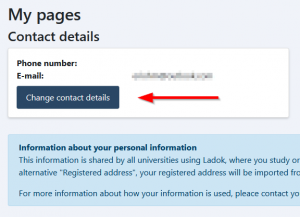
Click on the Change contact details button.
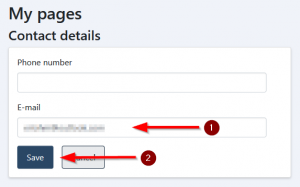
Add your private/personal e-mail address to the field E-mail (1) and click Save (2).
After you’ve done this it can take up to 15 min before all systems has been updated with you new e-mail address.

These instructions are for those who wish to forward their email to a private email address.
Login to http://o365.umu.se
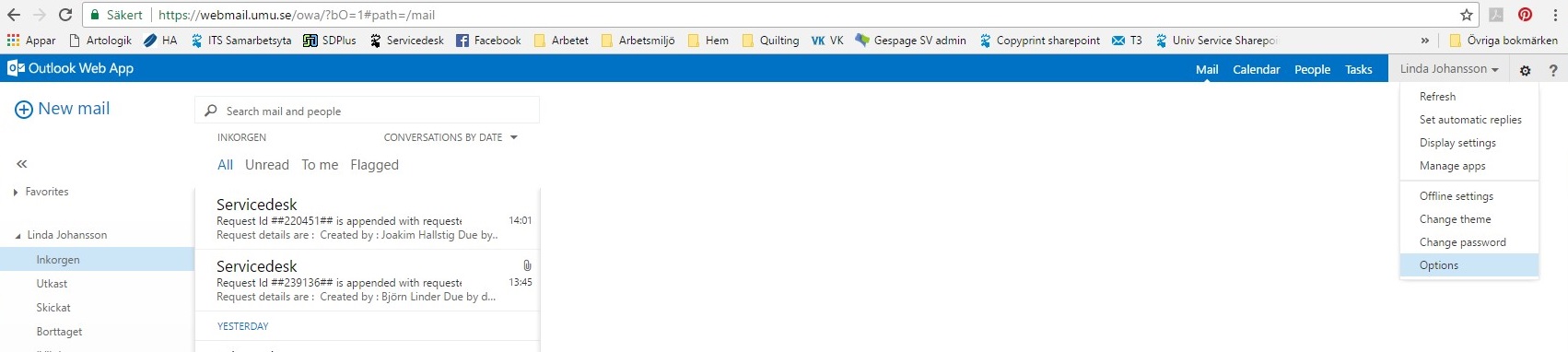
Klick on the ‘gear‘ icon in the top right hand corner.
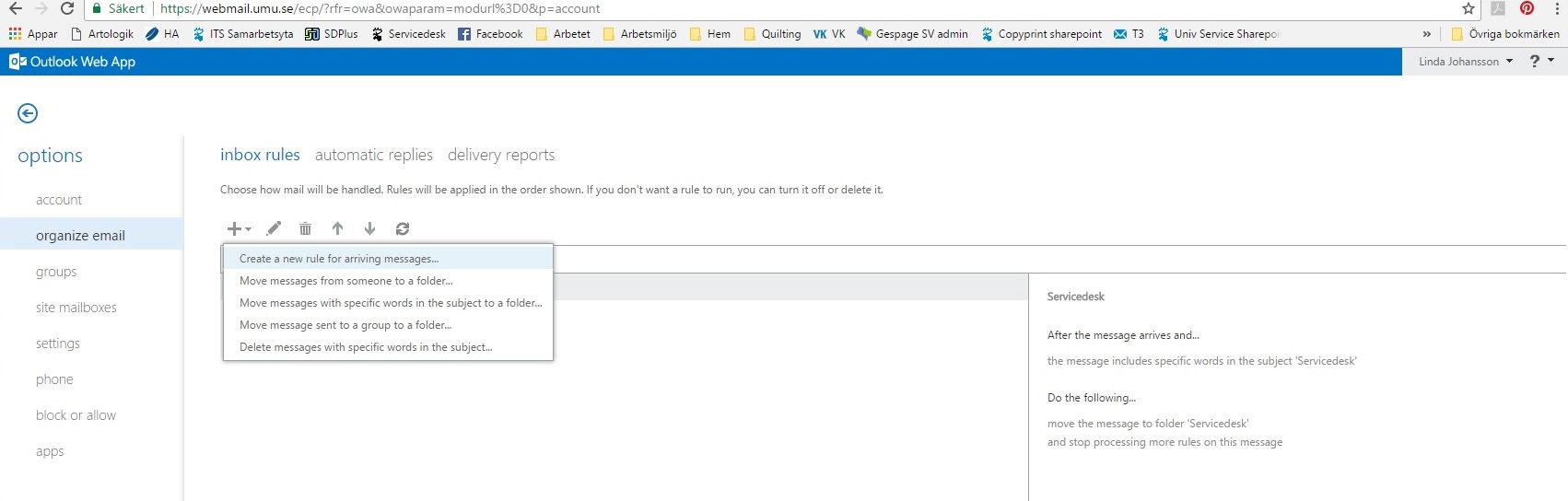
On the left menu system choose ‘organize email’ then Create a new rule for arriving messages.
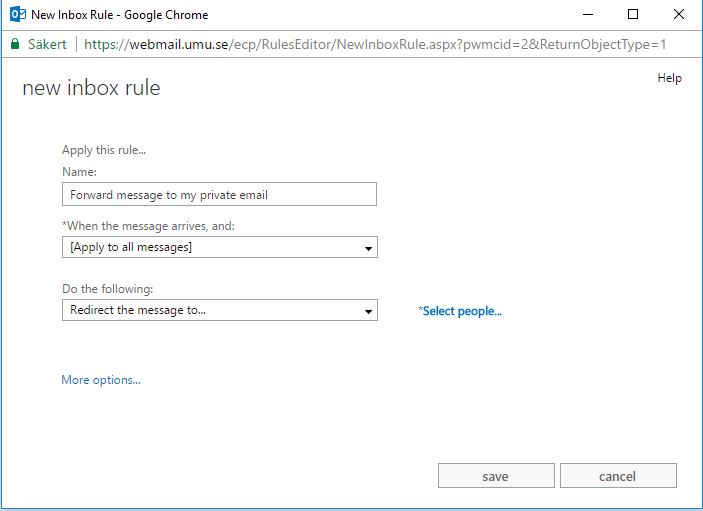
Here you choose the name for your rule, which message(s) it should apply to and the conditions it applies to (for example, forward message to…)
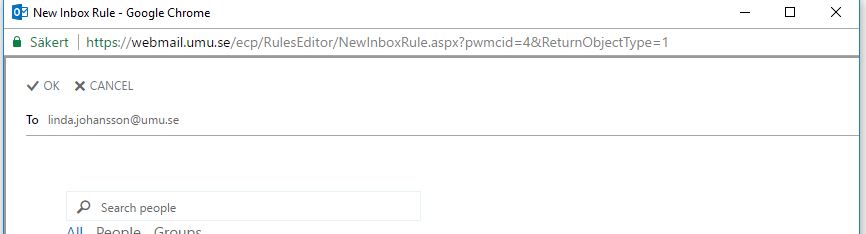
In the box that opens, write in the email address or search after a person or email address you wish the message(s) to be sent to.
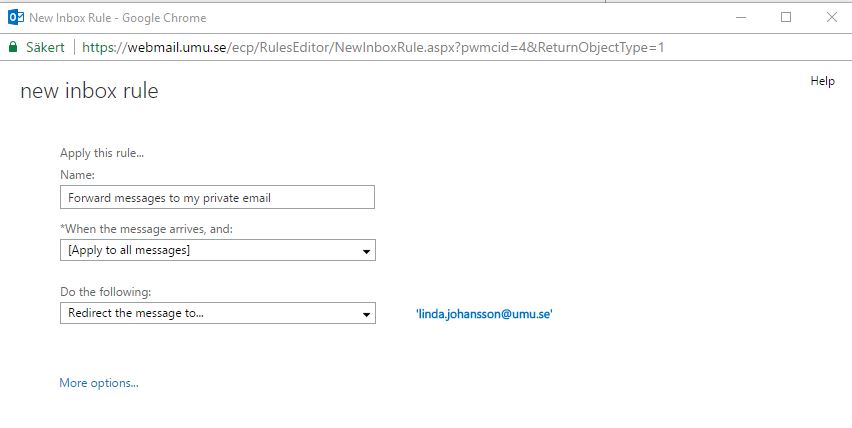
Click on Save. Choose YES, then OK
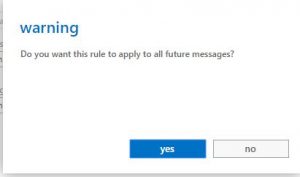
You have now created a rule that forwards all email to another address. This rule appears in your list with a check mark beside it stating that the rule is now enforced.