How to download and print using the graphic design tool
When you have finalised a document by filling one of the document templates with content, you must save and close the document. This will take you to the properties view from which you can: continue to edit, preview, download, order print, share documents, among other things.
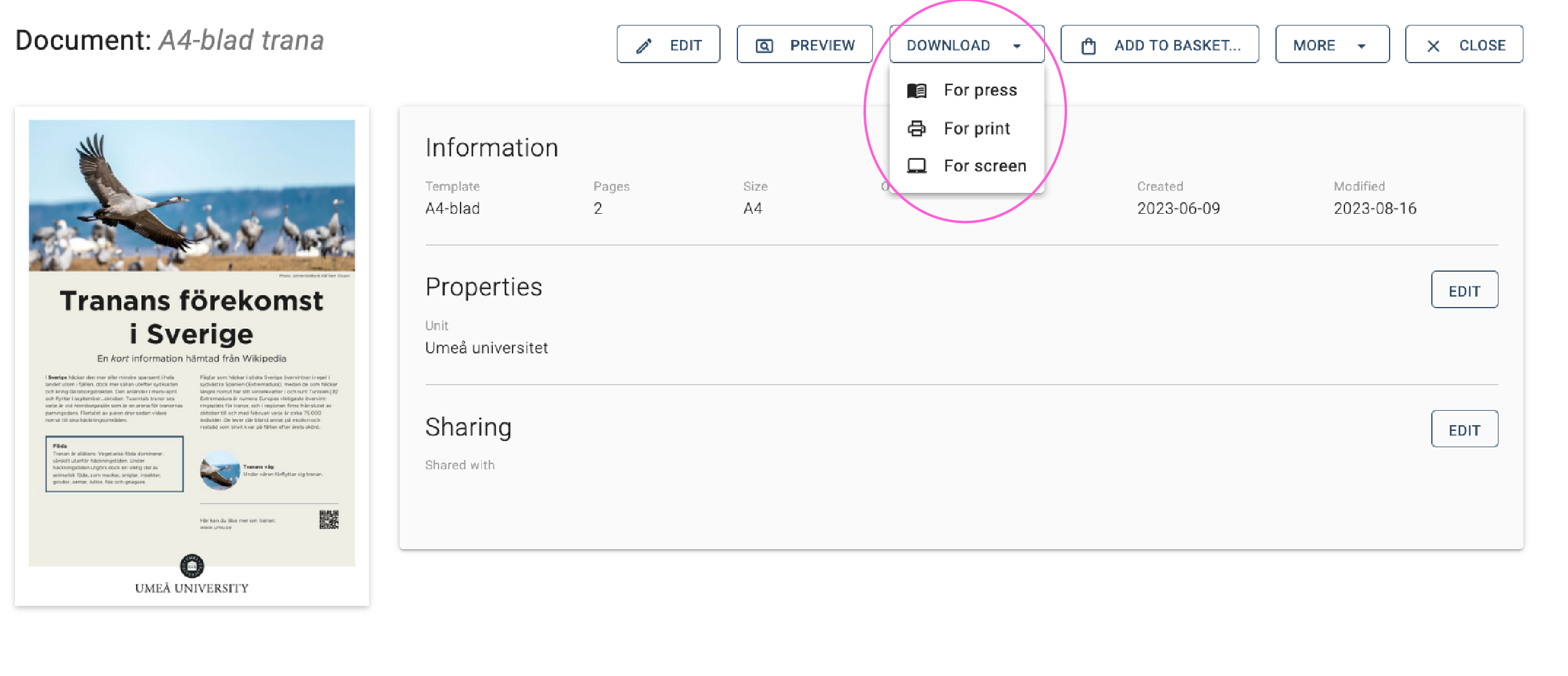
To print a document, you can choose to preview and print straight from the tab that pops up in your web browser. Or you can choose to download a PDF. There are three different types of PDFs to download that all have different characteristics:
- “For press” generates a PDF with crop marks that is larger than the final format. This is a good choice if you are sending your PDF to a printing office.
- “For print” generates a high-resolution PDF to be printed on your own printer. This provides that any images added to the document are high-resolution images.
- “For screen” generates a low-resolution PDF for digital use. If you plan to upload the file to a web page, you must first make the document accessible.