Confirm your group study room booking in TimeEdit as a student

As a student you need to confirm your group study room bookning no sooner than 30 minutes before and no later than 15 minutes after the start of the booked slot. Unconfirmed bookings will be removed automatically.

Scan the QR-code outside the booked room and it will take you directly to the booking page where you can confirm your booking. You can also directly visit either the page My group study room booknings or the bookning page Book group study room to confirm.

Read more

Book a group study room in TimeEdit as a student

To be able to log in and book, you must have a UMU-id and be registered for a course at Umeå University.

Log in via https://cloud.timeedit.net/umu/web/ and select Booking for students.

You can also use Mazemap to see what is available right now.

Then select Book group study rooms.

Start by filtering rooms. You can use free text search (1), filter (2) by Campus or Building. Click show filter (3) for additional filters if needed.

Under the search section and above the calendar is the date selector (4). The date range used in the calender is also displayed here. You can page backwards and forwards with the arrows. Click on the date to open the date selector. To the left you find buttins to switch between week or day view (5). You can also switch to day view by clicking a date in the week view.

Each row (6) in the Booking calendar represents a room and shows the availability for the room. A grey field (7) means that the room is occupied while white (8) means that it is available for bookning.

In the day view move the mouse cursor over the room and time you want to book. I green booking indicator is shown. Click to select the room and time. On mobile you can touch the screen where you want the bookning.

After you have clicked to select the room and time a bookning window opens. Here you can adjust the start and end times.

Select Reserve to complete the bookning.

Your booking is now complete and information about your booking is displayed. Under the heading “Confirmed,” the times between which you need to confirm your booking to keep it are indicated. You can also choose to send the booking via email.

Don’t forget to confirm the booking when it’s time to use the room!

Book a computer for a digital examination

During a digital examination in the writing hall, you have the option to book a computer to borrow.

Inspera – Sign off your submission

When an e-exam is signed off in Inspera, your submission will be removed from the system and cannot be recreated.

VIKTIGT

Make sure to download your submission, comments and marks before you sign off your submission.

Log in to Inspera and click on ”Archive” and then on ”See more details” for the exam that you wish to sign off.

You can view your submission without downloading it by clicking the “View submission” button (1).

Download your submission as a PDF-file by clicking the ”Download as PDF” button (1).

Inspera - Sign off submission

Make sure to download your submission, comments and marks before you sign off your submission.

VIKTIGT

If you need to request a rectifying or reassessment of you exam, you should not sign off your submission.

To sign off your submission and remove it from Inspera. Click on the ”Remove submission” button (2).

A dialog box will now open where you can confirm that your exam will be removed from the system.
Click “Yes” to confirm the sign off/deletion.

Create a booking site in Bookings

Bookings is a digital booking tool where you can both book other people’s services and create your own pages where people can book your services. For example, it can be tutoring times, counseling, meetings, or other services of your choice. Below you can see a description of how to create your own booking page. 

Go to the portal at o365.umu.se
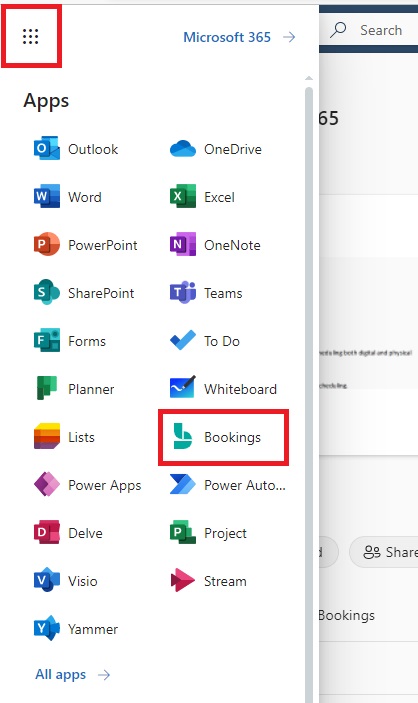
  1. Go to “the waffle” in the top left corner, and then click on Bookings.
    Image showing how to navigate to to Bookings
  2. Now, you are on the Bookings start page. To create a new booking site, click on Create.
    Image showing how where to create your booking site
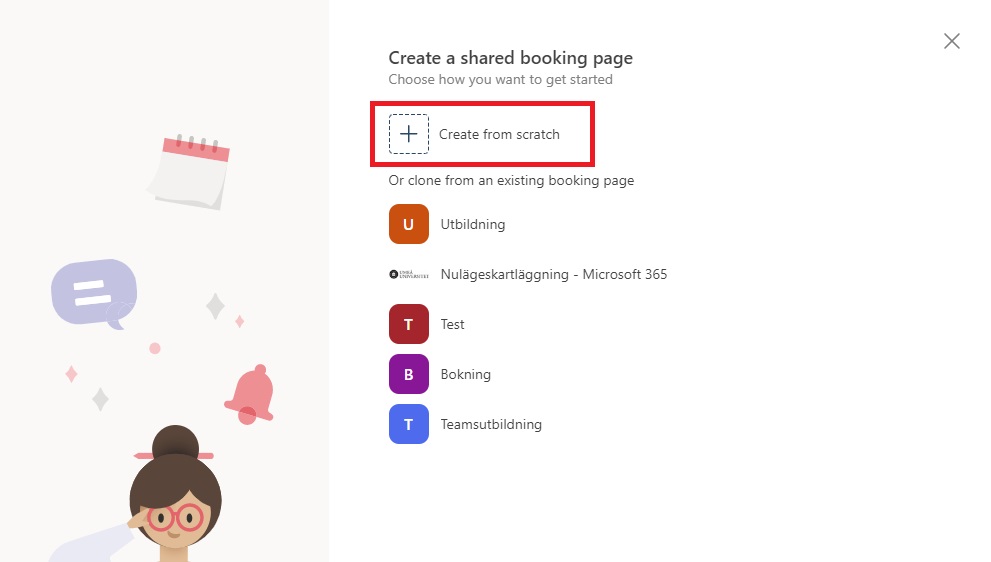
  3. Now you can choose if you want to create a new booking site, or if you want to clone an existing calendar (booking site). To create a new, you click on Create from scratch.
    Image showing how to create a new booking site
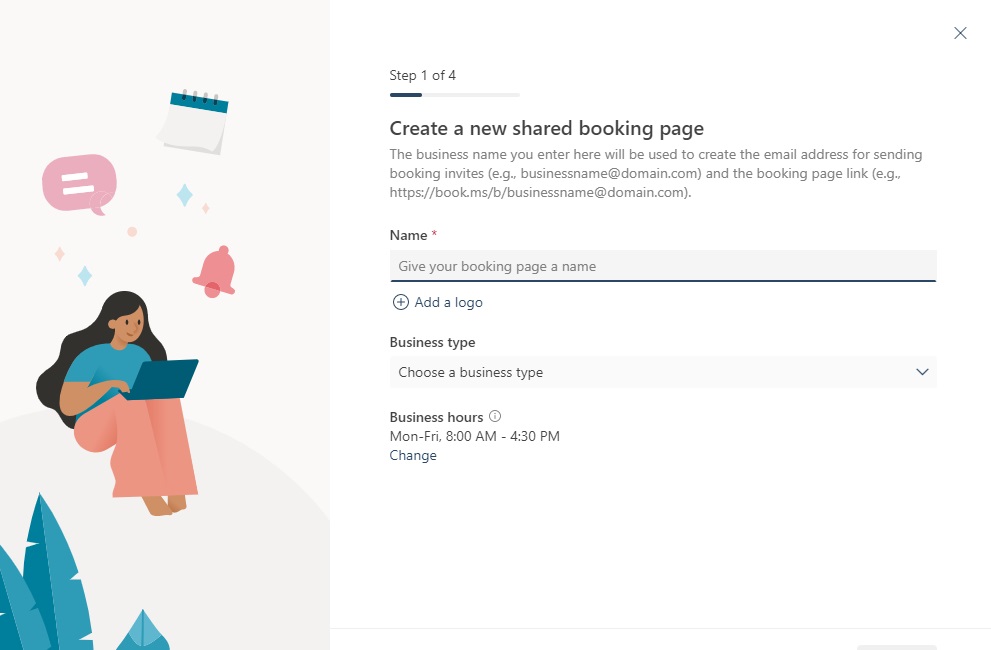
  4. Now you choose a name for your booking site, the display name can be changed afterwards, however, the address name cannot be changed, so remember that if you change the name on your booking site, only the display name changes. You can also add a logo that will be shown on the start page of your booking site. On “Business type” you choose whatever fits your service the most.
    Image showing how you enter the namne for the site
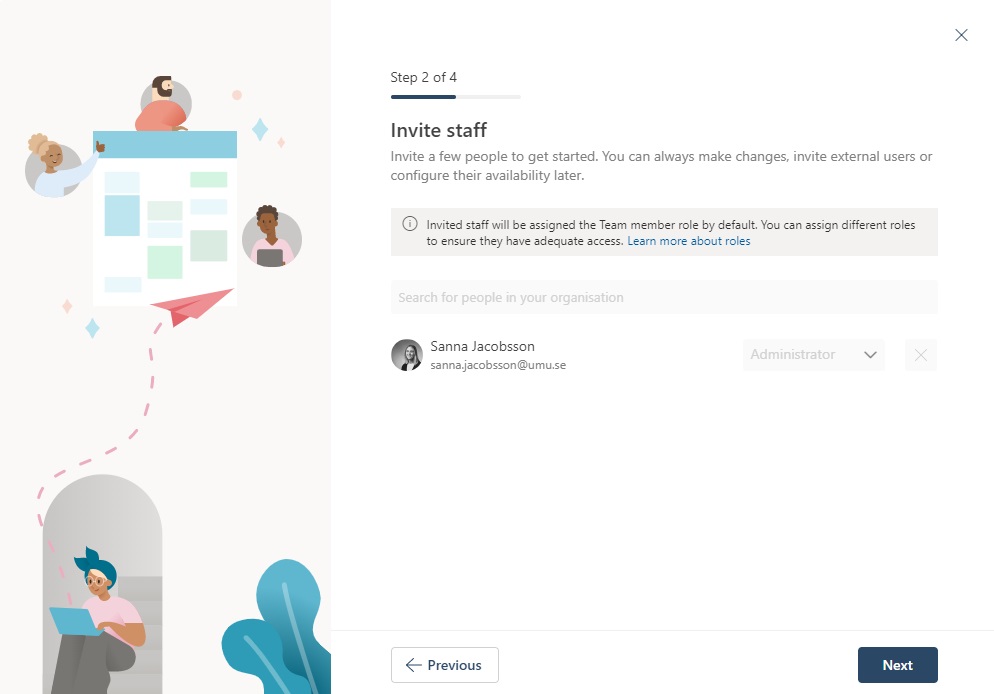
  5. Here you can choose if you want to invite another person to manage your booking site. In the search bar you can search for people in the organization. Afterwards, you can add more people that get access to the booking site. The one that creates the booking page, get the title: “Administrator”, and can manage and edit the site. The people you invite, is “guests”, and do not have the permissions. This can be changed when the site is created. You can also set up room and resources as staff if you want a booking calendar for them.
    Image showing how you can invite staff to your booking site
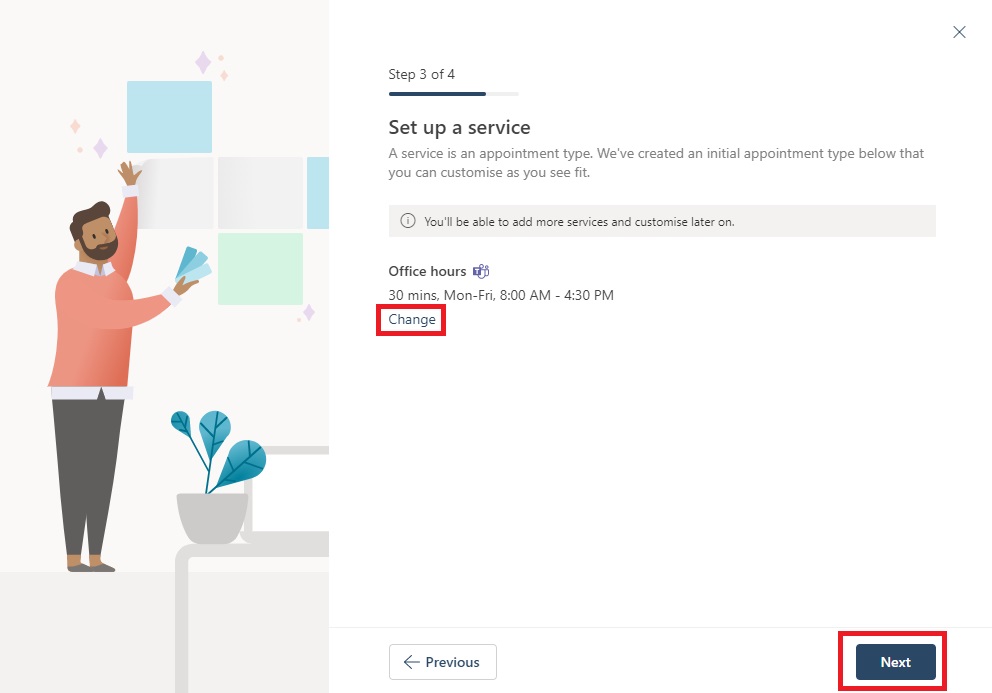
  6. Here you can adjust your times for your service. Click on Change if you want to change the pre set times. This can also be changed once you have created your booking site. Click on Next to continue creating the site.
    Image showing how you set up your times
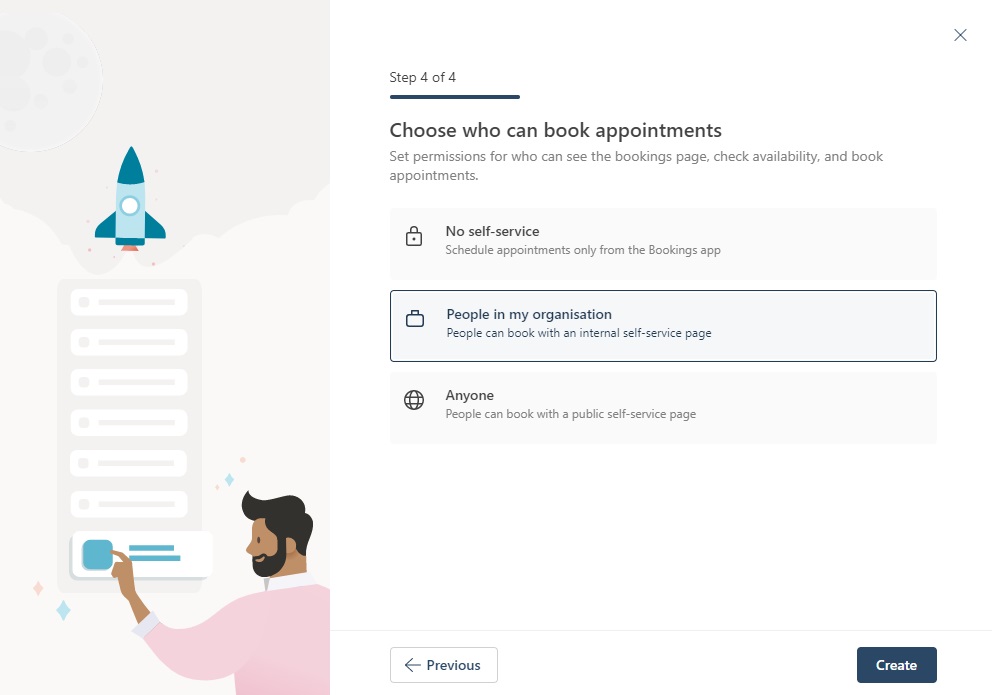
  7. Now you can choose who are going to be able to book your services. When you have chosen, click on Create.
    No self-service: This means that only staff can book appointments.
    People in my organization: This means that a Umu-id is required to be able to book.
    Anyone: This means that anyone can book your services both inside Umea University and externals.
    Image showing the alternatives for who can book
  8. Done! Now your booking site is created.

Show week numbers in Outlook

Manuals showing how to enable week numbers in Outlook.

Configure Outlook with an M365 account

Manuals that describe how to set up email in Outlook on different operating systems/devices.

FAQ Bookings

Add funds to Umu-print

This guide will help you add funds (Umu-print).

Please note: in order to add funds to your UMU-Print account, you must be connected to Eduroam or UmU-wlan


Follow the steps below:
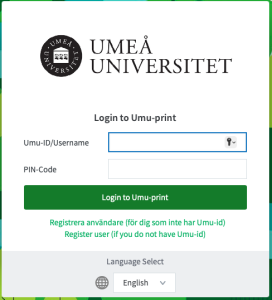
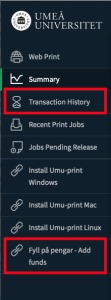
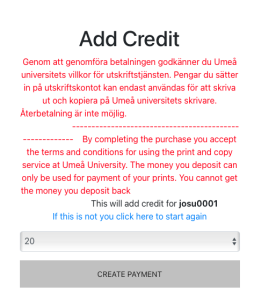
  1. Log in to https://print.umu.se:9192/app and click on “Add funds”.
  2. Select the amount you want to deposit into your account.
  3. Fill in name and personal details.
  4. Fill in the card details and click “Pay”.
  5. Your transfer will appear as a balance in the printing system under “Transaction History”.
  6. Here you can see how much you topped up, current balance and your previous transaction history.