This manual describes the steps you need to take in order to create an account and gain access to the certificate service from Harica.

The certificate service from Harica offers the possibility to obtain certain types of certificates free of charge; these are marked as “free”. We recommend using only the types that are procured through Sunet/Geant (server certificates and email certificates).


Create an account and gain access to the service

To gain access to the service, approval from your manager/head of department is required, as well as a list of the domains for which you should be able to issue certificates. Certificates may only be issued for the institution you belong to (for example, an employee at institution X may only issue certificates for x.umu.se). If certificates need to be issued for other institutions, approval from the head of that institution is required. Approval is handled by placing an order via the ITS Servicedesk.

  1. If you do not already have a user account, create one by going to:
    Harica CertManager – Register (https://cm.harica.gr/Register)
  2. Fill in the fields. Note that the fields for first name and last name may not contain å/ä/ö or other special characters. Replace these characters with other letters.
  3. The email field must contain an @umu.se address.
  4. Then log in to the portal at: https://cm.harica.gr/

We do not provide support for certificate types that are obtained by paying for them with a credit card. More information about the service is available here: Sunet TCS 2025- Information for administrators – Sunet Wiki

REDCap closing and archiving

How to proceed when closing and archiving a REDCap project

When you are finished with your project, it is recommended that you complete the following steps:

  1. Change the project status to “Analysis/Cleanup” in the “Other functionality” menu.
  2. Export data for archiving: Download/export and save the following files:Menu: Project Home
    • Click the download icon for “Current users” to download a file containing all users and their names.

    Menu: Project Home → Other Functionality

    • XML file (metadata)
    • XML file (metadata and data)

    Menu: Project Home → Project Setup

    • Project events and arms (if applicable)

    Menu: Codebook

    • Codebook

    Menu: Logging

    • Click “All logging”

    Menu: User rights Download the following three files:

    • users
    • user roles
    • user role assignments
    • List of users’ full names and UmU IDs
    • Data Access Groups (if applicable)

    Menu: Project Dashboard

    • Data Resolution Dashboard (if applicable)

    Menu: Alerts and notifications (if applicable)

    • Download Alerts
  3. Download the log: Entire logMenu: Data export, reports
    • Data export in desired format
    • PDF of all forms with saved data (Data Exports/Other Export Options)
    • ZIP file containing the project’s other uploaded files (Data Exports/Other Export Options)
  4. Change the project status to “Completed” under “Other functionality.”
  5. Submit a ticket via ServiceDesk informing them that you have closed your REDCap project. The project name must be included in the ticket.

Activate Umu-id account with Freja+

This manual describe how to get Freja eID without Swedish personal identification number.

If you have Swedish personnummer or samordningsnummer you should use a Swedish identifikation, read more at frejaeid.com.

To use Freja eID, you must:

  • Have a biometric passport, and


Step 1: Download and Register in Freja eID

Go to:
🔗 frejaeid.com/en/get-freja-eid

Follow the instructions to:

  1. Download the Freja eID app to your mobile phone.
  2. Register and verify your identity using your biometric passport.


Step 2: Activate Your UMU Account with Freja

After you have registered in Freja eID, go to:
🔗 https://administrationsverktyg.umu.se/kontoaktivering

Choose to activate your UMU account using Freja eID.
Once your UMU account is activated, a Freja identifier will be saved for you.


Step 3: Reset Passwords or MFA Later (If Needed)

After activation, you can later reset your password or multi-factor authentication (MFA) through Freja eID:
🔗 https://administrationsverktyg.umu.se/Settings/

Important:

  • This option only works if you have already activated your UMU account with Freja, so that your Freja identifier is saved. You can reactivate your account to add the Freja identifier to your account.


Change your application for recommended study support

This manual describes how you change your application for study support in Ladok for students. In order to change your application, the registration period for the exam must still be open.

  1. Go to Ladok for students, www.student.ladok.se, and use your UMU-id to log in.
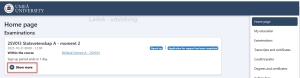
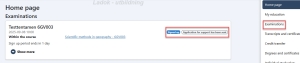
  2. On the Home page, you will see the exams/tests you are registered for. To change your application for support, click on “Show more.”
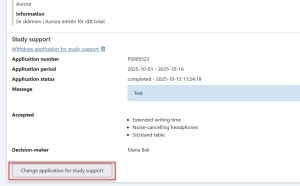
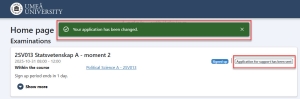
  3. Scroll down until you see the button “Change application for study support.”
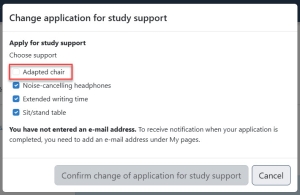
  4. Here you can see the study support that you have already applied for, and you can add more support types. You can also remove support types that you have applied for earlier.
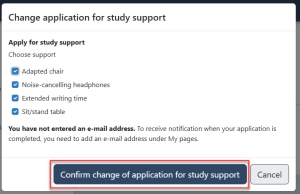
  5. Then click on “Confirm change of application for study support.”
  6. You will receive confirmation that your application has been changed and will also see that the status of the examination is “Application for support has been sent.” Once the department have processed your application, you will be notified of the outcome via Ladok for students. You will receive a notification (email) when there is new information about your application in Ladok for students.

Apply to use your recommended study support

This manual is intended for students who have a NAIS certificate off recommended study support during on campus-examinations (including Inspera examinations). The recommended study support may include, for example, extended writing time or sitting in a separate room.

When you register for an on campus-examination in Ladok for students, you simultaneously apply to use your recommended study support. This manual describes how to do this.

Apply to use your educational support during an on campus examination, step by step:

  1. Log in to Ladok for students with your UMU ID and password: www.student.ladok.se
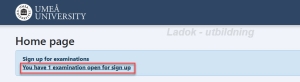
  2. Your home page will show whether there are any examinations open for registration. Click on the link “You have x examination open for sign up” to continue.

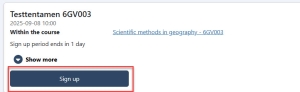
  1. Click on “Sign up” for the examination you want to register for.

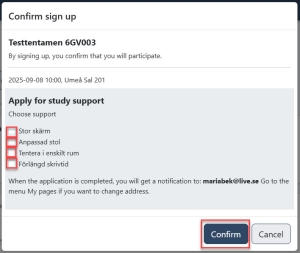
  2. Select the study support you want to apply for during the examination. Check the box in front of each type of support you want to apply for and then click Confirm. This means that you are both registering for the exam and applying to use your selected study support.

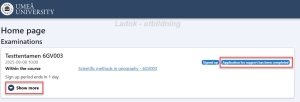
  3. On the start page, you will see that you are registered for the examination and that your application for study support has been submitted. You can also click on “Examination” in the menu on the right to see the examinations you are registered for.

    If you have any questions about your application before it has been decided and finalized (see point 6), contact the person at your department who is the contact person for students with disabilities. Contact details can be found on this page: Contact person for students with disabilities (umu.se)

  4. Once your application has been decided and finalized, you will receive a notification via email. In Ladok for students, you can read more about which study supports have been granted or not, as well as any notifications. Click on “Show more” to view the information.

Reset computer to factory settings

Detta är en kort sammanfattning för återställning av dator innan den skickas till återbruk.

Send and collect responses with your form in Forms

Send and collect responses

When you are done with the form and ready to collect responses, do this.

  1. Click Collect Responses
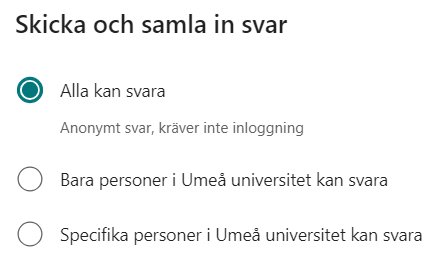
  2. Start by choosing who should be able to respond to your form. (For more settings see: Adjusting the settings in Forms). There are three different options:
    * Everyone Can Answer – use if you want everyone to be able to answer your form/test. This option ensures that all participants are anonymous and does not require a login.
    * Only people in Umeå University can reply – use if you want everyone with an Umu ID to be able to reply. This includes both students and employees.
    * Specific people in Umeå University can answer – use if you want to select some specific people or a group to answer. Umu ID is required for this option.

Select distribution method

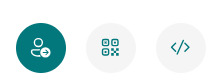
Step 2 is about choosing how you want to share your form. You can share your form in three different ways. Via invitation to a team or email, QR code and embed code.

Share with link

  1. Click the Invitation to share via link. (default setting). With this you can directly write a message that is sent out together with the link either to a team or via e-mail.
  2. You can also choose to copy the link and paste it where you want the respondents to be able to access the form.

Share with QR code

  1. Click the QR icon to share via QR code.
  2. Click Download to download the QR code as an image. (e.g. paste into PowerPoint).

Share with embed code

  1. Click the embed icon to share forms by embedding on a website (eg Canvas).
  2. Click Copy to copy the embed code.

Size of email attachments

Information on how big files you can send via email.

Delay or remove auto-delete of your recordings

To disable automatic deletion of a Teams recording or to extend how long such a recording should remain in M365 (default is 180 days), you as the owner of the recording can go in via Microsoft Stream and change the date of deletion:

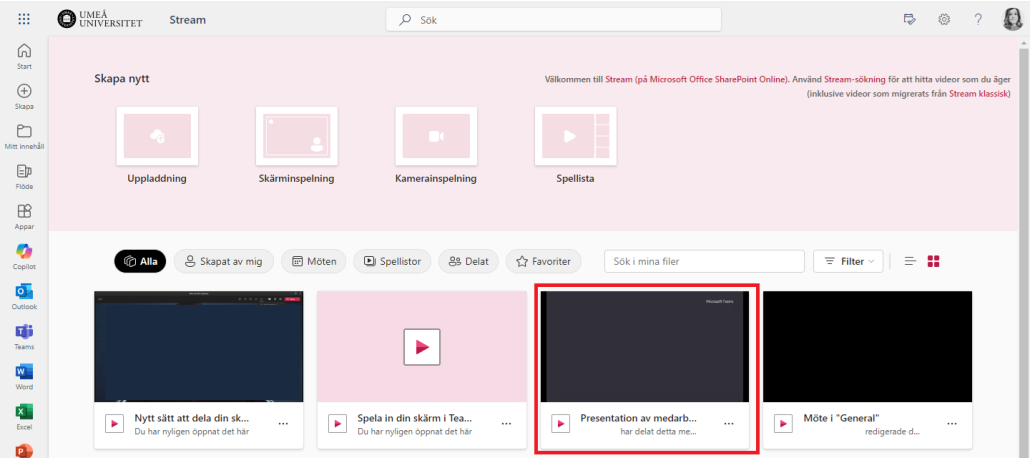
  1. Go to Stream in the Microsoft 365 portal
  2. Find the recording you want to change and click on it
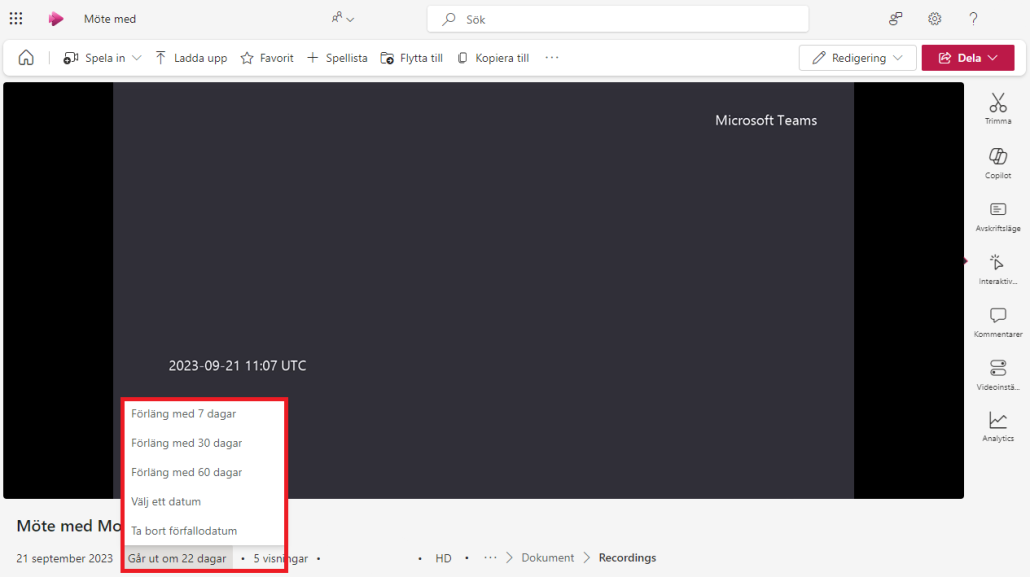
  3. On the left below the recording, you will find information about how many days are left until the recording is automatically deleted. Click on the number of days to change or remove the end date