Manual

Manual
  • Svenska
  • Menu Menu

Engelska kategorin för studentinformation.

Inspera – Get your results

2021-11-26/in Inspera, Student

This guide describes how to view your results on a completed digital exam in Inspera.

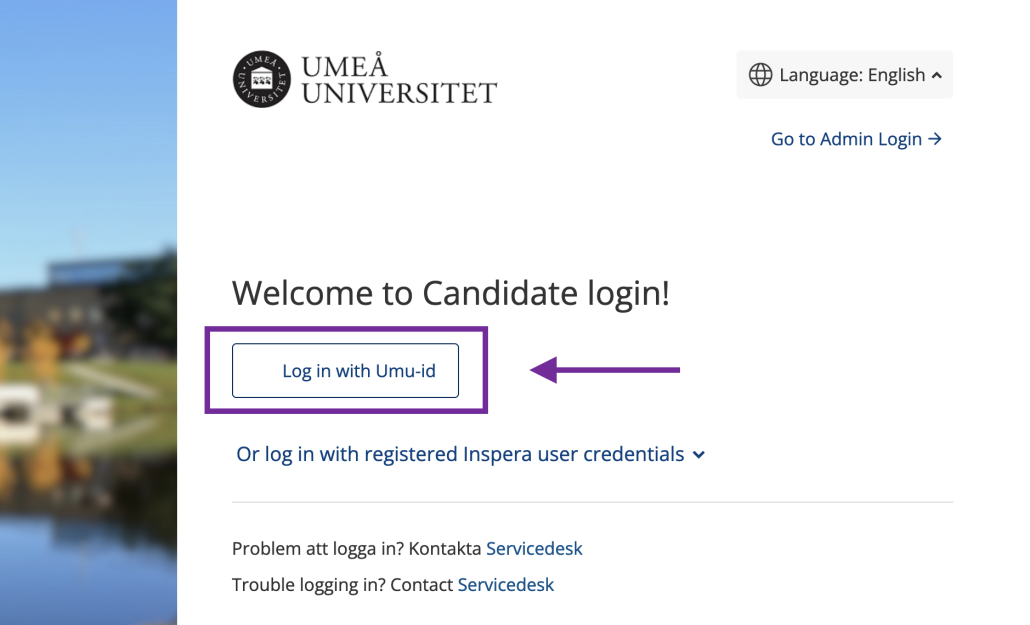
  1. Open a browser and navigate to the adress https://umu.inspera.com/
  2. Log in with your Umu-id
    Inspera Log in
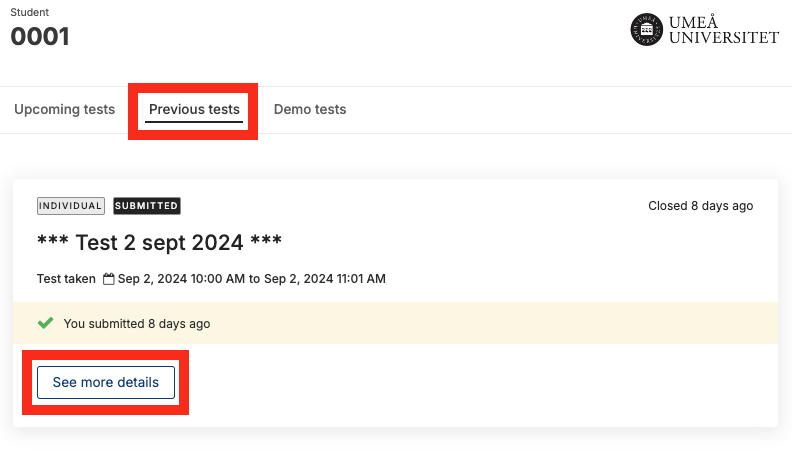
  3. Click on ”Previous tests” (1) and then on ”See more details” (2) to see grades, points and
    submitted answers.
    Inspera - Results
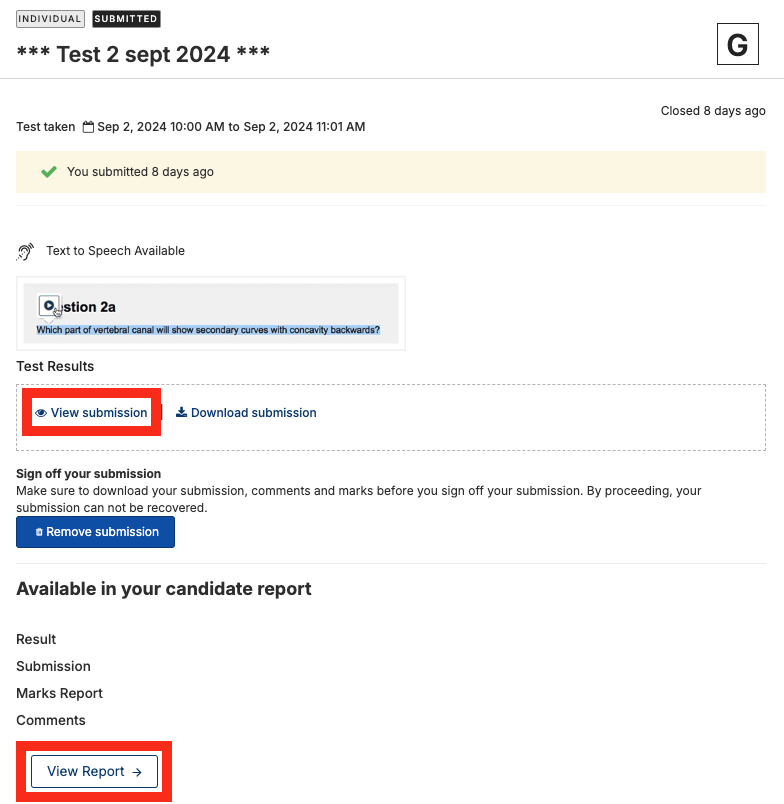
  4. Here you can view your submission. Click on “View report” to see more information (grade, feedback, marks) for your test.
    Inspera - Results
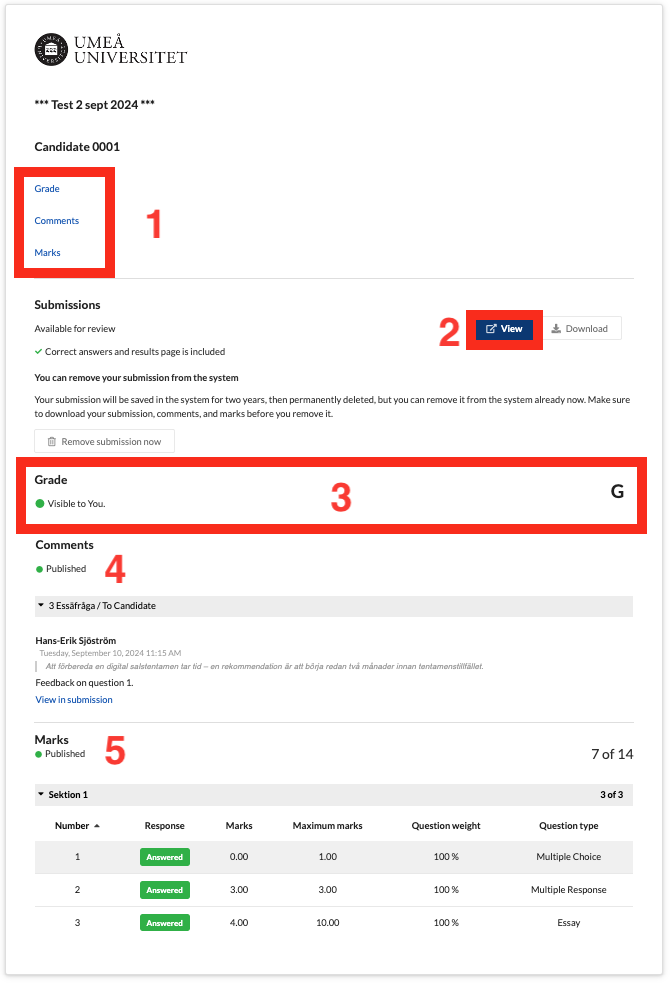
  5. In the results overview, a summary of your assessed exam is displayed. Here you will find quick links to Grade, Comments, and Marks (1). By clicking the ‘View’ button (2), you can see your submitted answers, (3) shows your grade, under the ‘Comments’ heading (4) any comments from the assessor are listed, and at (5) you can see the total score and marks per question.
    Inspera - Results
https://manual.umu.se/wp-content/uploads/2018/02/manual-loggo.png 0 0 Hans-Erik Sjöström https://manual.umu.se/wp-content/uploads/2018/02/manual-loggo.png Hans-Erik Sjöström2021-11-26 09:09:302025-02-03 08:54:27Inspera – Get your results

Inspera – Take a demo exam

2021-11-26/in Inspera, Student

This guide describes how to take a demo exam in Inspera to ensure that your computer works with the Safe Browser Safe Exam Browser.

  1. Open a standard browser (Chrome, Edge, Firefox, Safari, or similar).
  2. Go to the address https://umu.inspera.com/ and log in using your Umu-id.
    Inspera Log in
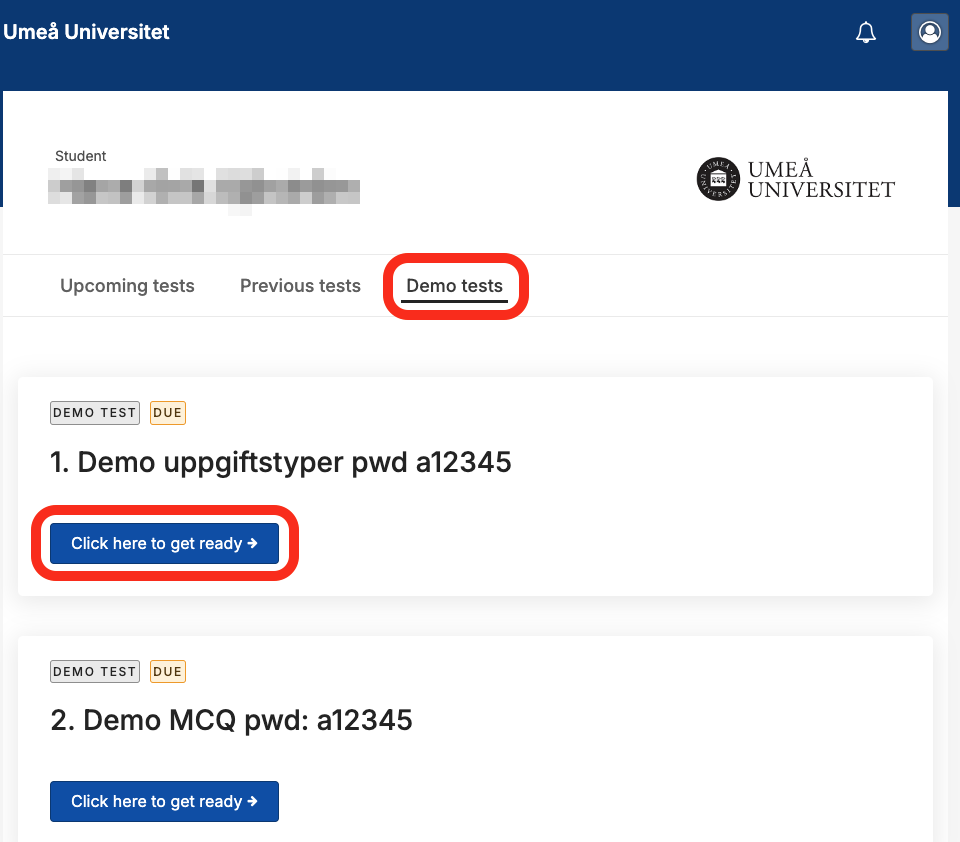
  3. Click on “Demo tests”
    Inspera - Demo test
  4. Then click on “Click here to get ready”.
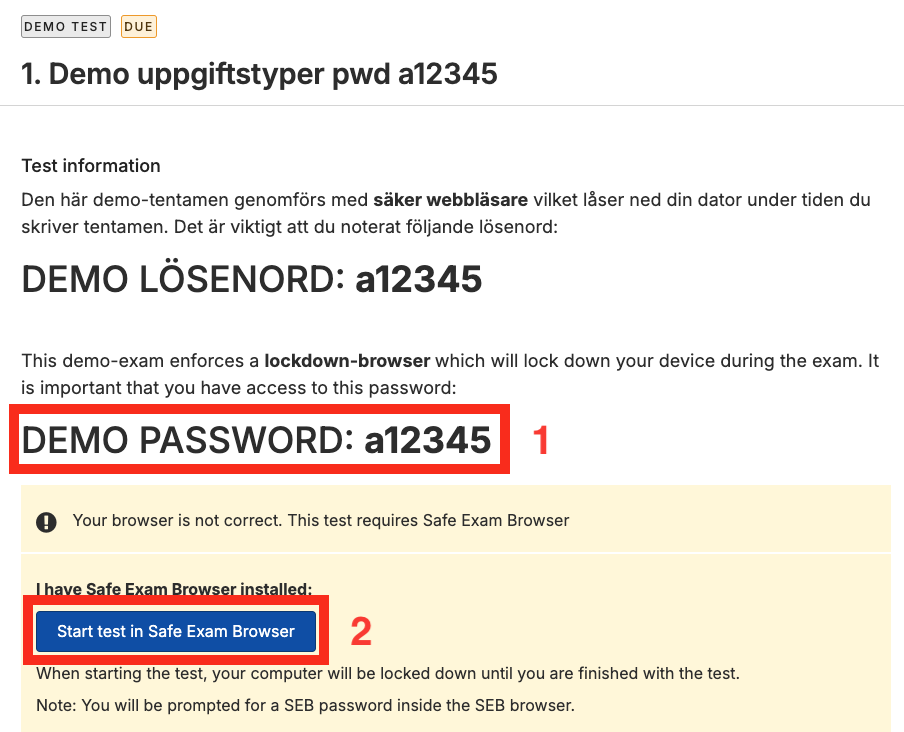
  5. Now note that the password for the locked demo exam is “a12345” (1). The same password is also used to unlock the demo exam and exit the secure browser.
    1. If Safe Exam Browser is already installed:
      Click on “Start test in Safe Exam Browser” (2).

Inspera - Open demo exam

    1. If Safe Exam Browser is not already installed, it is possible to do this by clicking on “Download”. Follow our guides to download SEB for your OS.
      • Windows – Install Safe Exam Browser
      • MAC OS – Install Safe Exam Browser
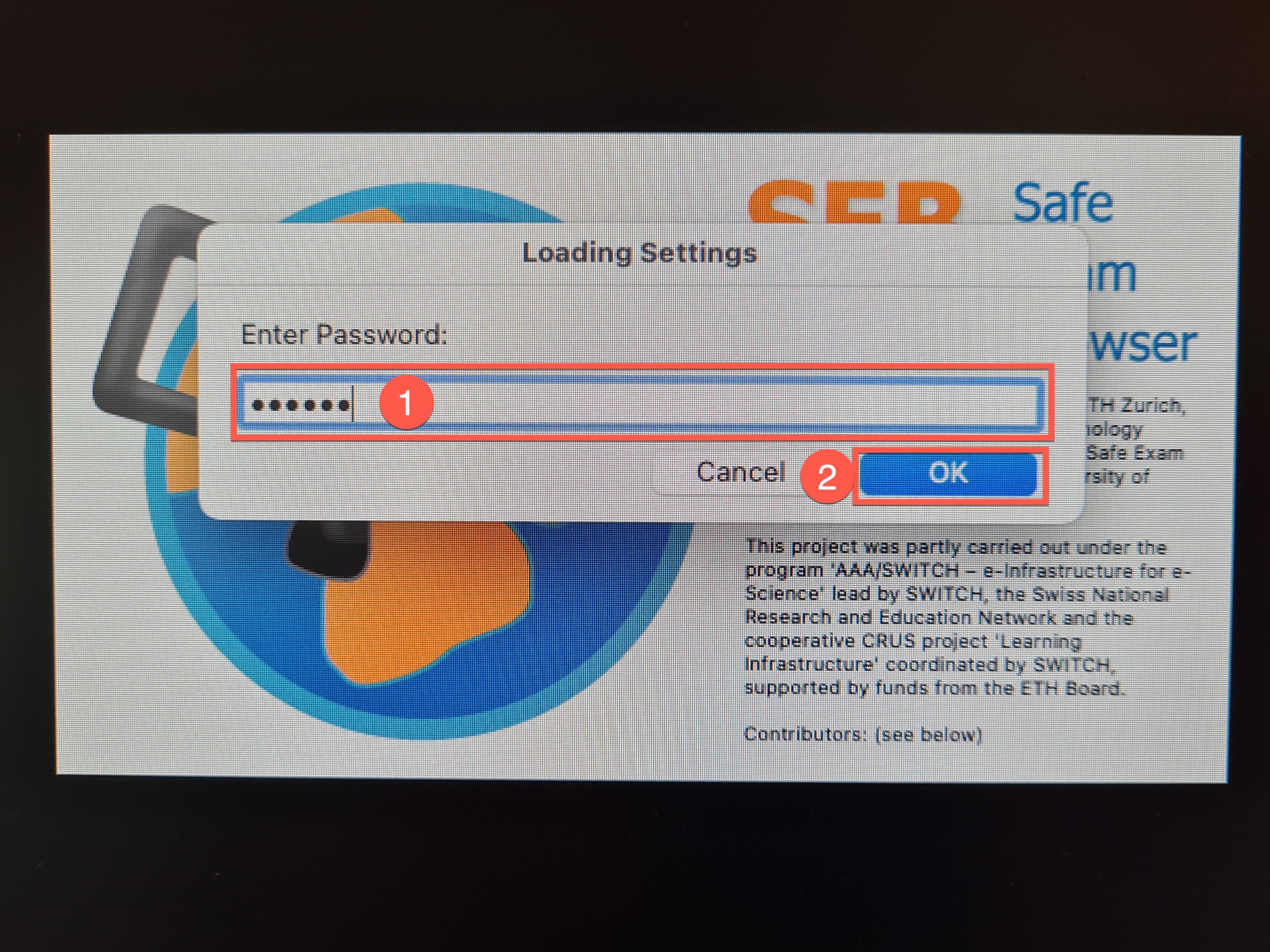
  1. Enter the password for a12345 Safe Exam Browser (1), and then click OK (2).

SEB password

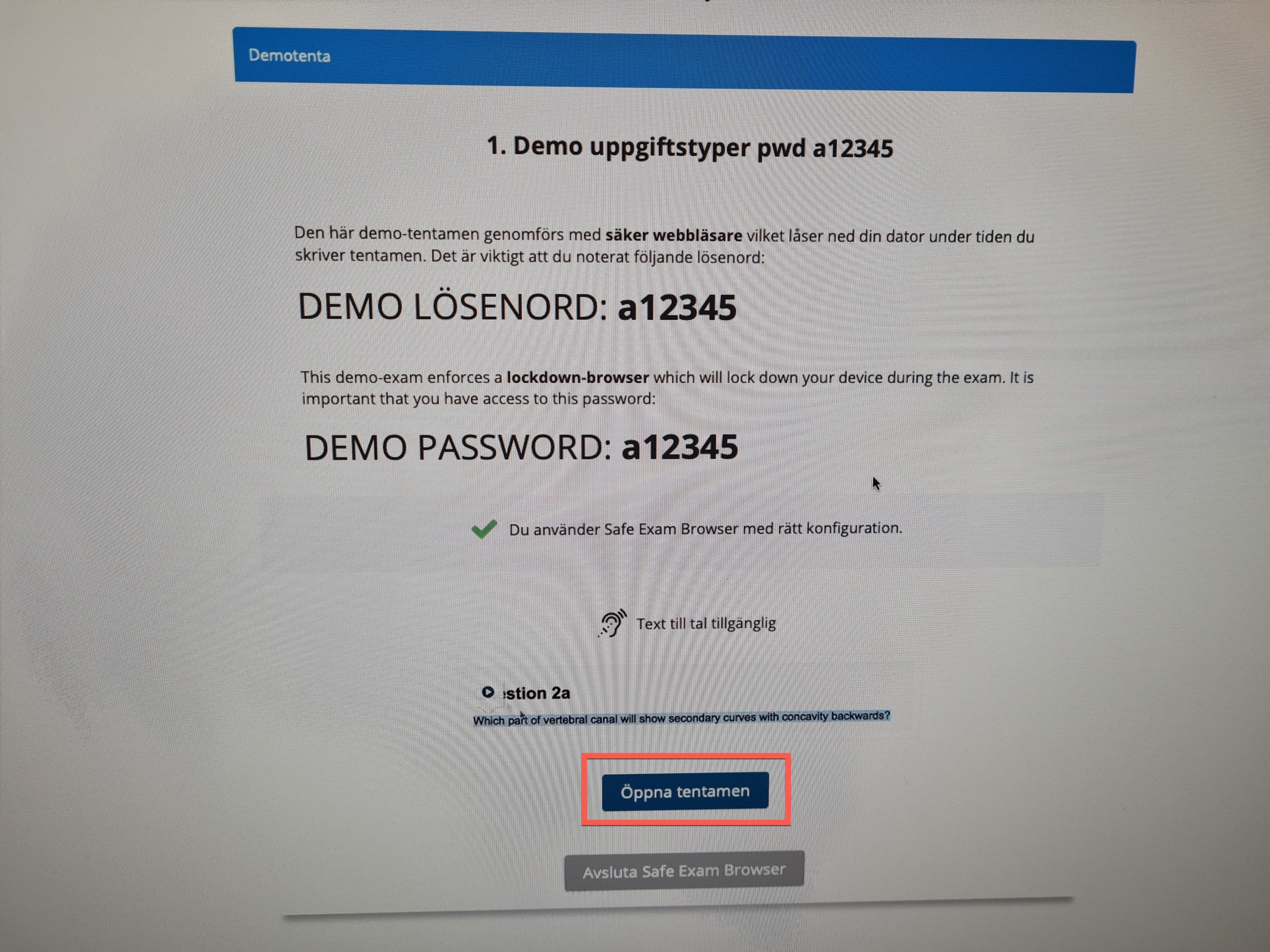
  1. Here is information about the demo exam being conducted in a secure browser. Click on the “Open exam” button.
    Click on the Open exam button.
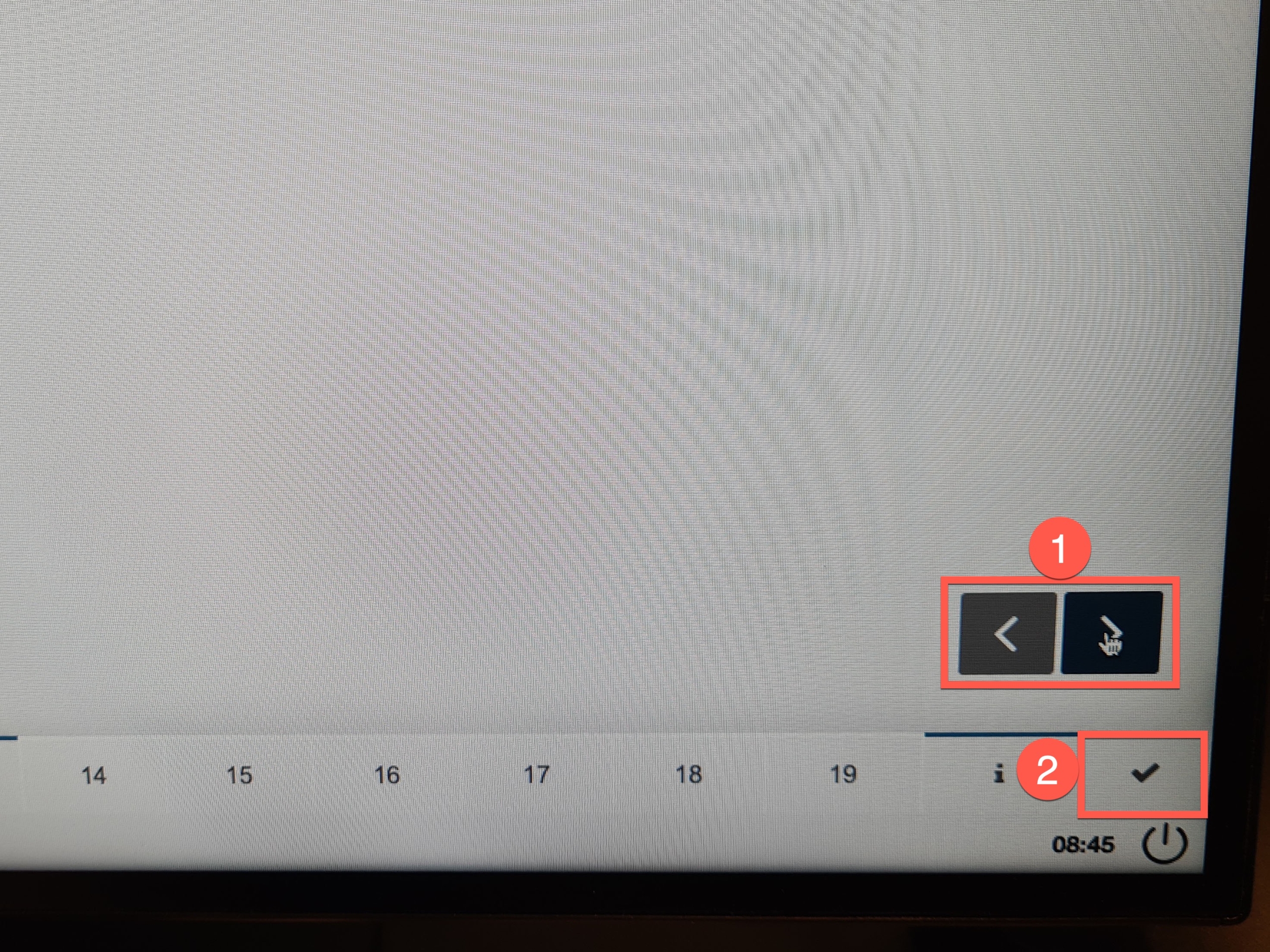
  2. Click through the different question types and try to answer some of them. Navigate
    forward and backward with the arrows at the bottom right (1). Click the button (2) to
    go to submission.
    Navigation
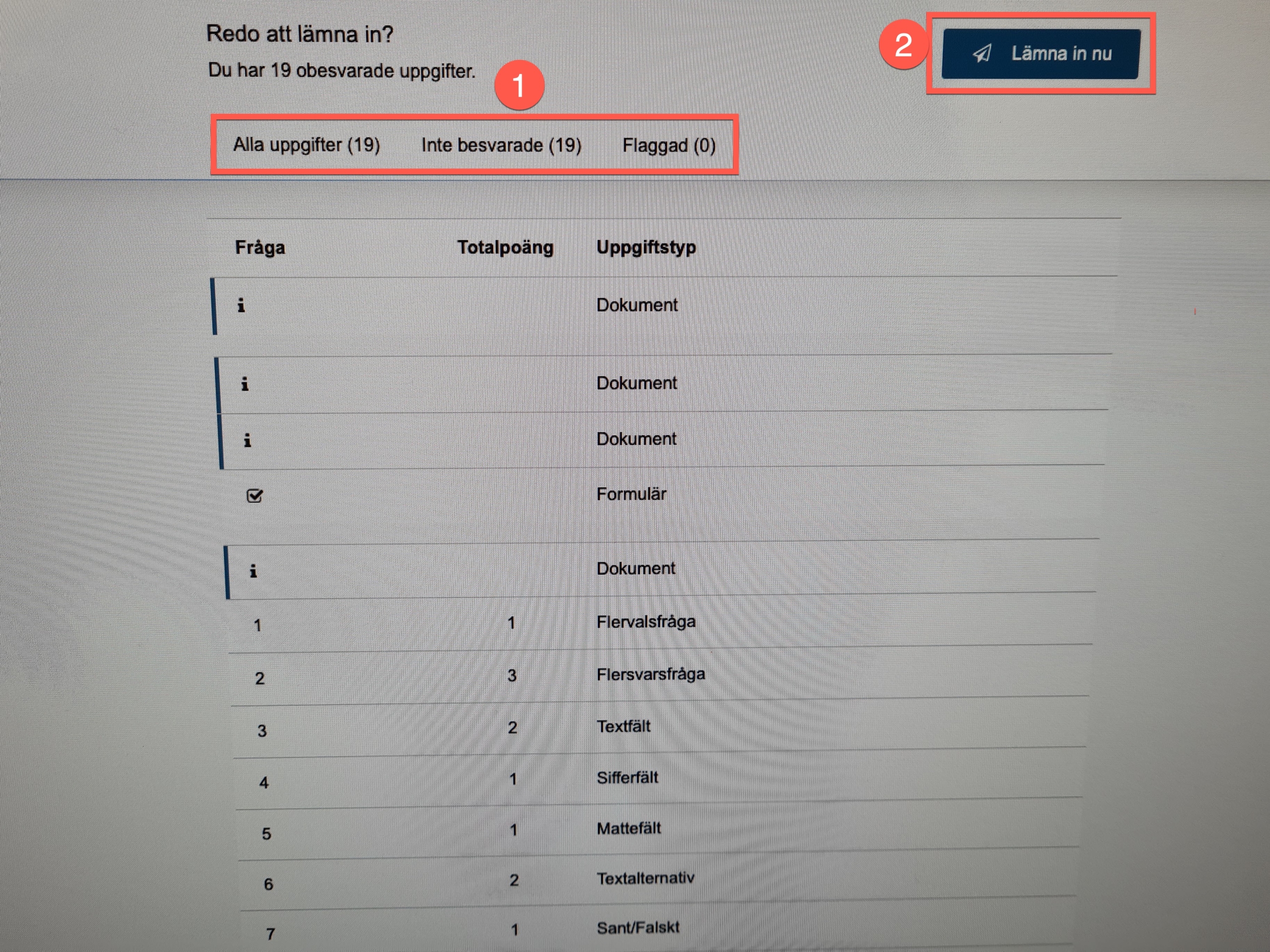
  3. Here is a summary of all the questions and how many of them you have
    answered (1). Click on ”Submit” (2) to submit the demo exam. No answers are saved
    because the demo exam is only set up to give the opportunity to test Inspera on your
    own computer.
    Overview page
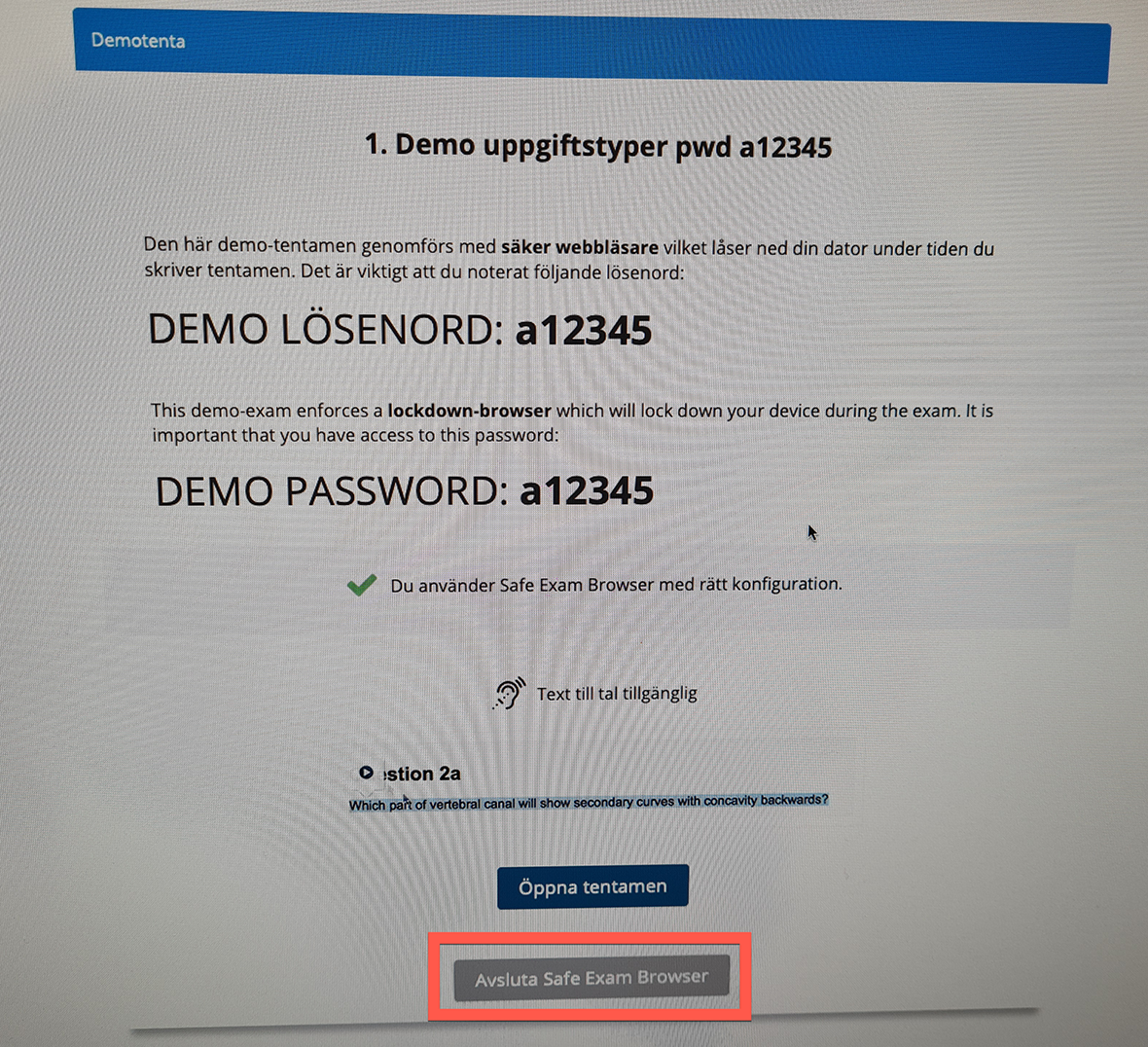
  4. Now you have completed the demo exam with a secure browser and submitted it. Click
    “Exit Safe Exam Browser” to exit the secure browser.
    Exit SEB
https://manual.umu.se/wp-content/uploads/2018/02/manual-loggo.png 0 0 Hans-Erik Sjöström https://manual.umu.se/wp-content/uploads/2018/02/manual-loggo.png Hans-Erik Sjöström2021-11-26 08:44:512025-12-04 15:09:41Inspera – Take a demo exam

Make a branch in Forms

2021-11-09/in Employee, Forms, Microsoft 365, Okategoriserade, Student

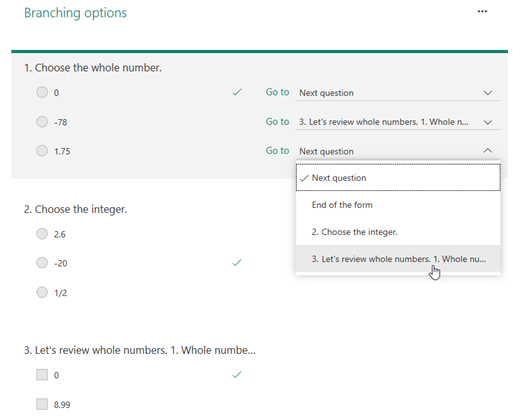
When you create your forms and tests, you can choose to branch questions. This means that the current questions belongs or depends on another questions in the quiz.

  1. Open the form where you want to make a branch.
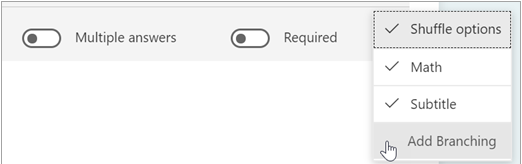
  2. Choose the questions that you want to branch, click on the three little dots and then Add Branching.
  3. Click on the arrow. In de accordion menu that pops up, choose which question you want to branch the question with.
  4. When you’ve chosen, click on Back to keep editing other question or to finish.
https://manual.umu.se/wp-content/uploads/2018/02/manual-loggo.png 0 0 Maja Wik https://manual.umu.se/wp-content/uploads/2018/02/manual-loggo.png Maja Wik2021-11-09 12:21:572025-12-16 13:28:44Make a branch in Forms

Whiteboard Frequently asked questions

2021-11-02/in Employee, English, Student, Whiteboard

Who can use Whiteboard?

Whiteboard is currently available to all students and employees. Externals are currently unable to participate in a Whiteboard.

Can I collaborate on Whiteboard?

Yes, you can! Open the Whiteboard you want to collaborate on. In the right corner, click the Share Icon. Then  you can type in the name or email of the person you want to share and collaborate with, or choose to copy the link, and send to the person.

Observe that users can currently only collaborate with others within their organization. Microsoft will add options to collaborate with guests outside your organization in the future.

Can I export the result?

Yes, you can export the result to a PNG or SVG. You can also choose to publish to a Team, send to a OneNote, or to an email.

What is the difference between the Whiteboard app and web interface?

Whiteboard has recently been updated. There are no differences between the web and the app.

Where can I find Whiteboard?

There are three ways to find and use Whiteboard. Via the deskapp, the web or integrated in teams. You can find more information in the manual: Download and install whiteboard app

How do I save my Whiteboard?

All your Whiteboards are automatically saved in your Whiteboard Portal.  Go to the Office 365 portal and select Whiteboard.

Can I use templates in Whiteboard?

Yes, templates are available in Whiteboard. Templates makes it easier for you and others to work together in Whiteboard. You can open templates by clicking the Templates button in the left menu. This will display the template gallery, where you can  select a template.

The following categories are available with more to add as you go:

  1. Brainstorming – exploring creative ideas
  2. Problem solving – analyzing and solving problems
  3. Design and research – deepen customer focus
  4. Strategy – move from strategy to execution faster
  5. Project planning – increase productivity and results
  6. Retrospective – get an overview over different catagories
  7. Games – engage and energize groups
  8. Evaluation – reflecting and improving
  9. Workshops – inspire and facilitate groups
  10. Learning – teflecting, comparing and brainstorming

Can I use my fingers to use Whiteboard?

Yes, Whiteboard is compatible with touch, computer mouse, and keyboard.

Can I add pictures to the Whiteboard?

Yes, you can insert pictures on your Whiteboard. Click the Create icon, and then click pictures. Unfortunately, you can’t copy and paste pictures into the Whiteboard you have to save the image to your computer and then upload.

Can I react to sticky notes or text boxes?

No, however, you can create reactions and drag and drop them on your sticky notes or text boxes. On the rightside menu, select reactions. Then you can choose heart, thumbs up or down etc. Drag and drop them in the appropriate place to react to text or sticky notes.

Can I zoom in and out of my Whiteboard?

Yes, you can – the surface is infinite. With the mouse – scroll up and down. With your fingers – pull together or outwards with two fingers.

Can I rename my Whiteboard?

Yes, by going to the Whiteboard portal and then tapping the three dots of the Whiteboard that you want to rename.

Can I remove Whiteboards?

Yes. Go to your Whiteboard portal, click on the three dots of the Whiteboard you want to delete, and then select Delete.

How do I use ink in Whiteboard?

Digital ink is available to everyone, whether you’re using your mouse or pen. The Pen toolbar contains 15 pen colors, 15 highlighters, pen arrows, and different thicknesses.

Features:

  1. Select a pen to see the color and thickness in the drop-down list.
  2. Select arrow mode from the drop-down list to turn your ink strokes into arrows.
  3. To draw straight lines, hold down the Shift key while you make ink.
  4. To convert things you draw to shapes, select your ink and select the shape icon from the shortcut menu.

How do I create straight lines?

The previous ruler has been removed. In Whiteboard, you can add straight lines using shapes in the gallery. You can also hold the shift key while you’re drawing to create a straight line.

How do I use mouse and keyboard in my whiteboard?

You can use your mouse and your keyboard by doing one of the following:

  1. To pan the workspace, click it, and then drag the canvas with your mouse. You can also hold down the Ctrl key on the keyboard and use the arrow keys.
  2. To quickly zoom in on the workspace, scroll the mouse wheel up or down (if applicable).
  3. To select an item, click it with your mouse. You can also press the Tab key multiple times until the desired item is selected.
  4. To insert an object, such as a picture or text, click the + icon on the toolbar, and then click on the item you want to add. You can also use the shortcut menu by clicking Shift+F10. Use the arrow keys to select the item you want to add, and then press Enter.
  5. To draw or delete ink, click the ink icon on the toolbar, select a pen or eraser, and then use the mouse to draw on the canvas or remove ink strokes. To use the keyboard to select tools, press the Tab key several times until the pen icon is selected on the toolbar.
  6. To move the ruler when it appears, click it, and then drag the ruler with your mouse. To use the keyboard, click the ruler, and then move it with the arrow keys.
  7. To change the angle of the ruler, hover over the ruler, and then use the scroll wheel — or click to select the ruler, and then hold the Alt key while you press one of the arrow keys on the keyboard.


How do I select, move, and resize content?

  1. When finger painting mode is turned off, you can move objects by selecting it with your finger and easily moving around the canvas.
  2. Select content with your finger or pen — or use the Lasso Selection tool on the toolbar to select multiple items at once. Turn on lasso selection and use the pen to circle the content you want to select. When finger painting mode is enabled for devices that are passive or don’t have a pen, you can turn on Lasso Select and use your finger to dial in content.
  3. If the active pen has a cylinder button, hold down the button to temporarily switch to Lasso Select mode and circle the content to be selected.
  4. When the content is selected, you can move it with your finger or pen. To resize, use two fingers to stretch or minimize the content.

Can I use Whiteboard in the classroom?

Yes, Whiteboard has been designed both for remote learning and in the classroom. In the classroom, students can leave class with a digital version of the whiteboard so they can focus on listening and learning instead of copying content from the whiteboard during class. Teachers can hold more interactive lessons with a shared whiteboard where students can add content or react to content added by others. Whiteboard is a fantastic tool for group projects. All project members can get involved and teachers have the opportunity to observe and provide feedback.

Can I share a Whiteboard where no one else can edit it?

Yes, if you choose whiteboard presentation mode (read-only mode) in Teams meetings, the meeting organizer can choose how to interact with the board. If you choose read-only mode, all other participants will see the whiteboard but without being able to edit. At any time during the meeting, the meeting organizer can switch between read-only mode or allow collaboration from others from the settings menu.

Can I use Whiteboard in a Team meeting?

Yes, Whiteboard is integrated into Teams but can also be used in other digital meeting tools such as Zoom.

https://manual.umu.se/wp-content/uploads/2018/02/manual-loggo.png 0 0 Oscar Lundberg https://manual.umu.se/wp-content/uploads/2018/02/manual-loggo.png Oscar Lundberg2021-11-02 14:21:132025-11-03 10:05:39Whiteboard Frequently asked questions

Move or copy files in SharePoint

2021-10-15/in Employee, English, Microsoft 365, Sharepoint, Student

In this manual, we decribe how to move and copy files within and between SharePoint websites. 

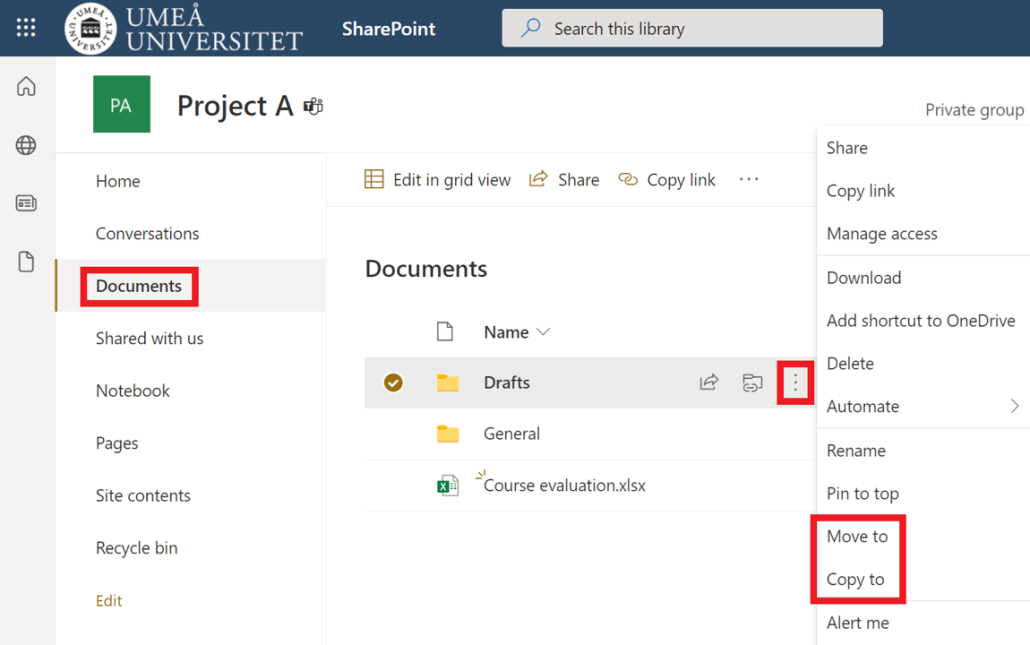
  1. Open the SharePoint website and select Documents in the left menu.
  2. Hover the pointer on the file/folder you want to move or copy to see a hidden menu.
  3. Select the three dots.
  4. Select Move to if you want to move the file to another place (the file will be deleted from existing place).
  5. Select Copy to if you want to move and copy the file to another place. (the file will remain on the existing place).
    Move or copy files in SharePoint
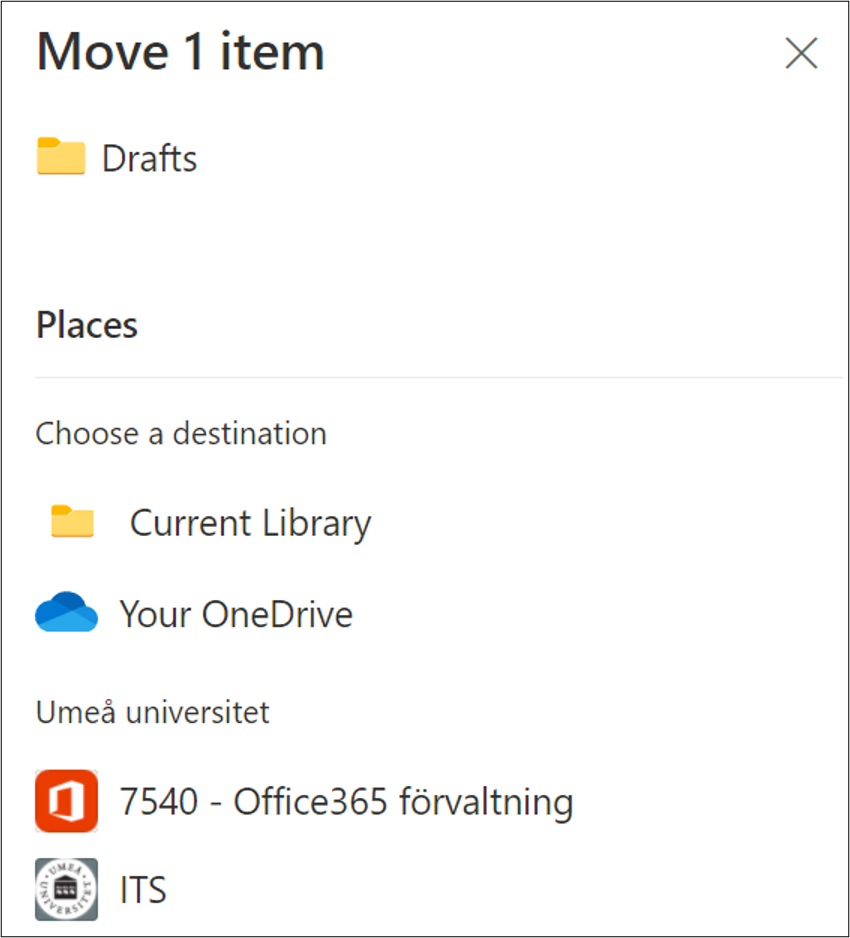
  6. A menu will open to the left of the screen, select where you want to move or copy the file/folder to and then click Move here.
    Move or copy files in SharePoint - select place
https://manual.umu.se/wp-content/uploads/2018/02/manual-loggo.png 0 0 Oscar Lundberg https://manual.umu.se/wp-content/uploads/2018/02/manual-loggo.png Oscar Lundberg2021-10-15 08:45:342025-10-09 09:34:36Move or copy files in SharePoint

Upload files and folders in SharePoint

2021-10-15/in Employee, English, Microsoft 365, Sharepoint, Student

In this manual, we decribe how to upload files and folders in SharePoint document library. 

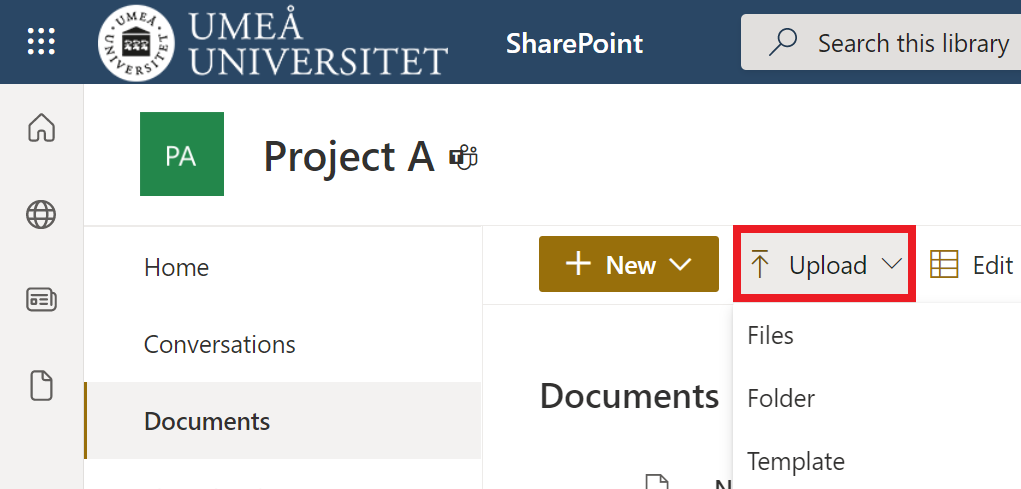
  1. Open the SharePoint document library you want to upload files to.
  2. Select Upload.
  3. Select if you want to upload a file, folder, or template.
    upload files in sharepoint - upload - select files folder template
  4. Your File Explorer (Windows) or Finder (Apple) will open.
  5. Select a file or folder to upload.

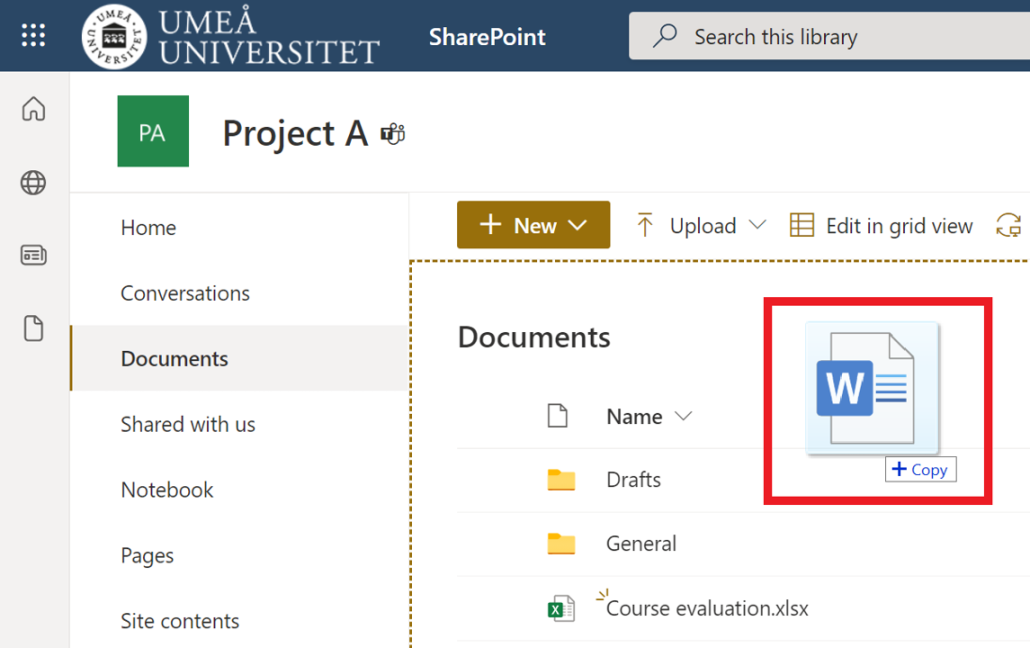
Drag files to SharePoint

  1. Open a SharePoint document library you want to drag files to.
  2. Open your File Explorer (Windows) or Finder (Apple).
  3. Choose a file from your computer.
  4. Drag it from your File Explorer/Finder and drop it in SharePoint document library.
    drag and drop files in sharepoint
https://manual.umu.se/wp-content/uploads/2018/02/manual-loggo.png 0 0 Oscar Lundberg https://manual.umu.se/wp-content/uploads/2018/02/manual-loggo.png Oscar Lundberg2021-10-15 08:43:592025-10-07 08:38:52Upload files and folders in SharePoint

Set up your notifications in Teams

2021-09-21/in Employee, Microsoft 365, Student, Teams

When you want to set up and adjust your notifications settings in Microsoft Teams, there are two options: for the entire application or for each channel.

Set up notifications for the Teams application

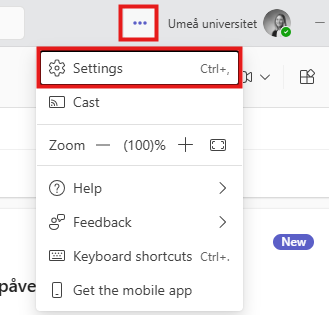
  1. Click on the three dots next to you profile picture in the upper right corner in Teams.
  2. A menu will appear, select Settings.
    Image showing how to change notifications in teams
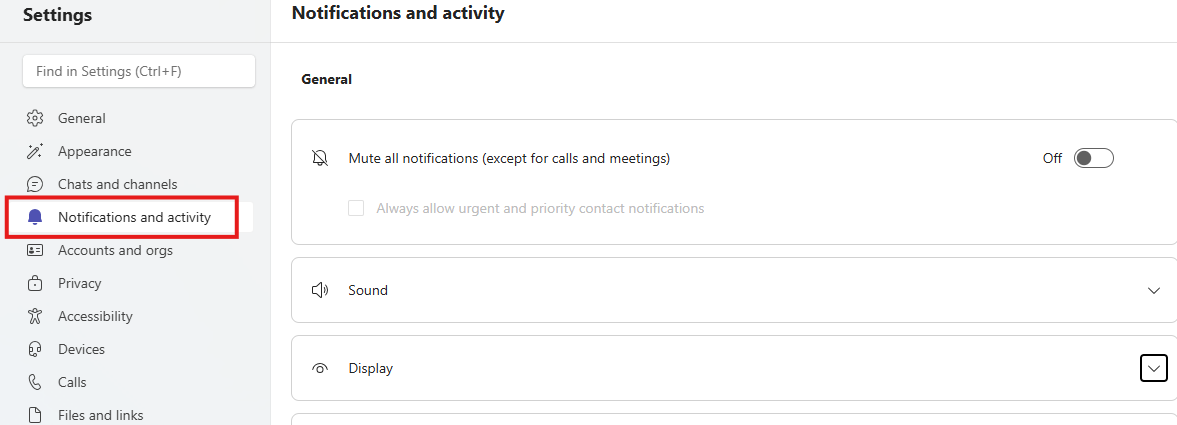
  3. Select Notifications and acitivty and set up the different notifications under each heading.
    Image showing how to change notifications in teams

If you’ve chosen to receive a notification via email – please note that you will unfortunately not receive this notification if you are signed in or have the application open in the background. This is because you are considered as active and will therefore only receive notifications in the application.

Set up notifications for a channel in Teams

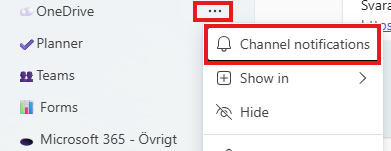
  1. Go to the channel where you want to adjust your settings, and click on the three dots.
  2. Select Channel notifications.
    Image showing how to change notifications in teams
  3. Select the level of notifications
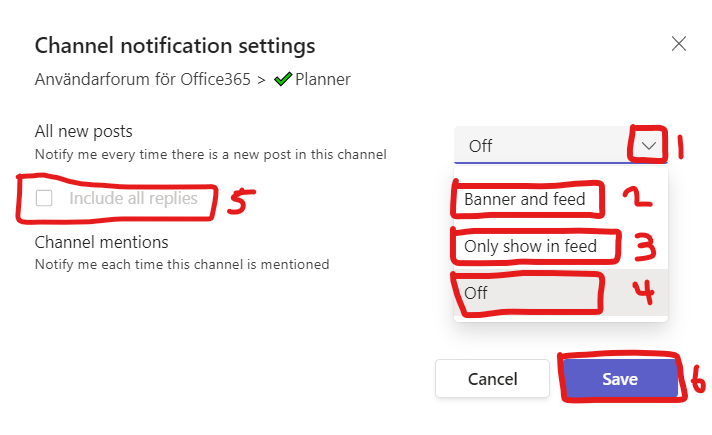
    1. Click on the arrow 
    2. Select Banner and feed if you want both an purple banner in the left corner of the screen when recieving an and an number sign in the activity clock. (see decription below)
    3. Select Only show in feed if you want notifications only in the acitivty clock. (see decription below)
    4. Select Off if you want to turn off the notifications for that teams channel.
    5. Select Include all replies if you want notifications if someone replies on your channels posts.
    6. Click Save
      change channel notifications in teams - chose notification level

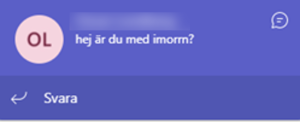
Banner = Pop up-window with little decription of what has happened.

banner notification

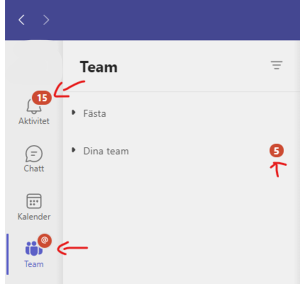
Feed = Red numbers on activity and under team

feed notification

**Note** that these settings only apply to you and the specific channel, not the entire team. For example, if you are interested in what’s happening in some of the Teams channel enable notifications on them and disable notifications on the other.


https://manual.umu.se/wp-content/uploads/2018/02/manual-loggo.png 0 0 Maja Wik https://manual.umu.se/wp-content/uploads/2018/02/manual-loggo.png Maja Wik2021-09-21 14:14:162025-11-21 13:41:08Set up your notifications in Teams

Frequently asked questions about Forms

2021-09-16/in Employee, English, Forms, Microsoft 365, Student

How do I find Microsoft Forms?

  1. To access Forms go to www.m365.umu.se.
  2. Sign in with your Umu-ID.
  3. Select Forms in the left menu. If you cannot find it there, select All applications and then Forms.

What is the difference between a form, quiz, and poll?

A form is a traditional survey where you collect data on people’s opinions and experiences.

A quiz reminds of a survey but allows you to choose right or wrong answers for the questions.

A poll consists of shorter questions that can be used before, during or after a Teams meeting (Link to “Make a planned poll in a Teams meeting” & “Make a spontaneous poll in a Teams meeting”)

What is a group form?

A groupform is when a form is created within an already existing group (team) and is handled in the same way as if it was your own forms portal. This provides the possibility of easy editing and work within a group.

What is preview?

The purpose of a preview is to see what your form/quiz looks like before you share it. When previewing the form, you can try to fill it out to make sure it looks and works the way you want.

See manual: Preview and share a form

What is branching and how can I use it?

With branching you can add a subsequent dependency on the previous answer. If you were to branch question 1 in your form to question 3, it would mean that the respondents who answered question 1 would be moved to question 3. Question 2 will in turn be skipped.

You can add branching to all questions, but also to sections or options in a question.

What is a section?

Sections are used to group your questions in categories or themes such as work environment, equality, and safety. Sections are useful when you are creating a large form with many questions.

What questions can I use in a form or quiz?

There are 8 different types of questions:

  1. Choice is used to give the respondents predetermined answer options. You can use it for a yes or no question but also add over 100 options.
  2. Text is used to let respondents write an answer to the question.
  3. Rating is used to let respondents rate a statement. You can choose levels from 1-10.
  4. Date is used to let the respondents answer the question by choosing a date.
  5. Ranking is used to let the respondents evaluate answer options against each other and rank them in the order they want.
  6. Likert is used to measure attitudes and opinions from a predetermined scale.
  7. File upload is used to let the responded answer the question by uploading a file. The files will be gathered in a folder in your OneDrive. The accepted file types are Word, Excel, PPT, PDF, video, and audio.
  8. Net Promoter Score is an index that ranges from 1-10. It is most often used as a standard proxy by organizations to measure customers’ willingness to recommend their products or services to other. (Similar to rating).

See how to create questions in a form (survey) here: Create questions for a form in Forms

See how to create questions in a quiz/test here: Create questions for a quiz in Forms

Can I share a file in a question?

No, you can only share an image or a video. However, you can create question where the respondents upload a file to answer the question.

See how to create questions in a form (survey) here: Create questions for a form in Forms

See how to create questions in a quiz/test here: Create questions for a quiz in Forms

Can I share a form with a colleague?

Yes, you can share a form to collaborate on and as a template (copy).

See how to share a form to collaborate here: Share a form or quiz to collaborate in Forms

See how to share a form as a template here: Share a form as a template in Forms

Can my forms be answered in multiple languages?

Yes. By using the function multilingual, you can add multiple languages to allow the respondents to choose what language they want to read and answer your form in. However, you must translate the form on your own.

To translate the form, select the three dots in the main men and then multilingual. Add a language and then select the pencil to translate the form.

Can I copy an existing form?

Yes, you can copy an existing form.

See how to copy a form here: Copy, delete or move a form or quiz in Forms

You can also share the form as a template (with yourself and others). In that way, you copy the form as a template and can continue working with a new version.

See how to share a form as a template here: Share a form as a template in Forms

Can I delete a form?

Yes, you can delete a form. Select all my forms and place the pointer on the form you want to delete. Select the three dots and then delete.

See how to delete a form here: Copy, delete or move a form or quiz in Forms

Can I restore a form?

Yes, you can restore a form you have deleted. Select all my forms and then deleted forms. Place the pointer on the form you want to restore, select the three dots, and then restore.

See full decription on how to restore a form here: Copy, delete or move a form or quiz in Forms

Can I move a form?

Yes, you can move forms to different Teams or SharePoint sites. Place the pointer on the form you want to move, select the three dots, and then move. You will then see a list where you can choose where to move your team.

See full decription on how to move a form here: Copy, delete or move a form or quiz in Forms

Can someone outside of Umeå University fill out my form?

Yes, you can share your form with anyone. They do not need a Microsoft account or an Umu-ID. To share your form with anyone, go to settings and select Anyone can respond.

See full decription of forms settings here: Adjust setting in Forms

Can I change the color of my form?

Yes, you can change color on or add a theme to your form. You can also upload an image. Go to the form you want to change color on. Klick on theme in the main menu between the share buttom.

Can I use Forms for a course evaluation?

Yes, Forms is an excellent tool for creating course evaluations. Here are some benefits of using Forms:

  • You can share your course evaluation to the students in several ways to simplify participation. See: Preview and share a form
  • You can share your course evaluation with a colleague to collaborate in an easy way. See: Share a form or quiz to collaborate in Forms
  • You can collect and review results in one place. See: Review results in Forms

Can I delete a question from my form?

Yes, you can delete a question by selecting the trash can. This option can be found on each question.

Can I copy a question?

Yes, you can copy a question by selecting this the copy icon between the trash can. This option can be found on each question.

Can I create mathematical questions?

Yes, you can create mathematical questions in a quiz.

  1. Create a quiz and select either the question type choice or text.
  2. Select the three dots.
  3. Then select Math.

Can I disable my form?

Yes, there are two ways to disable a form.

You can set up a start and end date to your form. This is done by selecting the three dots in the main menu. Select settings and then start date and end date.

You can end the form manually by opening settings and unchecking the box Accept answers. There you can also write a message that will be shown to those who try to open the form when it has ended.

See full decription here: Adjust setting in Forms

https://manual.umu.se/wp-content/uploads/2018/02/manual-loggo.png 0 0 Oscar Lundberg https://manual.umu.se/wp-content/uploads/2018/02/manual-loggo.png Oscar Lundberg2021-09-16 14:21:452025-11-04 14:20:36Frequently asked questions about Forms

Review results in Forms
2021-09-13/in Employee, English, Forms, Microsoft 365, Student

In this manual we show how to review results in Forms. We also show the difference between reviewing results from a form (survey) and questionnaire (test, quiz).

Review results from a Form (survey)

  1. Enter your Forms portal and select the form you want to view the results from.
  2. Select the Responses tab.Show responses in forms
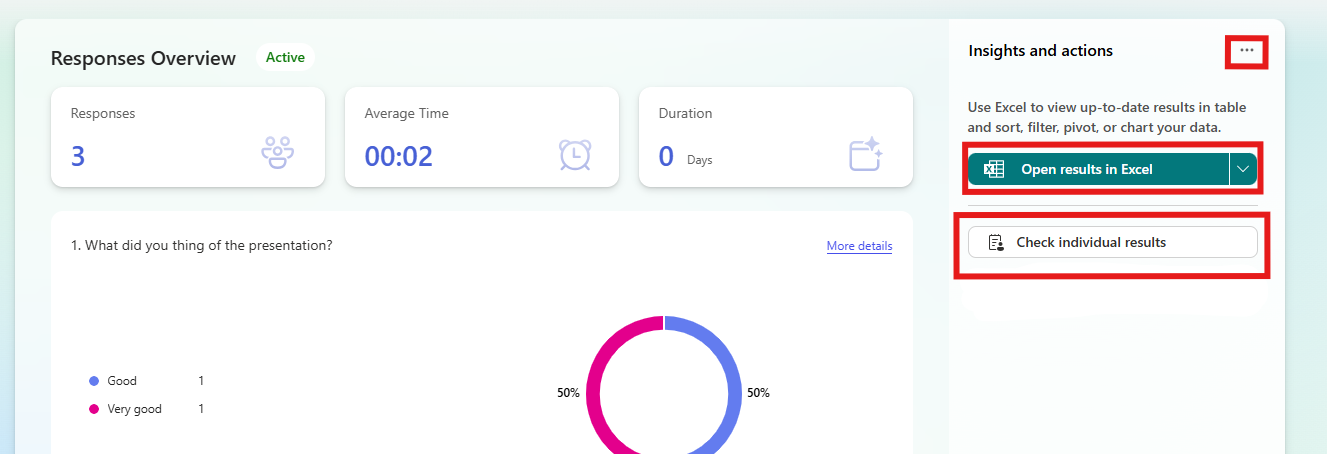
  3. Select the three dots to delete all responses, print a summary, or create a summary link.
  4. Select Open in Excel to see the results in Excel. The questions will become columns and the responses will become rows.
    • Note that if you change anything in Excel, it will not change in Forms.
  5. If you want to see every result individually, you click on Check individual result.

Responses in forms

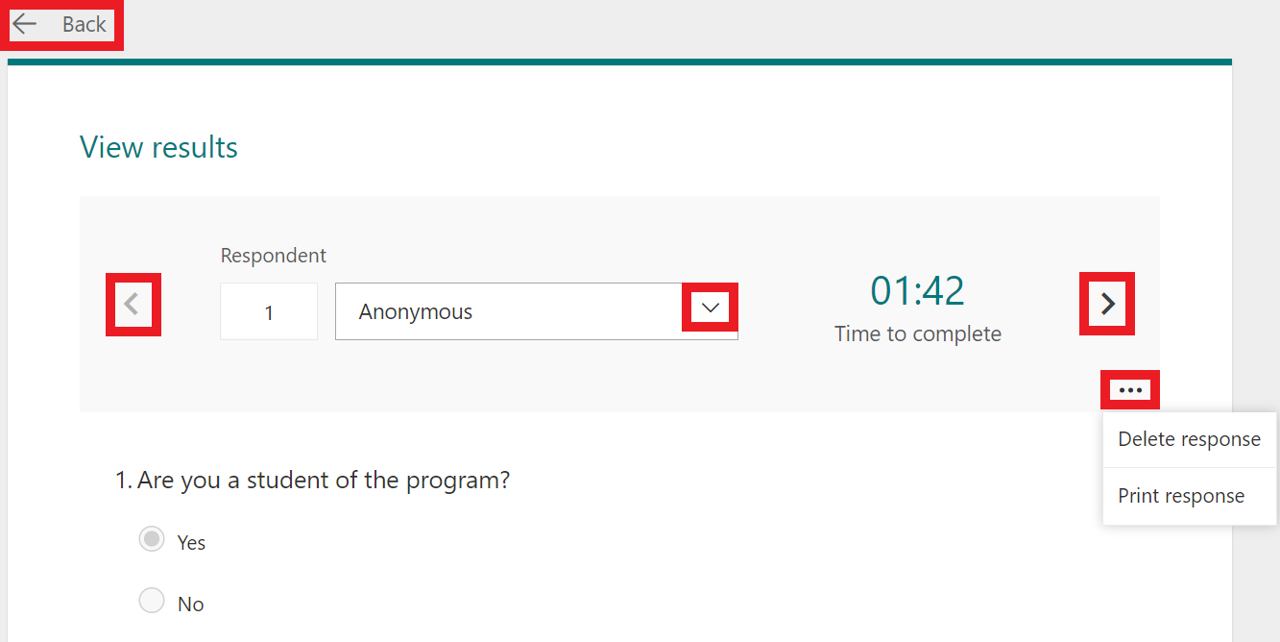
  1. Select the arrows to view another respondent’s answers.
  2. Select the three dots and then Delete response to delete the respondents answers or Print response to print them out.
  3. Select Back to return to the responses tab.
    reveiw results from a form - reveiw tab decription
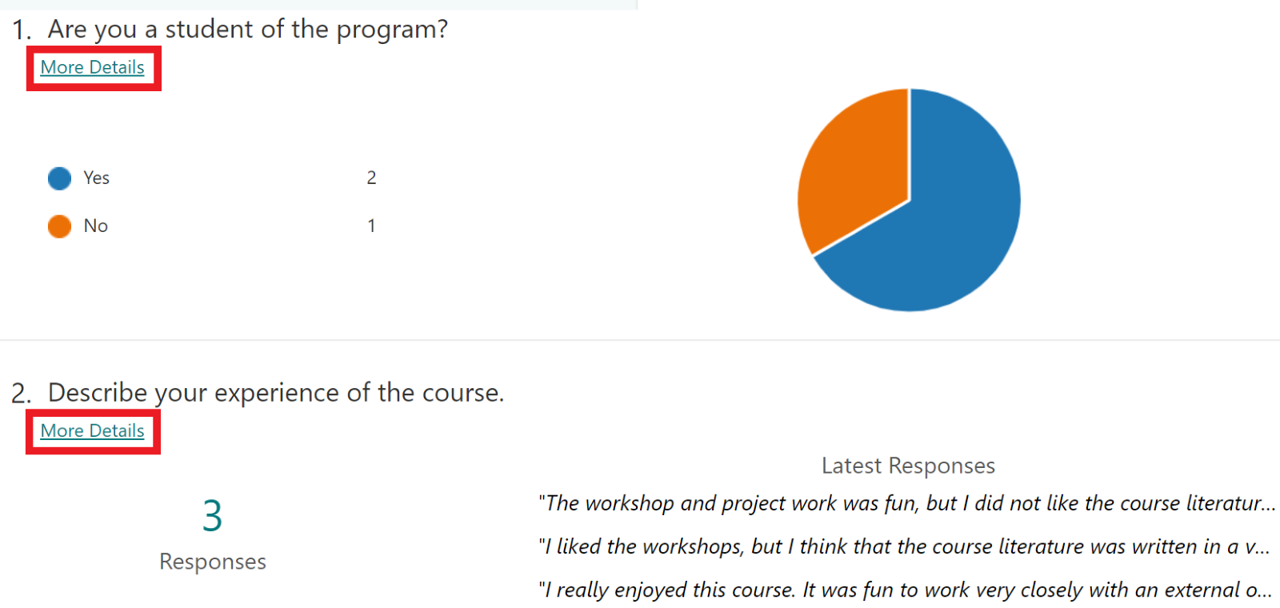
  1. There you can see all questions and a summary of the answers. Select More details below each question to see a list of all the answers to that specific question.
    review results from a form - more details

Review results from a qestionnaire (test, quiz)

Here we will show the differences between reviewing a questionnaire and a form (survey).

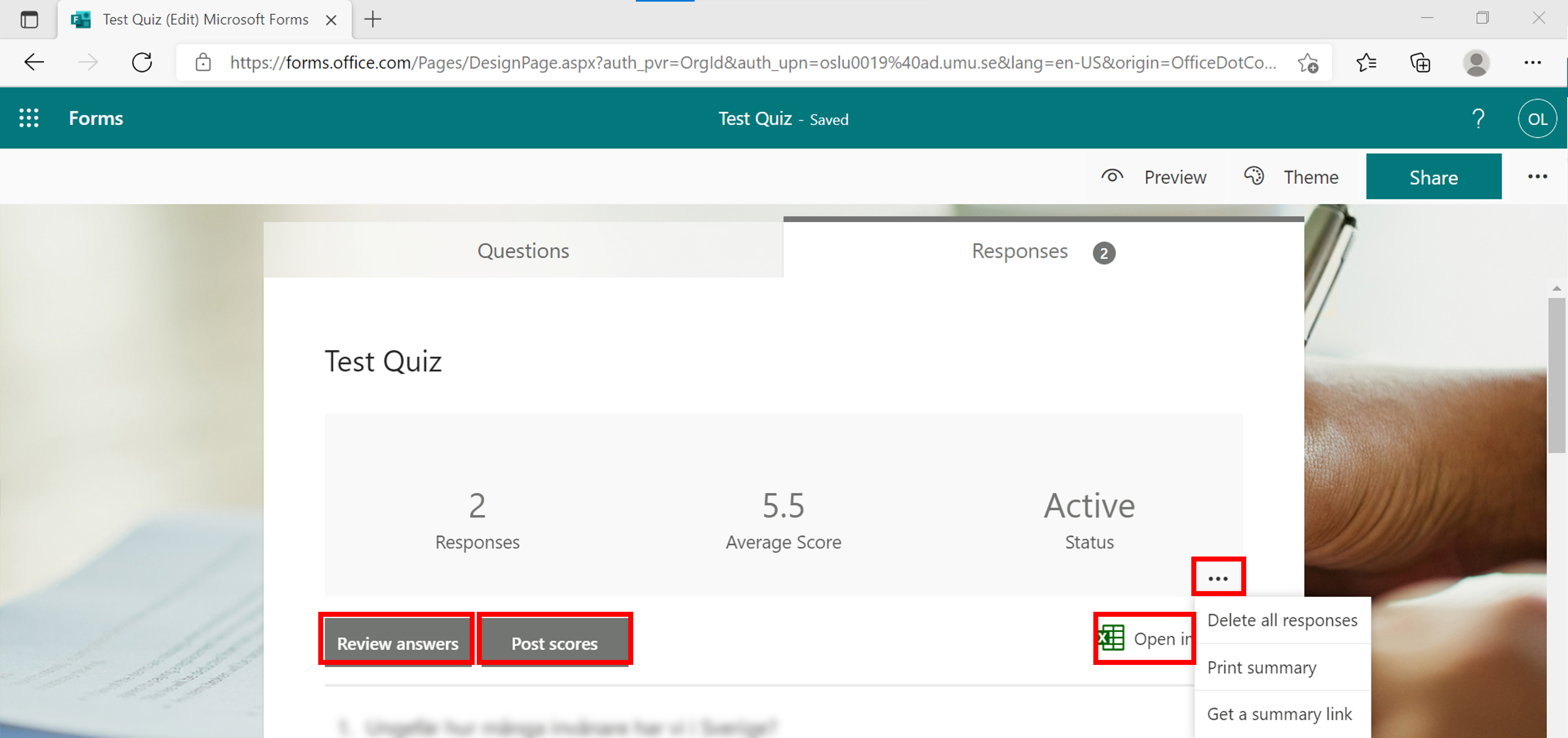
  1. Click three dots to delete all answers, print a summary or create a summary link.
  2. Click Excel Icon to open results in Excel
    • In Excel, each question will become a column and each answer will be a row.
    • The columns show start / end times, names, questions and answers.
    • NOTE! If you change something in Excel, it is not reflected in Forms.
  3. Click Review Answers to review each person’s answers individually. (go to heading review answers)
  4. Click Post scores to select which results you want to publish. (go to the heading post scores).
    review results from a questionnare (test, quiz)
  5. Scroll down in the answer file to see all the questions and answers, in a graphical layout.
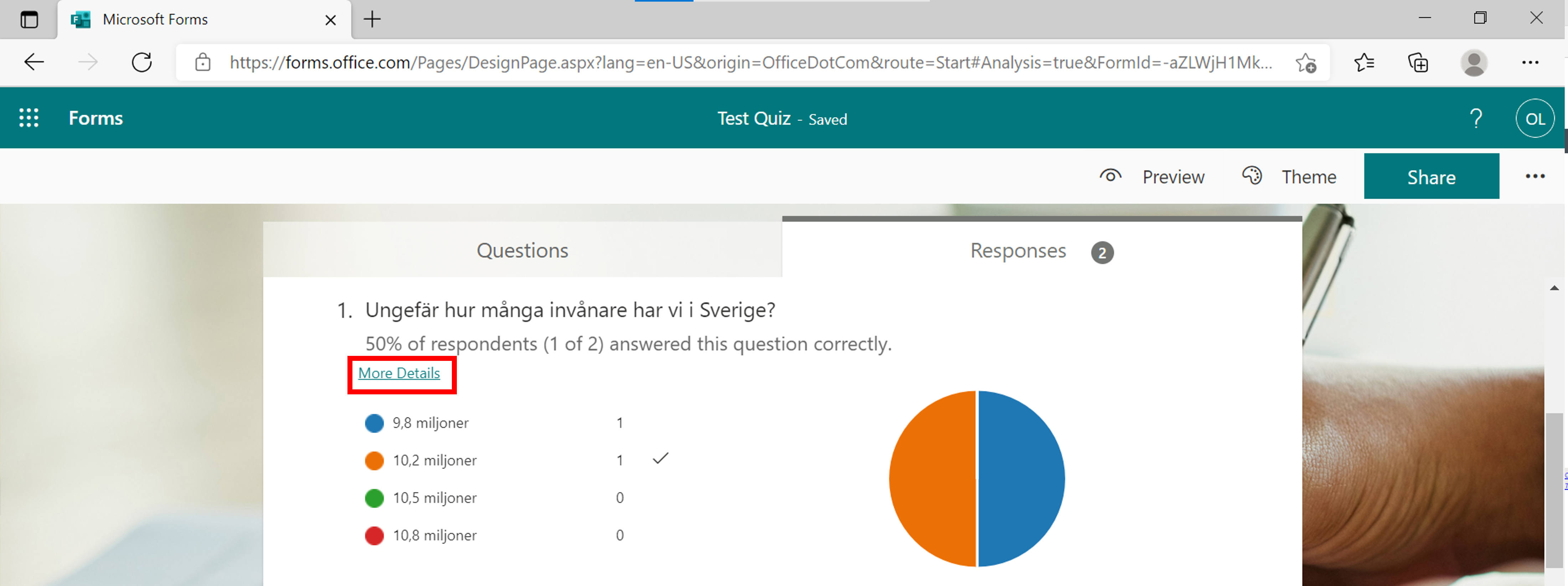
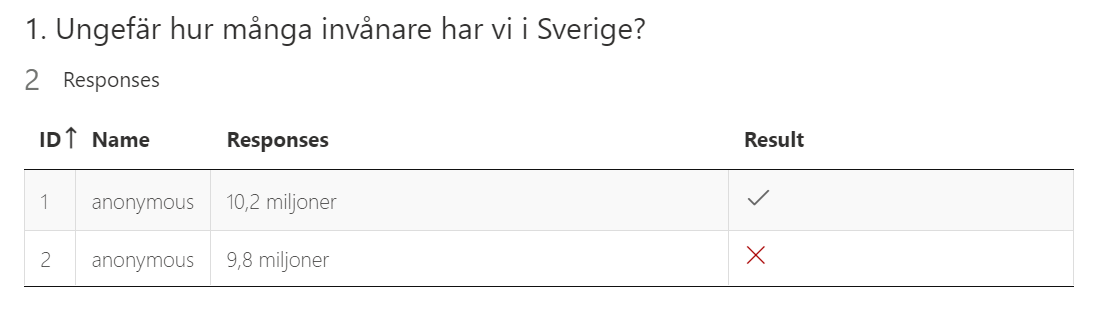
  6. Click on the link more details on each question, to see each person’s answers.
    review results in a questionnare - answer file
  7. A list of all participants’ answers to the selected question appears.
    review results from a questionnare - more details

Review results

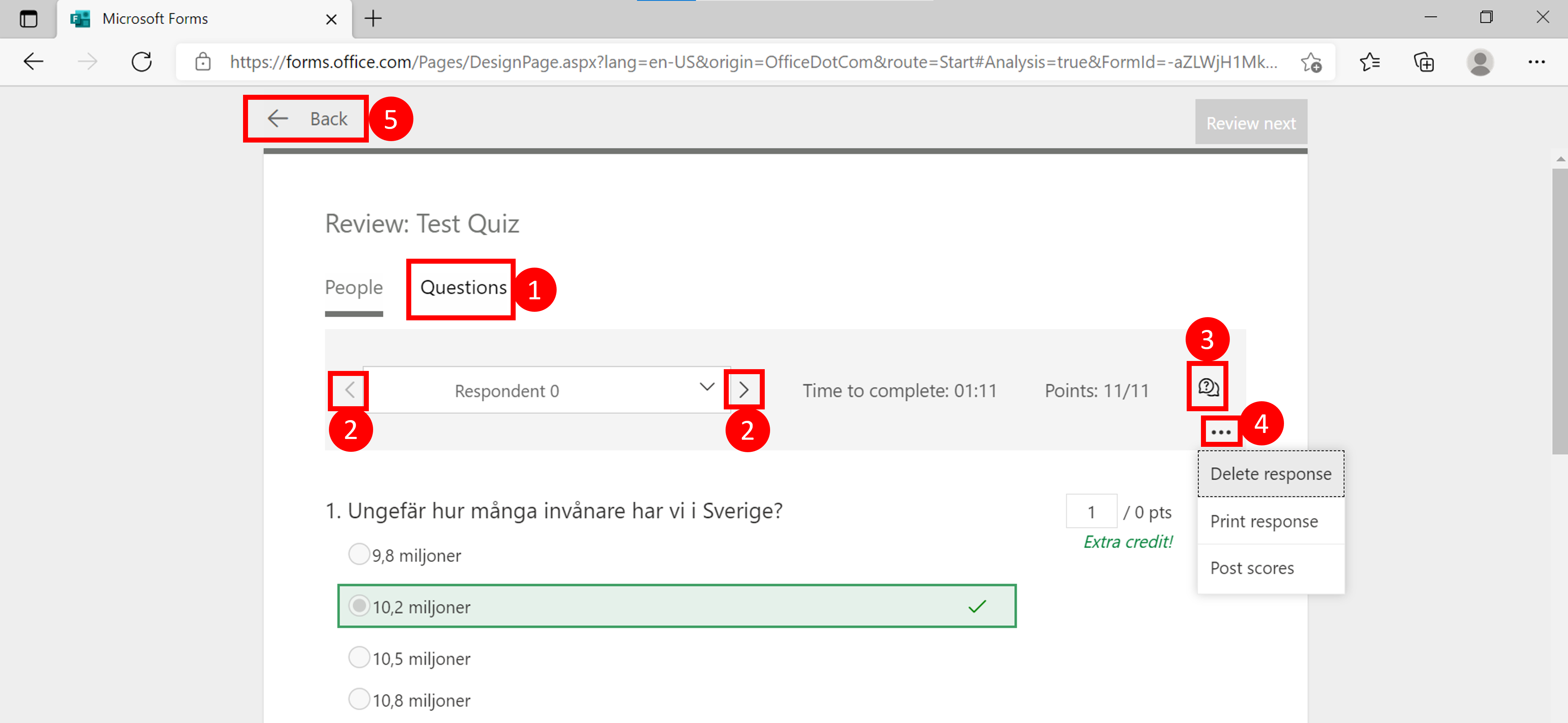
  1. Click on questions to change the review mode from questions instead of person.
  2. Click on the arrows to change the person/question you want to check results on.
  3. Click on the chat bubble with question marks to give feedback (maximum 1000 characters) on the selected person/question.
  4. Click on the three dots and delete or print answers or publish results on the selected person / question answer.
  5. Click Back to return to the answer file.
    review results in a questionnare - induividual review

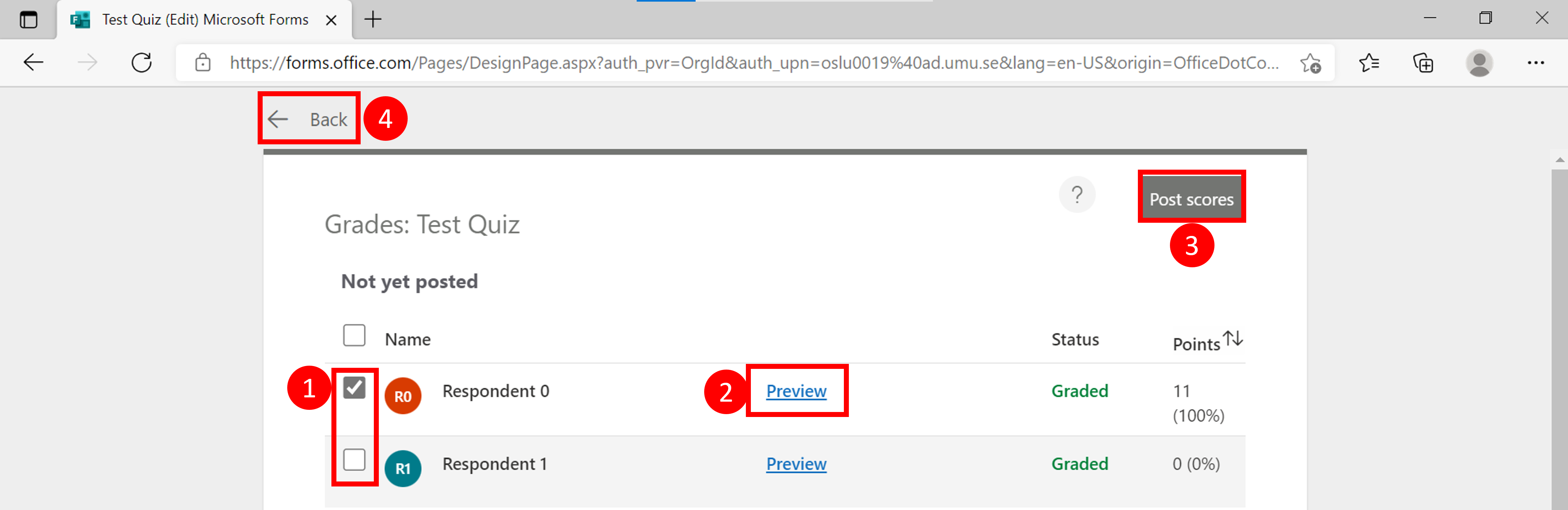
Post scores

You can only publish results if you have created a questionnaire (test, quiz).

  1. Select which person’s answer you want to publish by clicking in the checkbox.
  2. Click on preview to review the response you will send to that specific person.
  3. Click Publish scores to send the results to the person. Note: If you publish scores, respondents can view test feedback and results. The respondents can display the result with the same link that they use to start the test.
  4. Click Back to return to the answer file.
    Review results questionnare - grading
https://manual.umu.se/wp-content/uploads/2018/02/manual-loggo.png 0 0 Oscar Lundberg https://manual.umu.se/wp-content/uploads/2018/02/manual-loggo.png Oscar Lundberg2021-09-13 12:48:022026-04-09 10:10:40Review results in Forms
Create questions for a form in Forms
2021-09-10/in Employee, English, Forms, Microsoft 365, Student

In this manual we will show all types of questions that can be created in a form. Use a form to collect data, for example through a survey. If you want to create a quiz with right and wrong answers instead, se our manual for that. (link) 

Add a new question

  1. Open the form you want to add questions to.
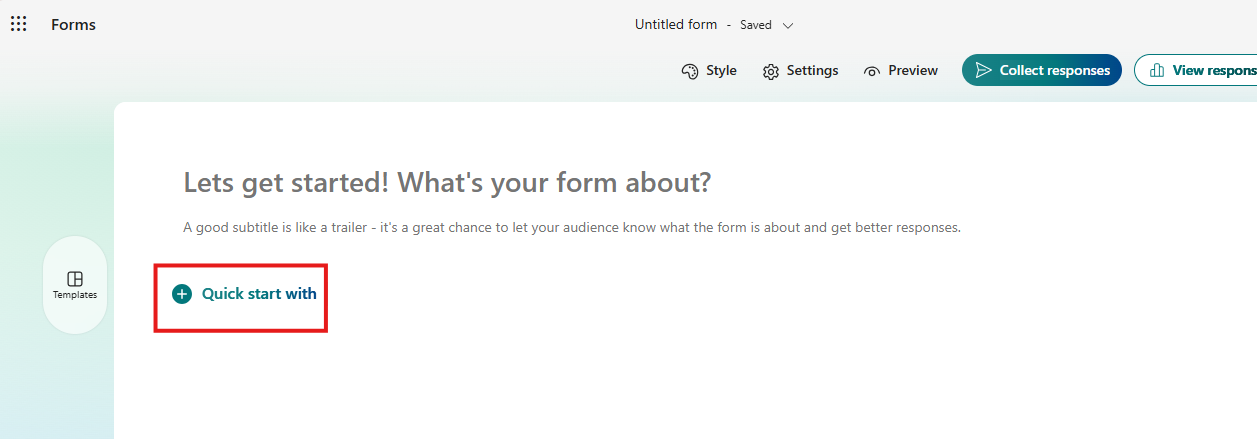
  2. Select Quick start with to add a new question.
    Image showing how to create a form
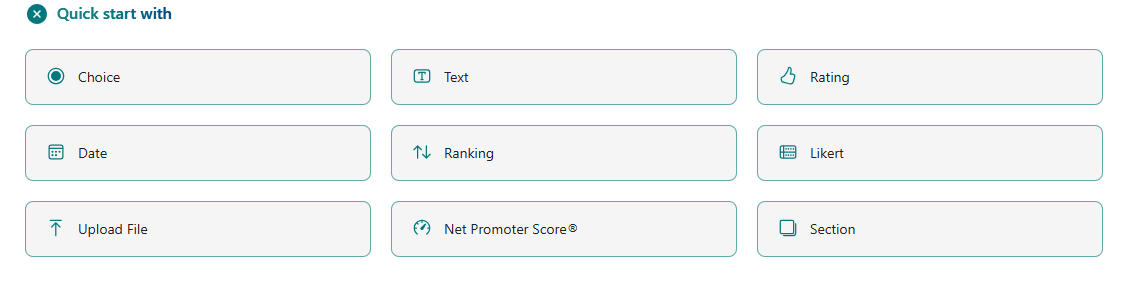
  3. You will see a panel with the options: Choice, Text, Rating, and Date etc.
    Image showing how to create a form
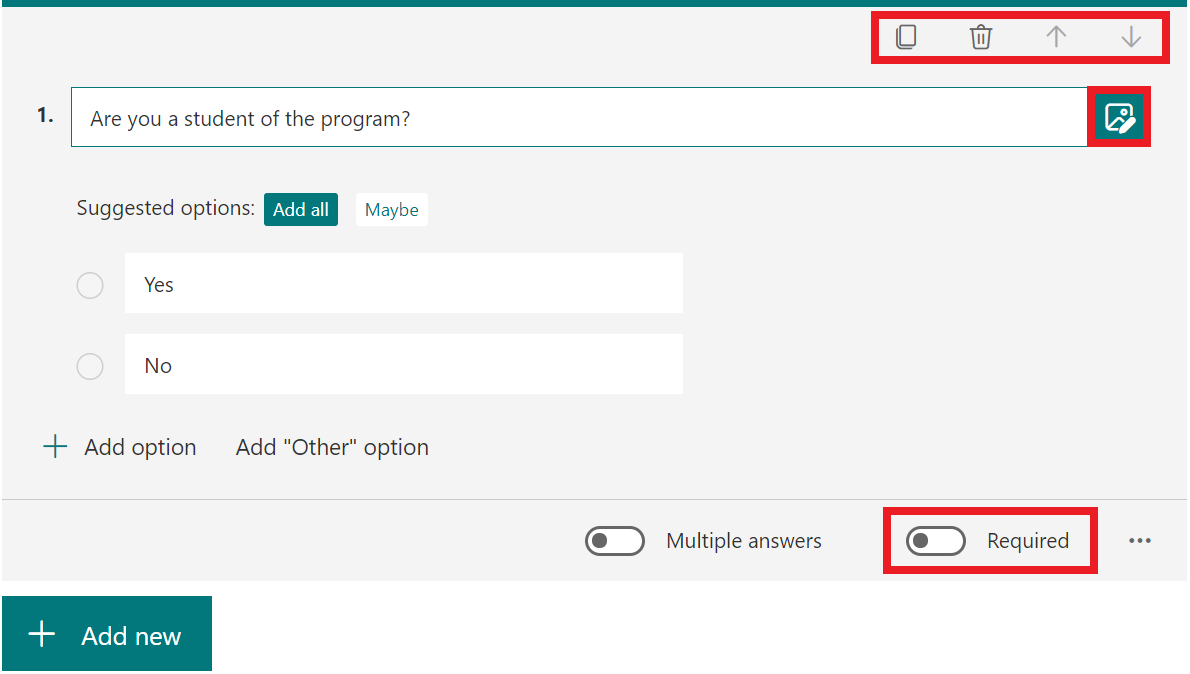
  4. These settings are available for all question types:
    1. Copy the question.
    2. Delete the question.
    3. Change the order of the question (move it up or down).
    4. Insert media, you can choose an image or a video.
    5. Decide if the question requires an answer.
      features in all questions


Question types

In this section we describe the different types of questions you can add to a form.

Choice question

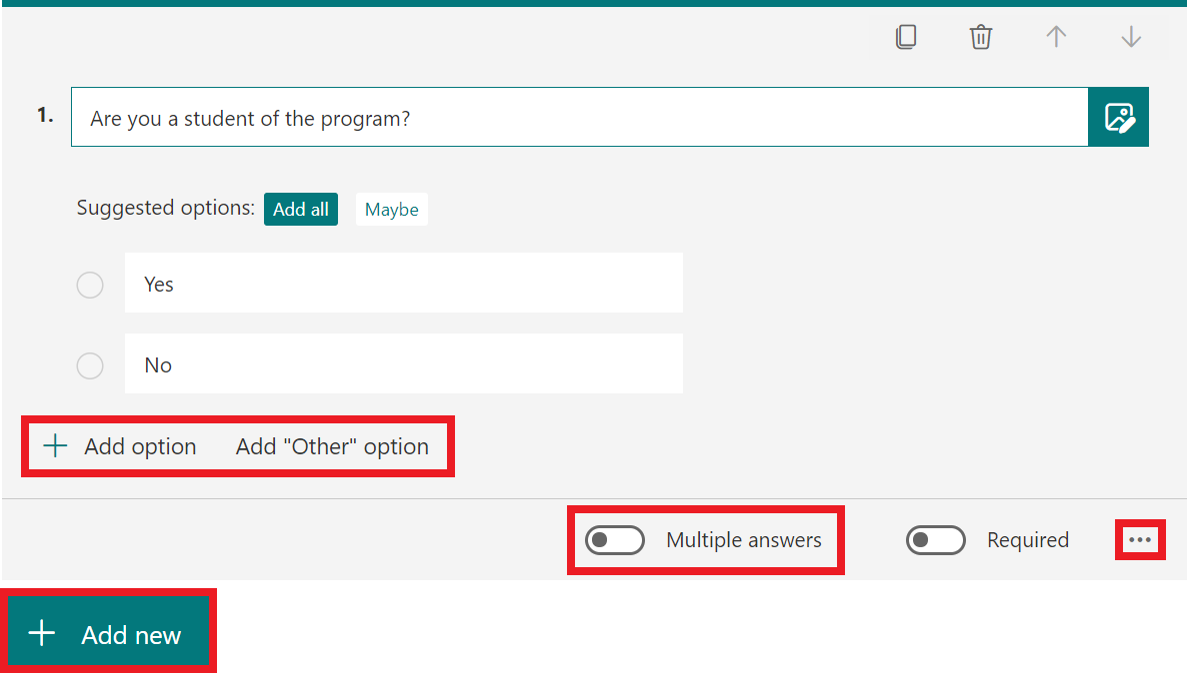
A choice question allows you to add answer options to a question. You can add more than 100 different options. Below we describe the different settings you can make when creating a question.

Image showing the questions type Choice

  1. Add your question.
  2. Add an option.
  3. Add the “Other” option.
  4. Decide if the respondents can choose multiple answers.
  5. Select the three dots to get more options: shuffle options, drop-down list, subtitle or add branching.
  6. Select Add new to save the question and add another one.
    choice question full decription


Text question

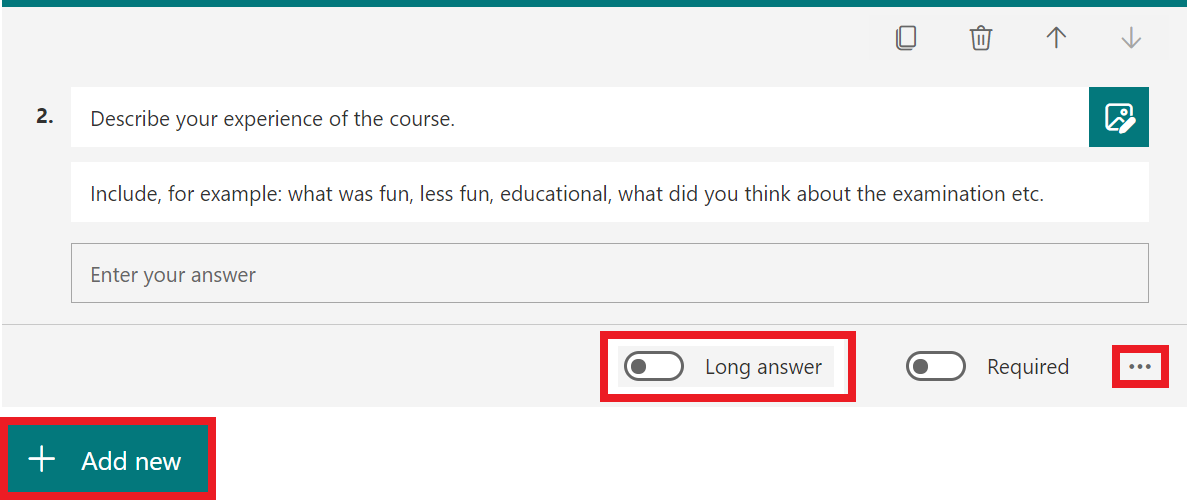
A text question allows the respondents to write a text to answer the question.

Image showing different question types

  1. Add your question, and possibly a description/clarification.
  2. Decide if the respondents will be able to write a long answer.
  3. Select the three dots to add a subtitle, restrictions or add branching.
  4. Select Add new to save the question and add another one.
    text question full decription

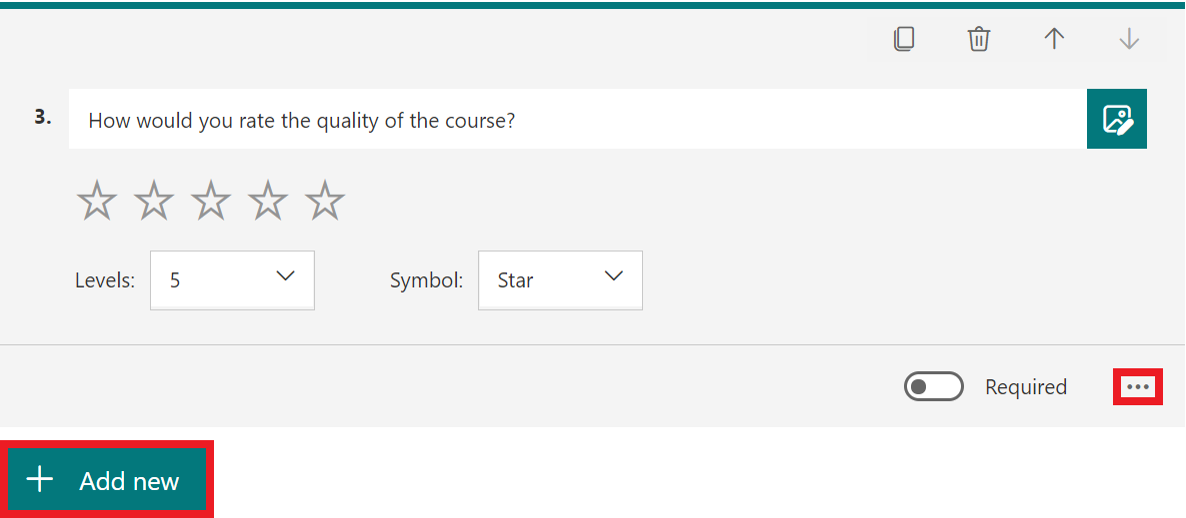
Rating question

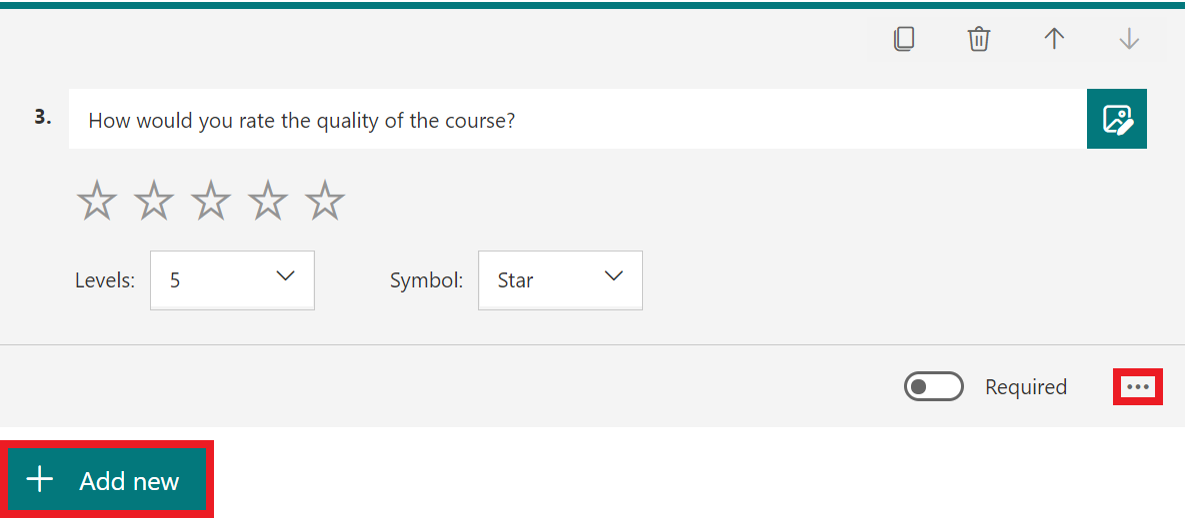
A rating question allows the respondents to rate a statement from 1 to 10.

  1. Add your question.
  2. Choose the levels, the maximum level is 10.
  3. Choose the symbol, you can choose either stars or numbers.
  4. Select the three dots to add a subtitle, label or branching.
  5. Select Add new to save the question and add another one.
    rating question full decription


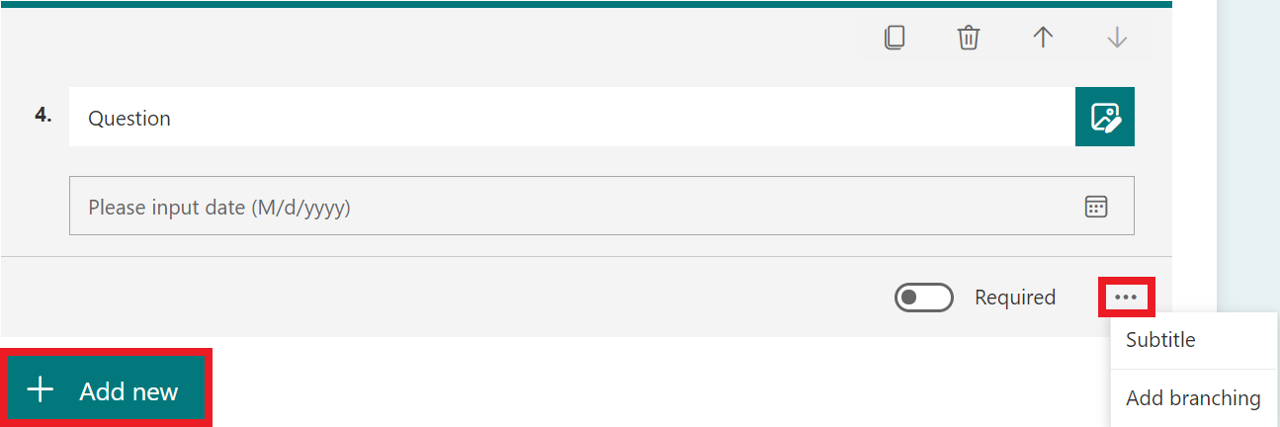
Date question

A date question lets the respondents choose a date to answer the question.

  1. Add your question.
  2. The respondent can add their answer by typing the date or choosing it from the calendar.
  3. Select the three dots to add a subtitle or branching.
  4. Select Add new to save the question and add another one.
    date question full decription

Ranking question

A ranking question allows the respondents to grade the options by dragging and dropping them.

  1. Add your question.
  2. Select Add option to add more answer options. The maximum is 10.
  3. Select the three dots to add a subtitle or branching.
  4. Select Add new to save the question and add another one.
    rating question full decription


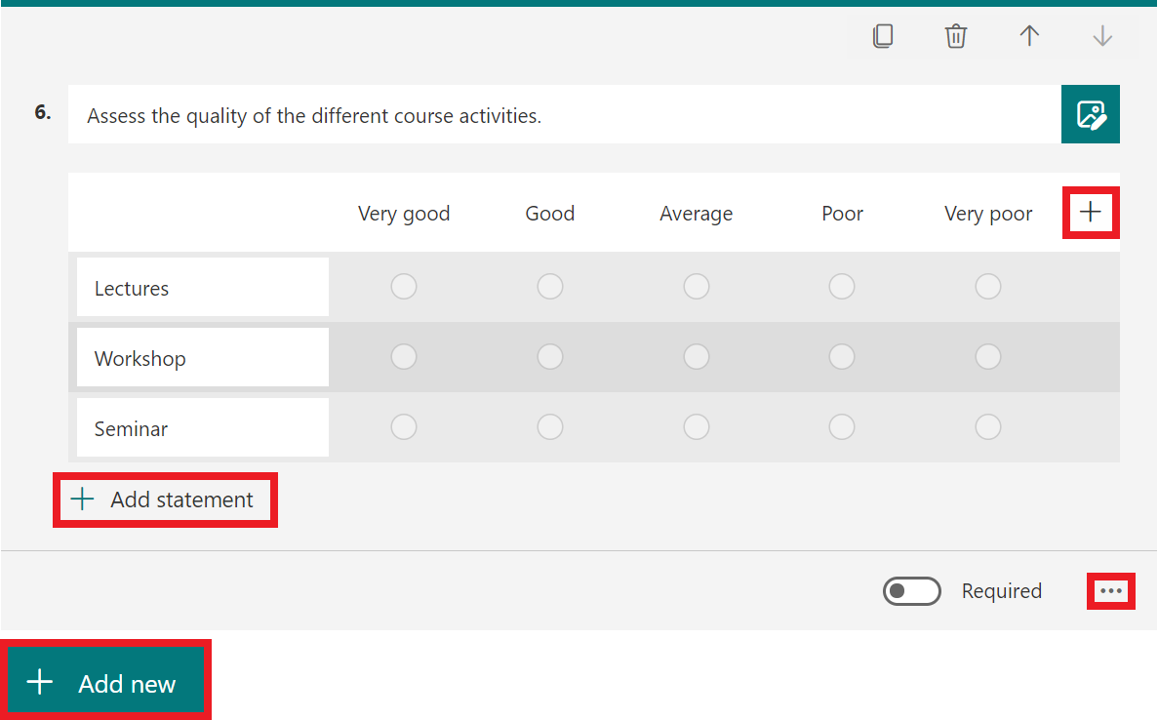
Likert question

A Likert question allows the respondents to grade their perception of something.

  1. Add your question.
  2. Select the plus sign to the right to add more answer options. You can add a maximum of 7. Click on an option to edit or delete it.
  3. Select Add statement to add more statements (rows). You can add a maximum of 20. Click on a statement to edit or delete it.
  4. Select the three dots to add a subtitle or branching.
  5. Select Add new to save the question and add another one.
    likert question full decription


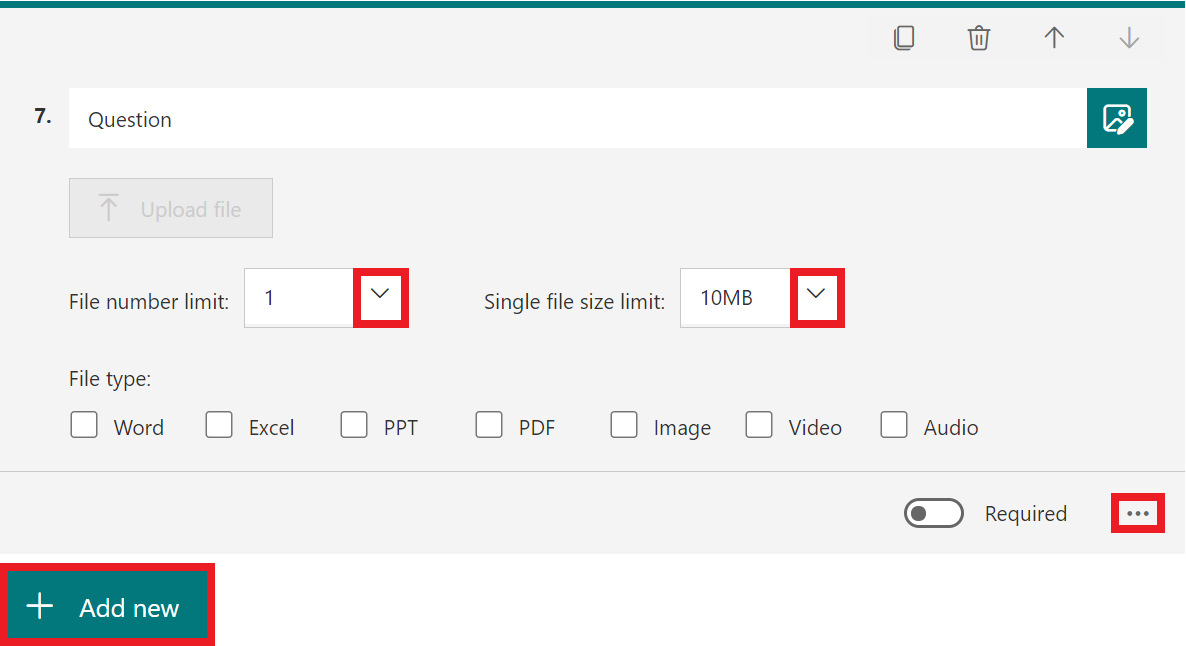
File upload question

A file upload allows the respondents to upload a file as an answer to the question.

  1. Add your question.
  2. Select the arrow next to File number limit to decide how many files the respondent can upload. The maximum is 10 files.
  3. Select the arrow next to Single file size limit to decide the size limit (10MB, 100MD or 1GB).
  4. Select the tree dots to add a subtitle or branching. You can also choose the allowed file types (see picture).
  5. Select Add new to save the question and add another one.
    file upload qustion full decription


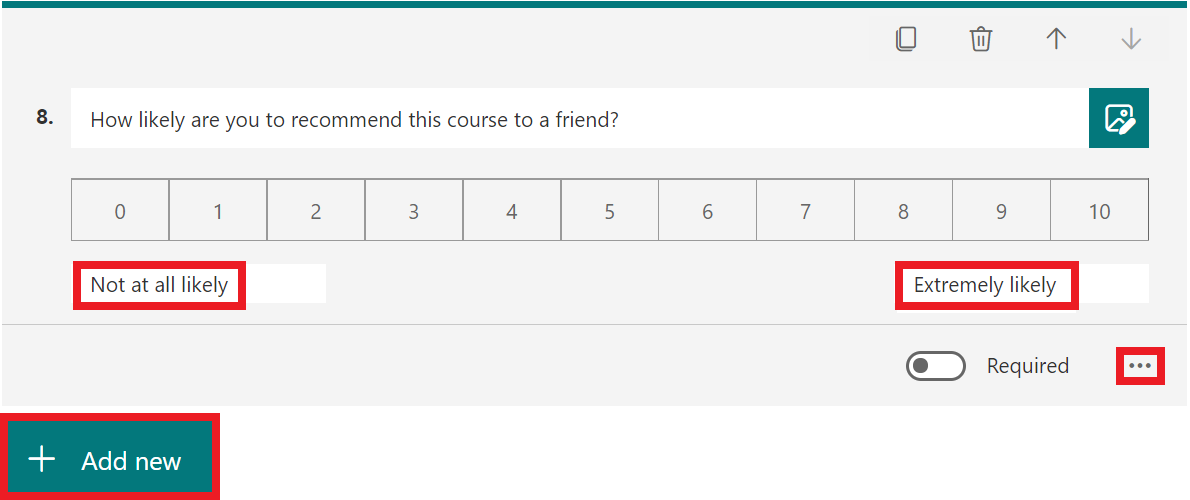
Net Promoter Score question

A Net Promoter Score question allows the respondents to grade a statement from 1 to 10.

  1. Add your question.
  2. Select Not at all likely and Extremely likely to change the text.
  3. Select the three dots to add a subtitle or branching.
  4. Select Add new to save the question and add another one.
    net promoter score question full decription
https://manual.umu.se/wp-content/uploads/2018/02/manual-loggo.png 0 0 Oscar Lundberg https://manual.umu.se/wp-content/uploads/2018/02/manual-loggo.png Oscar Lundberg2021-09-10 12:17:522025-11-21 13:54:14Create questions for a form in Forms
Page 4 of 7«‹23456›»

Contact ITS Service Desk

Create a support ticket at www.umu.se/servicedesk, call 090-786 63 00 or visit us next to Infocenter.

Kategorier

Related links

  • Create a form or quiz in Forms
Scroll to top Scroll to top Scroll to top