Account for an external person

Creating an account for an external person means that the person will receive a UMU ID and thereby gain access to the university’s systems for a limited time. The head of the department or unit needs to approve the account, ensuring that the assignment and management of permissions are handled correctly. 

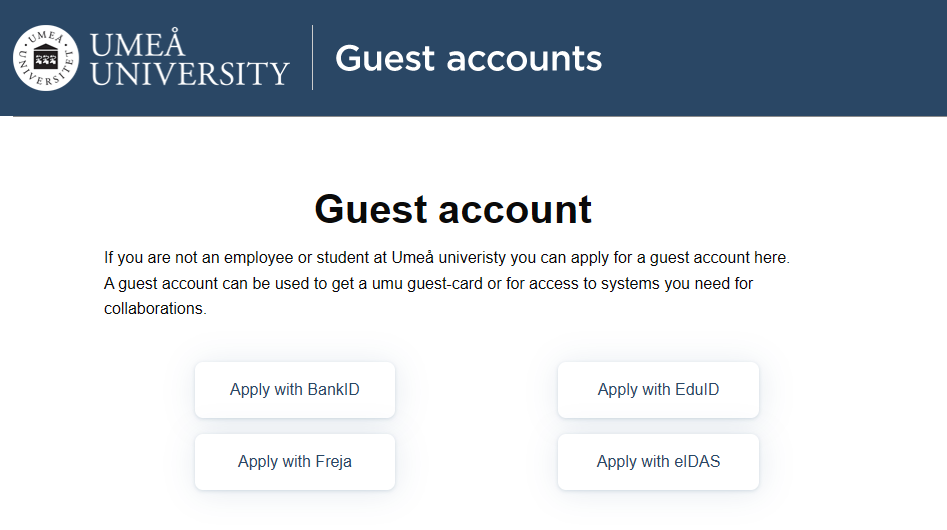
The process can also be initiated by the person themselves using BankID, Freja,  eIDAS or EduID,  see the link to the instructions at the bottom of this page.

Create the Account 

Note: This functionality has been discontinued. Only Directory Coordinators at each unit or department can add external guests. However, guests can still apply for an account themselves, just as before.

Activation Details

When the head of the relevant department or unit has approved the account creation, the person in question needs to activate their account after verifying their identity. Depending on where the person is, this can be done in different ways.

Option 1: Using Freja, eIDAS, eduID or BankID

The easiest way to activate your account is by using e-identification. UMU supports BankID, Freja, eIDAS, and eduID, where Freja, eIDAS, and eduID also work for individuals without a Swedish personal identity number.

For Freja and eduID, the accounts need to be verified, which can easily be done if the person has a biometric passport.

Read more about Freja and eduID here: Manual for activating UMU ID using Freja and eduID webpage.

The person is then directed to https://administrationsverktyg.umu.se/KontoAktivering to activate their UMU ID using their preferred method.

Option 2: Visit Servicedesk

People who are in Umeå can visit Servicedesk and show valid identification to receive an activation code. The person is then directed to activate their account using the activation code in the activation guide, https://administrationsverktyg.umu.se/KontoAktivering. Servicedesk is located in the Universum building next to Infocenter.

Option 3: Via a Three-Party Video Call

Employees and external guests who are not in Umeå can receive an activation code during a three-party video call held with a person from the department/unit (a trusted party) and a Servicedesk employee. Before the meeting, the person needs to send a copy of approved identification documents to Servicedesk (https://www.umu.se/en/servicedesk/contact-us/) which they will also show during the meeting.

During the meeting, the external person will receive an activation code and can proceed to activate the account using the code in the activation guide, https://administrationsverktyg.umu.se/KontoAktivering.

If such a call needs to be booked, contact the Servicedesk, https://www.umu.se/en/servicedesk/contact-us.


If you are looking for instructions on how individuals can initiate the application themselves using e-identification (BankID, Freja, eIDAS, and EduID), the link is here: https://manual.umu.se/en/apply-for-guest-account/.

Accept apply for guest account

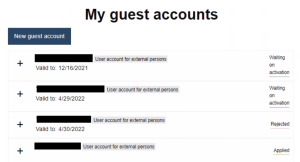
When an external person applies for a guest account, they must name a host. The host needs to confirm the apply, and then send it to the head of department so they can accept or deny. This manual shows how the host do to confirm the apply, and also how the head of department accept or denies the applies. At the end of the manual, we also show you how to extend the guest accounts access.

The host – confirm the apply

When someone has applies for a guest account and makes you the host, you will receive an e-mail.

  1. Go to your mail inbox and look for an e-mail that says Apply for guest account.
  2. Click on the link in the e-mail and login with your Umu-id.
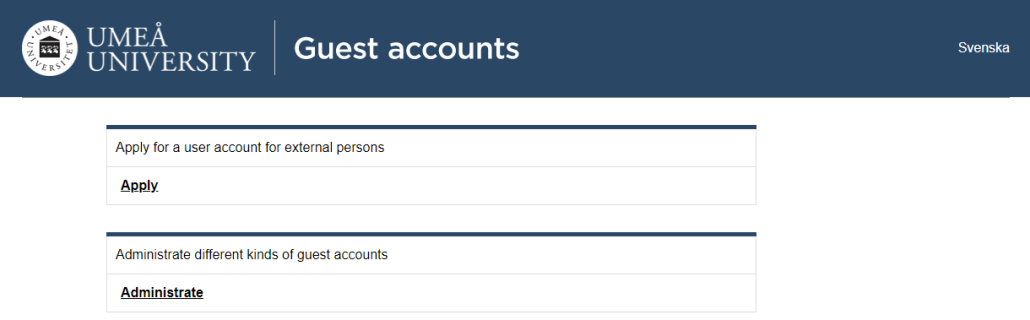
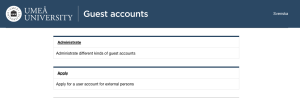
  3. Click on Administrate.
  4. You will now see a list of all the names that applied for a guest account and named you as their host. Click on the name of the one who has applied.
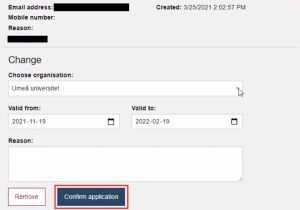
  5. Write Organization, for how long time the guest should have a guest account, and the Reason why they need an account.
  6. Then click Confirm apply.

You can also do the apply for the external person

  1. Go to https://administrationsverktyg.umu.se/Gastkonton/
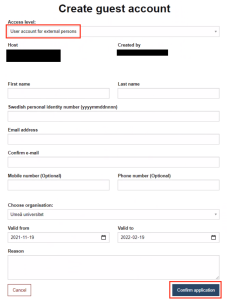
  2. Click on Administrate and log in with your Umu-id. Click on Create a guest account. If you’re already logged in, you can click on Create a guest account directly.
  3. Fill in User account for external persons and write the external persons information. When you’re done, click Add.

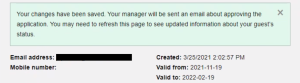
The head of department will receive an e-mail that an apply has been sent. Once the head of department has accepted the apply, the external person must activate the account themselves.

The head of departments approval

  1. Go to your e-mail inbox and click on the mail that says Manage new apply.
  2. Click on the link in the email and log in with you Umu-id.
  3. You’ll now see a list of everyone that waits for an approval.
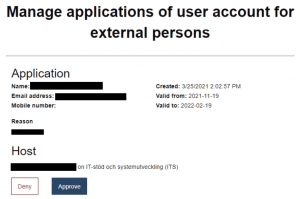
  4. You can choose to either Accept or Deny.
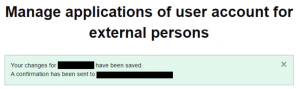
    If you choose to accept, both the external person and the host will receive an e-mail that says the apply is accepted. If you choose to deny, you must write a reason for why you choose to deny and only the host will receive the information.
  5. Click on Accept to accept the apply for a guest account, and Deny if you don’t want the guest account to be created.

Extend the guests access

Previously, as a host, you could extend the validity period of a guest account. Now, this is managed by the Directory Co-ordinator at your institution or unit.

Apply for guest account

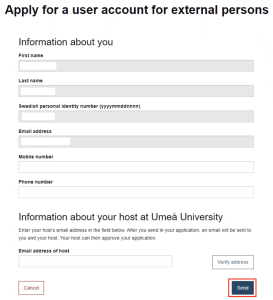
You can apply for a guest account at Umeå University and be assigned a UMU ID using e-identification.

  1. Go to administrationsverktyg.umu.se/gastkonton/home
  2. Click on Apply
  3. Choose if you want to apply using BankID or Freja eID+
  4. When you’re logged in you’ll see your personal information about yourself and can complete the details. Your phone number is not mandatory information.
  5. At the bottom, enter the name of your contact person at Umeå University. (Note that it is important that you have informed your contact person at Umeå University that you have listed them as your host and that you will be applying for a guest account).
  6. Then click Send.
  7. Your application is now being processed by the contact person/host you specified. The host will complete the application, which will then be forwarded to the head of department. Once your application has been approved, you will receive an email with instructions on how to activate your account.

Change or reset Password on Umu-id

Manual to help you reset your password.