Size of email attachments
Information on how big files you can send via email.

Information on how big files you can send via email.
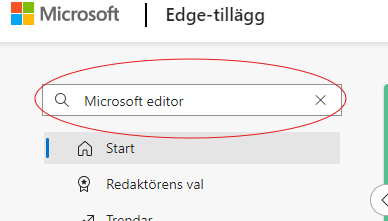
This instruction shows how to turn on the Microsoft editor in the Edge browser. To access the add-on, you must have an A5 license in Microsoft 365, all employees and students and affiliates who have purchased it have it.



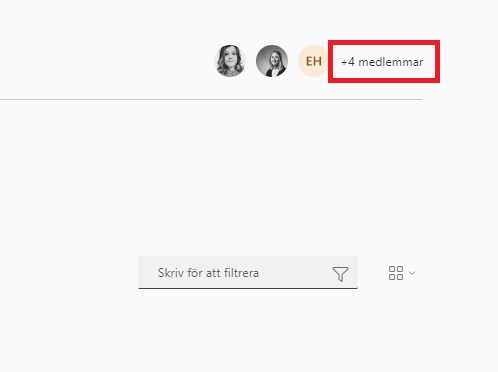
When you add a member to a group in Microsoft 365, they get the correct permissions to everything that the group includes using the Microsoft 365 Groups service. Groups should preferably have two owners and it is important to delete groups that are no longer in use.
You can gather people you want to collaborate with in a Microsoft 365 group. Within the group you can share different resources.
A Microsoft 365 group is always created “in the background” when you create any of these in Microsoft 365:
The people who have access to e.g. the planner also have access to the M365 group.
Groups you are a part of are visible in the menu on the left in Outlook, under “Groups”, with the exception of your Teams, which are hidden in Outlook.
The members of the group can share different resources, for example a shared mailbox and a shared calendar.
The group can use the shared mailbox to send emails within the group.
The email address will be groupname@o365.umu.se. Therefore, the group’s shared e-mail box should not be used to send external e-mails.
You can find the settings for the group’s mailbox in Outlook. Find and click the group under “Groups”, then click the “Group Settings” gear.
The shared calendar can be used for joint planning within groups, as a digital notice board, joint meetings and more. Only the members of the group have access to it.
There are three different roles: owner, member and guest.
The owner administers who will be members, therefore it is good if there are at least two who are owners of a group.
Members and guests have largely the same permissions, which are to create, read and edit content.
If you are a member of or own many groups, you may find it difficult to navigate among groups that are no longer in use. Groups can be hidden, which makes navigation easier, but these groups can also pose a threat to information security, especially if there is information that no one owns and takes responsibility for. If you have also invited external guests with accounts that UmU does not manage, these accounts may end up in the hands of people who are not intended to have access to the information.
Therefore, we recommend that you delete groups that are no longer in use. Keep in mind that if you delete a group, all content associated with the group will disappear.
When you create group forms in Forms, and want to receive email notifications when a response is submitted in the form, you need to make additional settings than just in the form. In this manual, we describe how you can receive notifications to a group email, when you create group forms in Forms.
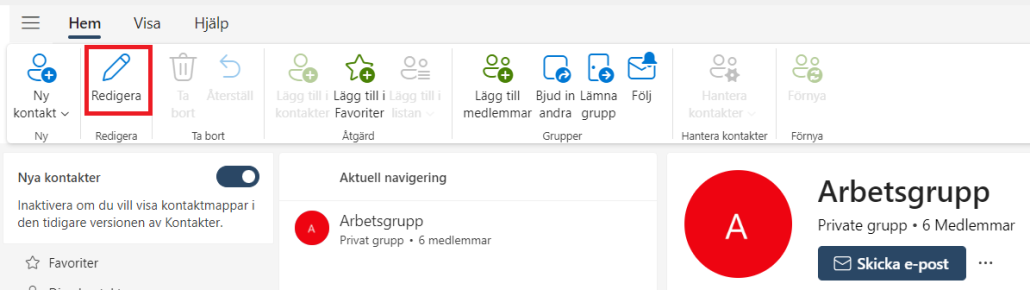
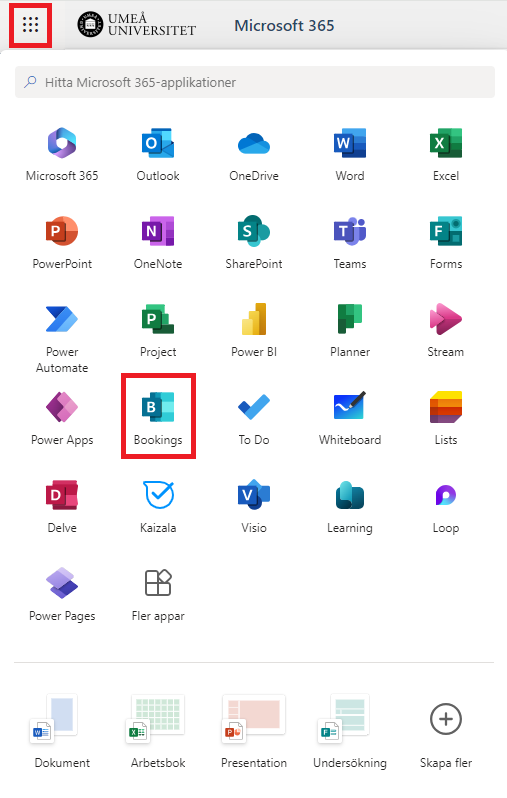
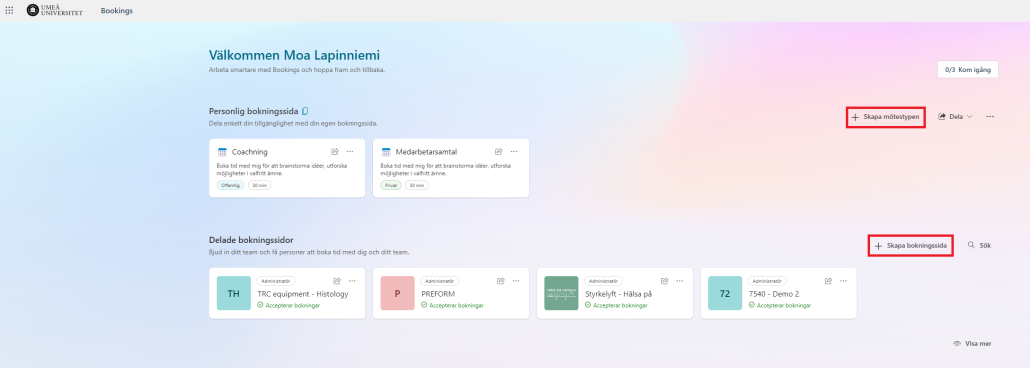
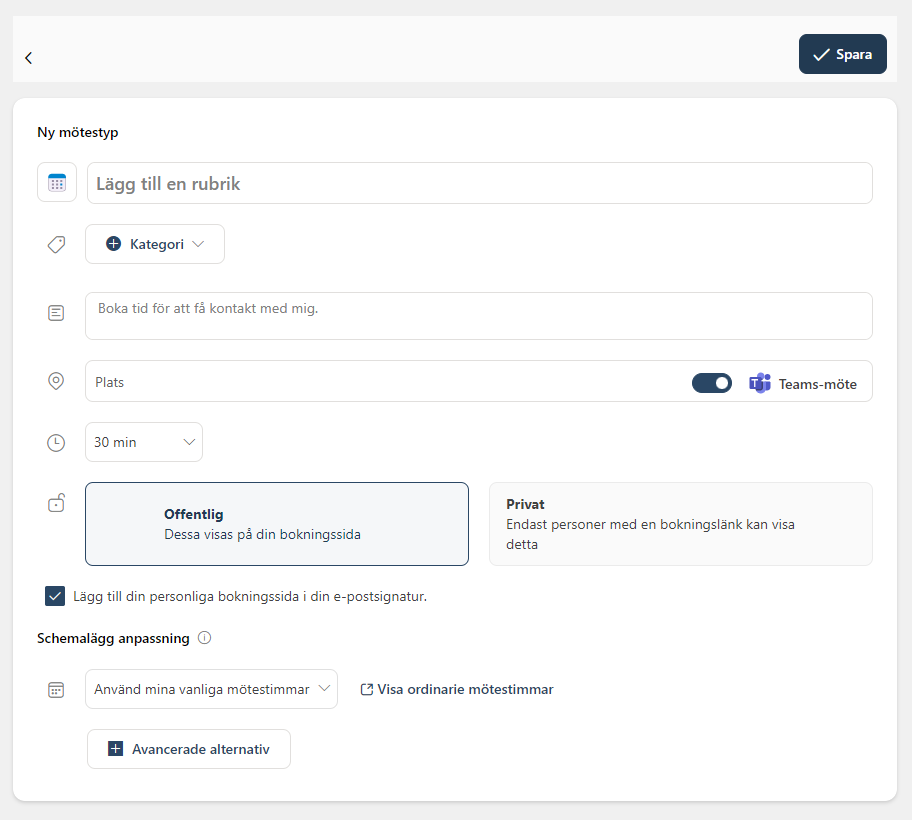
Bookings with me is a digital personal booking tool that integrates with your free/busy time in your Outlook calendar. The service can be used, for example, when you need to schedule employee meetings or want to offer tutoring sessions or coaching to students and colleagues. This manual guides you on how to get started with your personal booking page. If you want to know how to create and get started with a shared booking page, I recommend you to look at this page: Create a booking site in Bookings

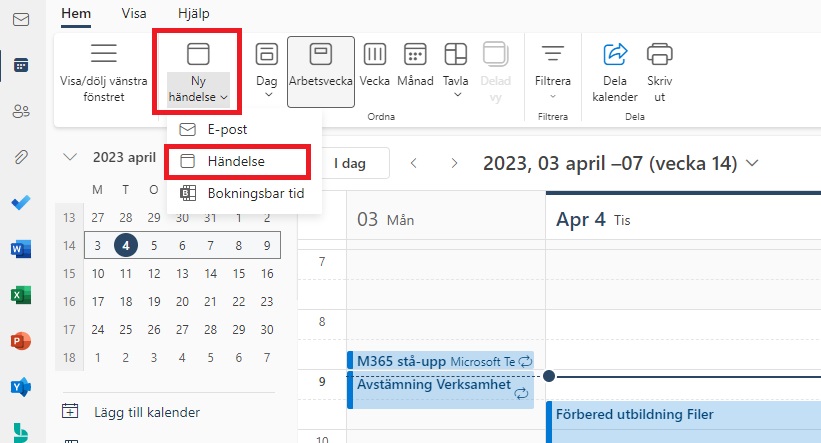
In this manual, we describe how to do a scheduling poll in Outlook. You can use scheduling poll to agree on a meeting time, where the meeting participants can vote on a time that suits them. This feature is available for Windows and on the web. The manual will be based on the web to also suit those who use, for example, Mac.
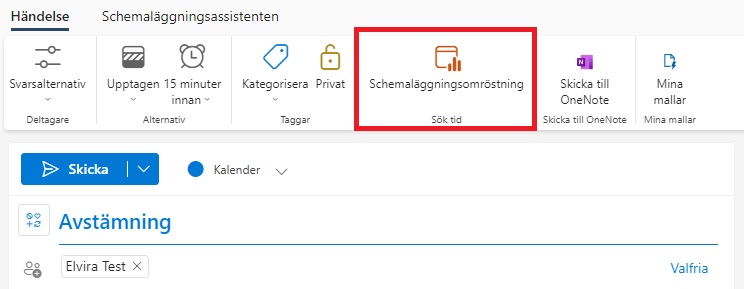 Now you get a box on the right. Here you can choose how long the meeting should be, and what date it is. Below you can see suggestions for times when it would suit all meeting participants, or one of the meeting participants. Once you have selected which proposals you want to send out, click Next.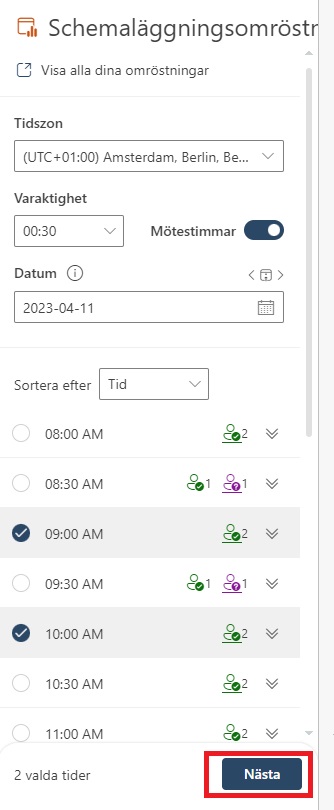
– Schedule when the participants reach consensus: Tick this if you want the meeting to be booked automatically in the Outlook calendar when you have agreed on a time.
– Block selected times in my calendar: Add placeholders to your calendar for all of the selected times.
– Notify me of poll updates: Receive an email when a meeting attendee casts a vote.
– Require participants to verify their identity: Participants who vote must be logged in, so it is possible to identify who voted.
– Lock poll for participants: Participants cannot propose new times. When you feel ready, click Create Poll.
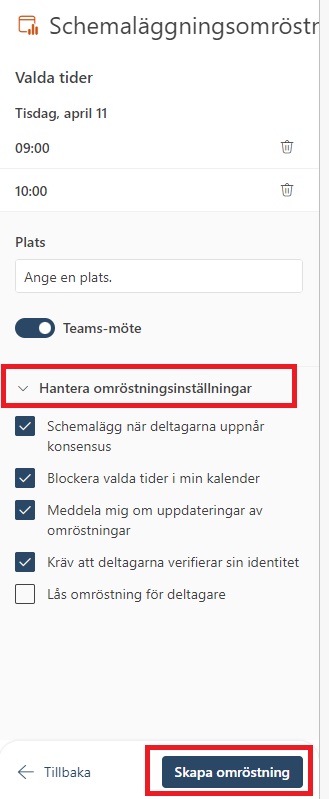
7. Now you see an overview of what you send in your poll, and can write a message in the email. When you’re ready, click Submit.
8. When you send the scheduling poll, placeholders will be created in your and the recipients’ calendars, for the selected times.
9. Done! When they vote, you get an email, and if everyone agrees on the same time, a booking is added to the calendar for that time, and the placeholders disappear.

3. In this view, click on the gear in the upper right corner and then “Disable”.
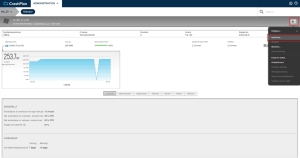
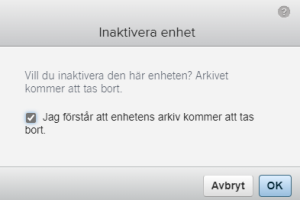
4. A box will appear asking if you want to disable the device. Check the box “I understand that the device archive will be deleted.” and then click OK and you are done!
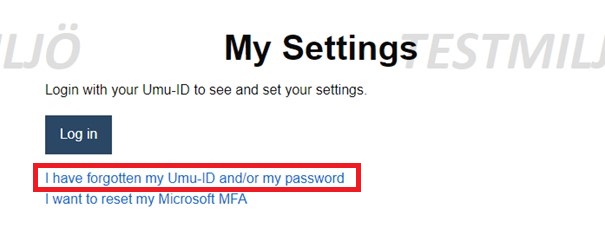
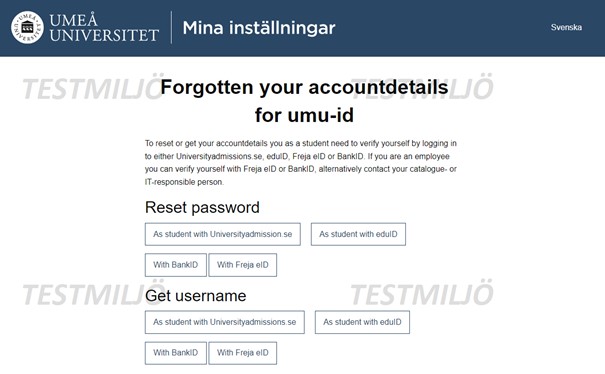
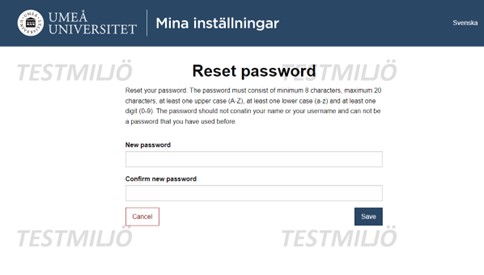
This manual describes how to handle if your account has been banned due to suspicious activity that indicates a high risk to your account, and you are considered a risky user. To restore your account, you’ll need to reset your password.
If your account is blocked due to risky usage, you will receive a block and will not be able to use Microsoft 365 with your UMU account. Then you’ll see this window below:
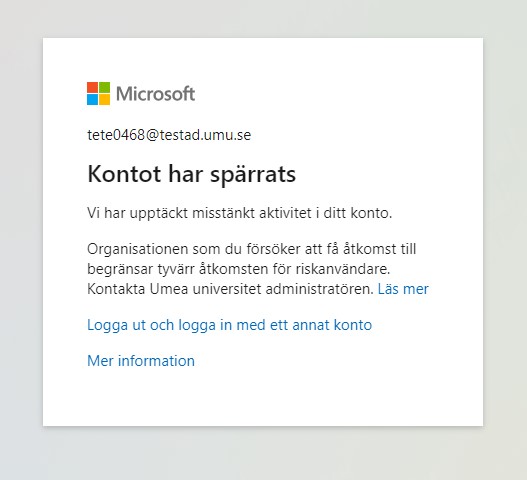
To restore your account and recieve access to it you need to reset your password: